Before you begin
- Labs create a Google Cloud project and resources for a fixed time
- Labs have a time limit and no pause feature. If you end the lab, you'll have to restart from the beginning.
- On the top left of your screen, click Start lab to begin

Create a Compute Engine Virtual Machine Instance
/ 30
Install software and configure the VM instance
/ 30
Run application software to get success response
/ 40
Create a Compute Engine Virtual Machine Instance
/ 30
Install software and configure the VM instance
/ 30
Run application software to get success response
/ 40


In this lab, you set up a Python development environment on Google Cloud using Compute Engine to create a virtual machine (VM) instance and install software libraries for software development.
In this lab, you learn how to:
Google Cloud consists of a set of physical assets, such as computers and hard disk drives, and virtual resources, such as virtual machines (VMs), that are contained in Google's data centers around the globe. Each data center location is in a global region. Regions include Central US, Western Europe, and East Asia. Each region is a collection of zones, which are isolated from each other within the region. Each zone is identified by a name that combines a letter identifier with the name of the region. For example, zone a in the East Asia region is named asia-east1-a.
This distribution of resources provides several benefits, including redundancy in case of failure and reduced latency by locating resources closer to clients. This distribution also introduces some rules about how resources can be used together.
Any Google Cloud resources that you allocate and use must belong to a project. You can think of a project as the organizing entity for what you're building.
A project is made up of the settings, permissions, and other metadata that describe your applications.
Resources within a single project can work together easily, for example by communicating through an internal network, subject to the regions-and-zones rules. The resources that each project contains remain separate across project boundaries; you can only interconnect them through an external network connection.
Each Google Cloud project has a:
As you work with Google Cloud, you'll use these identifiers in certain command lines and API calls.
For example:
Each project ID is unique across Google Cloud. After you create a project, you can delete the project, but its ID can never be used again.
When billing is enabled, each project is associated with one billing account. Multiple projects can have their resource usage billed to the same account.
A project serves as a namespace. This means every resource within each project must have a unique name, but you can usually reuse resource names if they are in separate projects. Some resource names must be globally unique. Refer to the documentation for the resource for details.
Google Cloud gives you three basic ways to interact with services and resources:
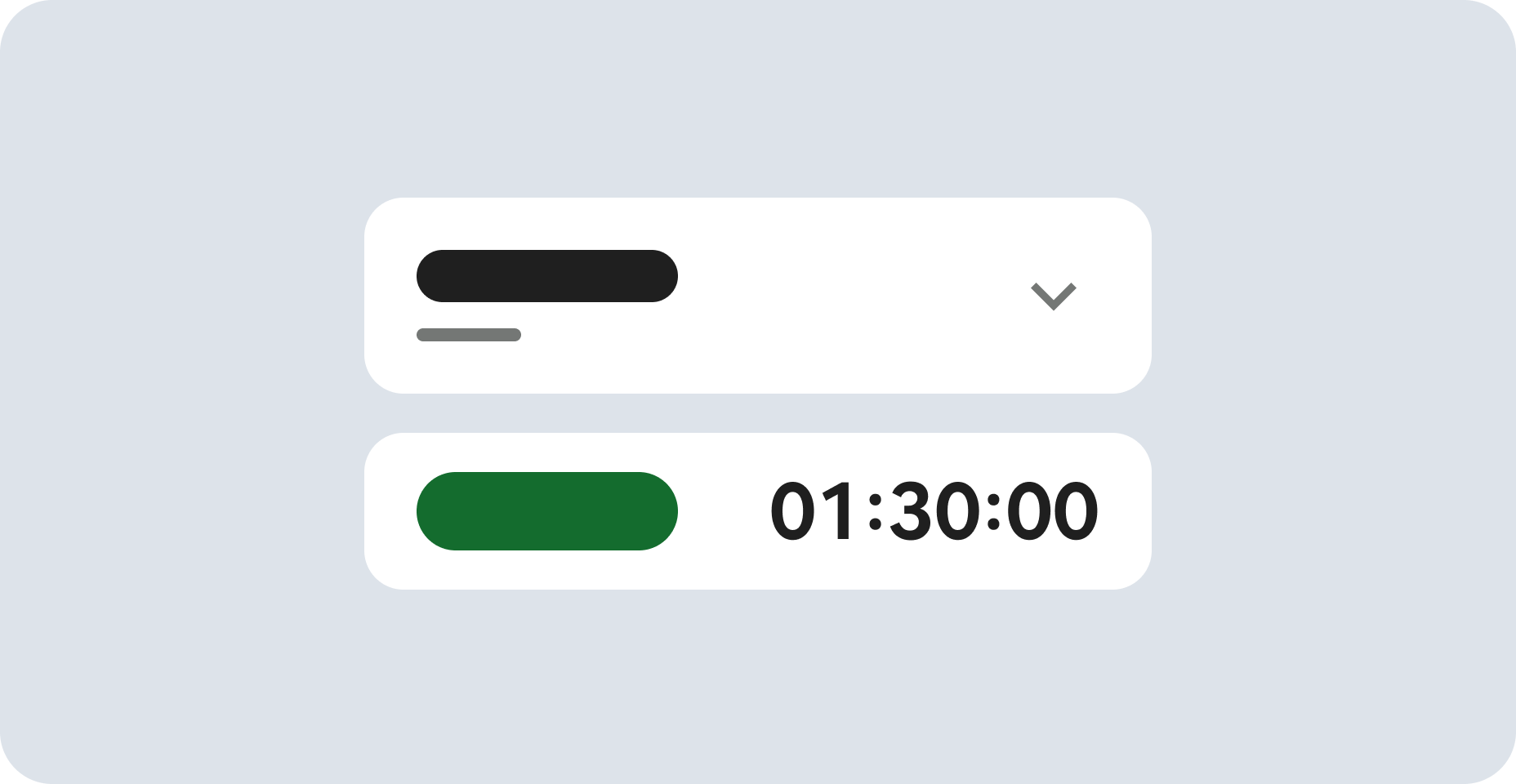
Read these instructions. Labs are timed and you cannot pause them. The timer, which starts when you click Start Lab, shows how long Google Cloud resources are made available to you.
This hands-on lab lets you do the lab activities in a real cloud environment, not in a simulation or demo environment. It does so by giving you new, temporary credentials you use to sign in and access Google Cloud for the duration of the lab.
To complete this lab, you need:
Click the Start Lab button. If you need to pay for the lab, a dialog opens for you to select your payment method. On the right is the Lab setup and access panel with the following:
Note that the lab timer is located near the top of the page, showing the remaining time.
Click Open Google Cloud console (or right-click and select Open Link in Incognito Window if you are running the Chrome browser).
The lab spins up resources, and then opens another tab that shows the Sign in page.
Tip: Arrange the tabs in separate windows, side-by-side.
If necessary, copy the Username below and paste it into the Sign in dialog.
You can also find the Username in the Lab setup and access panel.
Click Next.
Copy the Password below and paste it into the Welcome dialog.
You can also find the Password in the Lab setup and access panel.
Click Next.
Click through the subsequent pages:
After a few moments, the Google Cloud console opens in this tab.

In this section, you use the Google Cloud console to provision a new Compute Engine virtual machine (VM) instance.
In the Google Cloud console, on the Navigation menu (
Click Create instance.
In the Machine configuration section, specify the following values:
| Property | Value (type value or select option as specified) |
|---|---|
| Name | dev-instance |
| Region | |
| Zone | |
| Series | E2 |
In the OS and storage (Boot disk) section, click Change to configure your boot disk and select the following values:
Click Select.
In the Networking section, under Firewalls, select:
In the Security (Identity and API access) section, under Access scopes, select:
Leave the remaining settings at their default values, and click Create.
Click Check my progress to verify your performed task. If you have completed the task successfully, you will receive an assessment score.
This launches a browser-hosted SSH session. If you have a popup blocker enabled, you might need to click twice.
There is no need to manually configure or manage SSH keys.
In the SSH session, to update the Debian package list, execute the following command:
To install Git (as part of standard developer workstation tooling), execute the following command:
To install Python and build dependencies, execute the following command:
To install pip, execute the following commands:
Click Check my progress to verify your performed task. If you have completed the task successfully, you will receive an assessment score.
In this section, you verify the software installation on your VM and run sample Python code.
In the SSH terminal window, verify the installation by checking the Python and pip versions:
The output displays the installed versions of Python and pip.
Download the lab assets:
Change the working directory:
Run a simple web server:
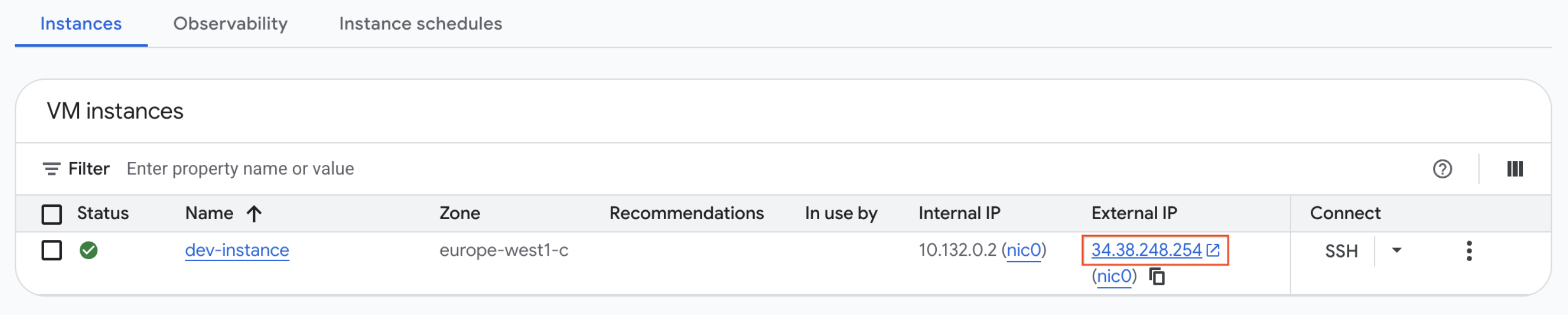
Return to the Google Cloud console VM instances page (Navigation menu > Compute Engine > VM instances), and click the External IP address for dev-instance.
http:// (not https://), because the simple test server is listening on port 80 over unencrypted HTTP.A browser window opens and displays a Hello GCP dev! message from Python.
Click Check my progress to verify your performed task. If you have completed the task successfully, you will receive an assessment score.
Return to the SSH terminal window, and stop the web server application by pressing CTRL+C.
Install the Python packages needed to enumerate Compute Engine VM instances:
In the SSH terminal window, run the following command to run a simple Python application that lists Compute Engine instances:
Your instance name should appear in the SSH terminal window.
Example output:
Below are multiple-choice questions to reinforce your understanding of this lab's concepts. Answer them to the best of your abilities.
You have completed the lab App Dev: Setting Up a Development Environment - Python. You successfully provisioned a Compute Engine virtual machine, configured the environment, and ran Python applications interacting with Google Cloud APIs!
Learn more about Application Development in Google Cloud and Python on Google Cloud.
Manual Last Updated October 14, 2026
Lab Last Tested October 14, 2026
Copyright 2026 Google LLC. All rights reserved. Google and the Google logo are trademarks of Google LLC. All other company and product names may be trademarks of the respective companies with which they are associated.


This content is not currently available
We can notify you via email when it becomes available
Great!
We can contact you via email if it becomes available
One lab at a time
Confirm to end all existing labs and start this one