Before you begin
- Labs create a Google Cloud project and resources for a fixed time
- Labs have a time limit and no pause feature. If you end the lab, you'll have to restart from the beginning.
- On the top left of your screen, click Start lab to begin

Create a cluster
/ 50
Submit a job
/ 30
Update a cluster
/ 20
Create a cluster
/ 50
Submit a job
/ 30
Update a cluster
/ 20


Managed Service for Apache Spark is a fast, easy-to-use, fully-managed cloud service for running Apache Spark and Apache Hadoop clusters in a simpler, more cost-efficient way. Operations that used to take hours or days take seconds or minutes instead. Create Managed Service for Apache Spark clusters quickly and resize them at any time, so you don't have to worry about your data pipelines outgrowing your clusters.
This lab shows you how to use the Google Cloud console to create a Managed Apache Spark cluster, run a simple Apache Spark job in the cluster, and then modify the number of workers in the cluster.
In this lab, you learn how to:
Read these instructions. Labs are timed and you cannot pause them. The timer, which starts when you click Start Lab, shows how long Google Cloud resources are made available to you.
This hands-on lab lets you do the lab activities in a real cloud environment, not in a simulation or demo environment. It does so by giving you new, temporary credentials you use to sign in and access Google Cloud for the duration of the lab.
To complete this lab, you need:
Click the Start Lab button. If you need to pay for the lab, a dialog opens for you to select your payment method. On the right is the Lab setup and access panel with the following:
Note that the lab timer is located near the top of the page, showing the remaining time.
Click Open Google Cloud console (or right-click and select Open Link in Incognito Window if you are running the Chrome browser).
The lab spins up resources, and then opens another tab that shows the Sign in page.
Tip: Arrange the tabs in separate windows, side-by-side.
If necessary, copy the Username below and paste it into the Sign in dialog.
You can also find the Username in the Lab setup and access panel.
Click Next.
Copy the Password below and paste it into the Welcome dialog.
You can also find the Password in the Lab setup and access panel.
Click Next.
Click through the subsequent pages:
After a few moments, the Google Cloud console opens in this tab.

Cloud Shell is a virtual machine that is loaded with development tools. It offers a persistent 5GB home directory and runs on the Google Cloud. Cloud Shell provides command-line access to your Google Cloud resources.
Click Activate Cloud Shell 
Click through the following windows:
When you are connected, you are already authenticated, and the project is set to your Project_ID,
gcloud is the command-line tool for Google Cloud. It comes pre-installed on Cloud Shell and supports tab-completion.
Output:
Output:
gcloud, in Google Cloud, refer to the gcloud CLI overview guide.
To create a Managed Apache Spark cluster in Google Cloud, the Cloud Dataproc API must be enabled. To confirm the API is enabled:
Click Navigation menu > APIs & Services > Library.
Type Cloud Dataproc API in the Search for APIs & Services dialog. The console will display the Cloud Dataproc API in the search results.
Click on Cloud Dataproc API to display the status of the API. If the API is not already enabled, click the Enable button.
Once the API is enabled, proceed with the lab instructions.
In the Google Cloud console, in the navigation menu (
Click Edit principal (pencil icon) for the Compute Engine default service account ([project-number]-compute@developer.gserviceaccount.com).
Click + Add another role.
For Select a role, search for Storage Admin, and select it from the results.
Click Save.
example-cluster with e2-standard-2 VMs and 30 GB standard persistent disks:Your cluster will take a few minutes to create. The command output displays Created [... example-cluster] once it is ready.
Click Check my progress to verify your performed task.
To run a sample Spark job:
) > View All Products, then under the Analytics section, click Managed Apache Spark > Clusters.You should see your newly created cluster example-cluster listed with a Running status.
Click Jobs in the left pane to switch to Managed Apache Spark's jobs view, then click Submit job.
Set the following fields to update Job. Accept the default values for all other fields:
| Field | Value |
|---|---|
| Region | |
| Cluster | example-cluster |
| Job type | Spark |
| Main class or jar | org.apache.spark.examples.SparkPi |
| Jar files | file:///usr/lib/spark/examples/jars/spark-examples.jar |
| Arguments | 1000 (This sets the number of tasks.) |
Your job should appear in the Jobs list, which shows your project's jobs with its cluster, type, and current status. Job status displays as Running, and then Succeeded after it completes.
Click Check my progress to verify your performed task.
To see your completed job's output:
Click the job ID in the Jobs list.
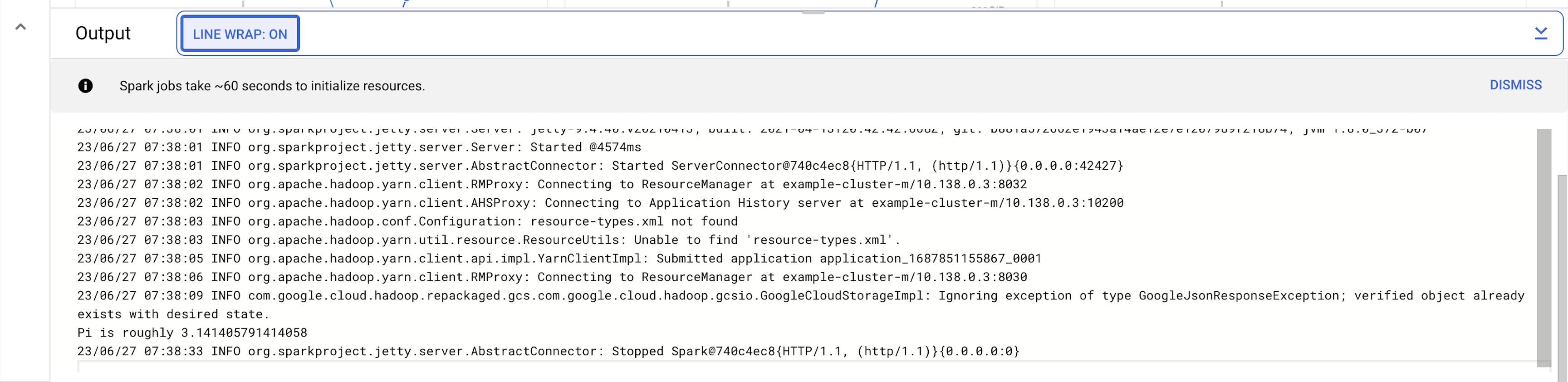
Select LINE WRAP to ON or scroll all the way to the right to see the calculated value of Pi. Your output, with LINE WRAP ON, should look something like this:
Your job has successfully calculated a rough value for pi!
To change the number of worker instances in your cluster:
Select Clusters in the left navigation pane to return to the Managed Apache Spark Clusters view.
Click example-cluster in the Clusters list. By default, the page displays an overview of your cluster's CPU usage.
Click Configuration to display your cluster's current settings.
Click Edit. The number of worker nodes is now editable.
Enter 4 in the Worker nodes field.
Click Save.
Your cluster is now updated. Check out the number of VM instances in the cluster.
Click Check my progress to verify your performed task.
To rerun the job with the updated cluster, you would click Jobs in the left pane, then click SUBMIT JOB.
Set the same fields you set in the Submit a job section:
| Field | Value |
|---|---|
| Region | |
| Cluster | example-cluster |
| Job type | Spark |
| Main class or jar | org.apache.spark.examples.SparkPi |
| Jar files | file:///usr/lib/spark/examples/jars/spark-examples.jar |
| Arguments | 1000 (This sets the number of tasks.) |
Below are multiple-choice questions to reinforce your understanding of this lab's concepts. Answer them to the best of your abilities.
Now you know how to use the Google Cloud console to create and update a Managed Apache Spark cluster and then submit a job in that cluster.
This lab is also part of a series of labs called Qwik Starts. These labs are designed to give you a little taste of the many features available with Google Cloud. Review the list of "Qwik Starts" in the lab catalog to find the next lab you'd like to take!
...helps you make the most of Google Cloud technologies. Our classes include technical skills and best practices to help you get up to speed quickly and continue your learning journey. We offer fundamental to advanced level training, with on-demand, live, and virtual options to suit your busy schedule. Certifications help you validate and prove your skill and expertise in Google Cloud technologies.
Manual Last Updated August 27, 2026
Lab Last Tested August 27, 2026
Copyright 2026 Google LLC. All rights reserved. Google and the Google logo are trademarks of Google LLC. All other company and product names may be trademarks of the respective companies with which they are associated.



This content is not currently available
We can notify you via email when it becomes available

Great!
We can contact you via email if it becomes available


One lab at a time
Confirm to end all existing labs and start this one