
Before you begin
- Labs create a Google Cloud project and resources for a fixed time
- Labs have a time limit and no pause feature. If you end the lab, you'll have to restart from the beginning.
- On the top left of your screen, click Start lab to begin

Explore Nano Banana in the Agent Studio UI
/ 25
Set up the Colab Enterprise notebook environment
/ 25
Query Nano Banana from your notebook
/ 25
Generate images that include text using Nano Banana
/ 25
Explore Nano Banana in the Agent Studio UI
/ 25
Set up the Colab Enterprise notebook environment
/ 25
Query Nano Banana from your notebook
/ 25
Generate images that include text using Nano Banana
/ 25
In this lab, you will explore the image generation and editing capabilities of the new
This model produces text and image outputs, and is quite popular for the degree of control it offers by allowing you to edit images by describing the changes you would like to see. Learn more about its capabilities from the
In this lab, you use the Google Gen AI SDK for Python to interact with Nano Banana to:
Read these instructions. Labs are timed and you cannot pause them. The timer, which starts when you click Start Lab, shows how long Google Cloud resources are made available to you.
This hands-on lab lets you do the lab activities in a real cloud environment, not in a simulation or demo environment. It does so by giving you new, temporary credentials you use to sign in and access Google Cloud for the duration of the lab.
To complete this lab, you need:
Click the Start Lab button. If you need to pay for the lab, a dialog opens for you to select your payment method. On the left is the Lab Details pane with the following:
Click Open Google Cloud console (or right-click and select Open Link in Incognito Window if you are running the Chrome browser).
The lab spins up resources, and then opens another tab that shows the Sign in page.
Tip: Arrange the tabs in separate windows, side-by-side.
If necessary, copy the Username below and paste it into the Sign in dialog.
You can also find the Username in the Lab Details pane.
Click Next.
Copy the Password below and paste it into the Welcome dialog.
You can also find the Password in the Lab Details pane.
Click Next.
Click through the subsequent pages:
After a few moments, the Google Cloud console opens in this tab.

In this section, you will use the Agent Studio UI to explore Nano Banana.
In the Google Cloud console, from the navigation menu (
In the chat input, type /model and press Enter to bring up the model settings.
Select Nano Banana (
In the prompt input box, click the + sign to add media and select Import from Cloud Storage.
Select the bucket gs:// and the image cymbal-shops-ui.png.
Click Select.
Click the image that has appeared in the prompt to see a larger resolution version of the image. It is a UI of a new mobile website for Cymbal Shops.
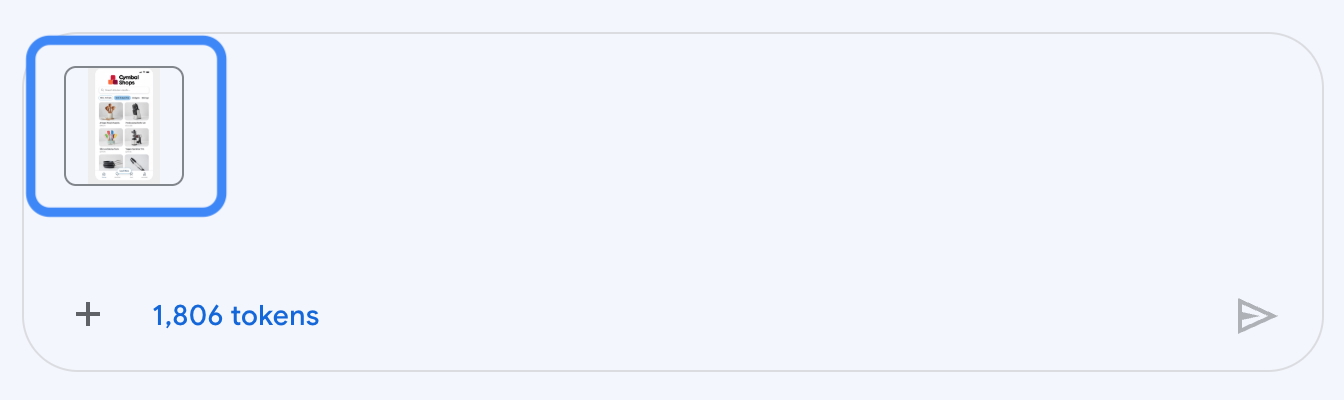
To close the detailed image view, click Close.
Enter the following text to accompany the image, then click the Submit arrow button.
Example Output (yours may be different):

Follow up with the following prompt to see how Nano Banana can maintain consistency across images within a chat session.
Example Output (yours may be different):

You can click New chat in the upper left of the Agent studio and try the prompt again to see variations.
Click Check my progress to verify the objectives.
In this section, you will open a Colab Enterprise notebook to send requests to the Nano Banana model using the Python Google Gen AI SDK.
In the Google Cloud console, from the navigation menu (
Click Create notebook.
When the notebook has been created, use the File > Rename menu item to rename the notebook to:
Click the Connect button in the upper right of the notebook UI to create a runtime environment and connect to it.
Follow the prompts to authorize your notebook as your Qwiklabs student account
Creating the runtime will take a few minutes. When it is connected, you will notice this runtime monitoring display in the upper right.
You can dismiss any pop-up guides or notifications that appear.
When the runtime has become active, paste the following into the first cell, and run the cell by pressing Shift + Enter on your keyboard or click the Play button to the left of the cell.
When the code cell has finished running (indicated by a number in brackets ([1]) appearing to the left of the code cell), restart the kernel by using the menus to select Runtime > Restart session and selecting Yes.
Paste the following into the next code cell to import packages and do some setup. Run the cell with Shift + Enter or by pressing the play icon to the left of the cell.
In the next cell, paste and run the following to define helper functions to display images in your notebook.
Click Check my progress to verify the objectives.
In a new cell, paste and run the following to preview an image of a jacket product you will work with.
In a new cell, paste and run the following to view another product image you will work with — this time it's a dress.
To send these to Gemini, paste and run the following to create a genai.types.Part for each image and a text prompt, then combine them into genai.types.Content identified as coming from the user that we can send to the model.
To use Nano Banana, you also need to specify that you expect a response including text and images. You do that by setting a genai.types.GenerateContentConfig with response_modalities set to ["TEXT", "IMAGE"]. Retry optins are also a good idea to include to handle resource errors due to the popularity of the model. Paste and run this code to create this configuration.
Now you can paste and run the following code to make a call to generate_content and then use one of the helper functions you defined earlier to display the image.
Example Output (yours may be different):

Click Check my progress to verify the objectives.
At the bottom of the notebook, mouse-over the space at the end of a cell and select the + Text button to add a Markdown text cell.

Paste the following Markdown text and run the cell to render Markdown text, which can be useful to define structure in your notebook.
A new code cell will have been created for you after you have run the Markdown cell.
In the new code cell, paste and run the following code to display another image you will edit using Nano Banana.
This UI comes from the Google Cloud console—specifically the Agent Platform, Agent Studio UI for music generation with the Lyria model.
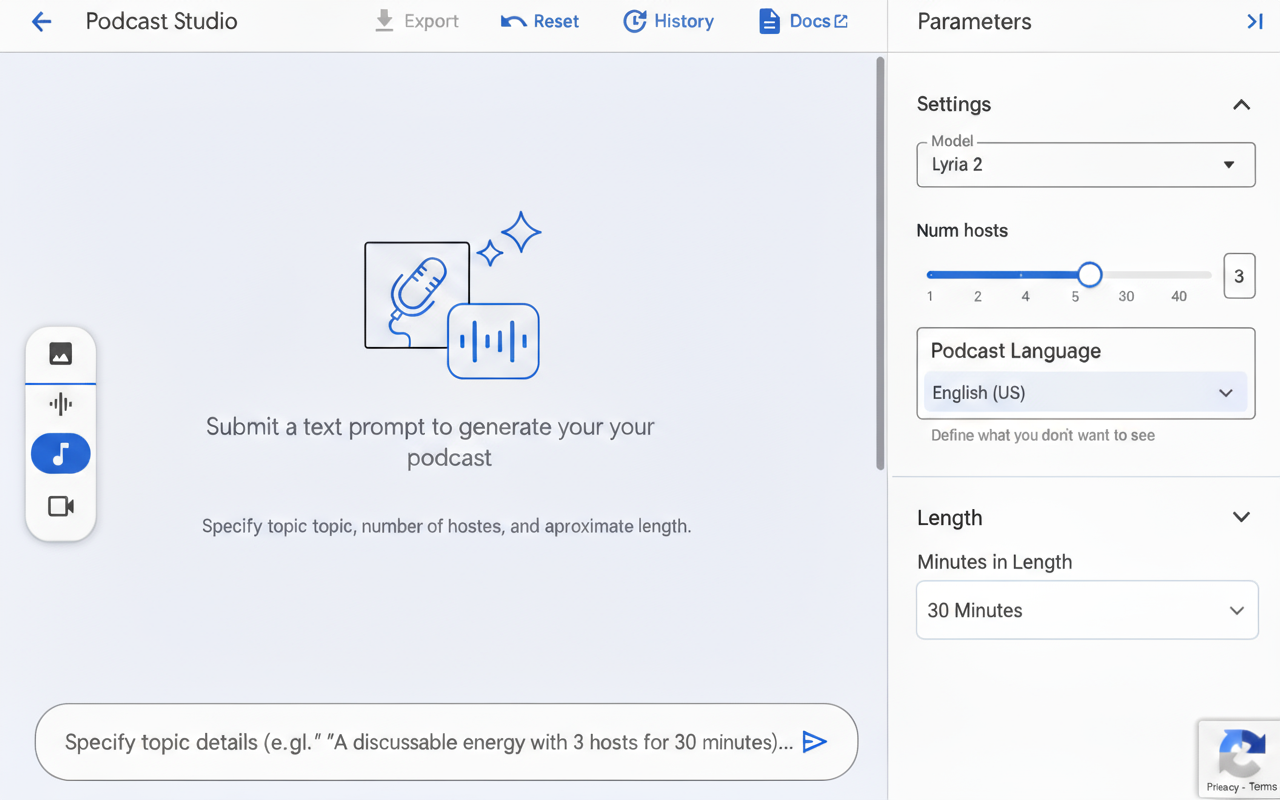
In a new code cell, paste and run the following code to generate a UI design in the same style, but with the purpose of generating podcasts.
In a new code cell, paste and run the following code to upload and edit the previous image, replacing the "Advanced Options" section with a new configuration option to set the podcast's language.
Example Output (yours may be different):
Click Check my progress to verify the objectives.
You have now used Nano Banana from both the Agent Studio and the Python SDK. This is a great time to experiment on your own and build more intuition for the model's capabilities. This section is not graded, so feel free to explore! Here are a few ideas:
In your Colab Notebook:
In Agent Studio:
product_jacket_932.png or lyria_ui.png) and use text prompts to generate new scenes or edits.In this lab, you have successfully explored Nano Banana by instructing it to generate images using the Agent Studio UI, generate photorealistic images from code by using other images as inputs, and generate non-photographic images that include text.
Manual Last Updated May 20, 2026
Lab Last Tested May 20, 2026
Copyright 2026 Google LLC. All rights reserved. Google and the Google logo are trademarks of Google LLC. All other company and product names may be trademarks of the respective companies with which they are associated.



This content is not currently available
We will notify you via email when it becomes available

Great!
We will contact you via email if it becomes available


One lab at a time
Confirm to end all existing labs and start this one
Complete this quick step to start your lab.