
Before you begin
- Labs create a Google Cloud project and resources for a fixed time
- Labs have a time limit and no pause feature. If you end the lab, you'll have to restart from the beginning.
- On the top left of your screen, click Start lab to begin

Explore a pre-built app
/ 30
Generate an app prototype from a template and modify it
/ 35
Build an app using a text prompt
/ 35
Explore a pre-built app
/ 30
Generate an app prototype from a template and modify it
/ 35
Build an app using a text prompt
/ 35


In this lab, you will learn how to rapidly prototype applications in Google AI Studio. Explore pre-built AI applications, learn to create your own from templates, use and refine text prompts, and discover how to manage and share your creations. For this lab, you will take on the role of a Solutions Developer at a hackathon, where your goal is to quickly build and share several proof-of-concept AI applications under a time limit.
Explore other content in the Gemini Enterprise Agent Ready (GEAR) program.
In this lab, you learn how to:
Read these instructions. Labs are timed and you cannot pause them. The timer, which starts when you click Start Lab, shows how long Google Cloud resources are made available to you.
This hands-on lab lets you do the lab activities in a real cloud environment, not in a simulation or demo environment. It does so by giving you new, temporary credentials you use to sign in and access Google Cloud for the duration of the lab.
To complete this lab, you need:
Click Start Lab. The lab panel will display the temporary credentials for this lab.
Open Google AI Studio in an Incognito window and click Get Started. The Google sign-in page will appear.
Copy the Username below and paste it into the Email field, then click Next.
Copy the Password below and paste it into the Enter your password field, then click Next.
Accept any on-screen terms and conditions to proceed.
You are now logged into Google AI Studio using your temporary student account.
As a hackathon developer, your first step is to quickly survey the landscape to see what building blocks and examples are available. You'll start by exploring a pre-built chatbot app.
In the left navigation menu, click Enable saving (above the Build option) and choose your username.
Click Build.
Click the Gallery > All apps tab and scroll through the gallery of pre-built application templates.
Find the ChatterBots app and click on it.
student-XX-YYYY@qwiklabs.net) and grant any necessary permissions to continue.
Click on Allow to provide the request access to Microphone.
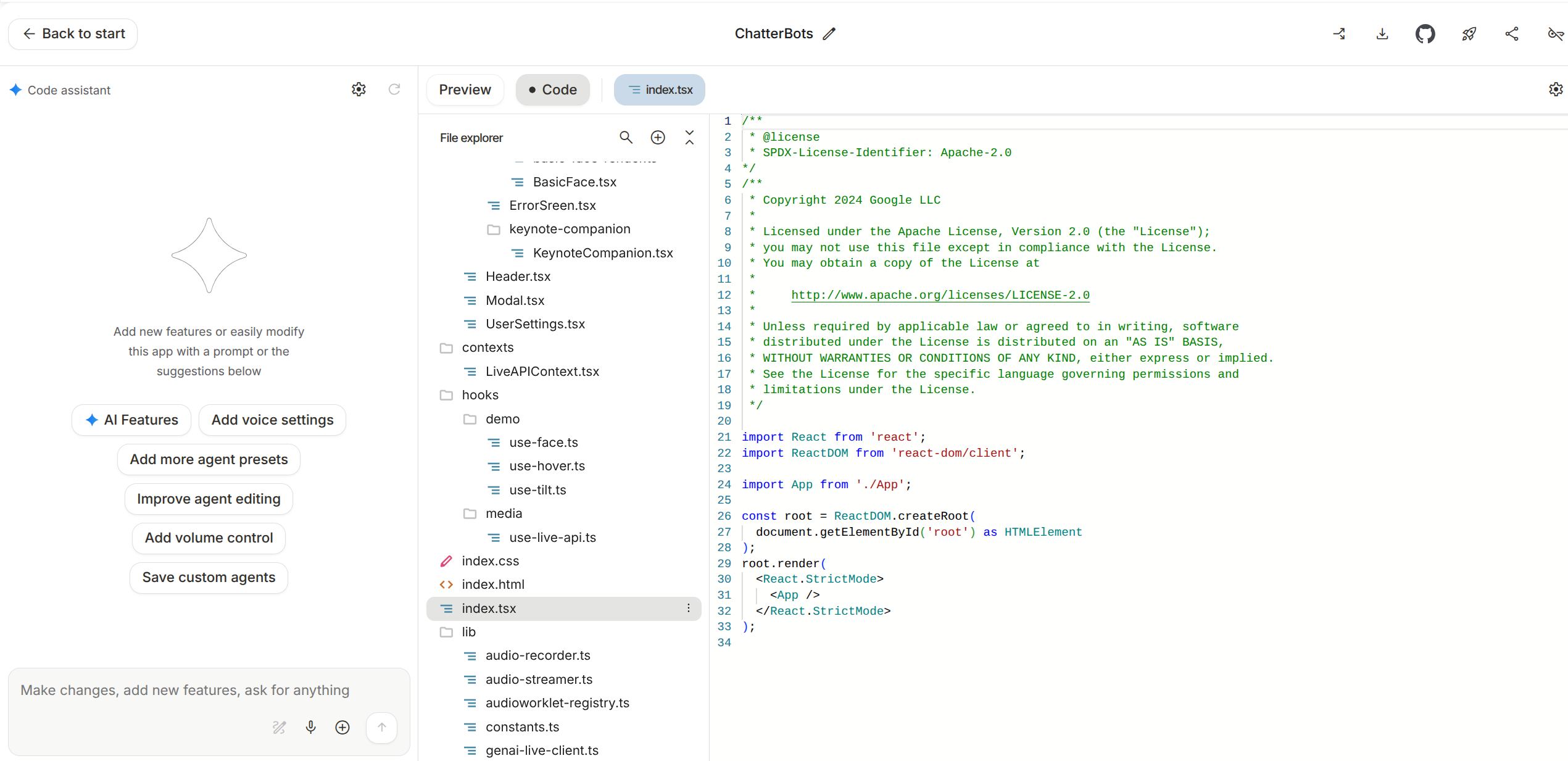
The app will open in the IDE view. Take a moment to familiarize yourself with the interface: the Code assistant is on the left, the code editor/file viewer is in the center, and a live Preview of the running chatbot is on the right.
Preview the app, explore the ChatterBot presets, and create your own ChatterBot based on the characteristics you define.
Explore the code that was generated. In the code editor, click the Show file tree view button to see the code structure. Click on a file like App.tsx to view the main application code, or a file within the components folder to see how a specific UI element is built.
Next, you've decided a simple flashcard utility would be useful for your hackathon project. You'll generate one from a template and then use the Code Assistant to quickly change its appearance to match your project's branding.
Click Back to start and return to the home page by clicking the Google AI Studio logo in the top-left corner.
In the left navigation menu, click Build > Start.
Find and click the Flash UI template to generate the application.
In the Preview pane on the right, interact with the default flashcards to see how they function.
Type Large Language Models into the input field and click the arrow to generate a topic-specific set.
Now, direct your attention to the Code assistant input field at the bottom left. Type the following command to change the app's style and logic:
Once the code is updated, test both changes in the Preview pane. Confirm the flashcards are light green and that you can only flip over one card at a time.
Next, you'll add another feature. In the Code assistant input field, type the following new command:
Click Send prompt and watch as the assistant adds a new button to the UI and modifies the code to include the new logic.
Finally, test the new feature in the Preview pane. Click the new Surprise Me > add 5 more button and confirm that five additional, unique flashcards are added to your set.
Click the pencil icon beside the App Name Flash UI, rename the application to Flashcard Maker, leave the description as its default, and click Save.
Click Check my progress to verify the objective.
Now for the main event of the hackathon: building your core feature from scratch. You'll build a travel itinerary planner by describing it in plain English. You'll specifically ask the model to create a UI that can display structured data cleanly.
Navigate back to the Build page gallery.
In the main text prompt bar at the top of the page, enter the following detailed request:
Click Build and wait for the Code assistant to generate the complete application.
Once the app appears, test its functionality in the Preview pane. In the city input field, type Rome and press ENTER.
Observe the output. The app should display a structured 3-day itinerary for Rome, demonstrating that the AI successfully created a data-driven UI from your text prompt.
Click the pencil icon at the top of the panel beside the App name, rename the application to AI Travel Itinerary Generator, leave the description as its default, and click Save.
(Optional) Use the Code assistant to modify any parts of the application you can think of!
Click Check my progress to verify the objective.
Your prototype for the travel planner is working! The final step in the hackathon is to download your progress and share the project with your team.
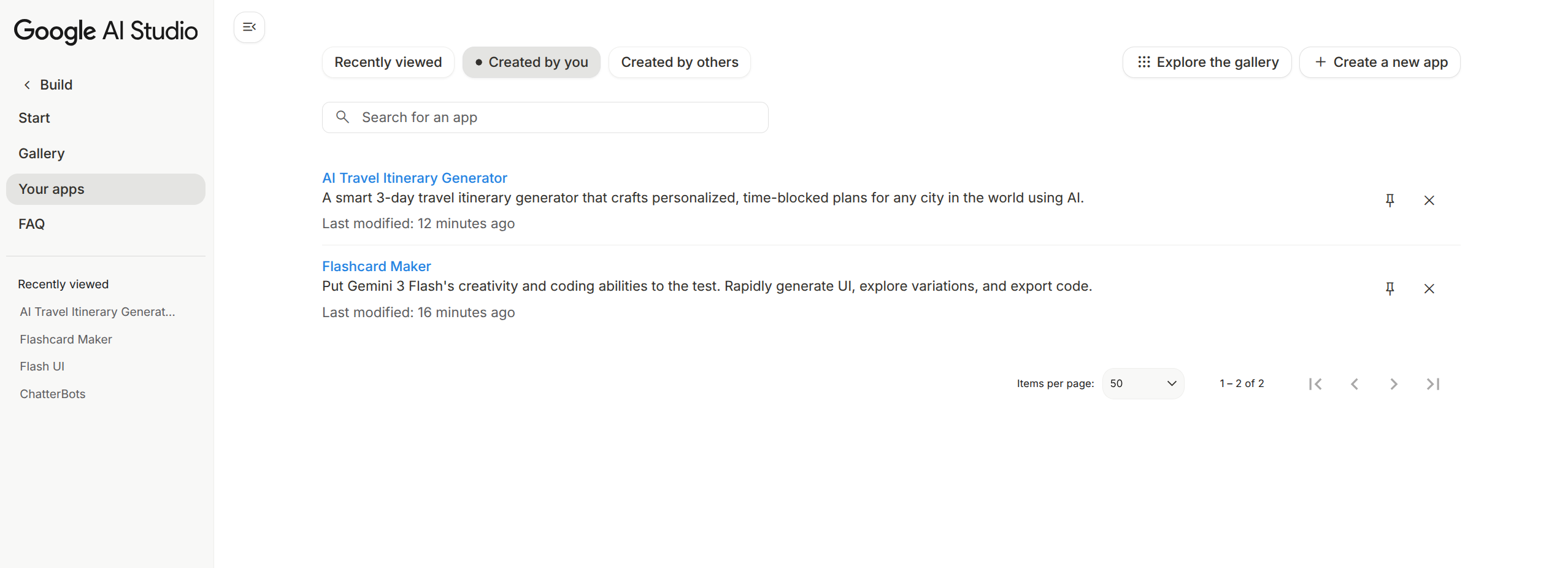
Your app is now saved to the "Your apps" section of the Build page.
Click the Download icon from the same toolbar. A ZIP file containing the complete source code for your application will be downloaded to your computer.
Explore the path to making your app live. Click the Deploy App button from the same toolbar.
Navigate to home page and click the Google AI Studio logo in the top-left corner.
In the left navigation menu, click Build.
Click the Your apps > Created by you tab to view the prototypes you've modified and built. You should see the two applications: Flashcard Maker and AI Travel Itinerary Generator.
Congratulations! You've successfully used Google AI Studio to rapidly explore, adapt, and create functional application prototypes from scratch. You learned how to leverage pre-built templates, modify code with natural language, and generate a complete data-driven application from a single text prompt. You are now well-equipped to bring your own AI-powered ideas to life.
...helps you make the most of Google Cloud technologies. Our classes include technical skills and best practices to help you get up to speed quickly and continue your learning journey. We offer fundamental to advanced level training, with on-demand, live, and virtual options to suit your busy schedule. Certifications help you validate and prove your skill and expertise in Google Cloud technologies.
Manual Last Updated March 12, 2026
Lab Last Tested March 12, 2026
Copyright 2026 Google LLC. All rights reserved. Google and the Google logo are trademarks of Google LLC. All other company and product names may be trademarks of the respective companies with which they are associated.



This content is not currently available
We can notify you via email when it becomes available

Great!
We can contact you via email if it becomes available


One lab at a time
Confirm to end all existing labs and start this one