GSP1317

Overview
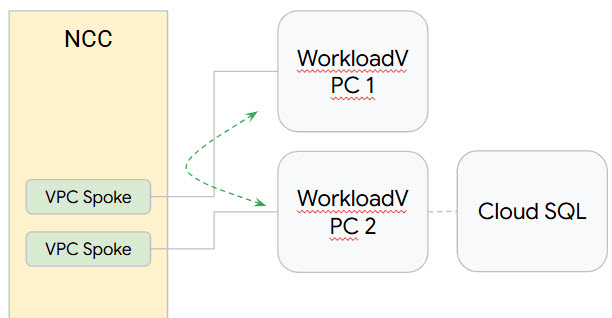
The Network Connectivity Center (NCC) can be used to establish inter-VPC connectivity at scale through VPC spokes. When a VPC is defined as an VPC spoke, multiple VPC networks can be connected together through the NCC Hub.
NCC is a hub-and-spoke control plane model for network connectivity management in Google Cloud. The hub resource provides a centralized connectivity management model to interconnect spokes.
In this lab, you learn to configure a NCC hub using gcloud commands and review the changes in the console. The NCC hub will serve as the control plane responsible for building routing configuration between each VPC spoke. You'll also set up Private Service Connect to Cloud SQL.
What you'll learn
In this lab, you learn how to perform the following tasks:
- Full mesh VPC connectivity with NCC.
- Set up Private Service Connect.
- Send traffic through a spoke to verify connectivity to Cloud SQL.
Setup and requirements
Before you click the Start Lab button
Read these instructions. Labs are timed and you cannot pause them. The timer, which starts when you click Start Lab, shows how long Google Cloud resources are made available to you.
This hands-on lab lets you do the lab activities in a real cloud environment, not in a simulation or demo environment. It does so by giving you new, temporary credentials you use to sign in and access Google Cloud for the duration of the lab.
To complete this lab, you need:
- Access to a standard internet browser (Chrome browser recommended).
Note: Use an Incognito (recommended) or private browser window to run this lab. This prevents conflicts between your personal account and the student account, which may cause extra charges incurred to your personal account.
- Time to complete the lab—remember, once you start, you cannot pause a lab.
Note: Use only the student account for this lab. If you use a different Google Cloud account, you may incur charges to that account.
How to start your lab and sign in to the Google Cloud console
-
Click the Start Lab button. If you need to pay for the lab, a dialog opens for you to select your payment method.
On the left is the Lab Details pane with the following:
- The Open Google Cloud console button
- Time remaining
- The temporary credentials that you must use for this lab
- Other information, if needed, to step through this lab
-
Click Open Google Cloud console (or right-click and select Open Link in Incognito Window if you are running the Chrome browser).
The lab spins up resources, and then opens another tab that shows the Sign in page.
Tip: Arrange the tabs in separate windows, side-by-side.
Note: If you see the Choose an account dialog, click Use Another Account.
-
If necessary, copy the Username below and paste it into the Sign in dialog.
{{{user_0.username | "Username"}}}
You can also find the Username in the Lab Details pane.
-
Click Next.
-
Copy the Password below and paste it into the Welcome dialog.
{{{user_0.password | "Password"}}}
You can also find the Password in the Lab Details pane.
-
Click Next.
Important: You must use the credentials the lab provides you. Do not use your Google Cloud account credentials.
Note: Using your own Google Cloud account for this lab may incur extra charges.
-
Click through the subsequent pages:
- Accept the terms and conditions.
- Do not add recovery options or two-factor authentication (because this is a temporary account).
- Do not sign up for free trials.
After a few moments, the Google Cloud console opens in this tab.
Note: To access Google Cloud products and services, click the Navigation menu or type the service or product name in the Search field.

Activate Cloud Shell
Cloud Shell is a virtual machine that is loaded with development tools. It offers a persistent 5GB home directory and runs on the Google Cloud. Cloud Shell provides command-line access to your Google Cloud resources.
-
Click Activate Cloud Shell  at the top of the Google Cloud console.
-
Click through the following windows:
- Continue through the Cloud Shell information window.
- Authorize Cloud Shell to use your credentials to make Google Cloud API calls.
When you are connected, you are already authenticated, and the project is set to your Project_ID, . The output contains a line that declares the Project_ID for this session:
Your Cloud Platform project in this session is set to {{{project_0.project_id | "PROJECT_ID"}}}
gcloud is the command-line tool for Google Cloud. It comes pre-installed on Cloud Shell and supports tab-completion.
- (Optional) You can list the active account name with this command:
gcloud auth list
- Click Authorize.
Output:
ACTIVE: *
ACCOUNT: {{{user_0.username | "ACCOUNT"}}}
To set the active account, run:
$ gcloud config set account `ACCOUNT`
- (Optional) You can list the project ID with this command:
gcloud config list project
Output:
[core]
project = {{{project_0.project_id | "PROJECT_ID"}}}
Note: For full documentation of gcloud, in Google Cloud, refer to the gcloud CLI overview guide.
Before you begin
In the lab, you need to switch between the two projects several times. Make sure you are in the correct project. Using 2 cloudshell windows, one for each project, is helpful.
Enable the Network Connectivity API
Before you can perform any tasks using Network Connectivity Center, enable the Network Connectivity API by running the following:
gcloud services enable networkconnectivity.googleapis.com
Verify existing Google Cloud resources
For this lab, networking resources have been built for you. Take a minute now to look at the VPC networks and VMs that are available. You can use the Google Cloud console or the command line to review them.
You'll see that you have:
- 2 VPCs
- Cloud SQL Postgres instance with Private Service Connect enabled
Configure data transfer connectivity
To set up data transfer connectivity, you'll use NCC to build a hub and spokes to allow data to be transfered from one site to another through Google Cloud.
Task 1. Create a hub
- Run the following to create the NCC hub:
gcloud network-connectivity hubs create ncc-hub
- Describe the newly created NCC hub.
gcloud network-connectivity hubs describe ncc-hub
Click Check my progress to verify the objective.
Create the NCC hub.
Task 2. Configure VPCs as NCC spokes
Administrators can exclude subnet routes from being exported from a VPC spoke into the NCC hub's route table. You will create an exclude export rule based on a summary prefix to prevent VPC1's subnet from exporting into the NCC hub route table.
- Use this
gcloud command to list all subnets belonging to VPC1.
gcloud config set accessibility/screen_reader false
gcloud compute networks subnets list --network=vpc1-ncc
- Configure VPC1 as an NCC spoke and exclude the pair of /25 subnets from being imported into the hub routing table by using the
export-exclude-ranges keyword to filter the /24 summary route from that specific range:
gcloud network-connectivity spokes linked-vpc-network create vpc1-spoke1 \
--hub=ncc-hub \
--vpc-network=vpc1-ncc \
--exclude-export-ranges=10.1.2.0/24 \
--global
- List the contents of the NCC hub's default routing table.
gcloud network-connectivity hubs route-tables routes list --hub=ncc-hub --route_table=default --filter="NEXT_HOP:vpc1-ncc"
- Configure VPC2 as an NCC spoke:
gcloud network-connectivity spokes linked-vpc-network create vpc2-spoke2 \
--hub=ncc-hub \
--vpc-network=vpc2-ncc \
--exclude-export-ranges=10.3.3.0/24 \
--global
- List the contents of the NCC hub's default routing table and examine the output.
gcloud network-connectivity hubs route-tables routes list --hub=ncc-hub --route_table=default
Click Check my progress to verify the objective.
Configure VPCs as an NCC spoke.
Task 3. Verify IPv4 Data Path Connectivity
- Navigate to Compute Engine > VM instances then SSH to vm1-vpc1-ncc. Run the following to start TCP dump to trace ICMP packets from vm2-vpc2-ncc. As a reminder this VM resides on VPC2.
vm1-vpc1-ncc
sudo tcpdump -i any icmp -v -e -n
- Establish a SSH session to vm2-vpc2-ncc and
ping the ip address of vm1-vpc1-ncc.
vm2-vpc2-ncc
ping 10.1.1.2
Task 4. Set up Private Service Connect
Private Service Connect (PSC) is a capability that enables private and secure communication between Virtual Private Cloud (VPC) networks using your own internal IP address.
Reserve an internal IP address
- Find the VPC subnet CIDR range in the Google Cloud region referred to in the environment variable REGION and choose a free IP address in this CIDR range for the Private Service Connect endpoint.
gcloud compute networks subnets describe vpc2-ncc-subnet1 \
--region={{{project_0.default_region | REGION}}} \
--project={{{project_0.project_id|PROJECT_ID}}} \
--format="value(ipCidrRange)"
- Reserve an internal IP address for the Private Service Connect endpoint in the derived VPC subnet CIDR range above.
Replace [ADDRESS] with the IP address in the CIDR range from the previous command's output IP address.
gcloud compute addresses create cloudsql-psc \
--project={{{project_0.project_id|PROJECT_ID}}} \
--region={{{project_0.default_region | REGION}}} \
--subnet=vpc2-ncc-subnet1 \
--addresses=[ADDRESS]
Note: If you encounter the error `Could not fetch resource: IP 'X.X.X.X' is already being used by another resource`, try using a different IP address within the same CIDR range. Also, navigate to Compute Engine > VM instances and use an IP address that is different from the internal IP of the vm2-vpc2-ncc and cloudsql-client VM instance.
- Verify that the internal IP address is reserved and that the status RESERVED appears for the IP address. Note the [ADDRESS/RANGE] which is required further.
gcloud compute addresses list \
--project={{{project_0.project_id|PROJECT_ID}}} \
--filter="name=cloudsql-psc"
Get the service attachment URI
After creating a Cloud SQL instance with Private Service Connect enabled, get the service attachment URI and use it to create the Private Service Connect endpoint with the reserved internal IP address above.
gcloud sql instances describe {{{project_0.startup_script.postgres-instance}}} \
--project={{{project_0.project_id|PROJECT_ID}}} \
--format="value(pscServiceAttachmentLink)"
Create the Private Service Connect
- Create the Private Service Connect endpoint and point it to the Cloud SQL service attachment URI.
Replace [Service_Attachment_URI] with the service attachment URI from the previous command's output.
gcloud compute forwarding-rules create cloudsql-psc-ep \
--address=cloudsql-psc \
--project={{{project_0.project_id|PROJECT_ID}}} \
--region={{{project_0.default_region | REGION}}} \
--network=vpc2-ncc \
--target-service-attachment=[Service_Attachment_URI] \
--allow-psc-global-access
- Verify that the endpoint can connect to the service attachment.
gcloud compute forwarding-rules describe cloudsql-psc-ep \
--project={{{project_0.project_id|PROJECT_ID}}} \
--region={{{project_0.default_region | REGION}}} \
--format="value(pscConnectionStatus)"
Configure a DNS managed zone
To add the suggested DNS name for the Cloud SQL instance it is best to create a private DNS zone in the corresponding VPC network.
gcloud dns managed-zones create cloudsql-dns \
--project={{{project_0.project_id|PROJECT_ID}}} \
--description="DNS zone for the Cloud SQL instances" \
--dns-name={{{project_0.default_region | REGION}}}.sql.goog. \
--networks=vpc2-ncc \
--visibility=private
Add a DNS record for the Private Service Connect
- Get the suggested DNS record for the Cloud SQL instance.
gcloud sql instances describe {{{project_0.startup_script.postgres-instance}}} \
--project={{{project_0.project_id|PROJECT_ID}}} \
--format="value(dnsName)"
In the output find the DNS record, you'll need it in the next step.
- Add the suggested DNS record to the DNS managed zone
Replace [DNS_RECORD] with suggested DNS record and [ADDRESS/RANGE] with the output of the previous command as described above.
gcloud dns record-sets create [DNS_RECORD] \
--project={{{project_0.project_id|PROJECT_ID}}} \
--type=A \
--rrdatas=[ADDRESS/RANGE] \
--zone=cloudsql-dns
Click Check my progress to verify the objective.
Setup Private Service Connect.
Task 5. Connect to Cloud SQL via Private Service Connect
- Connect to the
cloudsql-client VM instance.
gcloud compute ssh --zone {{{project_0.default_zone | ZONE}}} "cloudsql-client" \
--tunnel-through-iap --project {{{project_0.project_id|PROJECT_ID}}}
- Connect to the instance, replacing the
[DNS_RECORD] and for password, use changeme.
psql "sslmode=disable dbname=postgres user=postgres host=[DNS_RECORD]"
- Create a database:
CREATE DATABASE company;
- Now list all databases:
\l
- Connect to employees database:
\c company
- Create a table in the company database:
CREATE TABLE employees (
id SERIAL PRIMARY KEY,
first VARCHAR(255) NOT NULL,
last VARCHAR(255) NOT NULL,
salary DECIMAL (10, 2)
);
- Insert data into the table employees of company database:
INSERT INTO employees (first, last, salary) VALUES
('Max', 'Mustermann', 5000.00),
('Anna', 'Schmidt', 7000.00),
('Peter', 'Mayer', 6000.00);
- Query employees table:
SELECT * FROM employees;
- Exit the Postgres database and the VM and return to Cloud Shell:
\q
exit
Click Check my progress to verify the objective.
Connect to Cloud SQL via Private Service Connect.
Task 6. Delete resources
In a production envrioronment, you need to delete resources you're not using to avoid getting charged. For this lab, learn the easy steps to remove the spokes and hub:
Delete spokes and hub
- Delete NCC spokes:
gcloud network-connectivity spokes delete vpc1-spoke1 --global --quiet
gcloud network-connectivity spokes delete vpc2-spoke2 --global --quiet
- Delete NCC hub:
gcloud network-connectivity hubs delete ncc-hub --quiet
- Delete DNS record
gcloud dns record-sets delete [DNS_RECORD] \
--project={{{project_0.project_id|PROJECT_ID}}} \
--type=A \
--zone=cloudsql-dns
- Delete DNS managed zone:
gcloud dns managed-zones delete cloudsql-dns \
--project={{{project_0.project_id|PROJECT_ID}}} \
--quiet
Congratulations!
You have learned how to use the Network Connectivity Center to build a hub and spokes for existing Google Cloud resources and verified that data can transfer through NCC using NIC.
Google Cloud training and certification
...helps you make the most of Google Cloud technologies. Our classes include technical skills and best practices to help you get up to speed quickly and continue your learning journey. We offer fundamental to advanced level training, with on-demand, live, and virtual options to suit your busy schedule. Certifications help you validate and prove your skill and expertise in Google Cloud technologies.
Manual Last Updated: June 12, 2025
Lab Last Tested: June 12, 2025
Copyright 2026 Google LLC. All rights reserved. Google and the Google logo are trademarks of Google LLC. All other company and product names may be trademarks of the respective companies with which they are associated.








