Before you begin
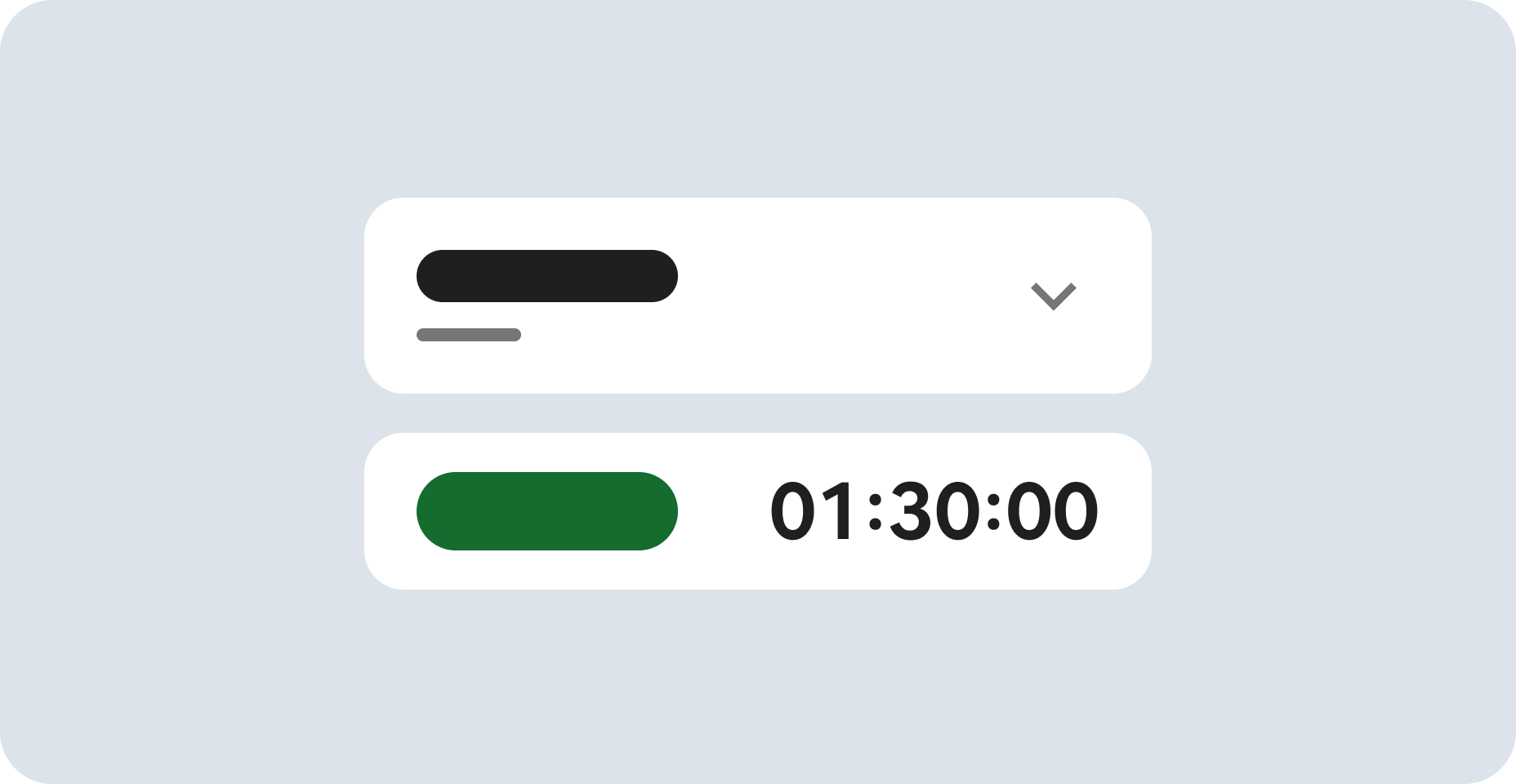
- Labs create a Google Cloud project and resources for a fixed time
- Labs have a time limit and no pause feature. If you end the lab, you'll have to restart from the beginning.
- On the top left of your screen, click Start lab to begin

Import libraries and install the Gen AI SDK
/ 25
Generate and execute the code using Gemini
/ 25
Implement grounding with Google Search to enhance Gemini responses
/ 25
Extract pricing by a competitor in a structured JSON schema format
/ 25
Import libraries and install the Gen AI SDK
/ 25
Generate and execute the code using Gemini
/ 25
Implement grounding with Google Search to enhance Gemini responses
/ 25
Extract pricing by a competitor in a structured JSON schema format
/ 25


In a challenge lab you’re given a scenario and a set of tasks. Instead of following step-by-step instructions, you will use the skills learned from the labs in the course to figure out how to complete the tasks on your own! An automated scoring system (shown on this page) will provide feedback on whether you have completed your tasks correctly.
When you take a challenge lab, you will not be taught new Google Cloud concepts. You are expected to extend your learned skills, like changing default values and reading and researching error messages to fix your own mistakes.
To score 100% you must successfully complete all tasks within the time period!
This lab is recommended for students who have enrolled in the Enhance Gemini Model Capabilities course. Are you ready for the challenge?
Before starting this lab, you should be familiar with:
Read these instructions. Labs are timed and you cannot pause them. The timer, which starts when you click Start Lab, shows how long Google Cloud resources are made available to you.
This hands-on lab lets you do the lab activities in a real cloud environment, not in a simulation or demo environment. It does so by giving you new, temporary credentials you use to sign in and access Google Cloud for the duration of the lab.
To complete this lab, you need:
Cymbal Direct, the retail arm of Cymbal, wants to leverage the power of
In the Google Cloud console, on the Navigation menu (
Find the
The JupyterLab interface for your Workbench instance opens in a new browser tab.
Click on the
In the Select Kernel dialog, choose Python 3 from the list of available kernels.
Complete Task 1 in the notebook to import the libraries and install the Gen AI SDK.
Once you have completed Task 1 and have set up your environment, you are ready to move onto the next sections. For the following tasks, you will need to complete the missing parts of each cell to progress to the next section. These will be denoted with TODO and an instruction to complete.
Click Check my progress to verify the objective.
In this task, you'll use
#TODO section in the cell. Read each cell carefully and ensure you are filling them out correctly! You will check your progress on this page to ensure you have completed the cells correctly.In the notebook cell under "1. Define the code execution tool", fill in the TODOs to define the tool used to generate and execute the code using Gemini.
In the notebook cell under "2. Define the prompt with the code to be executed", fill in the TODOs to configure content generation using Gemini code execution.
Click Check my progress to verify the objective.
In this task, you'll use
#TODO section in the cell. Read each cell carefully and ensure you are filling them out correctly! You will check your progress on this page to ensure you have completed the cells correctly.In the notebook cell under "1. Define the Google Search tool", fill in the TODOs to define the tool used to ground results with Google Search.
In the notebook cell under "2. Define the prompt with grounding", fill in the TODOs to define the prompt to send to Gemini. Use Nike Air Jordan XXXVI as the product to search for.
In the notebook cell under "3. Generate a response with grounding", fill in the TODOs to configure Gemini.
Click Check my progress to verify the objective.
In this task, you'll use
#TODO section in the cell. Read each cell carefully and ensure you are filling them out correctly! You will check your progress on this page to ensure you have completed the cells correctly.In the notebook cell under "5. Construct the search query", fill in the TODOs to configure the prompt used to query competitor product pricing.
In the notebook cell under "6. Use Response Schema to extract the data", fill in the TODOs to generate a response after configuring Gemini.
Click Check my progress to verify the objective.
Congratulations! In this challenge, you created and executed code using Gemini, enhanced Gemini responses using grounding from Google Search and structured responses to a specific output format and schema for better ecommerce outcomes.
Check out the following resources to learn more about Gen AI and the Gemini Enterprise Agent Platform:
...helps you make the most of Google Cloud technologies. Our classes include technical skills and best practices to help you get up to speed quickly and continue your learning journey. We offer fundamental to advanced level training, with on-demand, live, and virtual options to suit your busy schedule. Certifications help you validate and prove your skill and expertise in Google Cloud technologies.
Manual Last Updated May 18, 2026
Lab Last Tested October 28, 2025
Copyright 2026 Google LLC. All rights reserved. Google and the Google logo are trademarks of Google LLC. All other company and product names may be trademarks of the respective companies with which they are associated.


This content is not currently available
We can notify you via email when it becomes available
Great!
We can contact you via email if it becomes available

One lab at a time
Confirm to end all existing labs and start this one