
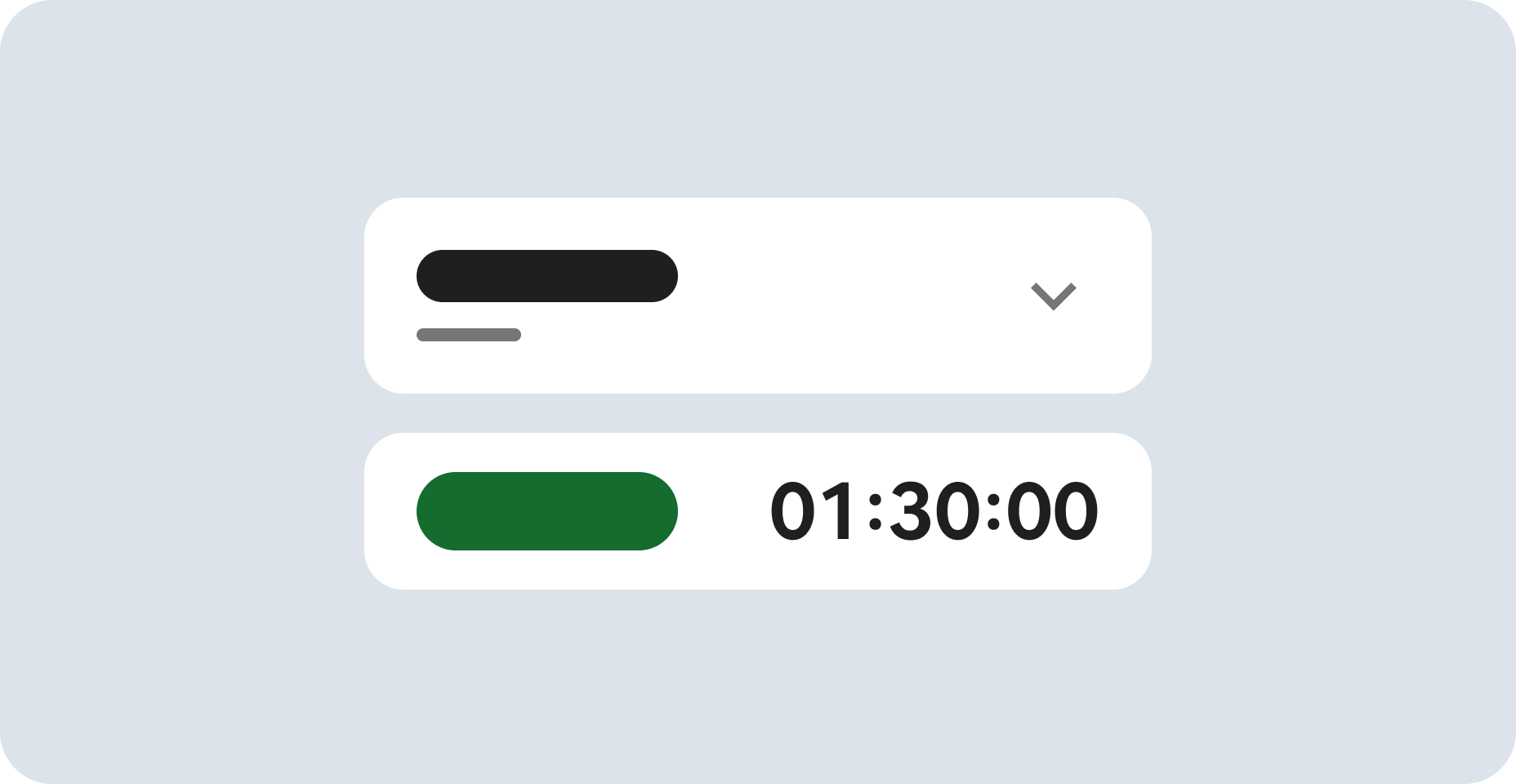
Before you begin
- Labs create a Google Cloud project and resources for a fixed time
- Labs have a time limit and no pause feature. If you end the lab, you'll have to restart from the beginning.
- On the top left of your screen, click Start lab to begin

Use cURL to test sample prompts with the API
/ 15
Write Streamlit framework code for the user interface
/ 25
Test the application in Cloud Shell
/ 20
Modify the Dockerfile and push the Docker image to the Artifact Registry
/ 20
Deploy the application to Cloud Run and test it
/ 20
Use cURL to test sample prompts with the API
/ 15
Write Streamlit framework code for the user interface
/ 25
Test the application in Cloud Shell
/ 20
Modify the Dockerfile and push the Docker image to the Artifact Registry
/ 20
Deploy the application to Cloud Run and test it
/ 20


In a challenge lab you’re given a scenario and a set of tasks. Instead of following step-by-step instructions, you will use the skills learned from the labs in the course to figure out how to complete the tasks on your own! An automated scoring system (shown on this page) will provide feedback on whether you have completed your tasks correctly.
When you take a challenge lab, you will not be taught new Google Cloud concepts. You are expected to extend your learned skills, like changing default values and reading and researching error messages to fix your own mistakes.
To score 100% you must successfully complete all tasks within the time period!
This lab is recommended for students who enrolled in the Develop Gen AI Apps with Gemini and Streamlit course. Are you ready for the challenge?
Explore other content in the Gemini Enterprise Agent Ready (GEAR) program.
Read these instructions. Labs are timed and you cannot pause them. The timer, which starts when you click Start Lab, shows how long Google Cloud resources are made available to you.
This hands-on lab lets you do the lab activities in a real cloud environment, not in a simulation or demo environment. It does so by giving you new, temporary credentials you use to sign in and access Google Cloud for the duration of the lab.
To complete this lab, you need:
You onboarded at Cymbal Health just a few months ago. Cymbal Health is an established health network in East Central Minnesota dedicated to reimagining and transforming the way that healthcare can be delivered. Cymbal Health connects care and coverage under one health plan to make it easier for patients to receive high quality care at an affordable cost.
As a value added service, Cymbal Health is interested in improving customer Healthy Living and Wellness, with tips, and advice within apps. One particular area they want to focus on is improving customer nutrition.
By harnessing the power of Gemini, a multimodal model for generating text, audio, images, and video, Cymbal Health can build applications that generate meal recommendations for its customers.
As an example, your team is working to create an AI-based Chef app that generates recipes based on customer cuisine preferences, dietary restrictions, food allergies, and what they typically have in their homes or can purchase at a grocery store. Your job is to build, test, and deploy a proof of concept (POC) for this Chef app built on the Gemini model, Streamlit framework, and Cloud Run. As part of this POC, they have a list of tasks for you to complete in an allotted period of time in a sandbox environment.
In this lab, you learn how to perform the following tasks:
chef.py.Before you begin to create the Chef app in Agent Platform, test connectivity with the Gemini API.
In the Google Cloud console, on the Navigation menu (
Find the
The JupyterLab interface for your Workbench instance opens in a new browser tab.
From the File Browser, open prompt.ipynb and select the Python 3 (Local) kernel when prompted.
Modify prompt.ipynb to use the following prompt with cURL in cell 5 by replacing the existing prompt:
LOCATION variable is automatically configured with your assigned lab region ({{{project_0.default_region | Region}}}). Ensure that cell 3 runs before running cell 5 so that the API endpoint correctly targets your assigned regional Vertex AI service.
Run all cells and observe the results.
Save prompt.ipynb.
Once you are satisfied with the results, verify the objective.
To verify the objective, click Check my progress.
In this task, you clone a GitHub repository and download the chef.py file. Then you add Streamlit framework code in the chef.py file for the wine preference to complete the user interface for the application. You also include a custom Gemini prompt (similar to the one in Task 1) that uses variables.
In Cloud Shell, clone the following repository from the default directory:
Navigate to the gemini-streamlit-cloudrun directory:
Add the following dependency to the requirements.txt file:
chef.py file and make changes to it in this directory, it cannot access the Streamlit framework, and you cannot test it in Cloud Shell (Task 3), build the Docker container (Task 4), or deploy and test it in Cloud Run (Task 5).
Download the chef.py file using the following command:
Open the chef.py file in the Cloud Shell Editor and review the code.
chef.py file already includes the Streamlit framework user interface code for the cuisine, dietary_preference, allergy, ingredient_1, ingredient_2, and ingredient_3 variables. Review this interface code before completing the next step.
Replace GCP_PROJECT_ID with GEMINI_FLASH_MODEL_ID with
Add a Streamlit framework radio button option for the wine variable with options for Red, White, and None.
Save the chef.py file.
Add the following Gemini prompt in the Python code:
Save the chef.py file.
Once you are satisfied with the Gemini prompt code that you added in chef.py, in the Google Cloud console, click Open Terminal to return to Cloud Shell, and run the following command to upload the file to the
To verify the objective, click Check my progress.
chef.py file so that the updated chef.py file is present in the bucket.In this task, you use the terminal in Cloud Shell to run and test your application.
Make sure you are still in the generative-ai/gemini/sample-apps/gemini-streamlit-cloudrun directory.
Set up the Python virtual environment and install the dependencies.
Set environment variables for PROJECT (your Project ID) and REGION (the region you are using in the lab environment).
Run the chef.py application and test it.
Once you have tested the application in Cloud Shell and confirmed that it performs as designed without errors, verify the objective.
To verify the objective, click Check my progress.
In this task, you modify the sample Dockerfile to use your chef.py file and push the Docker image to Artifact Registry.
PROJECT (your Project ID) and REGION (the region you are using in the lab environment) as you did in the previous task.
In the Cloud Shell Editor, modify the Dockerfile to use chef.py, and then save the file.
In Cloud Shell, set the following environment variables:
| Variable | Value |
|---|---|
AR_REPO |
chef-repo |
SERVICE_NAME |
chef-streamlit-app |
Create the Artifact Registry repository with the gcloud artifacts repositories create command and the following parameters:
| Parameter | Value |
|---|---|
| Repository name | $AR_REPO |
| Location | $REGION |
| Repository format | Docker |
Submit the build with the gcloud builds submit command and the following parameter:
| Parameter | Value |
|---|---|
| Tag | "$REGION-docker.pkg.dev/$PROJECT/$AR_REPO/$SERVICE_NAME" |
Wait for the command to complete.
Once the command is complete, verify the objective.
To verify the objective, click Check my progress.
In this task, you deploy the application (as a Docker artifact) to Cloud Run and then test the application running from the Cloud Run service endpoint.
In Cloud Shell, deploy the application using the gcloud run deploy command and the following parameter values:
| Parameter | Value |
|---|---|
| Port | 8080 |
| Image | "$REGION-docker.pkg.dev/$PROJECT/$AR_REPO/$SERVICE_NAME" |
| Flag | --allow-unauthenticated |
| Region | $REGION |
| Project | $PROJECT |
| Set-env-vars | PROJECT=$PROJECT,REGION=$REGION |
The deployment takes a few minutes to complete and provides a URL to the Cloud Run service. You can open that URL in your browser to view the deployed Cloud Run application.
Once you have tested the application running on Cloud Run, verify the objective.
To verify the objective, click Check my progress.
By completing this challenge lab, you verified your skills in Gen AI application development with Gemini and how you can apply these skills to an AI-based Chef application.
...helps you make the most of Google Cloud technologies. Our classes include technical skills and best practices to help you get up to speed quickly and continue your learning journey. We offer fundamental to advanced level training, with on-demand, live, and virtual options to suit your busy schedule. Certifications help you validate and prove your skill and expertise in Google Cloud technologies.
Manual Last Updated on November 10, 2026
Lab Last Tested on November 9, 2026
Copyright 2026 Google LLC. All rights reserved. Google and the Google logo are trademarks of Google LLC. All other company and product names may be trademarks of the respective companies with which they are associated.


This content is not currently available
We can notify you via email when it becomes available
Great!
We can contact you via email if it becomes available

One lab at a time
Confirm to end all existing labs and start this one