
Before you begin
- Labs create a Google Cloud project and resources for a fixed time
- Labs have a time limit and no pause feature. If you end the lab, you'll have to restart from the beginning.
- On the top left of your screen, click Start lab to begin

Create Managed Airflow environment.
/ 25
Create two Cloud Storage buckets.
/ 25
Create a dataset.
/ 25
Uploading the DAG and dependencies to Cloud Storage
/ 25
Create Managed Airflow environment.
/ 25
Create two Cloud Storage buckets.
/ 25
Create a dataset.
/ 25
Uploading the DAG and dependencies to Cloud Storage
/ 25


Imagine you have datasets that live in different locations around the globe, and your data is in Google Cloud Storage buckets or in BigQuery tables. How can you organize that data so that it gets consolidated and analyzed to provide insights on your business?
Managed Service for Apache Airflow helps you build, schedule, and monitor workflows to move and process data across different regions and storage systems, using an intuitive graphical interface. It provides a flexible framework with operators and integrations that enable reliable data transfer between services such as BigQuery and Cloud Storage.
In this lab, you create and run an Apache Airflow workflow using Managed Service for Apache Airflow that completes the following tasks:
In this lab, you learn how to perform the following tasks:
Read these instructions. Labs are timed and you cannot pause them. The timer, which starts when you click Start Lab, shows how long Google Cloud resources are made available to you.
This hands-on lab lets you do the lab activities in a real cloud environment, not in a simulation or demo environment. It does so by giving you new, temporary credentials you use to sign in and access Google Cloud for the duration of the lab.
To complete this lab, you need:
Click the Start Lab button. If you need to pay for the lab, a dialog opens for you to select your payment method. On the right is the Lab setup and access panel with the following:
Note that the lab timer is located near the top of the page, showing the remaining time.
Click Open Google Cloud console (or right-click and select Open Link in Incognito Window if you are running the Chrome browser).
The lab spins up resources, and then opens another tab that shows the Sign in page.
Tip: Arrange the tabs in separate windows, side-by-side.
If necessary, copy the Username below and paste it into the Sign in dialog.
You can also find the Username in the Lab setup and access panel.
Click Next.
Copy the Password below and paste it into the Welcome dialog.
You can also find the Password in the Lab setup and access panel.
Click Next.
Click through the subsequent pages:
After a few moments, the Google Cloud console opens in this tab.

Cloud Shell is a virtual machine that is loaded with development tools. It offers a persistent 5GB home directory and runs on the Google Cloud. Cloud Shell provides command-line access to your Google Cloud resources.
Click Activate Cloud Shell 
Click through the following windows:
When you are connected, you are already authenticated, and the project is set to your Project_ID,
gcloud is the command-line tool for Google Cloud. It comes pre-installed on Cloud Shell and supports tab-completion.
Output:
Output:
gcloud, in Google Cloud, refer to the gcloud CLI overview guide.
On the Google Cloud console title bar, type Managed Airflow in the Search field, then click Managed Airflow in the Products & Pages section to create a Managed Airflow environment.
Click Create environment > Managed Airflow Gen 3.
Set the following parameters for your environment and leave all other settings as default:
Name: airflow-advanced-lab
Location:
Image Version: composer-3-airflow-2.n.n-build.n
Service account: Compute Engine default service account
Resilience mode: Select Standard resilience, and for Airflow database zone, select
Under Environment resources, select Small.
For Web server network access control, select Allow access from all IP addresses.
Click Create.
The environment creation process is completed when the green checkmark displays to the left of the environment name on the Environments page in the Google Cloud console.
Create Cloud Storage buckets and BigQuery destination dataset.Click Check my progress to verify the objective.
In this task you will record your environment's DAGs bucket name and create two Cloud Storage multi-regional buckets. These buckets will be used to copy the exported tables across locations (from the US to the EU).
When you created your Managed Airflow environment in Task 1, Google Cloud automatically provisioned a Cloud Storage bucket to store your environment's DAGs (workflows) and plugins. Locate and record this bucket name to use later in this lab.
us-central1-airflow-advance-73b9-bucket).Next, create a source Cloud Storage bucket in the US multi-region. The Airflow DAG will export your source BigQuery tables from the US dataset into this bucket before transferring them to Europe.
Next, create a destination Cloud Storage bucket in the EU multi-region. The Airflow DAG will copy the exported BigQuery table files from the US bucket into this EU bucket before loading them into your destination BigQuery dataset in Europe.
Click Check my progress to verify the objective.
Create the destination BigQuery dataset in the EU from the Google Cloud console.
The Welcome to BigQuery in the Cloud Console message box opens. This message box provides a link to the quickstart guide and lists UI updates.
Click Done.
Click the three dots next to your Qwiklabs project ID and select Create dataset.
Set Dataset ID to nyc_tlc_EU and Data location type to EU (multiple regions in European Union).
Be sure Link to an external dataset is not selected.
Click Create dataset.
Click Check my progress to verify the objective.
Airflow is a platform to programmatically author, schedule and monitor workflows.
Use Airflow to author workflows as directed acyclic graphs (DAGs) of tasks. The Airflow scheduler executes your tasks on an array of workers while following the specified dependencies.
DAG - A Directed Acyclic Graph is a collection of tasks, organized to reflect their relationships and dependencies.
Operator - The description of a single task; it is usually atomic. For example, the BashOperator is used to execute a Bash command.
Task - A parameterized instance of an Operator; a node in the DAG.
Task Instance - A specific run of a task; characterized as: a DAG, a Task, and a point in time. It has an indicative state: running, success, failed, skipped, ...
Learn more about Airflow concepts from the Concepts documentation.
Workflows in Apache Airflow are composed of DAGs (Directed Acyclic Graphs). The code in bq_copy_across_locations.py represents the workflow, also known as a DAG. Open the file to understand how the DAG is constructed. The next section provides a detailed look at its key components.
To orchestrate all the workflow tasks, the DAG imports the following operators:
DummyOperator: Creates Start and End dummy tasks for better visual representation of the DAG.BigQueryToCloudStorageOperator: Exports BigQuery tables to Cloud Storage buckets using Avro format.GoogleCloudStorageToGoogleCloudStorageOperator: Copies files across Cloud Storage buckets.GoogleCloudStorageToBigQueryOperator: Imports tables from Avro files in Cloud Storage bucket.read_table_list() is defined to read the config file and build the list of tables to copy:bq_copy_us_to_eu_01, and the DAG is not scheduled by default so needs to be triggered manually.GCSPlugin(AirflowPlugin) is defined, mapping the hook and operator downloaded from the Airflow 1.10-stable branch.Go back to Managed Airflow to check on the status of your environment.
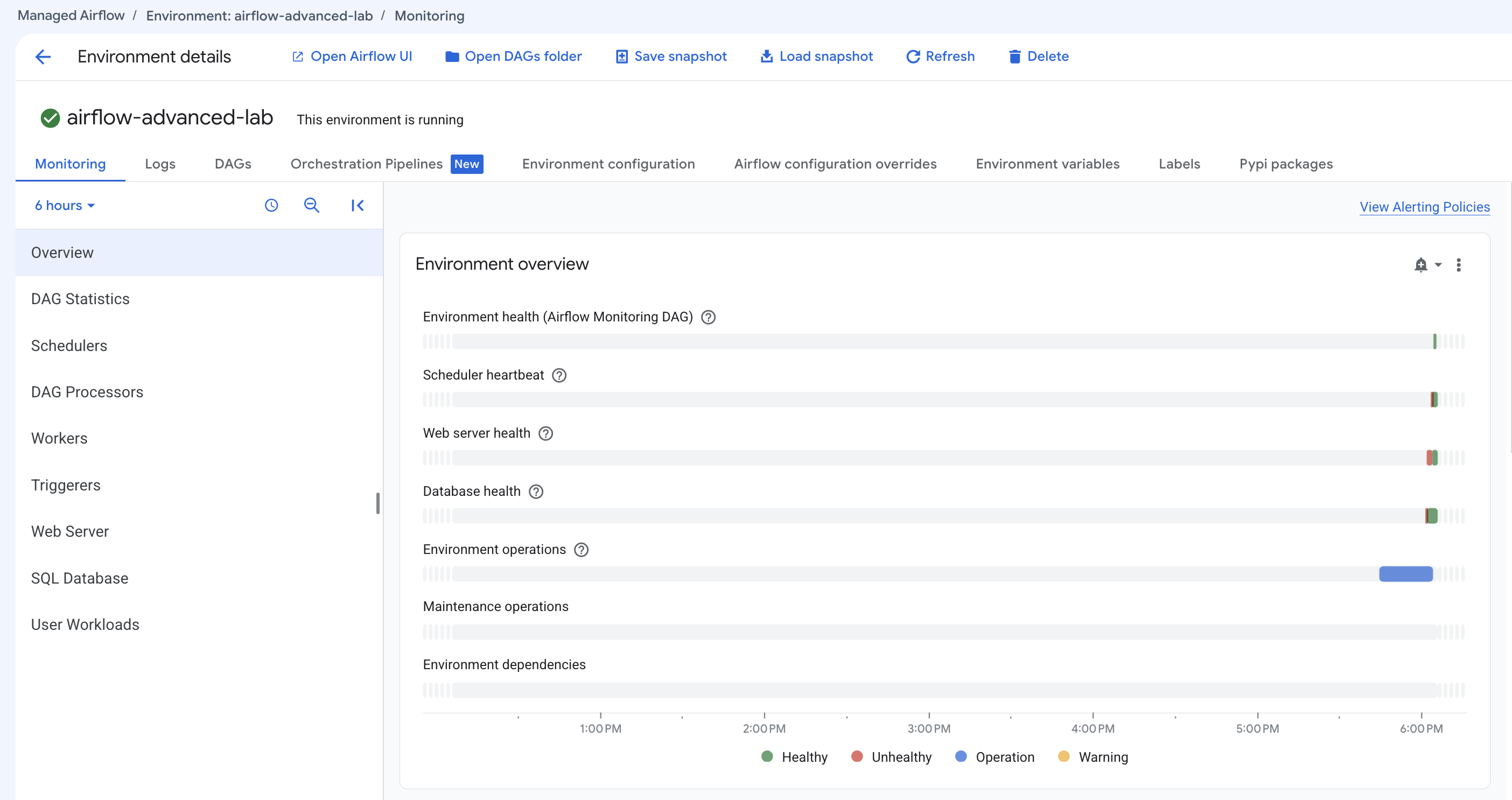
Once your environment has been created, click the name of the environment to see its details.
The Environment details page provides information, such as the Airflow web UI URL, Google Kubernetes Engine cluster ID, and name of the Cloud Storage bucket connected to the DAGs folder.
Complete the next steps in Cloud Shell.
Python virtual environments are used to isolate package installation from the system.
virtualenv environment:[YOURDAGSBUCKET] in the command below with the DAGs bucket name you recorded in Task 2 and run the command:You will be using this variable a few times during the lab.
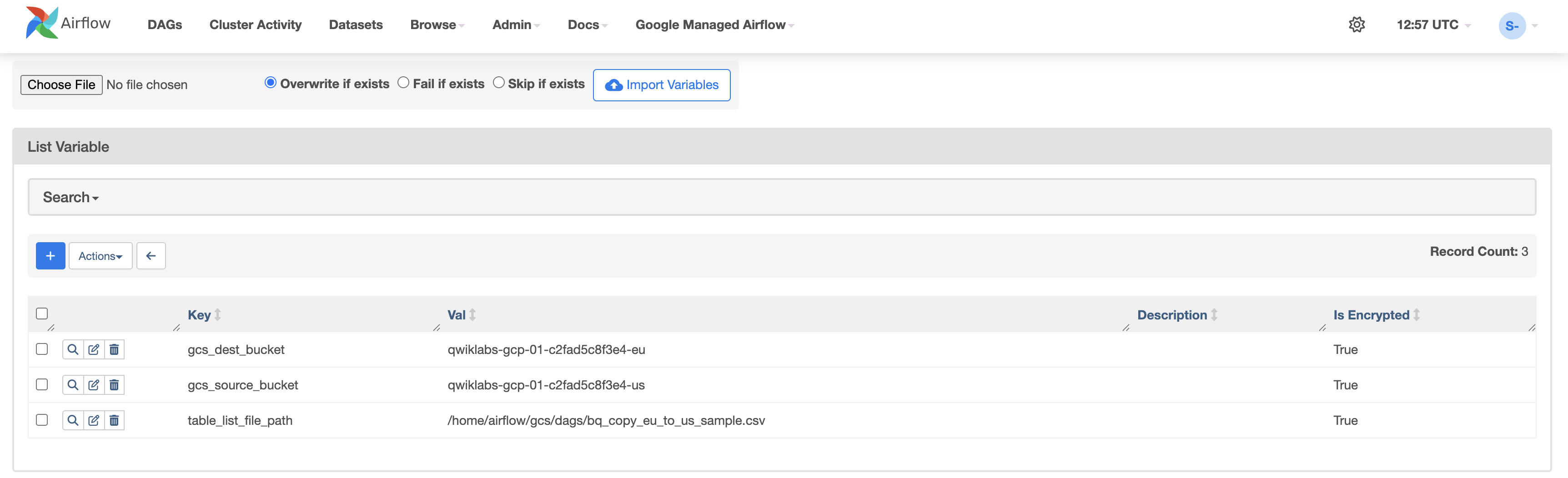
Airflow variables are an Airflow-specific concept that is distinct from environment variables. In this step, you'll set the following three Airflow variables used by the DAG you will deploy: table_list_file_path, gcs_source_bucket, and gcs_dest_bucket.
| Key | Value | Details |
|---|---|---|
table_list_file_path |
/home/airflow/gcs/dags/bq_copy_eu_to_us_sample.csv | CSV file listing source and target tables, including dataset |
gcs_source_bucket |
|
Cloud Storage bucket to use for exporting BigQuery tables from source |
gcs_dest_bucket |
|
Cloud Storage bucket to use for importing BigQuery tables at destination |
The next gcloud composer command executes the Airflow CLI sub-command variables. The sub-command passes the arguments to the gcloud command line tool.
To set the three variables, you will run the gcloud composer command once for each row from the above table. The form of the command is this:
(ERROR: gcloud crashed (TypeError): 'NoneType' object is not callable). This is a known issue with using gcloud composer environments run with the 410.0.0 version of gcloud. Your variables will still be set accordingly despite the error message.
ENVIRONMENT_NAME is the name of the environment.LOCATION is the Compute Engine region where the environment is located. The gcloud composer command requires including the --location flag or setting the default location before running the gcloud command.KEY and VALUE specify the variable and its value to set. Include a space two dashes space ( -- ) between the left-side gcloud command with gcloud-related arguments and the right-side Airflow sub-command-related arguments. Also include a space between the KEY and VALUE arguments.CREATING state, wait until the airflow-advanced-lab environment has finished creating (indicated by a green checkmark and the RUNNING state) before running these commands.To see the value of a variable, run the Airflow CLI sub-command variables with the get argument or use the Airflow UI.
For example, run the following:
Managed Apache Airflow services automatically detect and register DAGs in the Airflow environment, with updates typically reflected within a few minutes. You can monitor task status through the Airflow web interface and verify that the DAG scheduling behavior matches its defined configuration.
To access the Airflow web interface using the Google Cloud console:
The variables you set earlier are persisted in your environment.
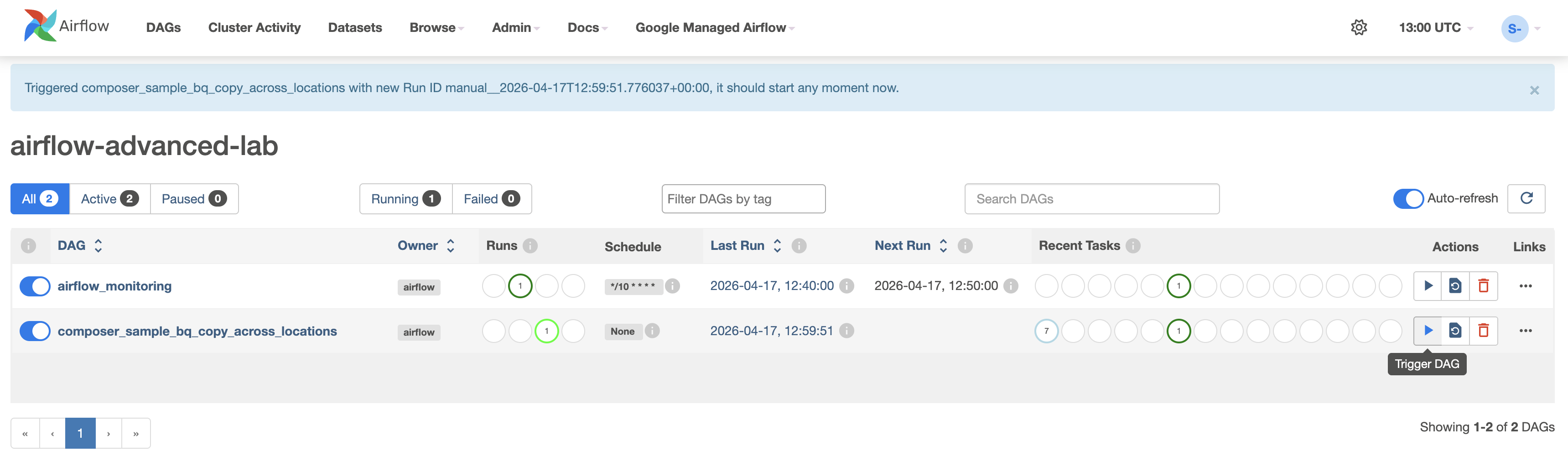
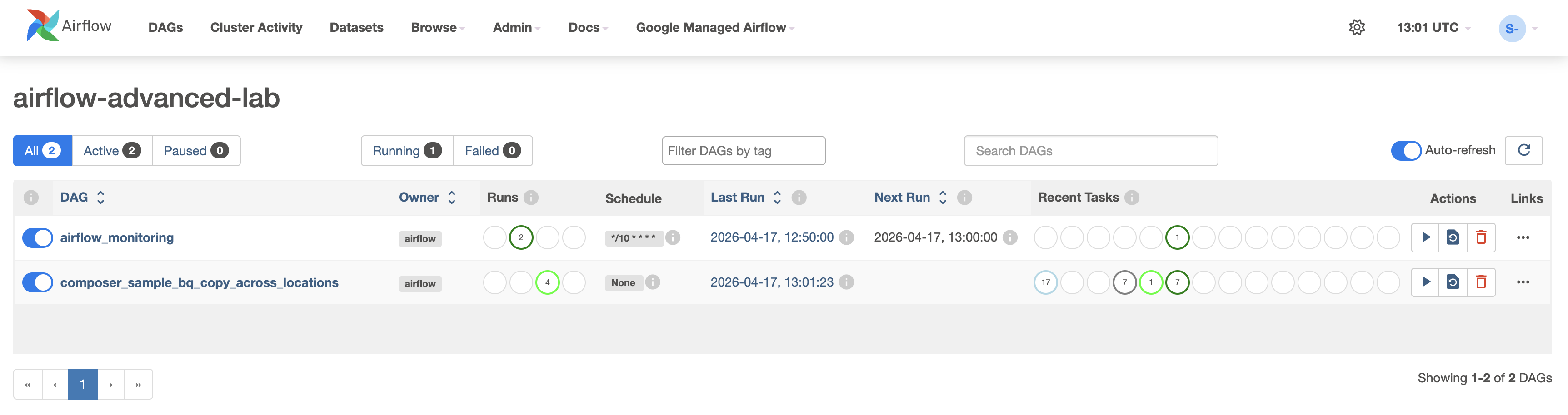
Click on the DAGs tab and wait for the links to finish loading.
To trigger the DAG manually, click the play button for composer_sample_bq_copy_across_locations:
Click Check my progress to verify the objective.
When you upload your DAG file to the DAGs folder (configured storage location), Apache Airflow parses the file. If no errors are found, the workflow appears in the DAG list, and it is queued to run based on its scheduling configuration. If the schedule is set to None, the workflow will not run automatically and must be triggered manually.
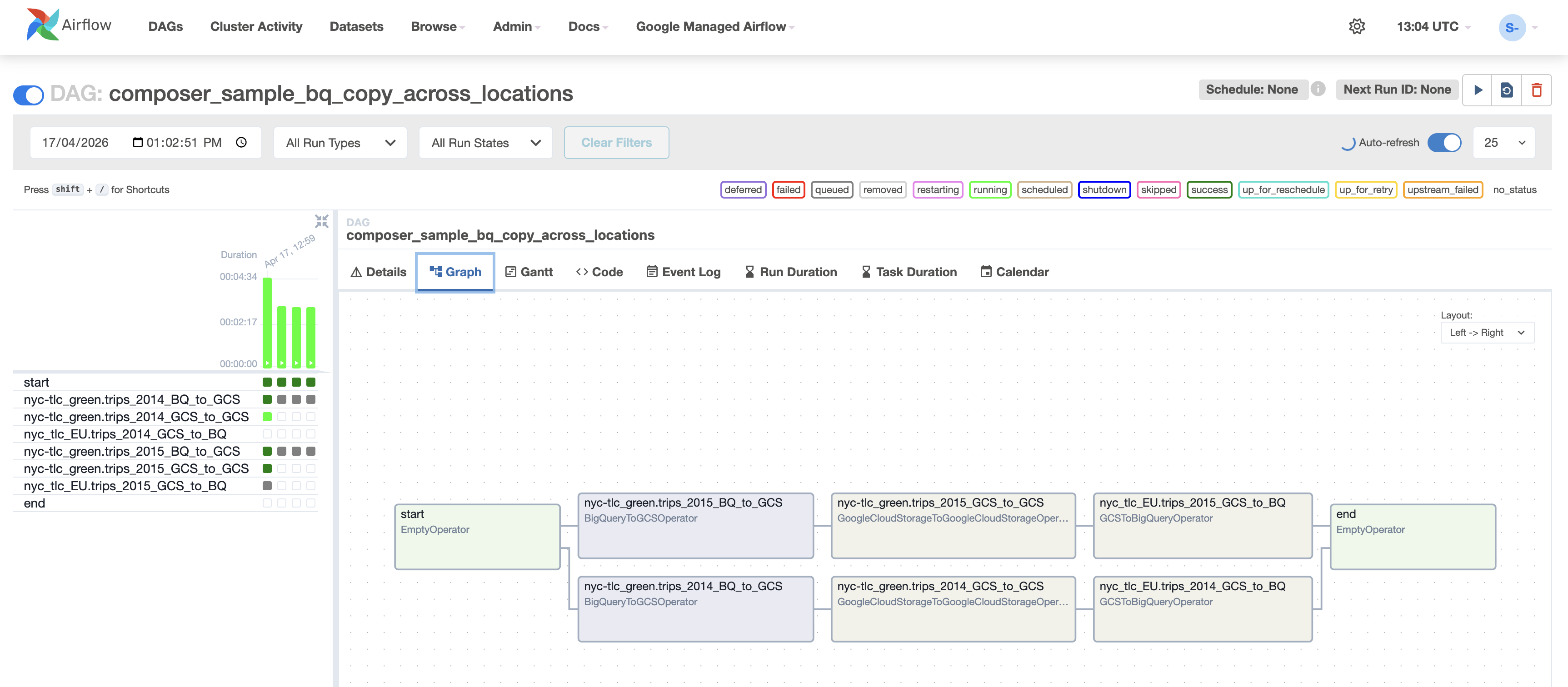
The Runs status turns green (indicating active or completed runs) once the play button is pressed:
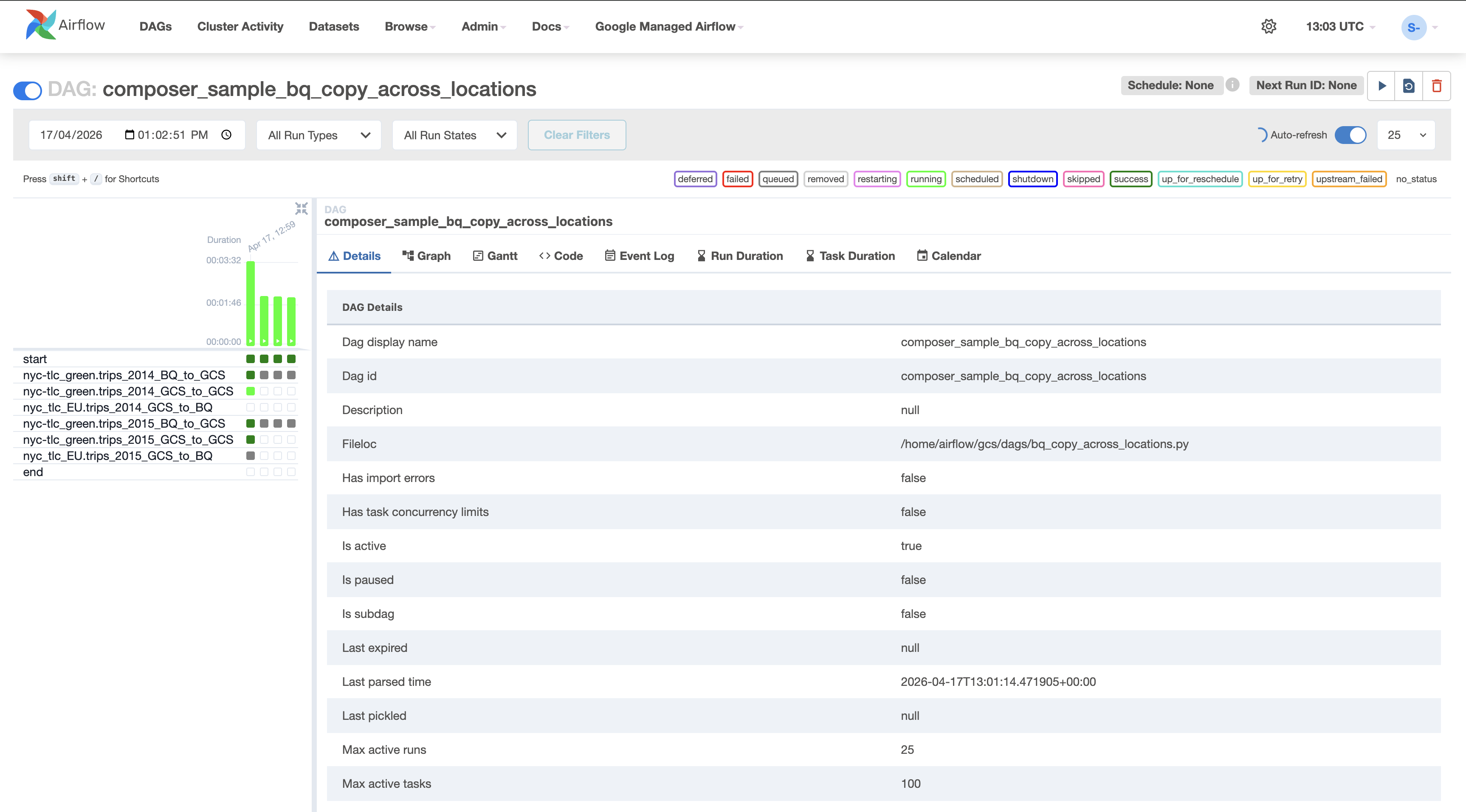
To run the workflow again from the Graph view:
Refresh your browser while the process is running to see the most recent information.
Now check the status and results of the workflow by going to these Google Cloud console pages:
Return to the Environments page in Managed Airflow.
Select your Managed Airflow environment.
Click Delete.
In the dialog that opens, click Delete to confirm you want to continue deleting the Managed Airflow environment.
You copied tables programmatically from US to EU! This lab is based on this blog post by David Sabater Dinter.
...helps you make the most of Google Cloud technologies. Our classes include technical skills and best practices to help you get up to speed quickly and continue your learning journey. We offer fundamental to advanced level training, with on-demand, live, and virtual options to suit your busy schedule. Certifications help you validate and prove your skill and expertise in Google Cloud technologies.
Manual Last Updated September 10, 2026
Lab Last Tested September 10, 2026
Copyright 2026 Google LLC. All rights reserved. Google and the Google logo are trademarks of Google LLC. All other company and product names may be trademarks of the respective companies with which they are associated.


This content is not currently available
We can notify you via email when it becomes available
Great!
We can contact you via email if it becomes available
One lab at a time
Confirm to end all existing labs and start this one