
Before you begin
- Labs create a Google Cloud project and resources for a fixed time
- Labs have a time limit and no pause feature. If you end the lab, you'll have to restart from the beginning.
- On the top left of your screen, click Start lab to begin

Configure service accounts
/ 5
Create the VMs
/ 5

In this lab, you will learn how to install the Cloud logging and monitoring agents on Windows VMs.
In this lab, you will learn how to:
For each lab, you get a new Google Cloud project and set of resources for a fixed time at no cost.
Sign in to Google Skills using an incognito window.
Note the lab's access time (for example, 1:15:00), and make sure you can finish within that time.
There is no pause feature. You can restart if needed, but you have to start at the beginning.
When ready, click Start lab.
Note your lab credentials (Username and Password). You will use them to sign in to the Google Cloud Console.
Click Open Google Console.
Click Use another account and copy/paste credentials for this lab into the prompts. If you use other credentials, you'll receive errors or incur charges.
Accept the terms and skip the recovery resource page.
It's a best practice to create service accounts for your VMs, and to assign those accounts the minimal set of roles required for the VMs to perform their jobs. In this task, you'll create a service accounts and assign them only the roles required to write log entries and metrics data into Cloud Monitoring.
 ) , select IAM & Admin > Service Accounts.
Click Check my progress to verify the objective.
In this task, you'll create a Windows VM. You will configure the VM to use an appropriate service account that will allow the installed agents to write their data to Cloud Monitoring.
| Property | Value |
|---|---|
| Name | windows-server |
| Region | us-central1 |
| Zone | us-central1-a |
| Boot disk | Click Change, select Operating system: Windows server and version: Windows Server 2019 Datacenter Core then click Select. |
| Identity and API accesss > Service account | windows-servers |
| Allow HTTP traffic | Enabled |
You may continue on to Task 3 while the Windows VM finishes starting.
Click Check my progress to verify the objective.
In this task, you will install the Cloud Ops Agent on your VM. The Ops Agent is the primary agent for collecting telemetry from your Compute Engine instances. Combining logging and metrics into a single agent, the Ops Agent uses Fluent Bit for logs, which supports high-throughput logging, and the OpenTelemetry Collector for metrics. You will check the VM logs before and after agent installation to see how installing the agent results in more logs being recorded.
Press Ctrl+Alt+Del (for macOS Command+Option+Delete).
Choose Sign out and close the Spark RDP window.
In the VM instances window, reset the window-server instance.
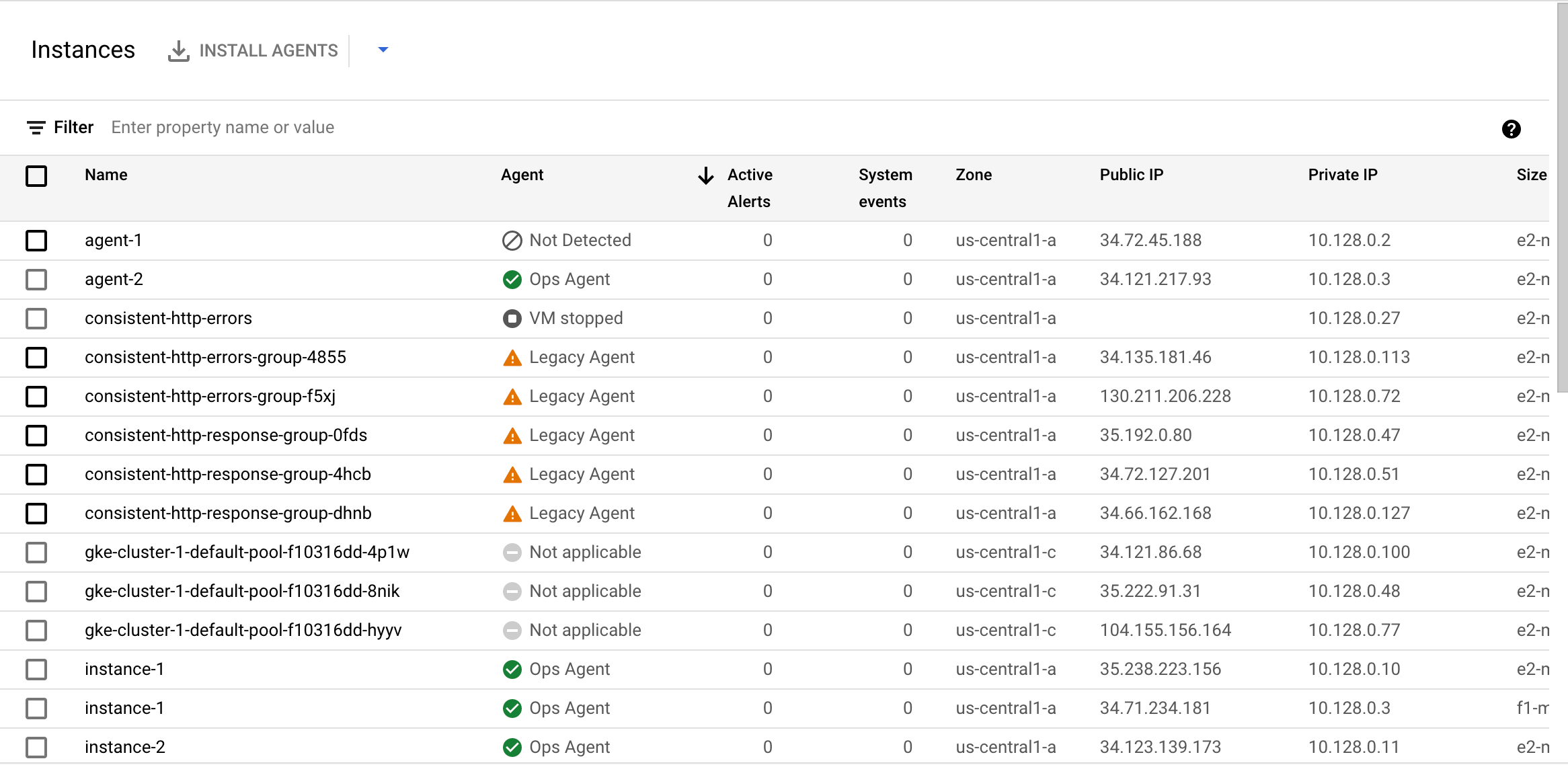
The Agent column reports the following values:
The Ops Agent collects both metrics and logs by default. You can change this default behavior by configuring the Ops Agent.
Ops Agent: You are running the Ops Agent.
Legacy agent: You are running the legacy Monitoring or the Logging agent. See Migrating from the legacy agents to the Ops Agent for information on transitioning to the Ops Agent.
Not applicable: This VM is not a supported platform for running the agent.
VM stopped: The VM is not running, so the agent's status is not known.
In this lab, you had the chance to do the following:
Also, keep in mind that Cloud Logging can collect logs and metrics data from non-GCP systems. Google provides Cloud Monitoring agents that can be installed on AWS EC2 instances, and you can install fluentd and collectd agents on on-premise machines, enabling them to write data to the Cloud Monitoring service.
When you have completed your lab, click End Lab. Google Skills removes the resources you’ve used and cleans the account for you.
You will be given an opportunity to rate the lab experience. Select the applicable number of stars, type a comment, and then click Submit.
The number of stars indicates the following:
You can close the dialog box if you don't want to provide feedback.
For feedback, suggestions, or corrections, please use the Support tab.
Copyright 2026 Google LLC All rights reserved. Google and the Google logo are trademarks of Google LLC. All other company and product names may be trademarks of the respective companies with which they are associated.



This content is not currently available
We will notify you via email when it becomes available

Great!
We will contact you via email if it becomes available


One lab at a time
Confirm to end all existing labs and start this one