Before you begin
- Labs create a Google Cloud project and resources for a fixed time
- Labs have a time limit and no pause feature. If you end the lab, you'll have to restart from the beginning.
- On the top left of your screen, click Start lab to begin

Verify Local Environment Setup
/ 50
Verify Google Cloud Developer Plugin Installation and Usage
/ 50
Verify Local Environment Setup
/ 50
Verify Google Cloud Developer Plugin Installation and Usage
/ 50


Google Antigravity is a standalone desktop application tailored for managing and orchestrating AI agents that execute complex knowledge and coding tasks. Serving as a central command center, it provides a unified platform to launch, monitor, and manage agent activities independently of your IDE.
Through this interface, you can run agents synchronously or asynchronously to perform various development operations, including:
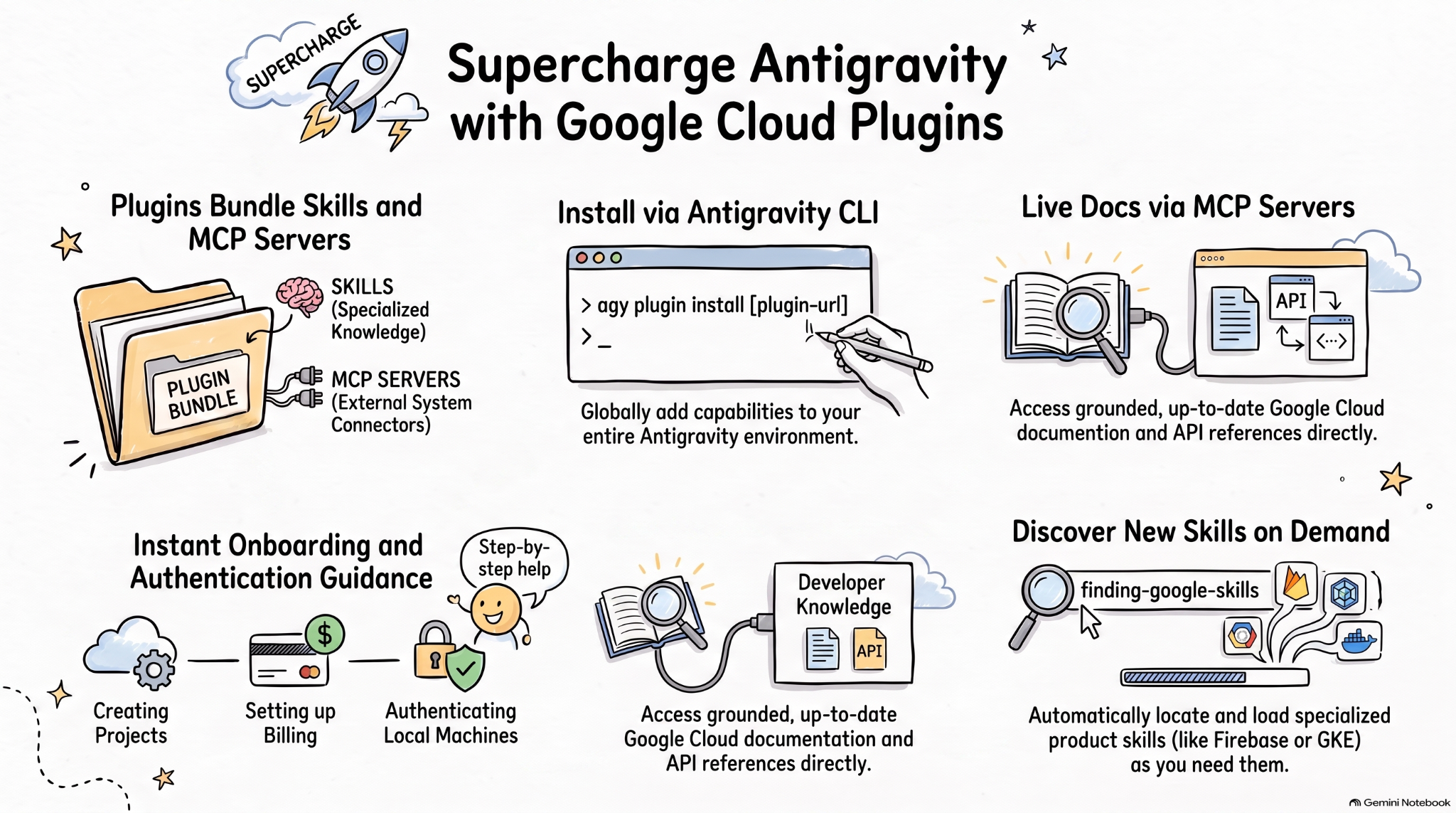
Agent skills are a lightweight, open format for extending AI agent capabilities with specialized knowledge and workflows. The Model Context Protocol (MCP) is a standard for connecting AI applications to external systems.
The Agent plugins specification is an open, vendor-neutral specification for packaging agent skills and MCP servers into portable plugins.
Google Cloud plugins for AI coding agents package relevant Google Cloud skills and MCP servers into installable bundles for more effective AI agents on Google Cloud.
In this lab, you learn about the Google Cloud Developer plugin and how to install and use this plugin in Google Antigravity.
In this lab, you learn how to perform the following tasks:
Read these instructions. Labs are timed and you cannot pause them. The timer, which starts when you click Start Lab, shows how long Google Cloud resources are made available to you.
This hands-on lab lets you do the lab activities in a real cloud environment, not in a simulation or demo environment. It does so by giving you new, temporary credentials you use to sign in and access Google Cloud for the duration of the lab.
To complete this lab, you need:
In this task, you launch the Google Antigravity application on your local machine, sign in with your ephemeral student credentials, configure your assigned Gemini model, and authorize the gcloud command-line interface to connect with your lab environment.
To complete this lab, you must have the following software installed on your local machine:
First, launch the Google Antigravity application on your local machine and sign in using your student credentials to establish a local connection to the lab environment.
Permission 'aiplatform.endpoints.predict' denied or Agent terminated due to error, you are likely signed in with a personal Google account instead of your temporary student account, or an incorrect Project ID was entered. Click Settings > Account > Sign Out, relaunch Antigravity, click Use business account, click Continue with Google Cloud, and enter your assigned lab Project ID and student credentials.
After completing the setup, you are presented with your local Antigravity environment.
Because Antigravity runs locally on your machine, you must authenticate the gcloud CLI and set the active Google Cloud project. This connects the application to the provisioned ephemeral Google Cloud project to allow local development and check your progress.
In the Antigravity chat panel, paste and send the following prompt:
When Antigravity proposes the setup commands, click Proceed in the chat UI.
In the browser window that opens, select your student email account and click Allow to authorize access.
Confirm that the final output matches your active student account (
At this point, both the gcloud CLI and local application SDKs are fully configured, authenticated, and ready for use.
In the Antigravity chat panel, paste and send the following prompt to generate the task completion summary file and upload it to the grading bucket:
When Antigravity proposes the file creation and upload commands, click Run in the chat panel.
Click Check my progress to verify the objective.
In this task, you review the structure of agent plugins and how the Google Cloud Developer plugin packages skills and MCP servers.
Agent plugins provide a portable package format to bundle agent skills and MCP servers into a directory structure like the following:
plugin.json identifies the plugin.skills/ contains agent skills.mcp.json describes MCP servers.The Google Agent Skills repository contains agent skills for Google products and technologies, including Google Cloud. It also contains Google Cloud plugins that bundle agent skills and MCP servers into installable packages such as the Google Cloud Developer plugin.
The Google Cloud Developer plugin provides Google Cloud guidance for coding agents running on gcloud CLI commands. It also includes the Google Developer Knowledge MCP server for grounded, up-to-date Google Cloud documentation.
In this task, you install the Google Cloud Developer plugin using the Antigravity CLI so that its skills and MCP server are available across your Antigravity environment.
Antigravity CLI provides a direct command to install agent plugins for the Antigravity ecosystem (Antigravity, Antigravity CLI, and Antigravity IDE).
In your local terminal, run the following command to install the Google Cloud Developer plugin:
The output confirms that the command installs the plugin along with five skills and one MCP server:
In this task, you inspect the installed Google Cloud Developer plugin files, verify the registered skills in the Antigravity interface, and confirm the Developer Knowledge MCP server configuration.
In your terminal, run the following command to verify that Antigravity CLI lists the plugin:
Antigravity CLI installs plugins globally in the ~/.gemini/config/plugins/ folder. This makes the plugin available to Antigravity, Antigravity CLI, and Antigravity IDE.
In the ~/.gemini/config/plugins/google-cloud-developer folder, the Google Cloud Developer plugin includes the plugin manifest file, skills, and MCP server configuration:
In the Antigravity chat panel, send the following prompt to list the installed skills:
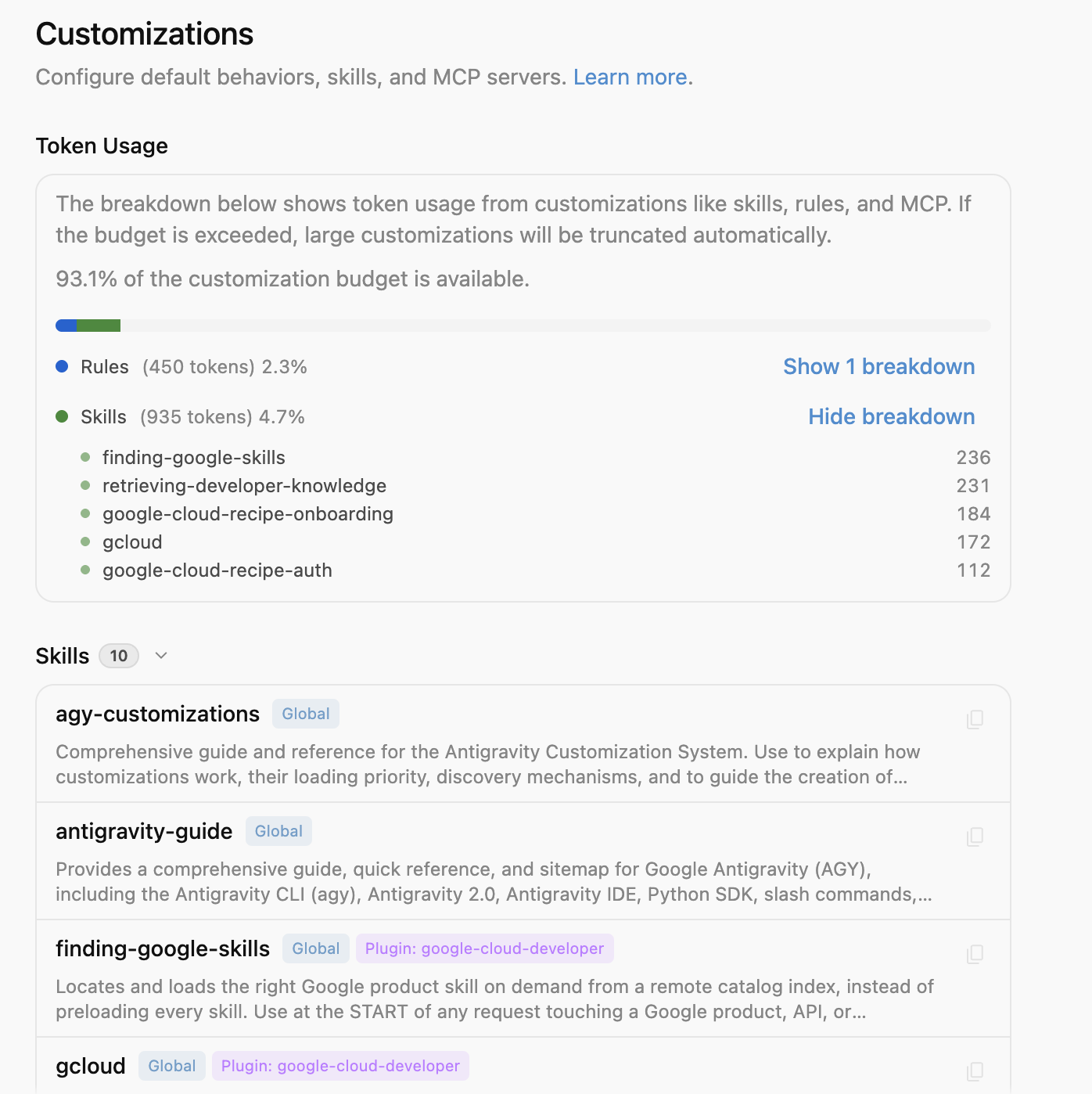
Antigravity lists its built-in skills along with the five skills from the Google Cloud Developer plugin:
In the Antigravity navigation sidebar, click Settings (⚙️), and then select Customizations to view the installed plugin skills:
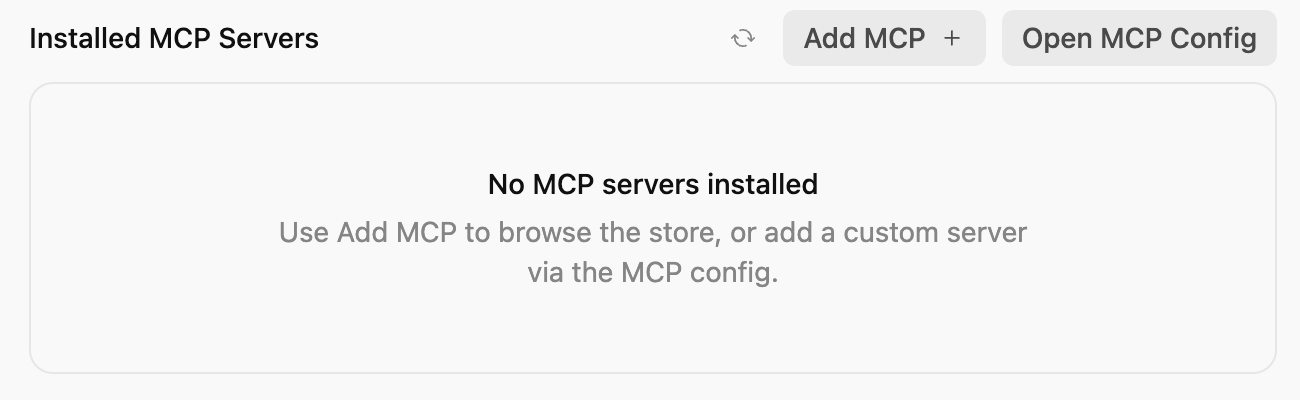
In the Antigravity chat panel, send the following prompt to ask about the available MCP servers:
Antigravity recognizes the Developer Knowledge MCP server that the plugin installs:
In this task, you test how the Google Cloud Developer plugin activates specialized skills and queries the Developer Knowledge MCP server across common Google Cloud development scenarios using
developerknowledge.googleapis.com) required by the Developer Knowledge MCP server for your Google Cloud lab project.
You can run the following prompts in the Antigravity chat panel or Antigravity CLI because Antigravity CLI installs the plugin globally.
In the Antigravity chat panel, send the following prompt aligned with your active sandbox project to see recommended steps for configuring your environment and deploying a service to Cloud Run:
Antigravity activates the google-cloud-recipe-onboarding skill:
The agent returns step-by-step guidance for configuring your project environment, enabling required APIs, and deploying to Cloud Run.
In the Antigravity chat panel, send the following prompt to ask how to authenticate your local machine with Google Cloud:
Antigravity activates the google-cloud-recipe-auth skill:
The agent responds with the recommended authentication commands for both the CLI and Application Default Credentials (ADC):
In the Antigravity chat panel, send the following prompt to ask a question that requires grounded answers from official Google Cloud documentation:
Antigravity activates the retrieving-developer-knowledge skill and invokes the developer-knowledge MCP server:
In the Antigravity chat panel, send the following prompt to test on-demand skill discovery by asking about Firebase:
Antigravity activates the finding-google-skills skill to search the Google Agent Skills catalog and fetch the relevant Firebase skill:
In the Antigravity chat panel, paste and send the following prompt to generate the task completion summary file and upload it to the grading bucket:
When Antigravity proposes the file creation and upload commands, click Run in the chat panel.
Click Check my progress to verify the objective.
After completing the lab, sign out of your temporary student account in Google Antigravity while keeping the Google Cloud Developer plugin installed on your machine.
Congratulations! You have successfully configured
...helps you make the most of Google Cloud technologies. Our classes include technical skills and best practices to help you get up to speed quickly and continue your learning journey. We offer fundamental to advanced level training, with on-demand, live, and virtual options to suit your busy schedule. Certifications help you validate and prove your skill and expertise in Google Cloud technologies.
Manual Last Updated on November 3, 2026
Lab Last Tested on November 4, 2026
Copyright 2026 Google LLC. All rights reserved. Google and the Google logo are trademarks of Google LLC. All other company and product names may be trademarks of the respective companies with which they are associated.


This content is not currently available
We can notify you via email when it becomes available
Great!
We can contact you via email if it becomes available
One lab at a time
Confirm to end all existing labs and start this one