GSP675

Overview
Automate routine tasks and complex workflows across Google Workspace and third-party services using plain-language prompts—no coding required. By describing a goal in Workspace Studio, you can use Gemini to orchestrate the necessary steps to execute end-to-end processes, which is called a flow. These flows adapt to new information in real-time, enabling more sophisticated automation such as sentiment analysis, content generation, and intelligent task prioritization.
In this lab, you use AI to create a flow that addresses a common challenge - email overload. You build an automation that summarizes unread emails and delivers a daily briefing directly to Chat.
What you'll learn
You learn how to automate work in Google Workspace using:
- AI to create flows.
- Workspace Studio-generated variables to pass information between steps, building complex flows.
Setup and requirements
Before you click Start Lab
Read these instructions. Labs are timed and you cannot pause them. The timer starts when you click Start Lab and shows how long Google Workspace resources are available to you.
This Google Workspace hands-on lab lets you do the lab activities yourself in a real cloud environment, not in a simulation or demo environment. It does so by giving you new, temporary credentials that you use to sign in and access Google Workspace for the duration of the lab.
What you need
To complete this lab, you need:
- Access to a standard internet browser (Chrome browser recommended).
- Time. Note the time at the top of the left panel, which is an estimate of how long it should take to complete all steps. Plan your schedule so you have time to complete the lab. Once you start the lab, you will not be able to pause and return later (you begin at step 1 every time you start a lab).
- You do NOT need a Google Workspace account. An account is provided to you as part of this lab.
Open an Incognito window to run this lab.
When your lab prompts you to log into the console, use only the student account provided to you by the lab. This allows the activity tracking to verify that you have completed the lab activities.
Start your lab
-
When you are ready, click Start Lab in the upper left panel.
The Lab Details pane appears with the temporary credentials that you must use to sign into Gmail for this lab.
If you need to pay for the lab, a pop-up opens for you to select your payment method.
-
Right click Open Google Drive and choose Open link in new tab.
The lab spins up resources, and then opens another tab that shows the Sign in page.
-
Accept all terms and conditions as prompted.
Google Drive opens and you are signed in to the Student Google Account.
Open Workspace Studio
-
To open the application, in a new browser tab, go to Workspace Studio: https://studio.workspace.google.com.
-
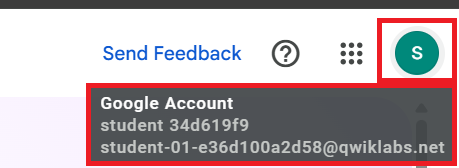
View the user avatar to be sure Workspace Studio is set to the student account spun up for this lab. If needed, change the account to the student account.
Keep both the Google Drive and Workspace Studio browser tabs open.
Task 1. Create a flow with AI
- In the Describe a task for Gemini box, enter a detailed description of what you want the flow to do. For this lab, use this prompt:
Every weekday at 8 am, send me a summary of unread emails on Google Chat.
- Click Create for Gemini to generate the steps for your flow.
Gemini creates the flow in Workspace Studio. Your request is broken into 3 tasks:
-
On a schedule: The flow starts at a specific date and time like every weekday at 8am.
-
Recap unread emails: Get an AI-generated summary of your important unread emails.
-
Notify me in Chat: Notify yourself over Chat of the unread emails summary.
Edit the flow schedule
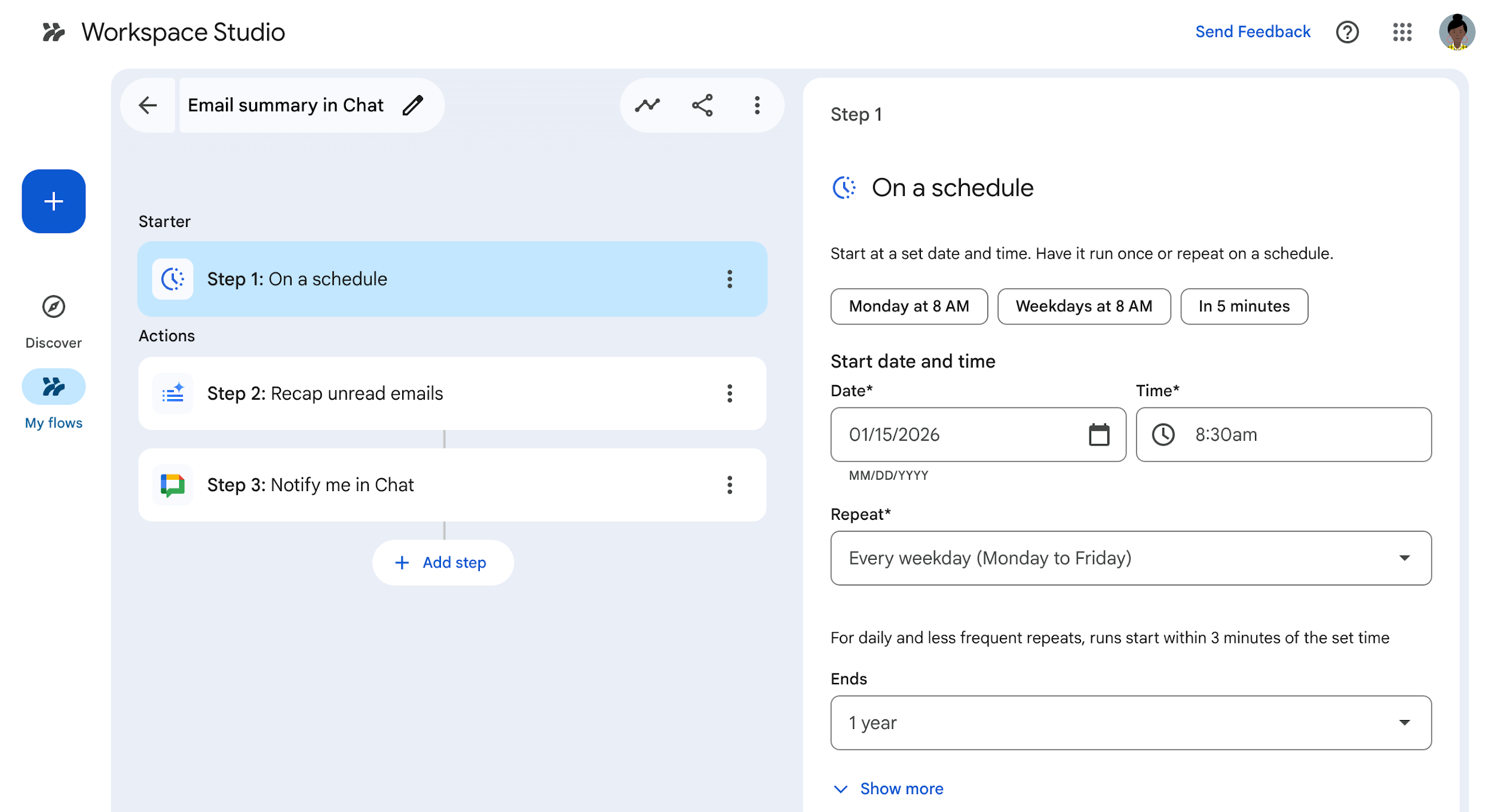
Once the flow is created, it appears in the flow editor. Click Step 1: On a schedule.
- In the right configuration pane, for Time, change the value from 8:00 am to 8:30 am.
Review the prompt to summarize unread emails
Gemini provides a prompt to summarize your unread emails. You can edit the prompt if you need to refine it.
- Click Step 2: Recap unread emails.
In this step, Gemini prepared a detailed prompt which you can refine.
Replace the prompt with the following:
Goal: Summarize unread emails from the primary inbox, organize them into action-oriented categories, and exclude promotional and non-essential content.
Instructions:
1. Filter Emails: Identify all unread emails from yesterday. Exclude ads, promotional emails, social media notifications, newsletters, spam, automated meeting acceptances, location changes, and system notifications.
2. Identify Action Items: Create an "Urgent Action Items" category for any emails that require a direct response, decision, or task from me. Use my recent conversations and projects as context to determine importance and urgency.
3. Identify Themes: Recognize and group any high-volume, repetitive themes (e.g., code reviews, project updates) into their own distinct sections. For these themes, provide a high-level summary of the overall activity rather than a list of every single email.
4. Categorize Remaining Emails: Use a "Meeting Updates" category for all meeting invitations, rejections, and schedule changes. Use an "FYI" category for everything else that doesn't fit into the other groups.
Special Handling for Digests
* For emails that are Google Group or mailing list digests, do not summarize each individual thread. Instead, provide a single summary for the digest that identifies the top 2-3 most discussed topics.
5. Formatting:
* Preamble: Begin the entire output with the exact phrase: "Let's get caught up on your inbox", followed by two line breaks.
* Present the final summary using clear headings and a brief, conversational tone. Do not use a strict bulleted list for every single email, instead, summarize and group where it makes sense.
* Empty Categories: If a category has no emails, output the category header followed by a single line break and the phrase "You're all caught up."
* Strictness: Provide only the final summary as requested. Do not include any apologies, explanations, or conversational text outside of the specified format.
* Also format it beautifully and use all things rich text and emojis.
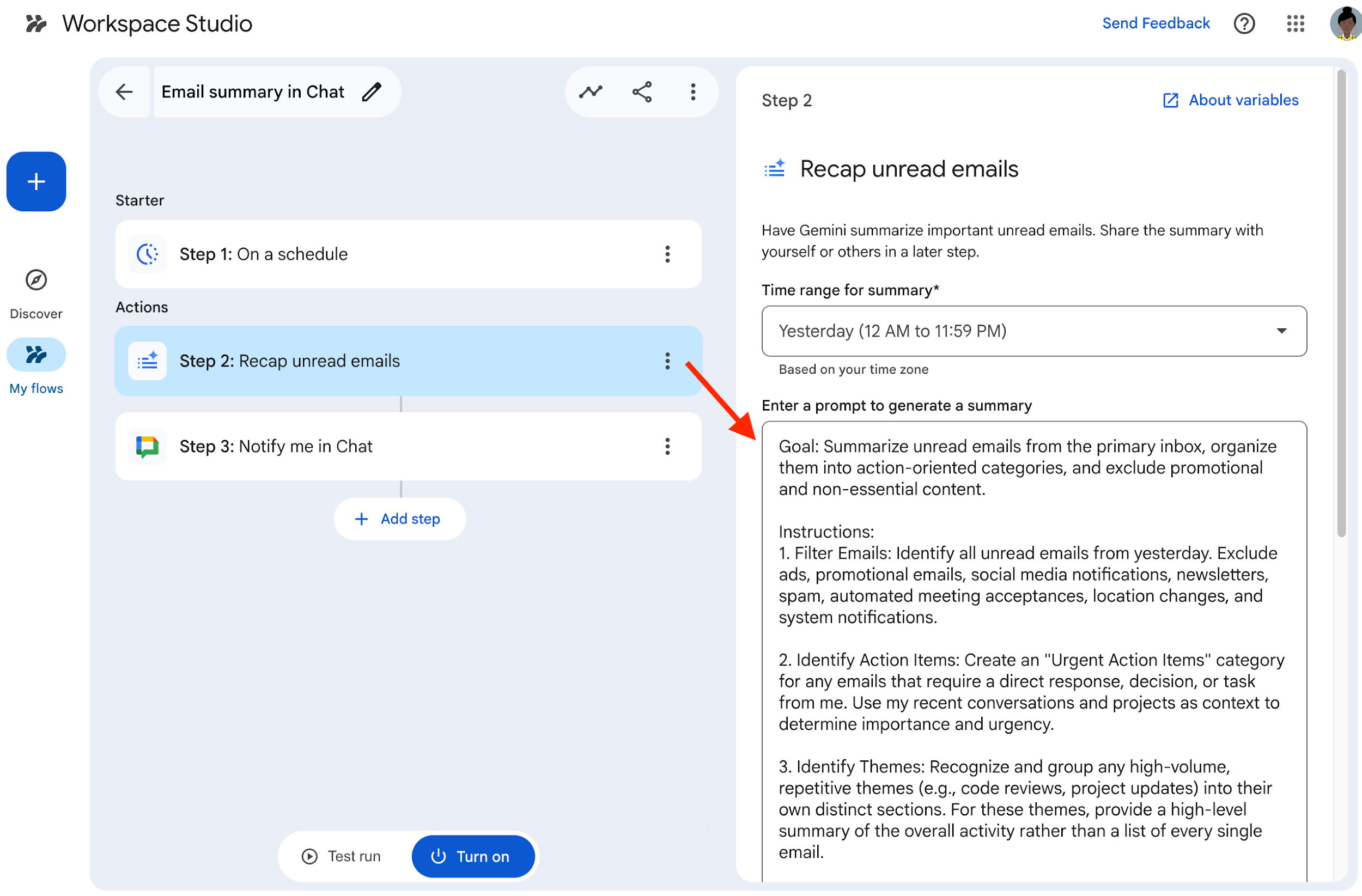
Read through the prompt that is used to request a summary from Gemini. It follows best practices:
- Starts with stating the goal of what you want to achieve.
- Follows with detailed instructions.
- Specifies how formatting should be applied to the output.
Use variables to pass on information
The last part of the solution is to send yourself a chat with the unread email summaries every morning. In this step Workspace Studio uses variables to pass information between steps.
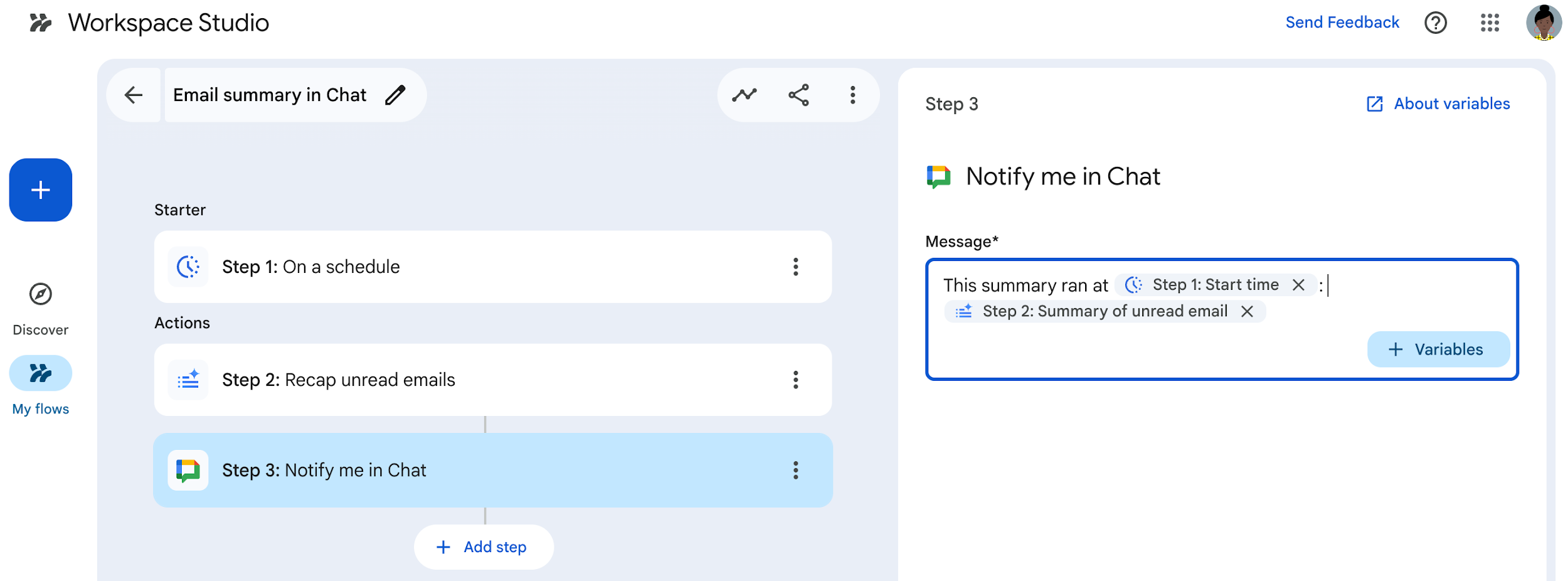
- Click the third step, Notify me in Chat to see its configuration.
- The variable of Step 2: Summary of unread email is used to pass the summary generated by Gemini to Step 3. This is the output you receive in the Chat notification.
- For Message, click Variables to add another variable. First, add Start time from Step 1. Then, add Summary of unread email from Step 2 using the format below:
This summary ran at [Step 1: Start time]: [Step 2: Summary of unread email]
Task 2. Test your flow
Before you turn on your flow, test it to make sure it works properly:
- Click Test run and then Start.
- The test runs the flow immediately so you can verify the output. You can edit the flow after the test run if you notice something needs updating.
- If everything works fine, you get a Run Completed message.
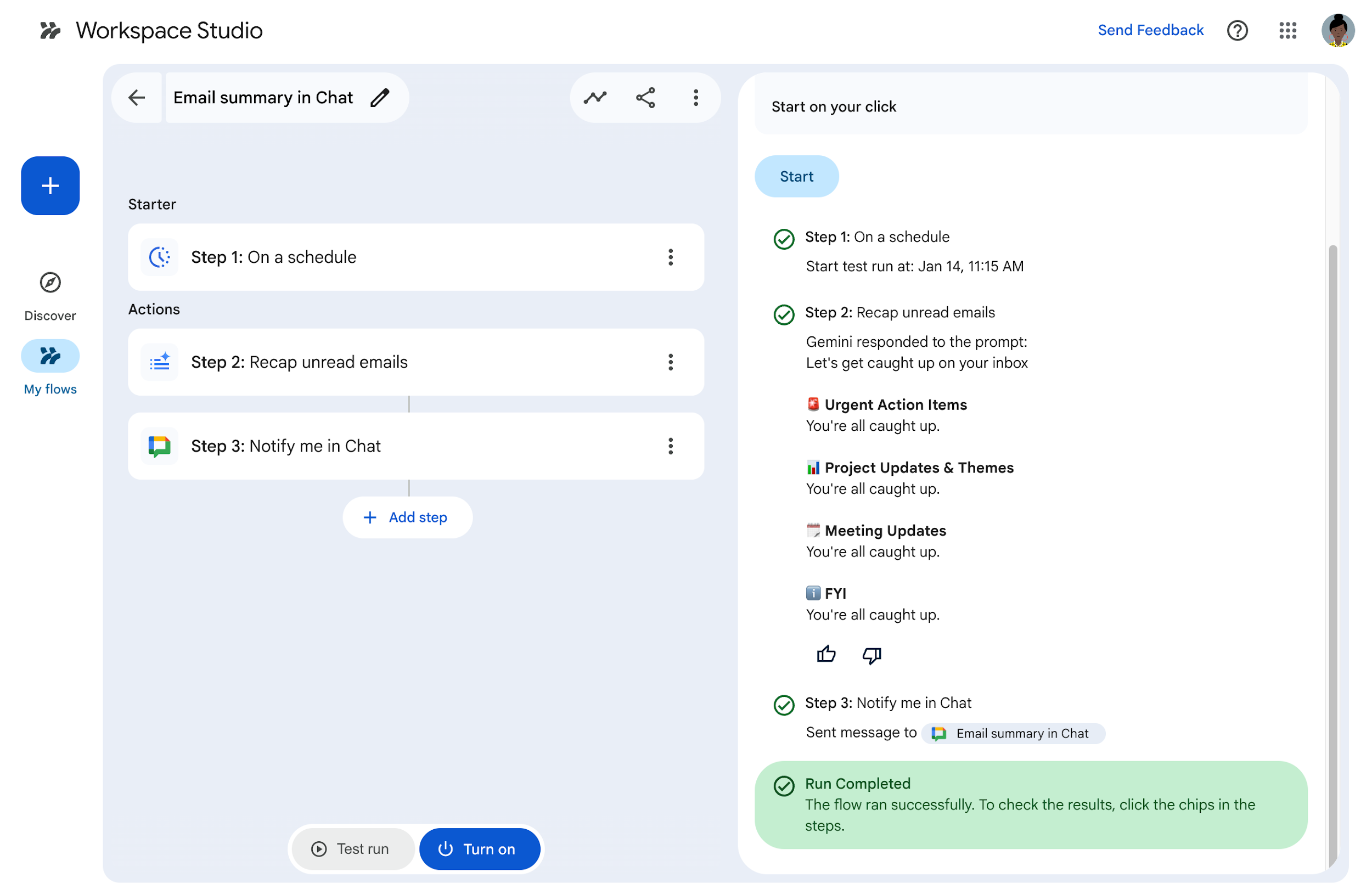
- Now click Turn on. From now on, every weekday this flow will run at the time you defined in Step 1: On a schedule.
Task 3. Update your flow
When a flow has an issue, you get a notification in a few places:
- A red dot on the Google Workspace Studio icon, in your Gmail inbox.
- A message on the My flows tab in the Workspace Studio web app.
- A red dot in the Activity tab in the Workspace Studio web app. Bookmark the guide Troubleshoot issues with flows to learn more.
Update the flow you just built - change the time that the flow runs.
- In Workspace Studio, click My flows.
- Click the flow's name to open it in the editor (Workspace Studio names the flow for you).
- Click Step 1: On a schedule.
- In the Time field, change the time the flow runs to 7:00 am.
- Click Save changes.
Task 4. Use a template to create a flow
A template is a pre-built flow designed for a common use case. Templates come with all the steps and prompts needed to complete the task built in. Some templates are ready to go, others need you to add some information to allow them to do their job.
In this task, you use a template to do the following:
-
When an item is added to a folder: The flow starts when a new file or subfolder is added to a specific folder in Google Drive.
-
Create a task: Create a new task in Google Tasks. New tasks are automatically added to your primary task list in Google Tasks.
Create a Drive folder
An item you need before creating the flow is a folder in Google Drive. Set this up now to later reference it in the flow.
- In the Google Drive tab, click New under the Drive icon on the left.
- Click New Folder, then name the folder Workspace Studio tasks
- Click Create.
This is the folder to start the flow. Keep this browser window open to use later in this task.
Set up the flow
Set up the flow in Google Workspace Studio.
- Return to Workspace Studio browser tab. Click Discover, then scroll through the available templates.
- Click the Auto-create tasks when files are added to a folder template.
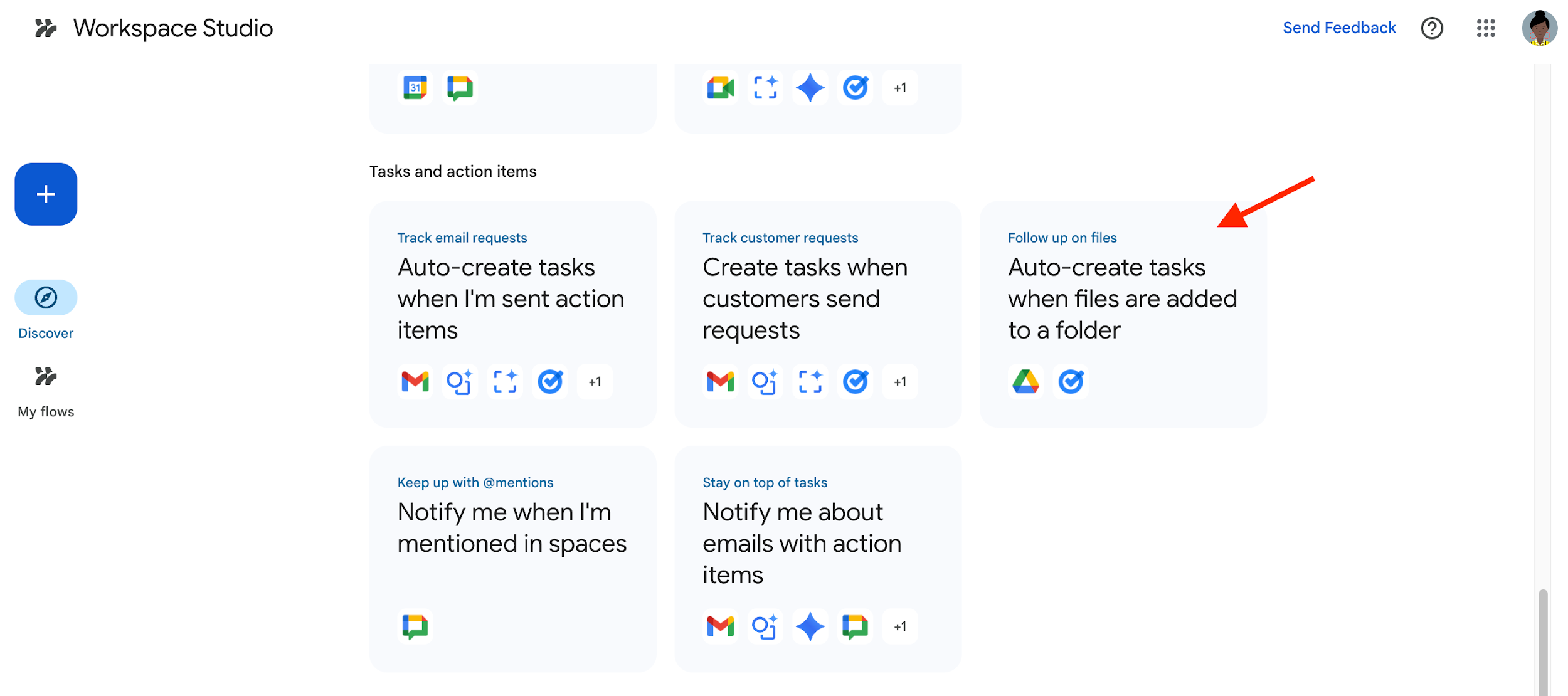
The flow now appears in the flow editor.
- Click Step 1: When an item is added to a folder.
- On the right side of the editor, click Drive in the Folder field.
- In the Drive folder picker, click All locations > the arrow on the line of My Drive, Workspace Studio tasks, and Select.
- Click Step 2: Create a task to see the step configuration.
- Click Turn on at the bottom of the editor.
Add a file to the Drive folder
- Back in Google Drive, in the Workspace Studio tasks folder, click New and then click Google Docs.
- A new Google Doc opens up. Click File and then Rename.
- Rename the file to Test task.
- Press ENTER.
- In the same browser window, type in the following URL:
tasks.google.com
Google Tasks opens.
- Verify that you see a new task with the title "Review new file added to Drive".
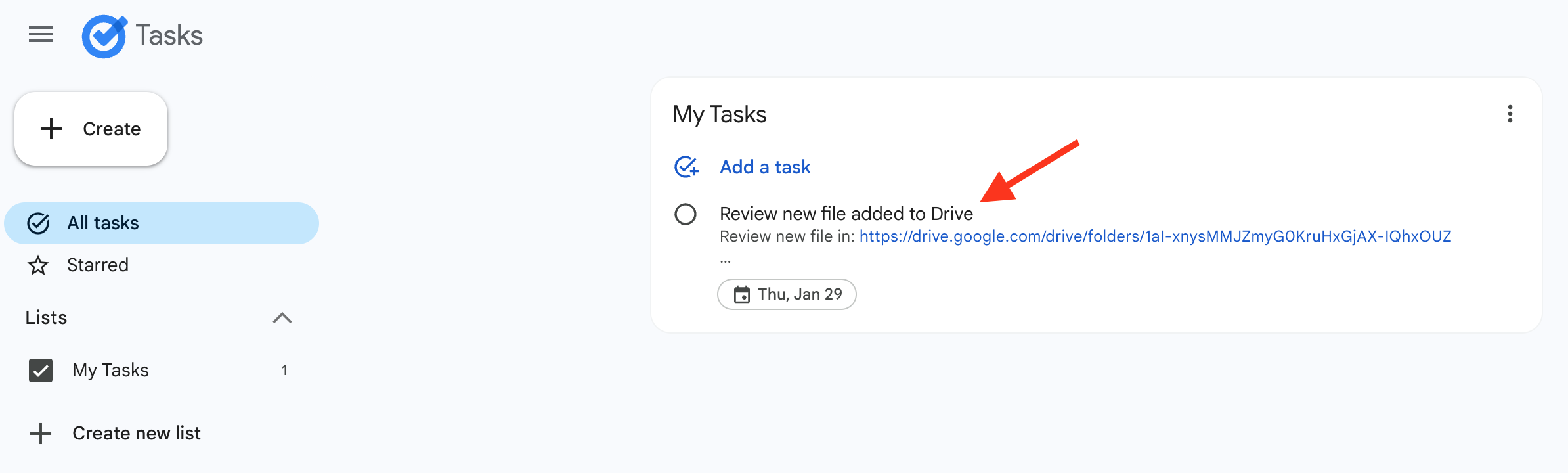
Your flow successfully added a task for you - to review a new item in your folder.
Click Check my progress to verify the objective.
Use a template to create a flow
Congratulations!
Now you're ready to use Google Workspace Studio to create flows using natural language and templates to automate tasks.
Google Cloud training and certification
...helps you make the most of Google Cloud technologies. Our classes include technical skills and best practices to help you get up to speed quickly and continue your learning journey. We offer fundamental to advanced level training, with on-demand, live, and virtual options to suit your busy schedule. Certifications help you validate and prove your skill and expertise in Google Cloud technologies.
Manual Last Updated March 26, 2026
Lab Last Tested March 26, 2026
Copyright 2026 Google LLC. All rights reserved. Google and the Google logo are trademarks of Google LLC. All other company and product names may be trademarks of the respective companies with which they are associated.








