
Before you begin
- Labs create a Google Cloud project and resources for a fixed time
- Labs have a time limit and no pause feature. If you end the lab, you'll have to restart from the beginning.
- On the top left of your screen, click Start lab to begin

Run the agent using the ADK's Web UI
/ 40
Run an agent programmatically
/ 40
Preview a multi-agent example
/ 20
Run the agent using the ADK's Web UI
/ 40
Run an agent programmatically
/ 40
Preview a multi-agent example
/ 20


Building complex agentic applications often requires coordinating multiple specialized models, managing tool integrations, and debugging execution traces—all of which can be manually intensive and difficult to scale.
Agent Development Kit (ADK) solves these challenges by providing a modular framework to build, test, and deploy multi-agent systems. It allows you to compose specialized agents into a hierarchy, equip them with pre-built or custom tools, and orchestrate workflows using both predictable pipelines and dynamic LLM-driven routing.
In this lab, you use ADK to build a research assistant that leverages
Explore other content in the Gemini Enterprise Agent Ready (GEAR) program.
In this lab, you learn how to perform the following tasks:
ADK offers several key advantages for developers building agentic applications:
While other SDKs allow you to query models, ADK provides a higher-level framework that handles the complex coordination between multiple models for you.
Read these instructions. Labs are timed and you cannot pause them. The timer, which starts when you click Start Lab, shows how long Google Cloud resources are made available to you.
This hands-on lab lets you do the lab activities in a real cloud environment, not in a simulation or demo environment. It does so by giving you new, temporary credentials you use to sign in and access Google Cloud for the duration of the lab.
To complete this lab, you need:
Click the Start Lab button. If you need to pay for the lab, a dialog opens for you to select your payment method. On the right is the Lab setup pane with the following:
In the Lab Setup section, right-click Open Google Cloud console and select Open link in new window (or alternatively right-click and select Open Link in Incognito Window if you are running the Chrome browser).
The lab spins up resources, and then opens another tab that shows the Sign in page.
Tip: Arrange the tabs in separate windows, side-by-side.
If necessary, copy the Username below and paste it into the Sign in dialog.
You can also find the Username in the Lab Setup pane.
Click Next.
Copy the Password below and paste it into the Welcome dialog.
You can also find the Password in the Lab Setup pane.
Click Next.
Click through the subsequent pages:
After a few moments, the Google Cloud console opens in this tab.

In this task, you configure the Cloud Shell Editor, initialize your project, and install the Agent Development Kit (ADK) to prepare your environment for building and testing agentic applications.
In this lab environment, the Agent Platform API and Telemetry API have been enabled for you. In your own projects, you will want to enable them in order to query models and send telemetry data to Cloud Logging.
Click Activate Cloud Shell (
Click Continue.
When prompted to authorize Cloud Shell, click Authorize.
In the Cloud Shell Terminal action bar, click Open in new window 
Click Open Editor (
Click Explorer (
Click Open Folder.
In the Open Folder dialog that opens, click OK to select your Google Skills student account's home folder.
Close any additional tutorial or Gemini panels that appear on the right side of the screen to save more of your window for your code editor.
For the rest of this lab, you work in this window as your IDE with the Cloud Shell Editor and Cloud Shell Terminal.
Paste the following command into the Cloud Shell Terminal to copy a project directory with code for this lab from a Cloud Storage bucket:
Update your PATH environment variable to include your user's local environment and install ADK, including the OpenTelemetry (OTel) plugin for logging & telemetry, and other lab requirements by running the following commands in the Cloud Shell Terminal:
Explore the core concepts and fundamental building blocks of ADK, including agents, tools, and orchestration patterns, to understand the principles used to design effective and flexible multi-agent systems:
Session), including its history (Events) and the agent's working memory for that conversation (State).Next, explore the standard layout of an ADK project to see how these concepts are organized in practice:
In the Cloud Shell Editor's file explorer pane, click adk_project to open the directory.
Notice the four agent directories in adk_project: adk_utils, app_agent, llm_auditor, and my_google_search_agent. Each of these directories represents a separate agent. Separating agents into their own directories within a project directory provides organization and allows ADK to understand what agents are present.
Click my_google_search_agent to explore an agent directory.
adk_project/my_google_search_agent directory at this point.
Click init.py to view its contents and notice that the directory also contains an agent.py file.
Notice that the init.py file contains a single line, which imports from the agent.py file. ADK uses this to identify this directory as an agent package:
Click agent.py to view the code for a simple agent equipped with the Google Search tool.
google.adk: the Agent class and the google_search tool from the tools module.To use the imported google_search tool, it needs to be passed to the agent. Paste the following line into the agent.py file around line 34, where indicated at the end of the Agent object creation:
Save the agent.py file.
Tools enable an agent to perform actions beyond generating text. In this case, the google_search tool allows the agent to decide when it would like more information than it already has from its training data. It can then write a search query, use Google Search to search the web, and then base its response to the user on the results.
When a model bases its response on additional information that it retrieves, it is called "grounding," and this overall process is known as "retrieval-augmented generation" or "RAG."
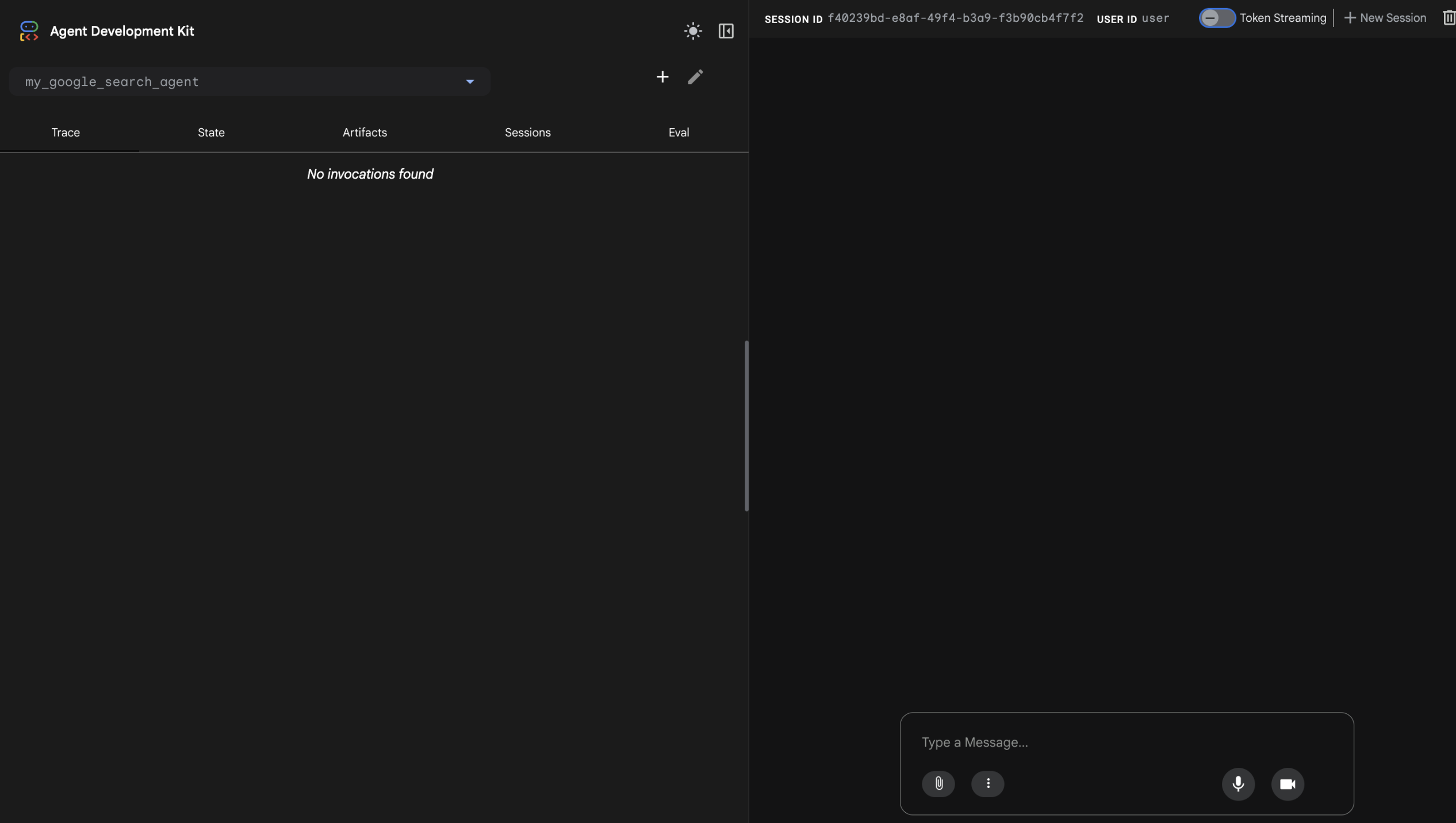
ADK includes a development UI designed to run locally to help you develop and test your agents. It can help you visualize what each agent is doing and how multiple agents interact with one another. In this task, you explore this interface.
Note: When you run an agent, ADK needs to know who is requesting the model API calls. You can provide this information in one of two ways:
In this lab, you take the Agent Platform approach.
In the Cloud Shell Terminal, run the following commands to write an .env file to set your environment variables instructing the agent to use your project and the global endpoint:
These variables serve the following roles:
GOOGLE_GENAI_USE_VERTEXAI=TRUE indicates that you use Agent Platform for authentication as opposed to Gemini API key authentication.GOOGLE_CLOUD_PROJECT and GOOGLE_CLOUD_LOCATION provide the project and location with which to associate your model calls.MODEL is not required, but is stored here so that it can be loaded as another environment variable. This can be a convenient way to try different models in different deployment environments.OTEL_SERVICE_NAME, OTEL_PYTHON_LOGGING_AUTO_INSTRUMENTATION_ENABLED, and OTEL_INSTRUMENTATION_GENAI_CAPTURE_MESSAGE_CONTENT are used to configure OpenTelemetry (OTel) for collecting ADK-specific telemetry data from the agent.The ADK Dev UI and CLI chat interface automatically load configurations from an .env file. If no file is present, they use system environment variables with matching names.
In the Cloud Shell Terminal, ensure you are in the adk_project directory where your agent subdirectories are located by running:
Launch the ADK Dev UI with the following command with some useful flags. This command will:
Output
The result is the ADK Dev UI URL is displayed, as the DEV UI is currently running.
To view the web interface in a new tab, click the http://127.0.0.1:8000 link in the Terminal output, which links you via proxy to this app running locally on your Cloud Shell instance. The result is you see the Dev UI running in a new tab.
From the Select an agent menu options on the left, select my_google_search_agent.
To prompt the agent to use its Google Search tool, enter the question:
Notice the agent uses Google Search to retrieve real-time information, bypassing the knowledge cutoff of its pre-trained model.
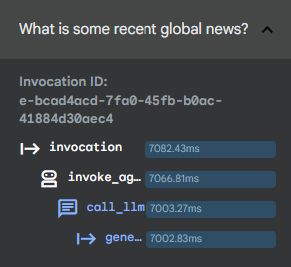
Notice that in the left pane, you are in the Trace tab by default. Click on your last query text (I know the Summer olympics are happening in 2028, please tell me which countries are participating and what events will be held.) to see a trace of how long different parts of your query took to execute.
You can use this to debug more complex executions involving tool calls to understand how various processes contribute to the latency of your responses.
Return to the chat discussion section of the window, and click the agent icon (
content returned to the user and groundingMetadata detailing the search results that the response was based on.
When you are finished exploring the ADK Dev UI, close this browser tab.
Return to your browser tab with the Cloud Shell Terminal and click in the terminal's pane.
Press CTRL+C to stop the web server.
Click Check my progress to verify the objective.
While the ADK Dev UI is great for testing and debugging, it is not suitable for presenting your agent to multiple users in production.
To run an agent as part of a larger application, you need to include a few additional components in your agent.py script that the web app handled for you in the previous task. Proceed with the following steps to open a script with these components to review them.
You can set environment variables for all of your agents to use if they do not have .env files in their directories. In the Cloud Shell Terminal run the following commands to export environment variables:
In the Cloud Shell Editor file browser, click adk_project/app_agent.
Click the agent.py file in this directory.
This agent is designed to run as part of an application. Read the commented code in agent.py, paying particular attention to the following components in the code:
InMemoryRunner() (around line 68), an oversight of agent execution feature: The Runner is the code responsible for receiving the user's query, passing it to the appropriate agent, receiving the agent's response event and passing it back to the calling application or UI, and then triggering the following event. You can read more in the ADK documentation about the event loop.runner.session_service.create_session() (around line 71), a conversation history and shared state feature. Sessions allow an agent to preserve state, remembering a list of items, the current status of a task, or other 'current' information. This class creates a local session service for simplicity, but in production this could be handled by a database.types.Content() and types.Part() (around lines 78 and 79), a structured, multimodal messages feature. Instead of a simple string, the agent is passed a Content object which can consist of multiple Parts. This allows for complex messages, including text and multimodal content to be passed to the agent in a specific order.Notice that the script includes a hardcoded query (around line 93), which asks the agent: "What is the capital of France?"
Run the following command in the Cloud Shell Terminal to run this agent programmatically:
Selected Output:
You can also define specific input and/or output schema for an agent as follows:
Around line 28, add the following import statements for the Pydantic schema classes BaseModel and Field to define a schema class:
In your root_agent's Agent definition, around line 62, set the output_schema parameter to use the CountryCapital schema you defined above:
Run the agent script again to see the response following the output_schema:
Selected Output:
Click Check my progress to verify the objective.
You can also chat with an agent in your local development environment by using the command line interface. This can be very handy for quickly debugging and testing agents as you develop them.
Like the web interface, the command line interface also handles the creation of the session service, artifact service, and runner for your agent.
To run an interactive session using the command line interface:
Run the following in Cloud Shell Terminal:
Output:
Input the following message:
Example output (yours may be a little different):
When you are finished chatting with the command line interface, enter exit at the next user prompt to end the chat.
In this task, you explore a multi-agent system to understand a core ADK capability.
This agentic system evaluates and improves the factual grounding of responses generated by LLMs. It includes:
critic_agent to serve as an automated fact-checkerreviser_agent to rewrite responses if needed to correct inaccuracies based on verified findingsTo explore this agent:
Use the Cloud Shell Editor file explorer to navigate to the directory adk_project/llm_auditor.
Within the llm_auditor directory, click agent.py.
Here are a few things to notice about this multi-agent example:
SequentialAgent is a workflow class that passes conversation control between agents sequentially without requiring user input. When executed, the critic_agent and reviser_agent respond in order automatically."sub_agents directory.init.py, agent.py and prompt.py. Use prompt.py to manage complex prompts independently before importing them into agent.py.Copy the .env file you created earlier to be used by this agent as well and launch the ADK Dev UI again by running the following in the Cloud Shell Terminal:
adk web session, the default port of 8000 is blocked, but you can launch the Dev UI with a new port by using adk web --port 8001, for example.
Click the http://127.0.0.1:8000 link in the Terminal output. A new browser tab opens with the ADK Dev UI.
From the Select an agent menu options on the left, select llm_auditor.
Start the conversation with the following false statement:
You should see two responses from the agent in the chat area:
critic_agent checking the truthfulness of the statement based on fact-checking with Google Search.reviser_agent with a corrected version of your false input statement, for example, "Earth is closer to the Sun than Mars.") to open the event panel for that response (or find the corresponding numbered event on the Events panel and select it).At the top of the event view, there is a graph that visualizes the relationships between the agents and tools in this multi-agent system. The agent responsible for this response is highlighted.
Explore the code further or ask for other fact-checking examples in the Dev UI. Another example you can try is:
If you would like to reset the conversation, click New Session on the session title bar to restart the conversation.
When you are finished asking questions of this agent, close the browser tab and press CTRL+C in the Terminal to stop the server.
Note: Even though this example uses a SequentialAgent workflow agent, think of this pattern as a human-in-the-loop pattern.
When the SequentialAgent ends its sequence, the conversation goes back to its parent, the llm_auditor in this example, to get a new input turn from the user and then pass the conversation back around to the other agents.
Click Check my progress to verify the objective.
You have successfully completed the foundational lab for Agent Development Kit (ADK). You analyzed the core architecture of agents and tools, initialized a standardized development environment, and configured
For more information about ADK, check out these resources:
adk-docs GitHub repository adk-docs
...helps you make the most of Google Cloud technologies. Our classes include technical skills and best practices to help you get up to speed quickly and continue your learning journey. We offer fundamental to advanced level training, with on-demand, live, and virtual options to suit your busy schedule. Certifications help you validate and prove your skill and expertise in Google Cloud technologies.
Manual Last Updated July 24, 2026
Lab Last Tested July 24, 2026
Copyright 2026 Google LLC. All rights reserved. Google and the Google logo are trademarks of Google LLC. All other company and product names may be trademarks of the respective companies with which they are associated.



This content is not currently available
We can notify you via email when it becomes available

Great!
We can contact you via email if it becomes available


One lab at a time
Confirm to end all existing labs and start this one