

Before you begin
- Labs create a Google Cloud project and resources for a fixed time
- Labs have a time limit and no pause feature. If you end the lab, you'll have to restart from the beginning.
- On the top left of your screen, click Start lab to begin

Connect two On-prem VPCs with NCC
/ 40
Connect VPC to VPC
/ 40
Connect VPC to On-prem
/ 20

In a challenge lab you’re given a scenario and a set of tasks. Instead of following step-by-step instructions, you will use the skills learned from the labs in the course to figure out how to complete the tasks on your own! An automated scoring system (shown on this page) will provide feedback on whether you have completed your tasks correctly.
When you take a challenge lab, you will not be taught new Google Cloud concepts. You are expected to extend your learned skills, like changing default values and reading and researching error messages to fix your own mistakes.
To score 100% you must successfully complete all tasks within the time period!
This lab is recommended for students who have enrolled in the Connecting Cloud Networks with NCC course. Are you ready for the challenge?
You are a lead network architect at a large, distributed enterprise, GlobalTech Inc.This multinational corporation has a significant on-premises infrastructure spanning data centers in North America (HQ - New York) and Europe (EMEA - London). GlobalTech Inc. is in the process of a major cloud transformation, migrating many applications and services to Google Cloud while maintaining a hybrid environment for critical legacy systems and data residency requirements.
The current connectivity solution involves a complex mesh of VPN tunnels and dedicated interconnects, which has become difficult to manage and scale. The company is looking to simplify their network architecture and leverage NCC for its centralized connectivity management capabilities.
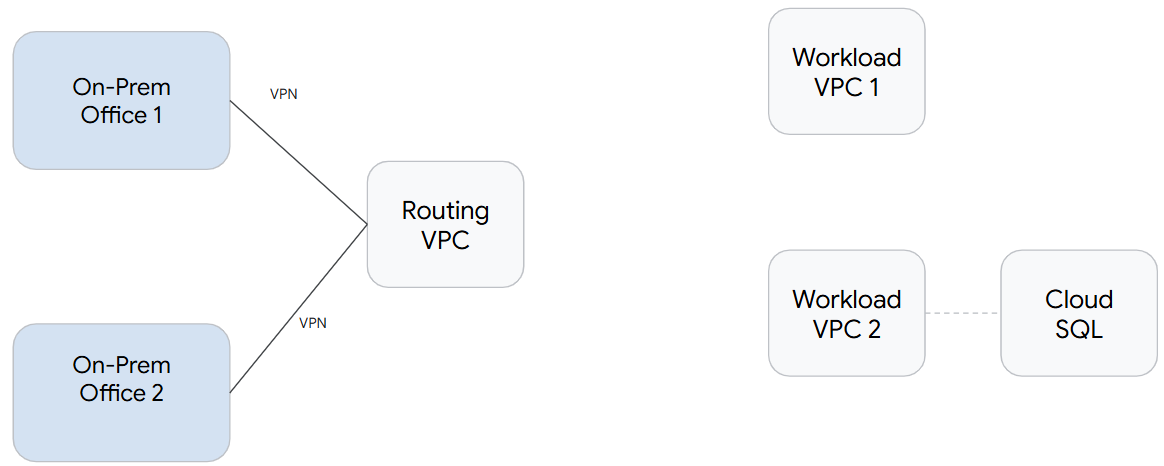
In this lab you'll use the Network Connectivity Center to connect cloud and on-prem networks. For this lab you have several resources provided:
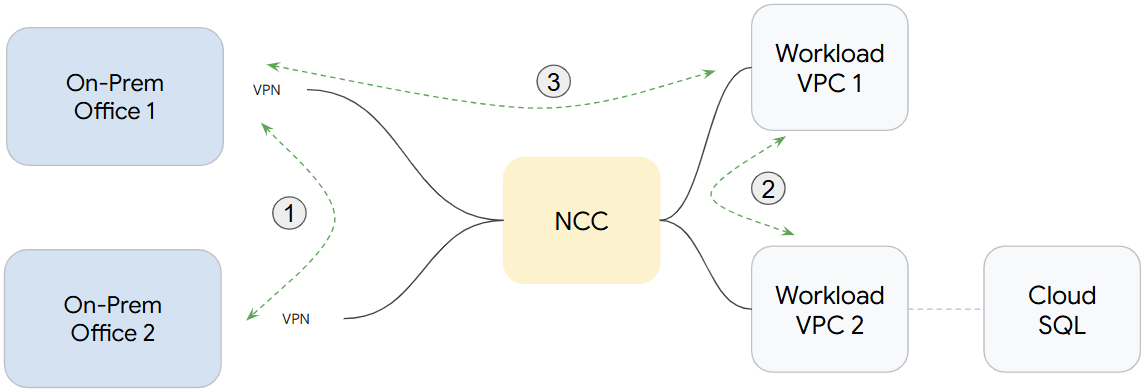
You will use NCC to make several network connections that, in the end, will look like the diagram below:
GlobalTech has two on-premises data centers, and the connection between them needs to be simplified. Connect On-Prem Office 1 and On-Prem Office 2 using NCC, then test the connectivity.
Establish a Hub-and-Spoke architecture where the central hub connects to two spokes, each representing a separate on-premises data center.
Begin by creating a Network Connectivity Center hub to serve as the central point of connection.
Each on-prem VPC connects to the routing VPC using a pair of preconfigured VPN tunnels — these will be used to define the spoke connections.
Navigate to Network Connectivity page on your console and review the preconfigured VPN tunnels designed for each on-premises network.
The spoke corresponding to On-Prem Office 1 must have office-1 included in its name, and the spoke for On-Prem Office 2 must include office-2 in its name.
Once the spokes are connected to the hub through VPN tunnels, ensuring secure site-to-site communication and the setup is complete, test the connectivity by verifying network communication between VM instances deployed in each of the on-prem offices, routed through the NCC hub.
Click Check my progress to verify the objective.
GlobalTech needs to connect 2 VPCs so both has access to a services that is running on one of the VPCs. Connect Workload VPC 1 and Workload VPC 2 using NCC, then test the connectivity.
Implement a Hub-and-Spoke topology, where each workload VPC is attached as a spoke of type VPC network, connected to a central NCC hub.
The spoke corresponding to Workload VPC 1 must have workload-1 included in its name, and the spoke for Workload VPC 2 must include workload-2 in its name.
Upon completion, validate the setup by testing connectivity between the two VPCs by verifying network communication between VM instances deployed in each of the workload VPCs, routed through the NCC hub.
Click Check my progress to verify the objective.
GlobalTech is migrating an application to a cloud VPC, but the application will still need to securely access a legacy database in the on-prem data center. Connect the On-Prem Office 1 and Workload VPC 1 using NCC, then test the connectivity.
Configure a Hub-and-Spoke architecture, where the spokes for both On-Prem Office 1 and Workload VPC 1 are of type VPC network—both connected to a central NCC hub.
The spokes corresponding to both On-Prem Office 1 and Workload VPC 1 must have hybrid included in their names.
Lastly, validate the setup by testing connectivity between the On-Prem Office and Workload VPC by verifying network communication between VM instances deployed in each of the networks, routed through the NCC hub.
Click Check my progress to verify the objective.
You have used Google Cloud NCC to simplify, secure, and scale your company's hybrid cloud network by centralizing connectivity management for on-premises data centers and multiple Google Cloud VPCs, reducing operational overhead and improving network performance.
...helps you make the most of Google Cloud technologies. Our classes include technical skills and best practices to help you get up to speed quickly and continue your learning journey. We offer fundamental to advanced level training, with on-demand, live, and virtual options to suit your busy schedule. Certifications help you validate and prove your skill and expertise in Google Cloud technologies.
Manual Last Updated: February 6, 2026
Lab Last Tested: July 11, 2025
Copyright 2026 Google LLC. All rights reserved. Google and the Google logo are trademarks of Google LLC. All other company and product names may be trademarks of the respective companies with which they are associated.



This content is not currently available
We will notify you via email when it becomes available

Great!
We will contact you via email if it becomes available


One lab at a time
Confirm to end all existing labs and start this one