
Before you begin
- Labs create a Google Cloud project and resources for a fixed time
- Labs have a time limit and no pause feature. If you end the lab, you'll have to restart from the beginning.
- On the top left of your screen, click Start lab to begin

Add content to Google Drive and Google Calendar
/ 25
Connect Google Drive and Google Calendar data stores
/ 25
Interact with your Gemini Enterprise agents
/ 25
Focused analysis with Gemini Notebook
/ 25
Add content to Google Drive and Google Calendar
/ 25
Connect Google Drive and Google Calendar data stores
/ 25
Interact with your Gemini Enterprise agents
/ 25
Focused analysis with Gemini Notebook
/ 25


Gemini Enterprise is Google Cloud's premier agentic platform that unlocks enterprise expertise for employees by bringing together Gemini's advanced reasoning, Google-quality search, and multimodal enterprise data, regardless of where it is hosted. It empowers employees to find the right information at the right time by connecting content scattered across an enterprise, generating grounded, personalized answers, and performing tasks through integrated workflow actions. Featuring AI agents that can plan, reason, and execute tasks, Gemini Enterprise assists with information retrieval and summarization, task automation, data analysis, and reporting.
For Cymbal Foods, a food manufacturing and distribution company, Gemini Enterprise offers a solution to their significant data fragmentation and information silo challenges. Currently, Cymbal Foods struggles with inaccurate demand forecasting, leading to food waste and financial losses. This makes it difficult for employees to find information, gain actionable insights, or collaborate effectively. By implementing Gemini Enterprise, Cymbal Foods can connect these disparate data sources. This allows employees, from production managers to data analysts, to search across all systems, retrieve and summarize sales data, customer feedback, and inventory levels, and gain a holistic view of operations.
To accelerate your workflow, the Cymbal Foods - Gemini Enterprise application (cymbal-foods-gemini-enterprise), its Cloud Storage data store (cloud-storage-ds), and the Gemini Enterprise Drive Assets folder in Google Drive are pre-provisioned at lab start. The application is configured with Google Identity (GSUITE), Cymbal Foods branding, and agentic feature toggles. You can connect your Google Workspace data sources (Google Drive and Google Calendar) and immediately explore Gemini Enterprise's agentic features. You also build custom agents with Agent Designer (Workflow Builder), create reusable skills, run Deep Research reports, and perform curated analysis in Gemini Notebook.
In this lab, you learn how to perform the following tasks:
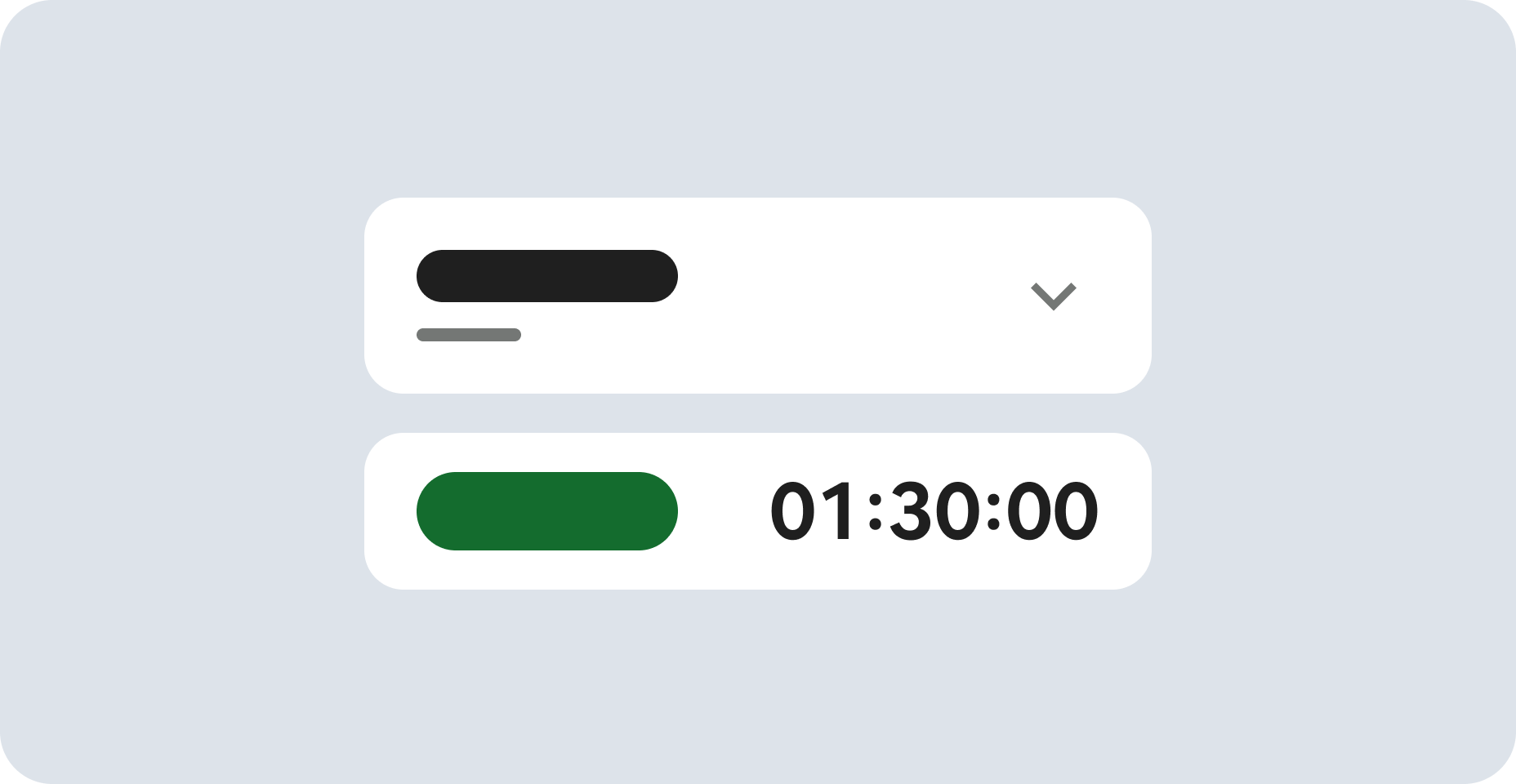
Read these instructions. Labs are timed and you cannot pause them. The timer, which starts when you click Start Lab, shows how long Google Cloud resources are made available to you.
This hands-on lab lets you do the lab activities in a real cloud environment, not in a simulation or demo environment. It does so by giving you new, temporary credentials you use to sign in and access Google Cloud for the duration of the lab.
To complete this lab, you need:
Click the Start Lab button. If you need to pay for the lab, a dialog opens for you to select your payment method. On the right is the Lab setup and access panel with the following:
Note that the lab timer is located near the top of the page, showing the remaining time.
Click Open Google Cloud console (or right-click and select Open Link in Incognito Window if you are running the Chrome browser).
The lab spins up resources, and then opens another tab that shows the Sign in page.
Tip: Arrange the tabs in separate windows, side-by-side.
If necessary, copy the Username below and paste it into the Sign in dialog.
You can also find the Username in the Lab setup and access panel.
Click Next.
Copy the Password below and paste it into the Welcome dialog.
You can also find the Password in the Lab setup and access panel.
Click Next.
Click through the subsequent pages:
After a few moments, the Google Cloud console opens in this tab.

In this task, you inspect the sample enterprise documents prepared in Cloud Storage, verify the pre-staged files in your Gemini Enterprise Drive Assets folder in Google Drive, and add a relevant meeting to your Google Calendar to create diverse content for Gemini Enterprise to interact with.
From the Google Cloud console Navigation menu (☰), select Cloud Storage > Buckets.
Click the name of the Cloud Storage bucket that has been pre-provisioned for you in this lab. The bucket name is your Project ID:
Inside your bucket, three folders are prepared by the startup script:
gemini-enterprise-drive/: Contains CSV files and images intended for use with your Gemini Enterprise application and custom agents that work directly with these formats.notebooklm-drive/: Contains plain text (.txt) versions of key data files, optimized for use with Gemini Notebook.gemini-enterprise-cloud-storage/: Contains enterprise operations text files that are already connected and being imported into your pre-provisioned Cloud Storage data store.In the Incognito window where you logged into the Google Cloud console, open a new browser tab and navigate to Google Drive. Ensure you are logged in with your student account.
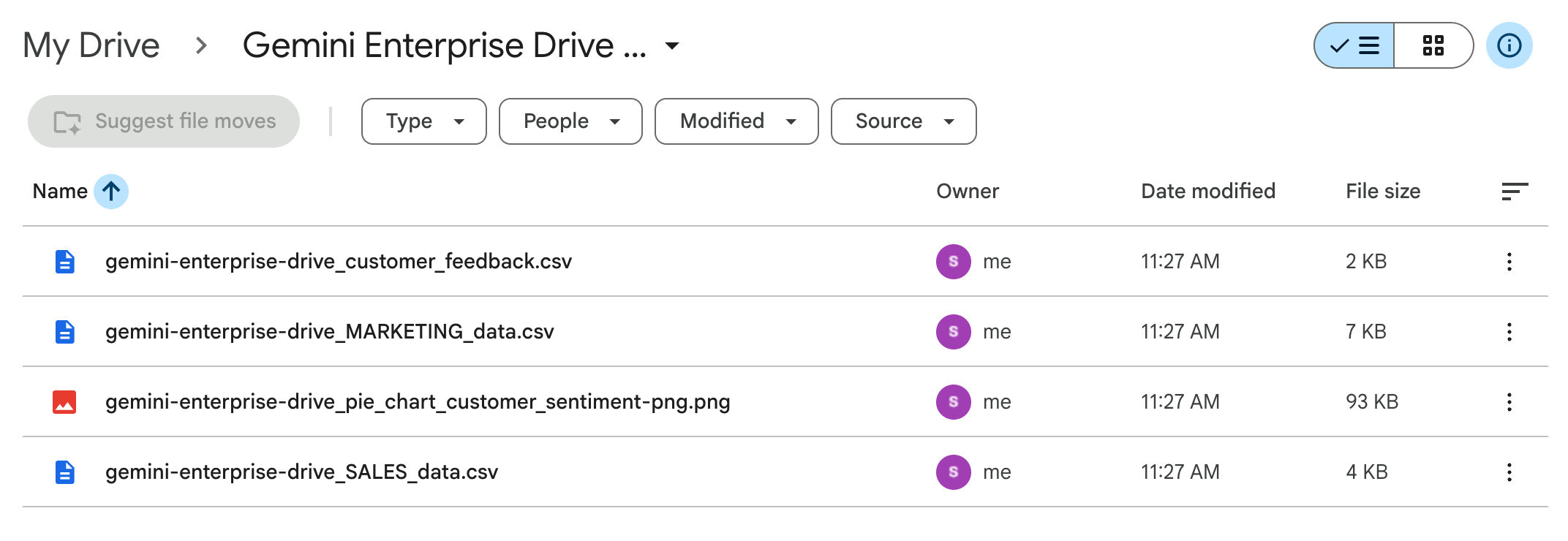
In My Drive, open the Gemini Enterprise Drive Assets folder that was automatically created and populated for you at lab start.
Verify that the folder contains the following four files used by your Gemini Enterprise application:
MARKETING_data.csvSALES_data.csvcustomer_feedback.csvpie_chart_customer_sentiment-png.pnggemini-enterprise-drive/ Cloud Storage folder in your own environment.
In the same Incognito window, open another new tab and navigate to Google Calendar. Accept or dismiss any pop-up messages.
Confirm that you are logged in with your student account by checking the profile icon in the Google Calendar header.
In Google Calendar, click Create > Event.
In the event creation window that appears:
Click Save.
Click Check my progress to verify the objective.
In a typical enterprise deployment, administrators provision the Gemini Enterprise application, configure workforce identity, enable agentic features, and attach foundational cloud storage repositories before connecting workspace collaboration tools. In this lab environment, Terraform pre-provisions the Cymbal Foods - Gemini Enterprise application (cymbal-foods-gemini-enterprise) in the global location. The application is configured with Google Identity (GSUITE), Cymbal Foods branding, agentic feature toggles (including custom agents, workflows, skills, projects, and canvas), and a pre-connected Cloud Storage data store (cloud-storage-ds).
In this task, you verify the pre-provisioned Gemini Enterprise application and its Cloud Storage data store. You then connect your Google Drive and Google Calendar data stores so Gemini Enterprise can search and reason across all three enterprise repositories.
In the Google Cloud console search bar, type Gemini Enterprise, and then select Gemini Enterprise.
On the Gemini Enterprise > Apps page, verify that the Cymbal Foods - Gemini Enterprise (cymbal-foods-gemini-enterprise) application is already created and listed in the global location with Cloud Storage under Connected data stores.
Click Cymbal Foods - Gemini Enterprise, and then select Connected data stores from the navigation menu.
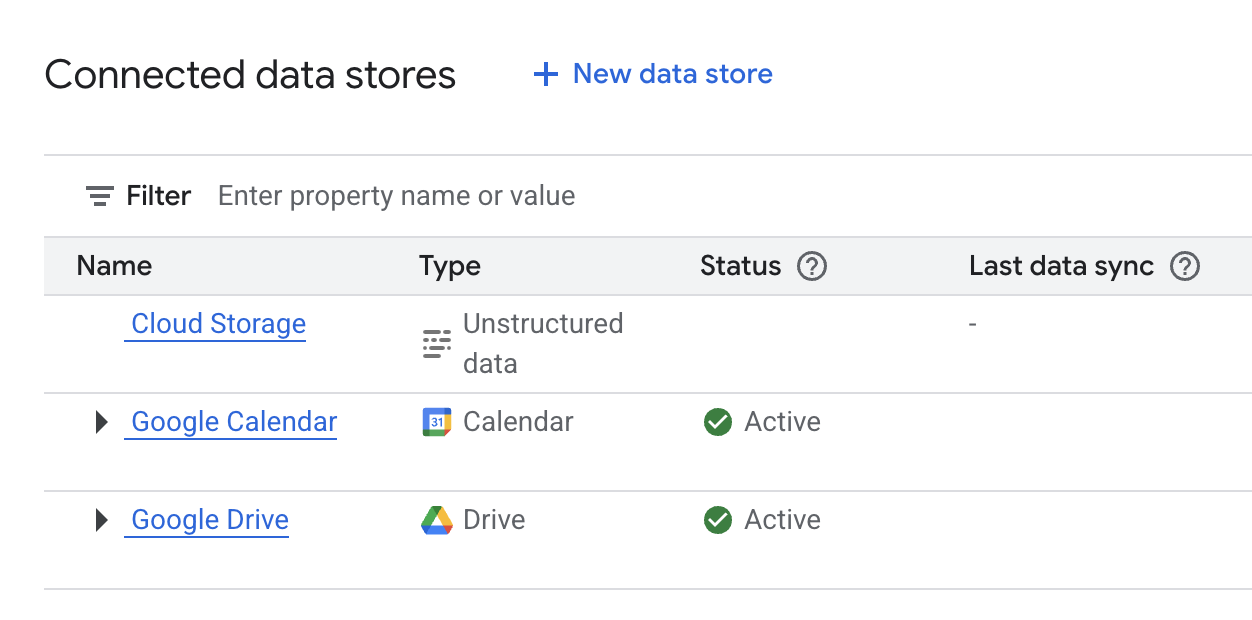
Verify that the Cloud Storage data store (cloud-storage-ds) is already pre-connected and importing unstructured documents from the gemini-enterprise-cloud-storage/ folder in your Cloud Storage bucket (
On the Connected data stores page for Cymbal Foods - Gemini Enterprise, click + New data store.
In the Select a data source search bar, type Google Drive, and then on the Google Drive card, click Add data source.
On the Specify the Google Drive authentication parameters page, click Continue.
Under Select Google Drive actions to enable, select Select all actions and then click Continue.
Configure the connector with the following settings, and leave the remaining settings as their defaults:
| Setting | Value | Description |
|---|---|---|
| Multi-region (under Location of your data connector) | global (Global) | Pre-selected to match the global Gemini Enterprise application location. |
| Data connector name | Google Drive | Display name for the Google Drive connector. |
Click Create.
On the Connected data stores page, click + New data store.
In the Select a data source search bar, type Google Calendar, and then on the Google Calendar card, click Add data source.
On the authentication parameters page, click Continue.
Under Select Google Calendar actions to enable, select Select all actions and then click Continue.
Configure the connector with the following settings, and leave the remaining settings as their defaults:
| Setting | Value | Description |
|---|---|---|
| Multi-region (under Location of your data connector) | global (Global) | Pre-selected to match the global Gemini Enterprise application location. |
| Data connector name | Google Calendar | Display name for the Google Calendar connector. |
Click Create.
Confirm that all three data stores (Cloud Storage, Google Drive, and Google Calendar) appear in the Connected data stores panel for Cymbal Foods - Gemini Enterprise.
Behind the scenes, Gemini Enterprise links the Google Drive, Google Calendar, and pre-provisioned Cloud Storage data stores to the cymbal-foods-gemini-enterprise search engine. It enforces per-user Access Control Lists (ACLs) through Google Identity (GSUITE).
Click Check my progress to verify the objective.
Now that your Cymbal Foods Gemini Enterprise application is configured and connected to your data, you experience its capabilities firsthand. In this task, you interact directly with agents to search your uploaded documents, extract specific information, and summarize content. This hands-on exploration showcases how Gemini Enterprise transforms information retrieval and task management within an organization.
From the Gemini Enterprise page, click the Overview tab.
Click the URL under Your Gemini Enterprise webapp is ready to open the application. If prompted with a Welcome to Gemini Enterprise! dialog, click Get started. Note that this looks different depending on the data stores used. Your home page should resemble the following:
This home page is designed to give users easy access to the content and events they find most useful. It includes the following sections:
In the chat box, click Connectors (the puzzle-piece icon in the chat box) to view your available data sources.
Next to Drive, click Authorize.
Next to Calendar, click Authorize.
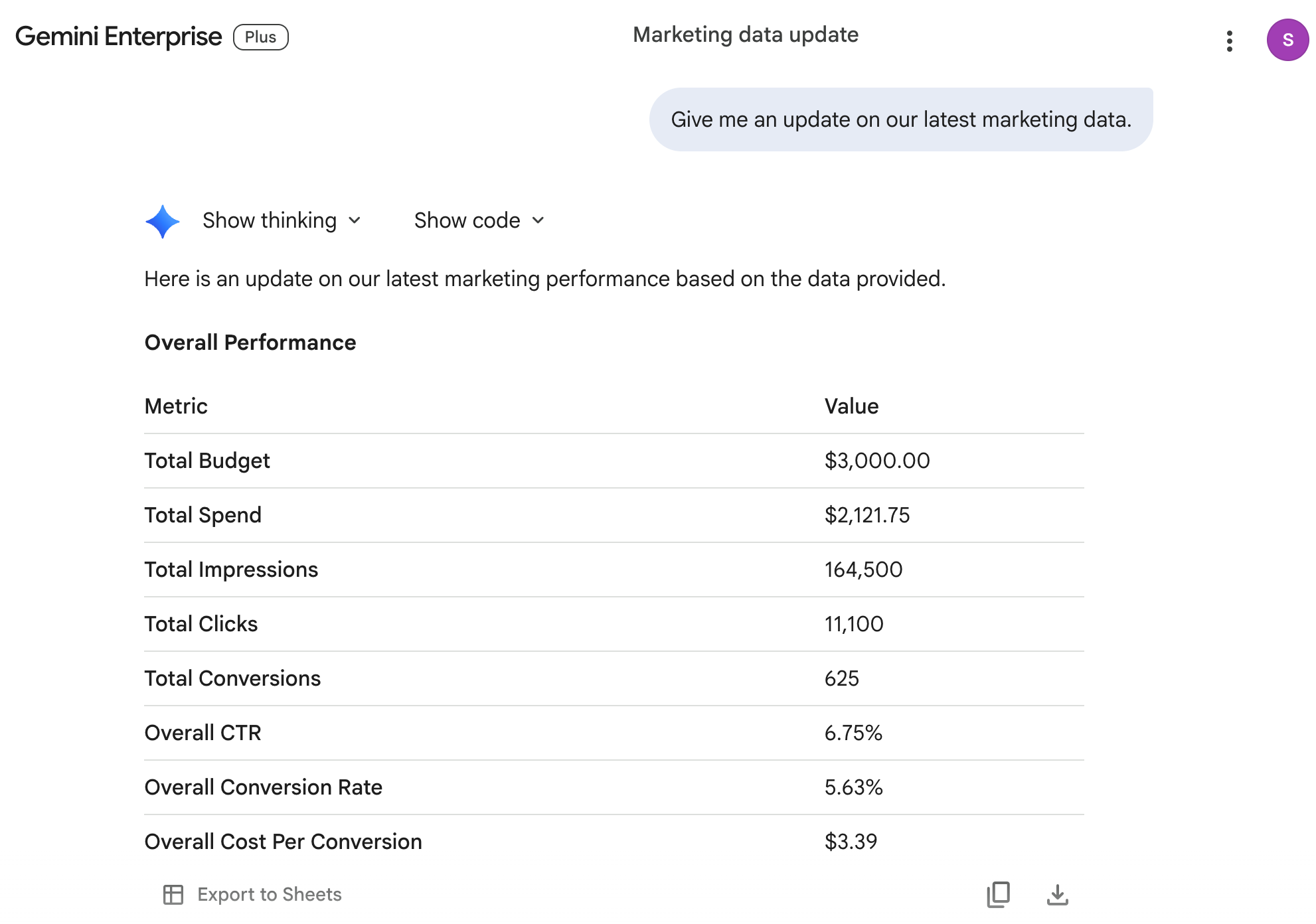
In the chat box, enter the following prompt:
Your answer should resemble the following:
You can use the Gemini Enterprise AI assistant to handle multimodal prompts as well.
In the navigation menu, click New chat to start a new chat.
In the search bar, click Tools, and select Search company data.
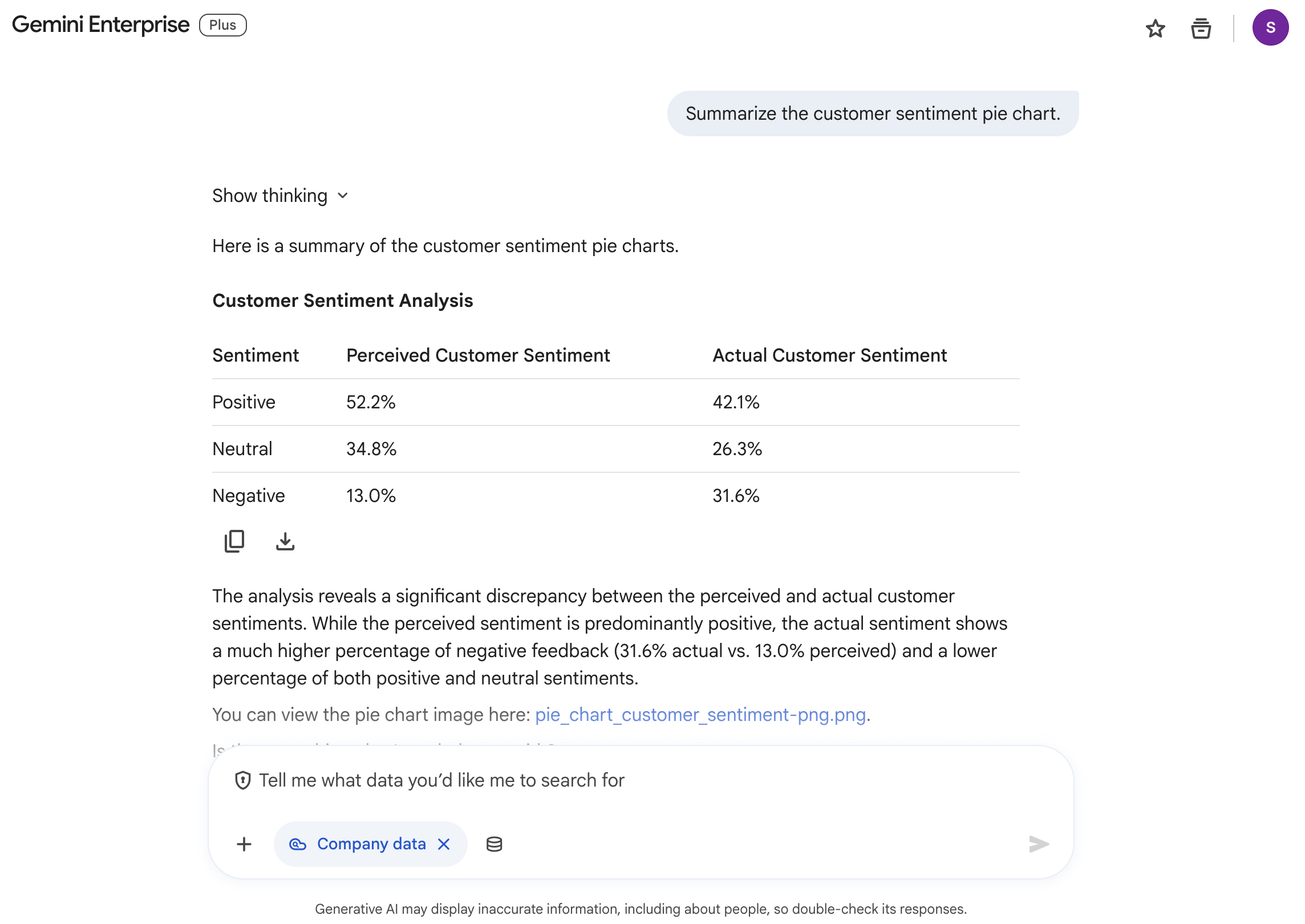
Enter the following prompt:
The response should resemble the following:
In the navigation menu, click New chat to start a new chat.
Enter the following prompt:
Observe the response. Since you set up the data stores for your Google Calendar, it knows what events you have, and can assist you in curating the information you need for them!
In this section, you use the visual Agent Designer (also referred to as Workflow Builder in the Gemini Enterprise documentation) to create a custom agent tailored to your enterprise sales data. Agent Designer lets you build both conversational Chat agents and automated multi-step Workflows triggered on a schedule or by workspace events.
Click the Google Gemini Enterprise (or Cymbal Foods) logo to return to the homepage.
In the navigation menu, click + New agent and select Chat agent.
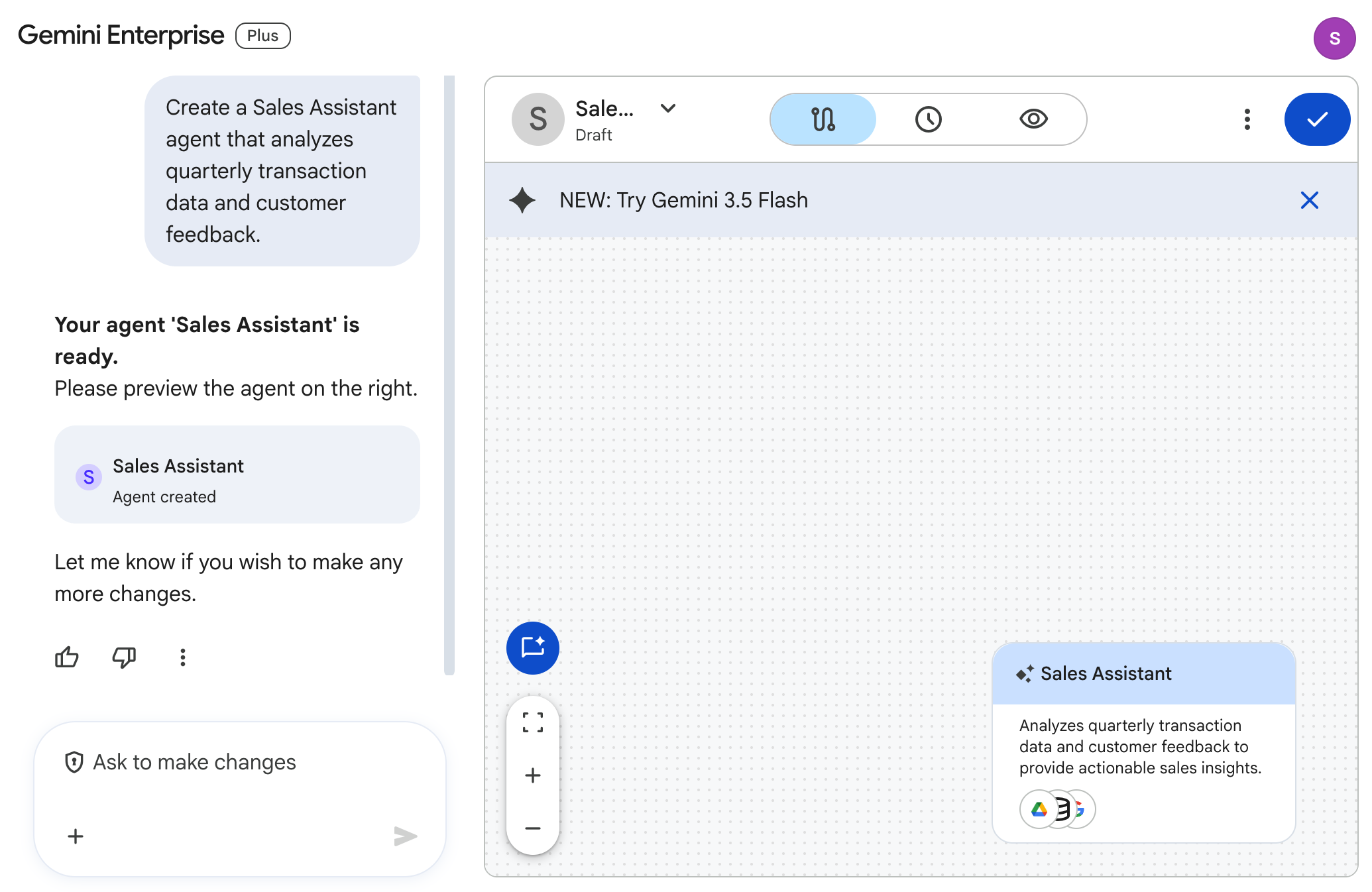
In the What do you want your agent to do? prompt box, enter the following prompt and press ENTER:
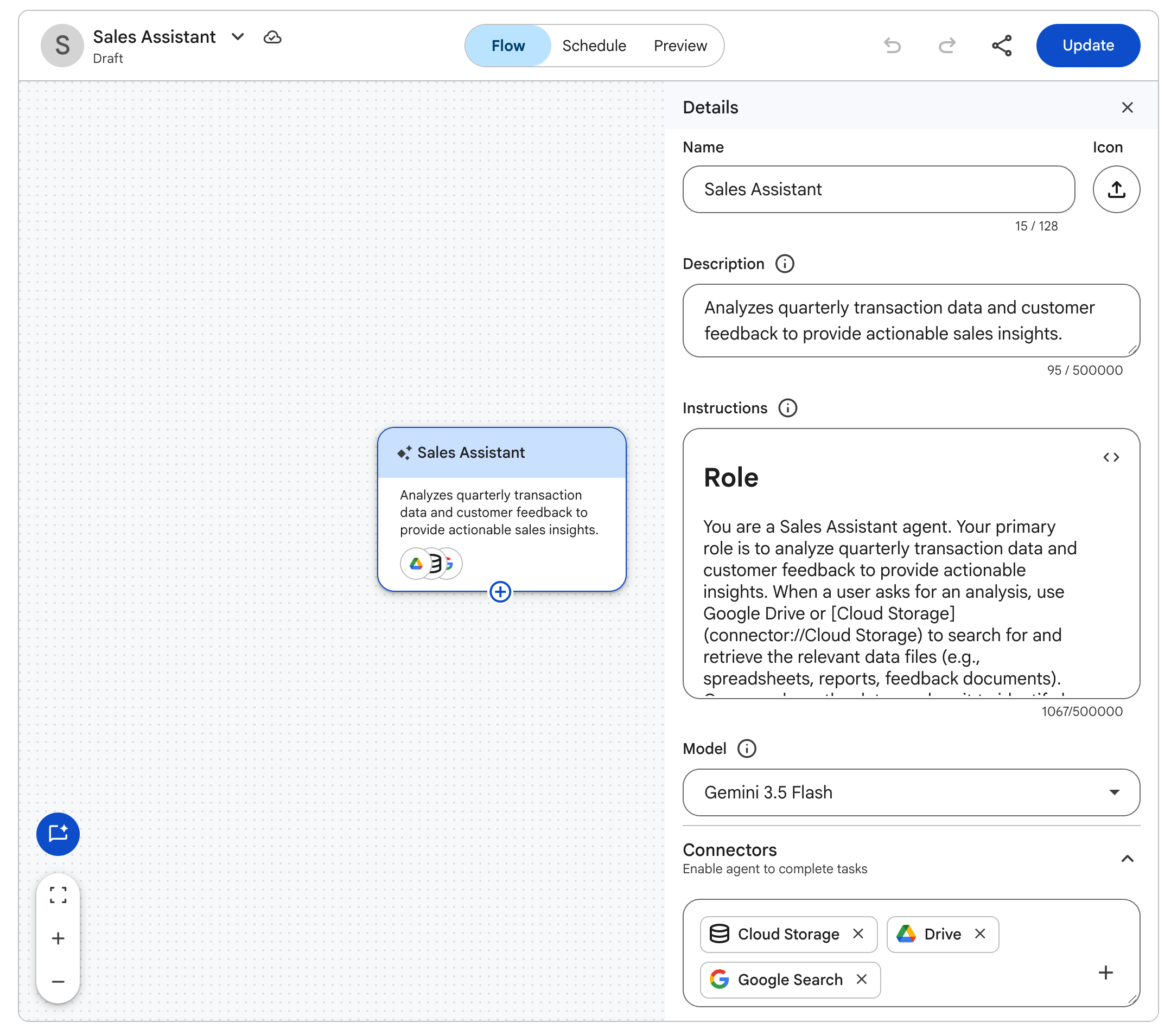
Your agent 'Sales Assistant' is ready), review the agent preview panel, which includes Flow, Schedule, and Preview tabs:Click Create in the agent builder toolbar to publish the agent. When the Agent Created Successfully dialog appears, click Chat with Agent.
In the chat bar, enter the following prompt to test your published agent:
Inspect the generated analysis.
Click the Google Gemini Enterprise (or Cymbal Foods) logo to return to the homepage, and in the navigation menu, click Agents to verify that your published Sales Assistant agent is listed under Your agents.
@-mention) in the chat box.
While a custom agent acts as a specialized persona with its own data source bindings, a Skill is a lightweight, reusable instruction package (SKILL.md) that you can invoke on demand in any chat conversation using a / slash command (or @ mention) to enforce brand voice, formatting standards, or repeatable procedures.
In the Gemini Enterprise navigation menu, click Skills.
On the Add your first skill page, click Create skill with Gemini.
In the Describe your skill chat box, enter the following prompt and press ENTER:
Wait a few seconds for Gemini to draft the skill and populate the Name (cymbal-brand-voice), Description, Trigger (/cymbal-brand-voice), and step-by-step Instructions fields in the skill editor panel.
Click Save in the skill editor header and confirm that the Skill created successfully. notification appears.
In the navigation menu, click New chat, type /cymbal-brand-voice (or /) in the chat input bar to select cymbal-brand-voice from the Skills menu, and then enter the following prompt:
cymbal-brand-voice) badge, loads your brand voice guidelines, searches your connected data stores for the Spring Cookie Promotion (Campaign SPRING25) metrics, and formats the announcement with a three-bullet action plan.Click Check my progress to verify the objective.
In this section, you use the Deep Research agent to unlock deep insights with AI-driven research, reports, and audio summaries.
Click the Google Gemini Enterprise (or Cymbal Foods) logo to return to the homepage.
In the navigation menu, select Deep Research.
Enter the following prompt:
The agent generates a research plan for you.
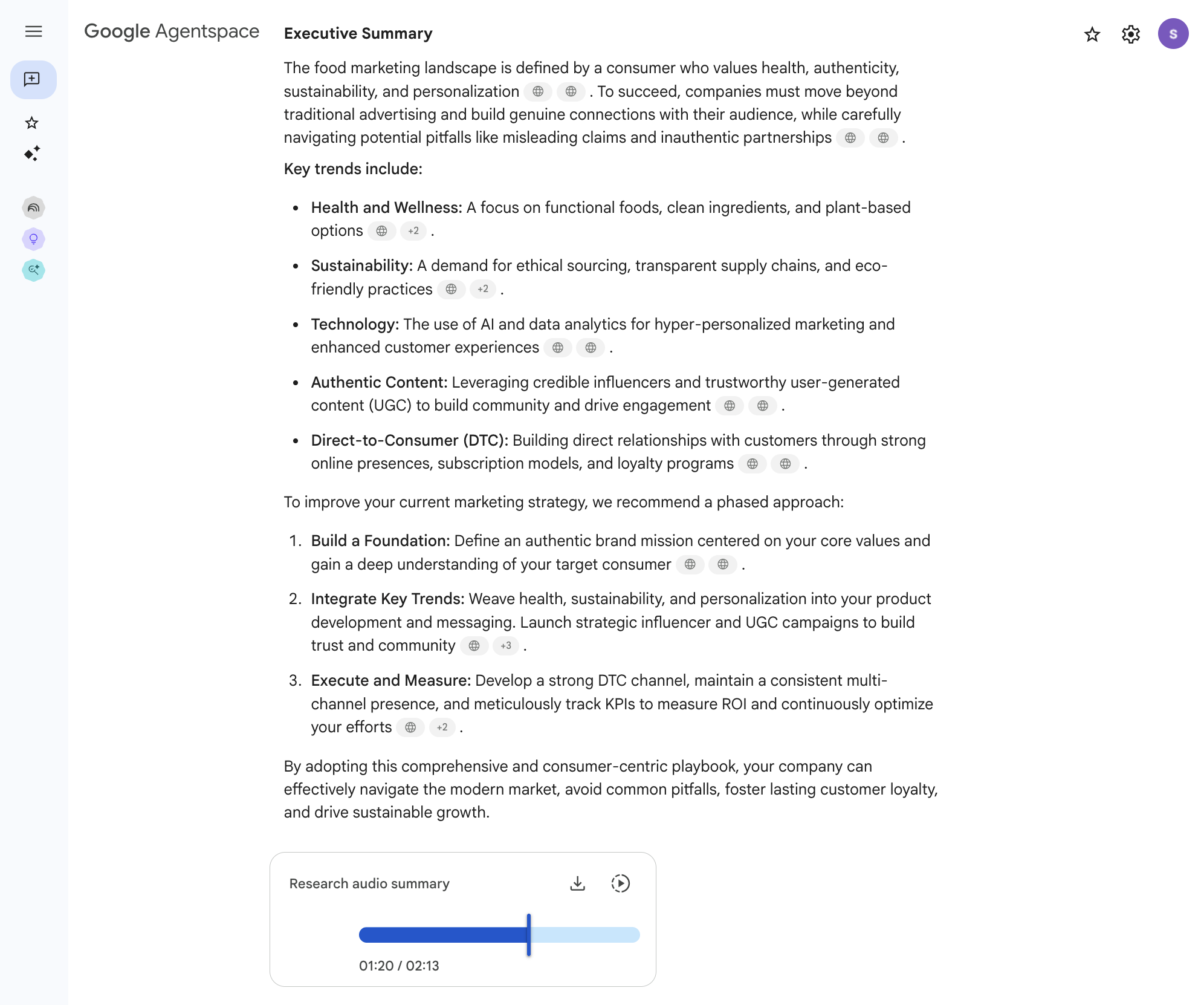
This takes a few minutes to complete. You can wait or continue with the remaining tasks in the lab and return later to check the status of the generated report. After 5–10 minutes, your research report completes and displays the following summary and audio overview:
In the previous tasks, you explored Gemini Enterprise as a comprehensive platform for accessing enterprise information and using specialized AI agents. Now, you explore Gemini Notebook, a tool designed for focused research, deep analysis, and sense-making with specific collections of documents. Gemini Notebook acts as your personal research assistant, allowing you to import chosen sources, ask detailed questions, generate summaries, and synthesize information. All AI responses are grounded directly in the materials you provide.
For Cymbal Foods, an employee might use Gemini Notebook to conduct an in-depth review of specific sales reports alongside customer feedback trends before drafting a new product proposal or marketing strategy. In this task, you create a new notebook, import text versions of your Cymbal Foods data files as sources, and interact with Gemini Notebook to gain insights from this curated collection.
In the Gemini Enterprise navigation menu, click Gemini Notebook.
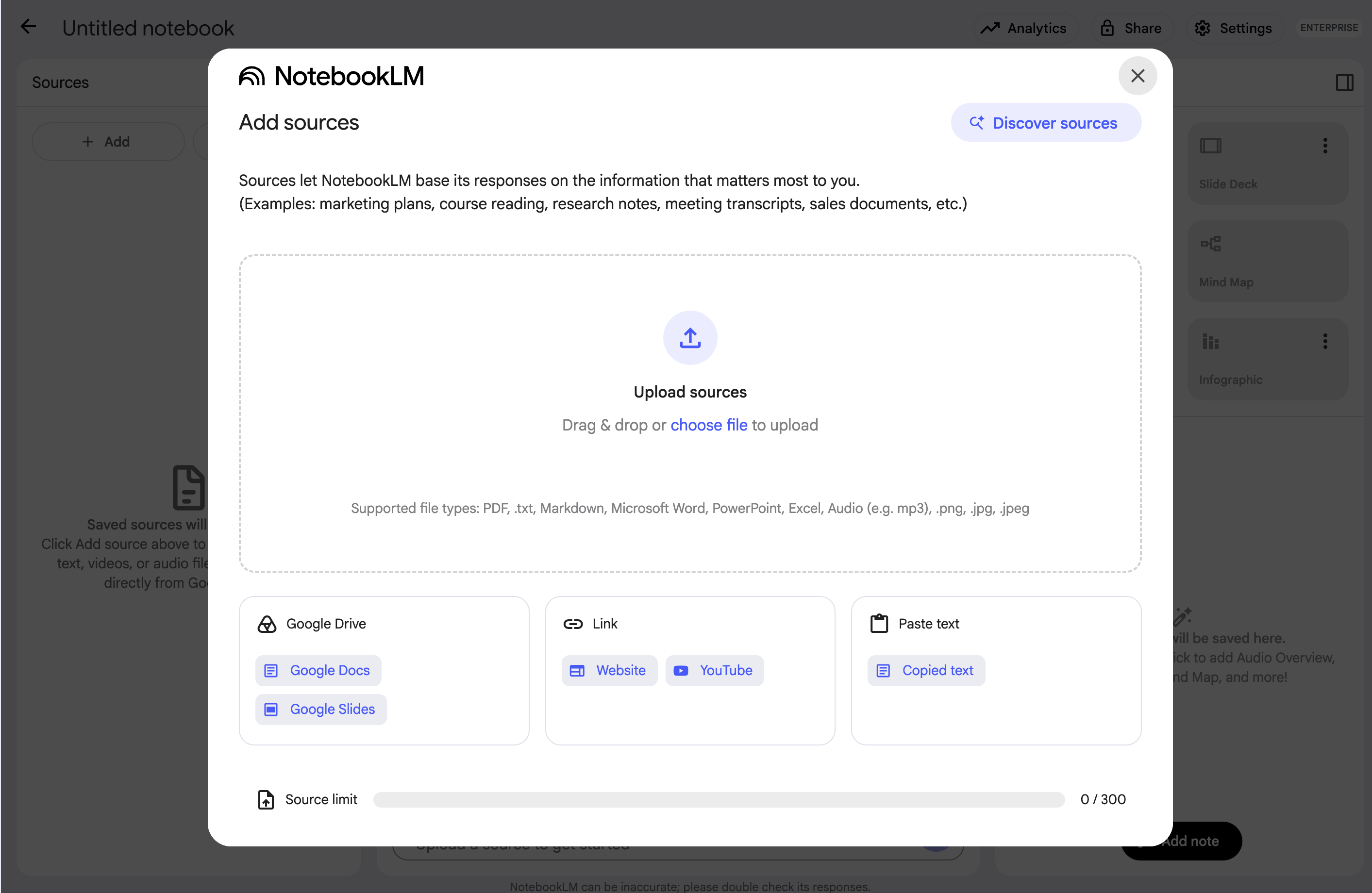
On the Welcome to Gemini Notebook screen, click + Create new notebook. This opens a new notebook along with the Add sources dialog:
In the Add sources dialog, under Link, click Website.
In the Paste URLs field, paste the following three Cloud Storage URLs:
Click Insert.
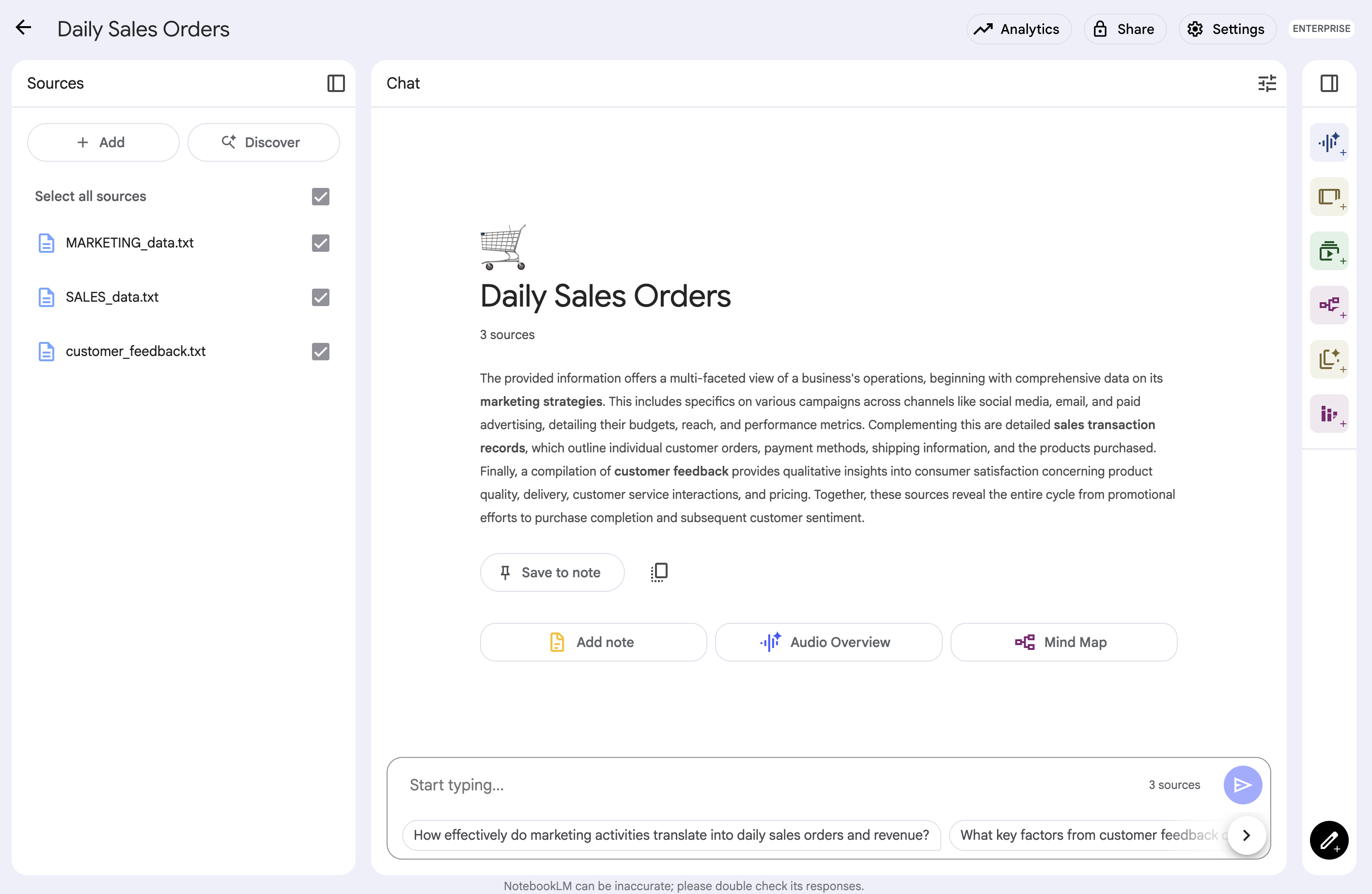
Wait a few seconds for Gemini Notebook to import all three sources and generate an automatic title (Sweet Treats: Campaigns, Sales, Feedback) and summary for the notebook:
With your Cymbal Foods data loaded into the notebook, you can now ask targeted questions and explore the content.
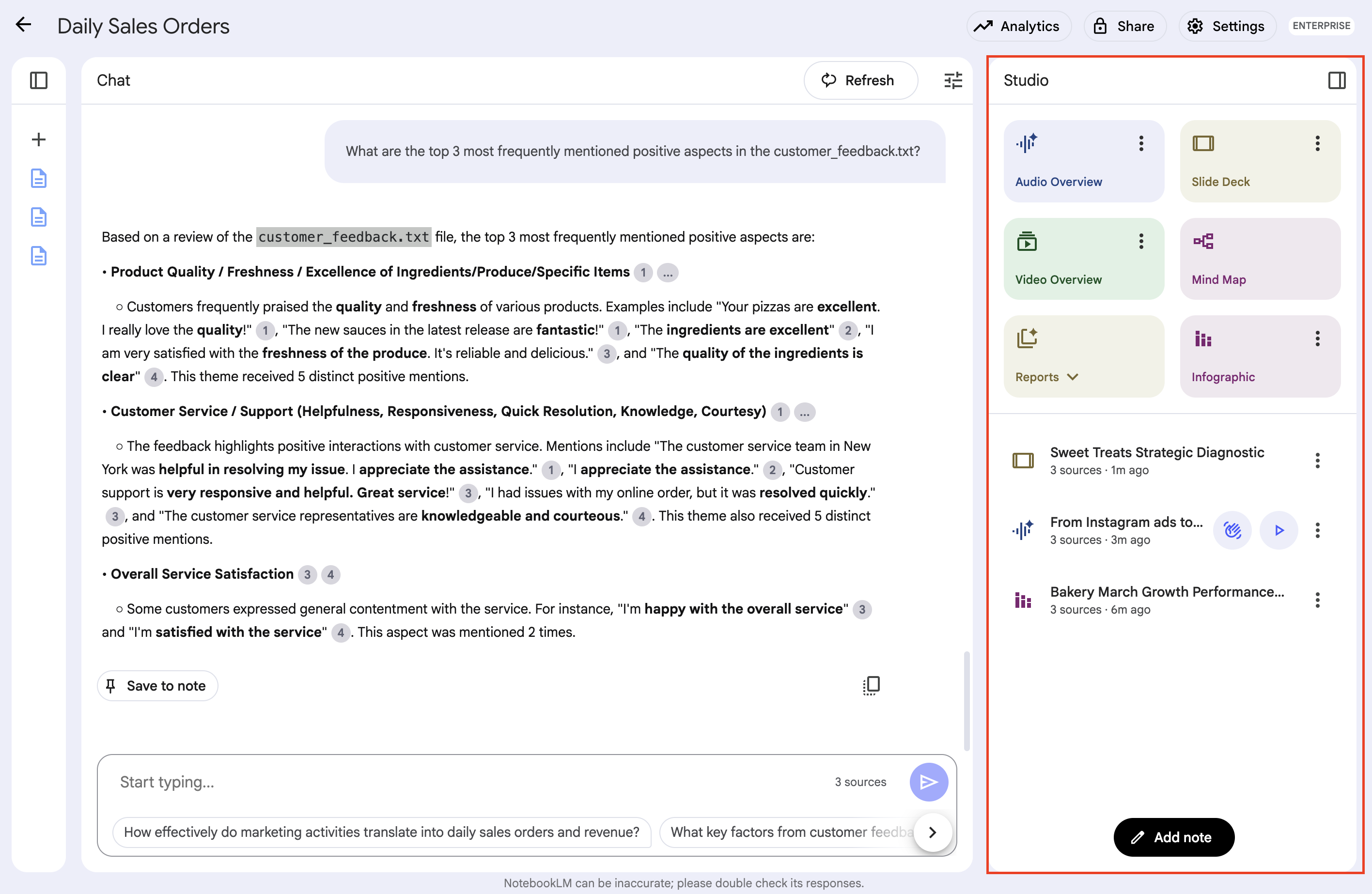
Observe the Gemini Notebook interface, which displays your added sources, the main chat panel, and a Studio section for your notes and multimodal artifacts.
In the chat input bar, type your questions. Gemini Notebook generates answers based only on the content of the documents you added to this specific notebook. Try the following prompts:
Notice how Gemini Notebook formulates its answers, drawing information directly from your imported text files. Many grounded AI tools, including Gemini Notebook, provide citations or highlight the source text used to generate an answer. These citations help you verify the information and refer back to the original context in your documents. Gemini Notebook is designed for iterative exploration, allowing you to ask follow-up questions to dive deeper into specific points.
It is different from the broader Gemini Enterprise search (which queries across all connected data) or a specialized custom agent (which operates based on its specific programmed instructions). Gemini Notebook offers a flexible environment for any collection of sources you want to study closely.
A key feature of Gemini Notebook is often the ability to save AI responses, key passages from sources, or your own thoughts as "notes" within the notebook. This helps you build a structured understanding and gather material for reports or further work.
Beyond textual summaries and Q&A, Gemini Notebook offers innovative ways to synthesize information from your sources through the two-column Studio panel. The panel includes Audio Overview, Slide Deck, Video Overview, Mind Map, Reports, Flashcards, Quiz, and Infographic. These tools allow you to generate spoken summaries, visual data sheets, study aids, and presentation decks derived directly from the documents in your notebook.
Click Check my progress to verify the objective.
You've now covered the core exercises for Gemini Notebook and Gemini Enterprise in this lab! If you have remaining time, this is an excellent opportunity to delve deeper and experiment further with both tools:
In Gemini Notebook:
In your Gemini Enterprise app:
This self-directed exploration is a great way to solidify what you've learned and discover even more potential uses for these powerful AI tools in managing and understanding enterprise information.
Congratulations! You've successfully explored Google Gemini Enterprise. Throughout this lab, you've verified your pre-provisioned application and Cloud Storage data store, connected Google Drive and Google Calendar data stores, interacted with different agents for search and summarization, built a custom agent with Agent Designer (Workflow Builder), created a reusable skill, generated a Deep Research report, and performed focused document analysis with Gemini Notebook, including multimodal Studio overviews. These hands-on skills are invaluable for leveraging Google's advanced AI to unlock enterprise knowledge and streamline decision-making.
For more information about Gemini Enterprise, see the following pages:
Manual Last Updated October 07, 2026
Lab Last Tested October 07, 2026
Copyright 2026 Google LLC. All rights reserved. Google and the Google logo are trademarks of Google LLC. All other company and product names may be trademarks of the respective companies with which they are associated.



This content is not currently available
We can notify you via email when it becomes available
Great!
We can contact you via email if it becomes available


One lab at a time
Confirm to end all existing labs and start this one