

Before you begin
- Labs create a Google Cloud project and resources for a fixed time
- Labs have a time limit and no pause feature. If you end the lab, you'll have to restart from the beginning.
- On the top left of your screen, click Start lab to begin

Add content to Google Drive and Google Calendar
/ 20
Create a Gemini Enterprise app and configure its identity provider
/ 20
Create Google Drive and Google Calendar Data Stores
/ 30
Query your Gemini Enterprise assistant
/ 30
Add content to Google Drive and Google Calendar
/ 20
Create a Gemini Enterprise app and configure its identity provider
/ 20
Create Google Drive and Google Calendar Data Stores
/ 30
Query your Gemini Enterprise assistant
/ 30
In this lab, you will deploy a Gemini Enterprise app connected to a Google Drive data store and use the AI assistant to locate information from within your organization.
For this lab, you’ll take on the role of a scientific conference organizer planning a conference to discuss the discovery of an exciting new exoplanet.
In this lab, you learn how to:
Read these instructions. Labs are timed and you cannot pause them. The timer, which starts when you click Start Lab, shows how long Google Cloud resources are made available to you.
This hands-on lab lets you do the lab activities in a real cloud environment, not in a simulation or demo environment. It does so by giving you new, temporary credentials you use to sign in and access Google Cloud for the duration of the lab.
To complete this lab, you need:
Click the Start Lab button. If you need to pay for the lab, a dialog opens for you to select your payment method. On the right is the Lab setup pane with the following:
In the Lab Setup section, right-click Open Google Cloud console and select Open link in new window (or alternatively right-click and select Open Link in Incognito Window if you are running the Chrome browser).
The lab spins up resources, and then opens another tab that shows the Sign in page.
Tip: Arrange the tabs in separate windows, side-by-side.
If necessary, copy the Username below and paste it into the Sign in dialog.
You can also find the Username in the Lab Setup pane.
Click Next.
Copy the Password below and paste it into the Welcome dialog.
You can also find the Password in the Lab Setup pane.
Click Next.
Click through the subsequent pages:
After a few moments, the Google Cloud console opens in this tab.

In the Google Cloud console, navigate to Cloud Storage > Buckets, click the existing bucket with the name:
If corporate network, browser, or device security policies restrict accessing Google Drive, Google Calendar, or downloading external files on your local workstation, open the pre-provisioned sandboxed Remote Browser session in a new browser tab:
Open the Chrome browser inside this remote desktop session and authenticate with your Qwiklabs student account (PlanetCon_Persephone.docx and Persephone_Analysis_Report.pdf) are pre-loaded directly onto the Desktop of the remote session.
In the Incognito window where you have logged into the Google Cloud console (or inside the Remote Browser session), create a new tab and navigate to drive.google.com.
Upload the documents to your Google Drive.
These documents relate to the imaginary discovery of a new planet named "Persephone." You are organizing a scientific conference to discuss this discovery.
In the same Incognito window (or inside the Remote Browser session), create a new tab, and navigate to calendar.google.com. Accept or dismiss any pop-ups.
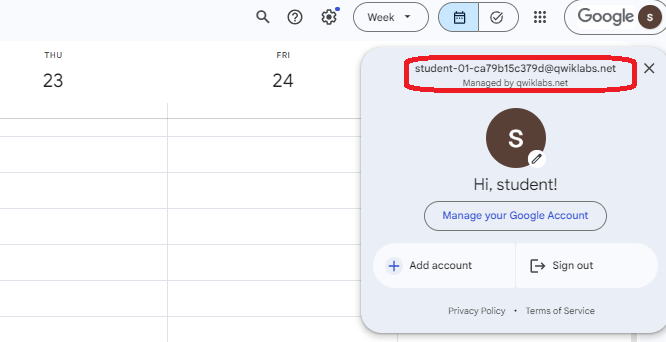
Ensure you are authenticated as your Qwiklabs student account by clicking the “s” in the circle in the upper right corner and confirming it is your
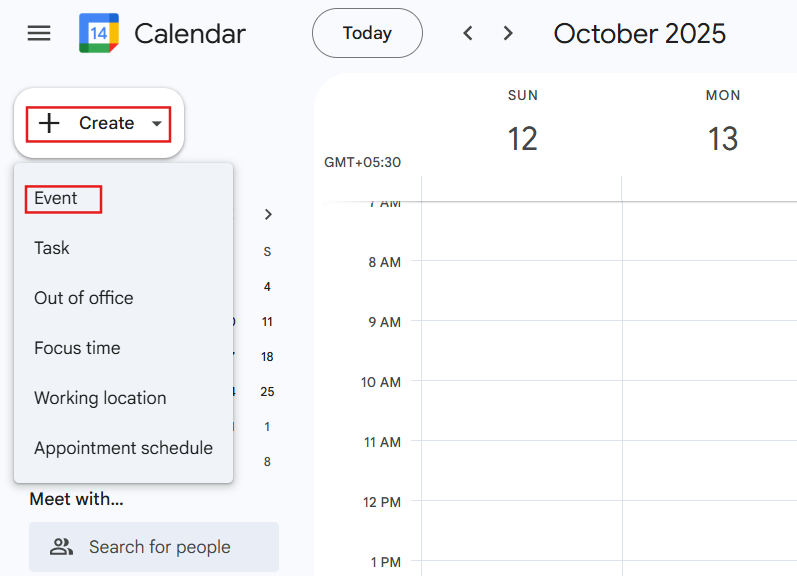
In the upper left, click + Create and select Event from the dropdown menu.
In the event-creation window that appears, name the event Astronomers Lunch Planning Meeting, and set a start time of at least one hour from now.
Select Save.
Click Check my progress to verify the objective.
In the Google Cloud console, navigate to the Gemini Enterprise page by searching for it at the top of the console.
Click Start 30-day free trial and then Continue and activate the API.
You will be presented with an app creation screen. Name your app
Under Advanced Options, for a company name, enter Scientific Conferences.
Click Create.
Select Integration from the left-hand navigation pane.
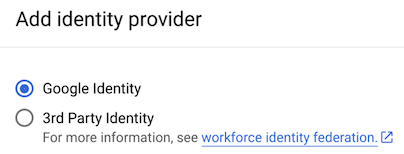
Select Use Google Identity as your identity provider.
Click Confirm Workforce Identity.
Click Check my progress to verify the objective.
Return to the Gemini Enterprise console and click your app named
Select Connected data stores from the left-hand navigation pane.
Select + New data store.
In the Search box under Select a data source, type Google Drive. Alternatively, click Show all next to First-party data sources.
On the Google Drive card, click Add data source.
On Specify the Google Drive authentication parameters page, click Continue.
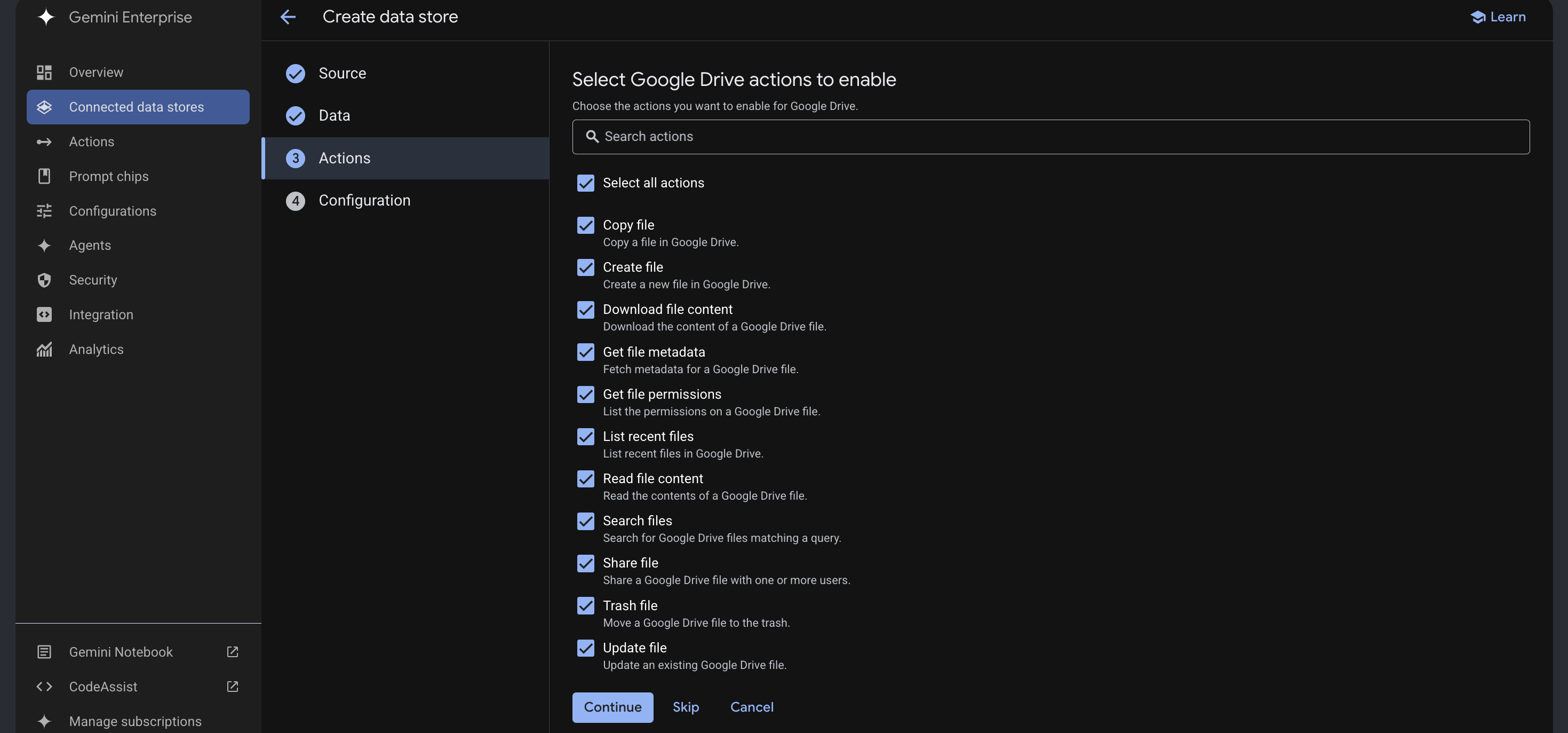
Under Select Google Drive actions to enable, check Select all actions and then click Continue.
Output:
Under Configuration, keep the default region of global, and for Data connector name type
Click Create.
Once again click + New data store, and this time select the card for Google Calendar.
On Specify the Google Calendar authentication parameters page, click Continue.
Under Select Google Calendar actions to enable, check Select all actions, and then click Continue.
Output:
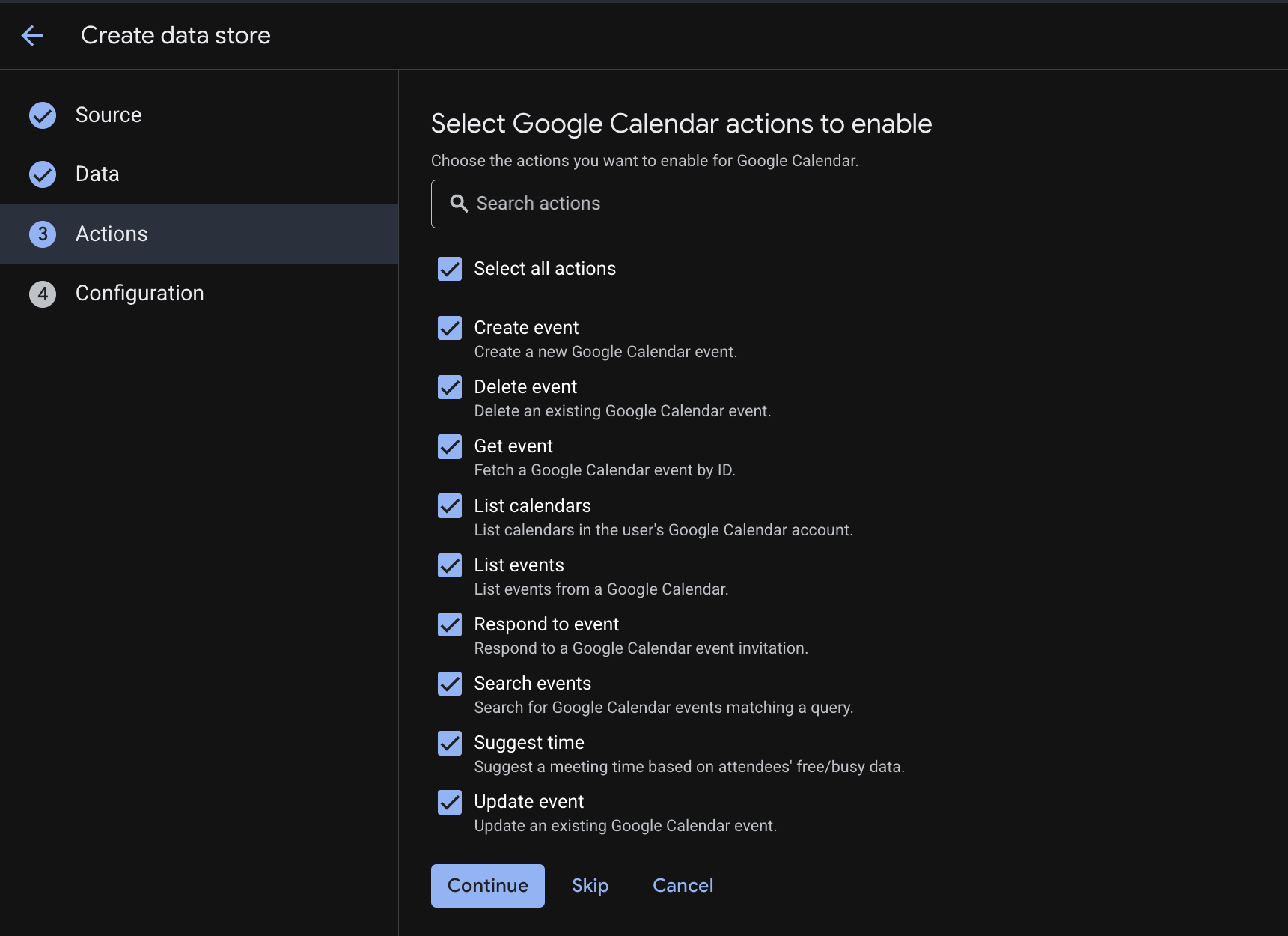
Under Configuration, keep the default region of global and for Data connector name type
Click Create. The two data stores should be listed in the Gemini Enterprise > Data Stores panel.
Click Check my progress to verify the objective.
Click your data stores' names to see their detail pages. You will be ready to proceed when each data store's Connector state and Action state show statuses of Active. This should take about 10 minutes from deployment.
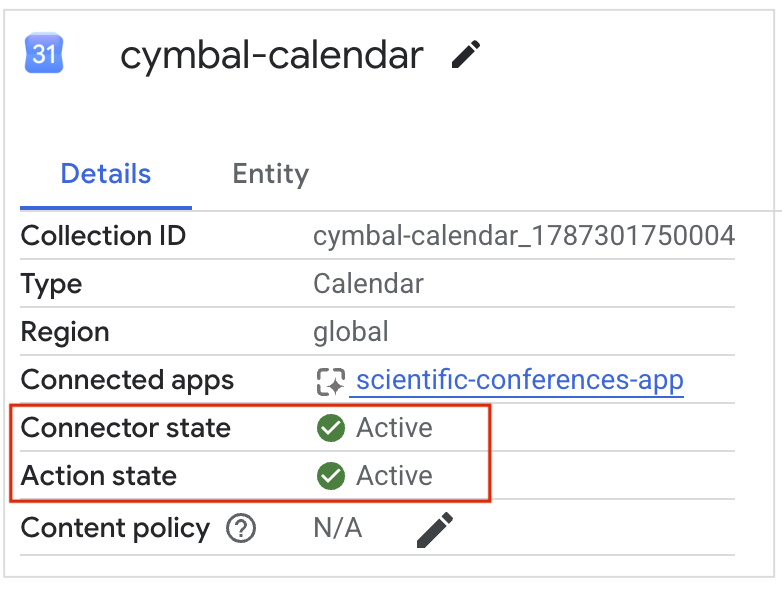
Return to the Overview tab for your app
Click the URL displayed on the Overview tab to open a preview of the Gemini Enterprise web app in a new browser tab. Make sure that you are signed in using your Qwiklabs student account
At the bottom of the query bar, click the Connectors icon (
In the connectors panel, next to Calendar and Drive, click Authorize and use the pop-up OAuth consent screen flow to authorize each set of actions using your Qwiklabs student account
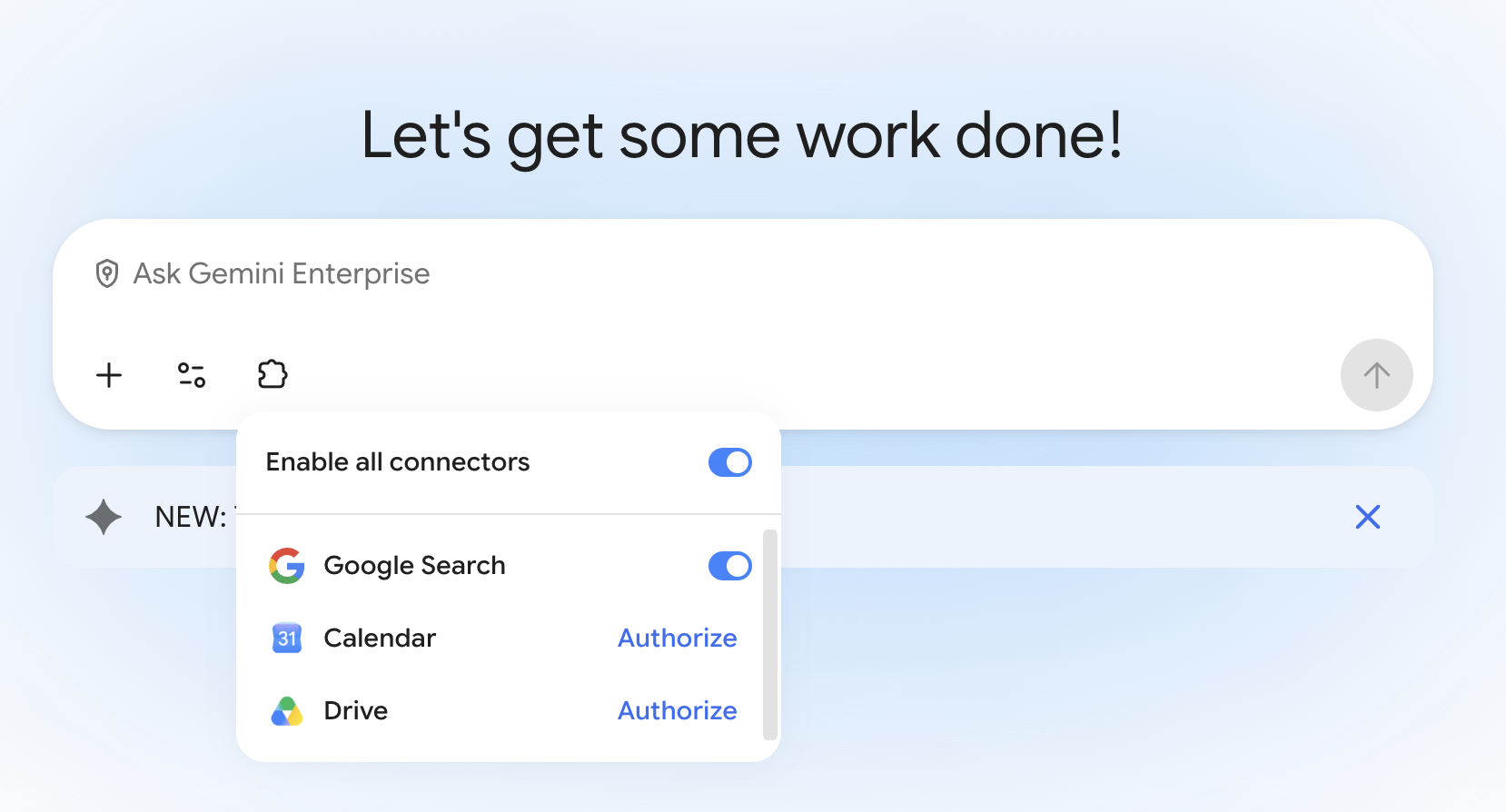
If the Authorize option does not appear yet next to either data store, make sure to wait for the data stores to reach an Active Action state, then refresh the page.
At the bottom of the query bar, click the Tools icon (
For this query, you want to search only your proprietary data, so select Search company data.
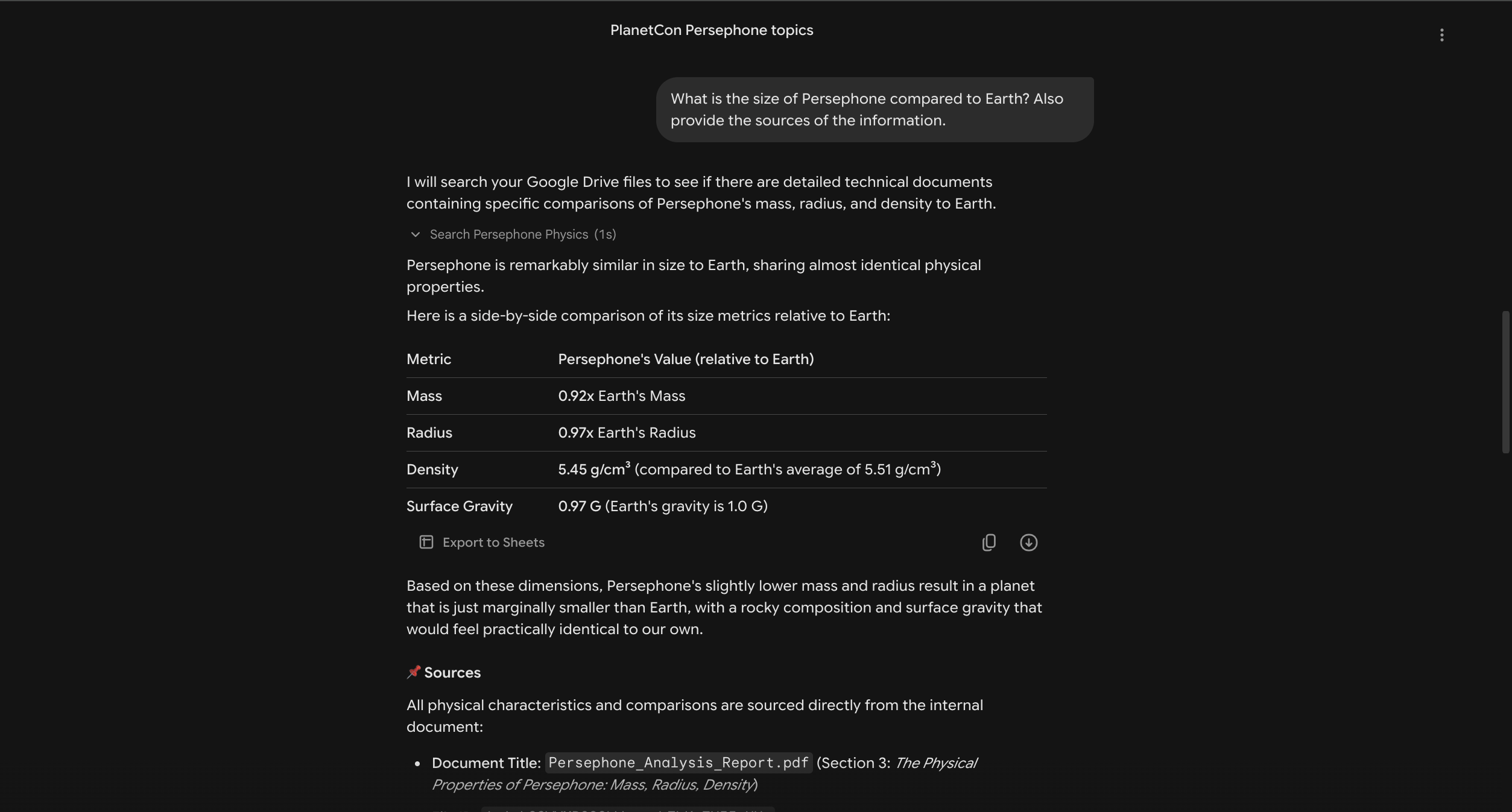
Use the query bar to enter the following query:
Sample Output:
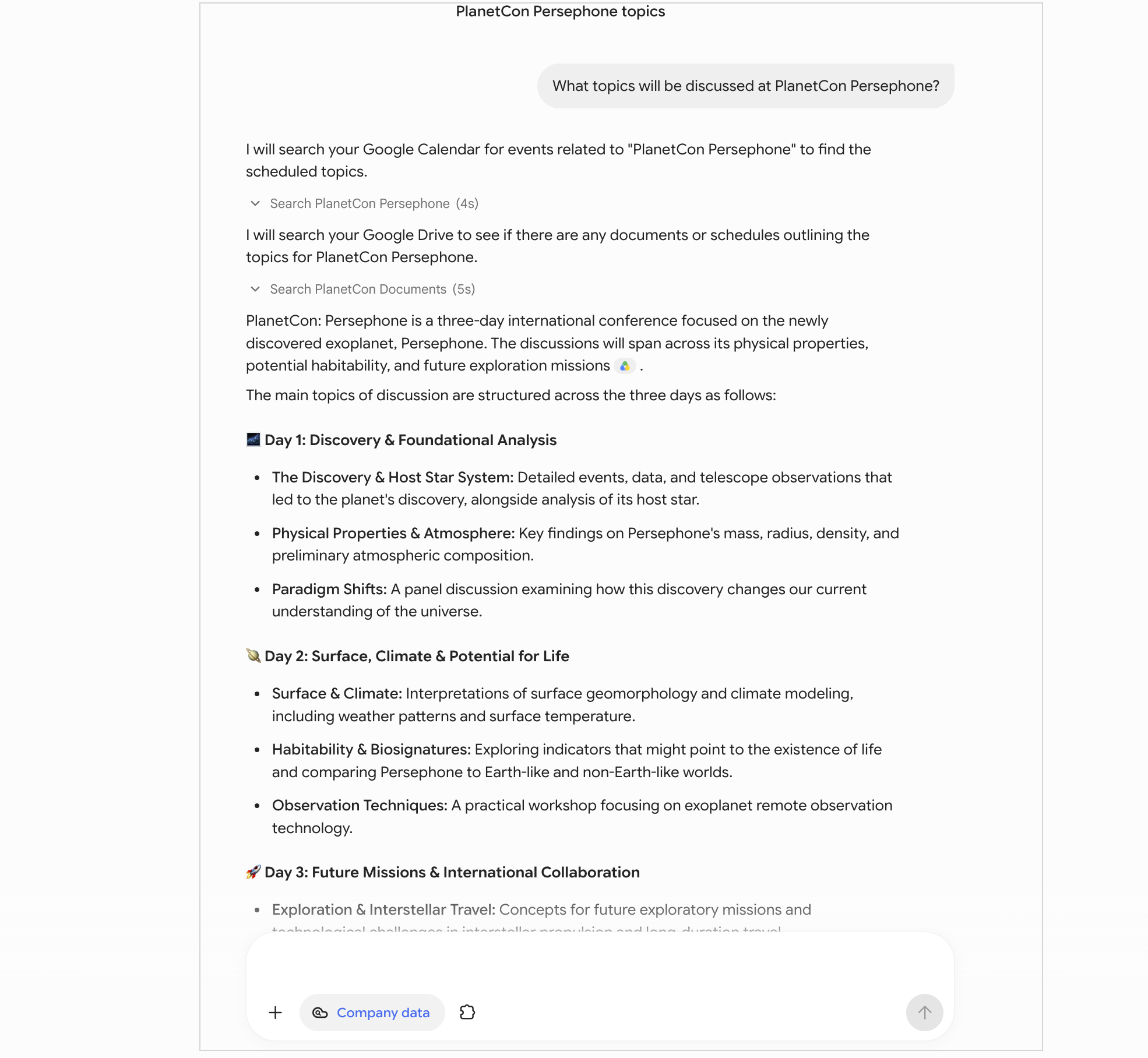
Enter a different prompt in the primary search bar:
You should see a result that extracts the information you are looking for from the Persephone Analysis Report.pdf document you uploaded to your drive.
Remember, there is no real exoplanet Persephone, so the model is not relying on training data, but is finding information in your uploaded data. You can further validate this by clicking the link icon and the card that appears below the response to be taken directly to the file that serves as the source of this information.
Sample Output:
When you don’t have time to review a document, you can use the Gemini Enterprise AI assistant to create a useful summary for you. In the search bar, type: Summarize @. When you type the @ symbol, a pop-up will display files.
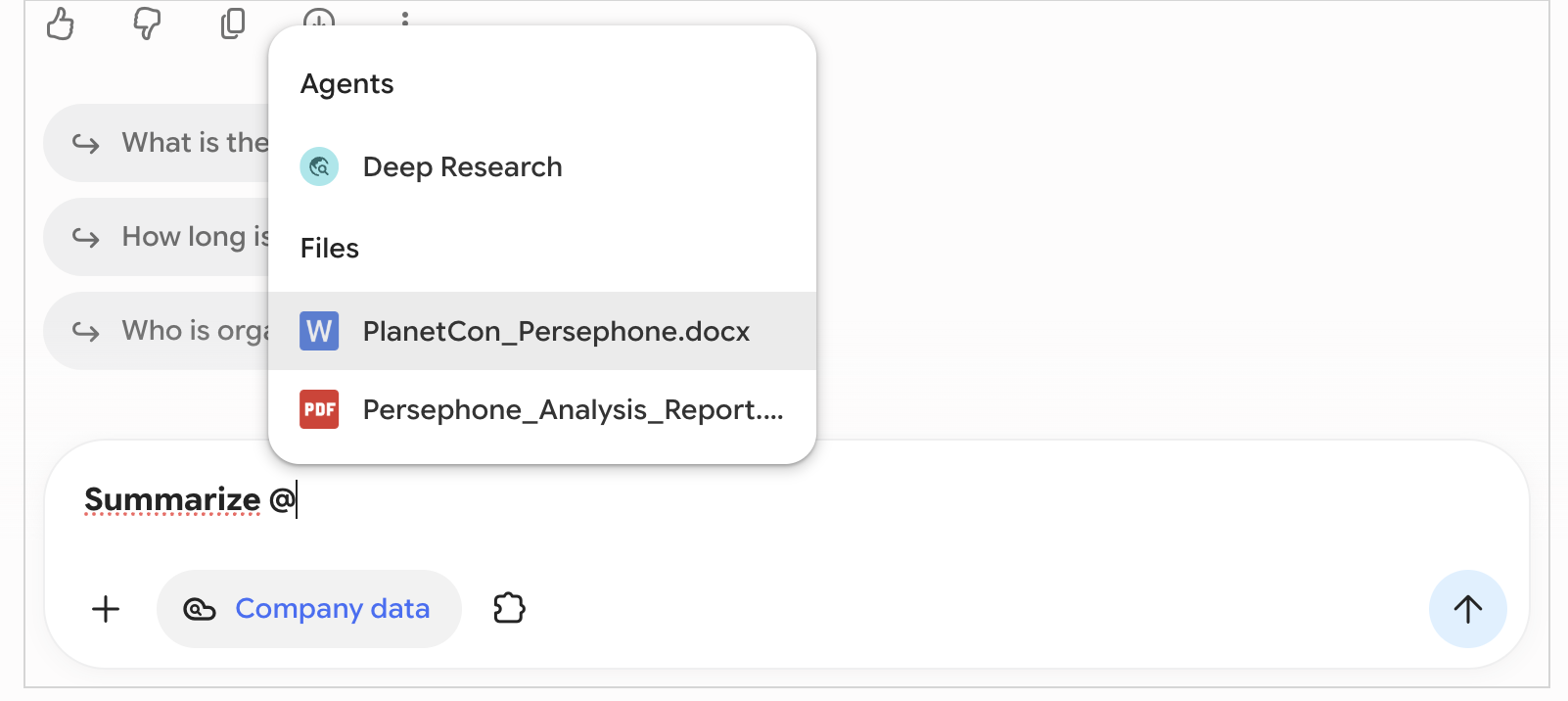
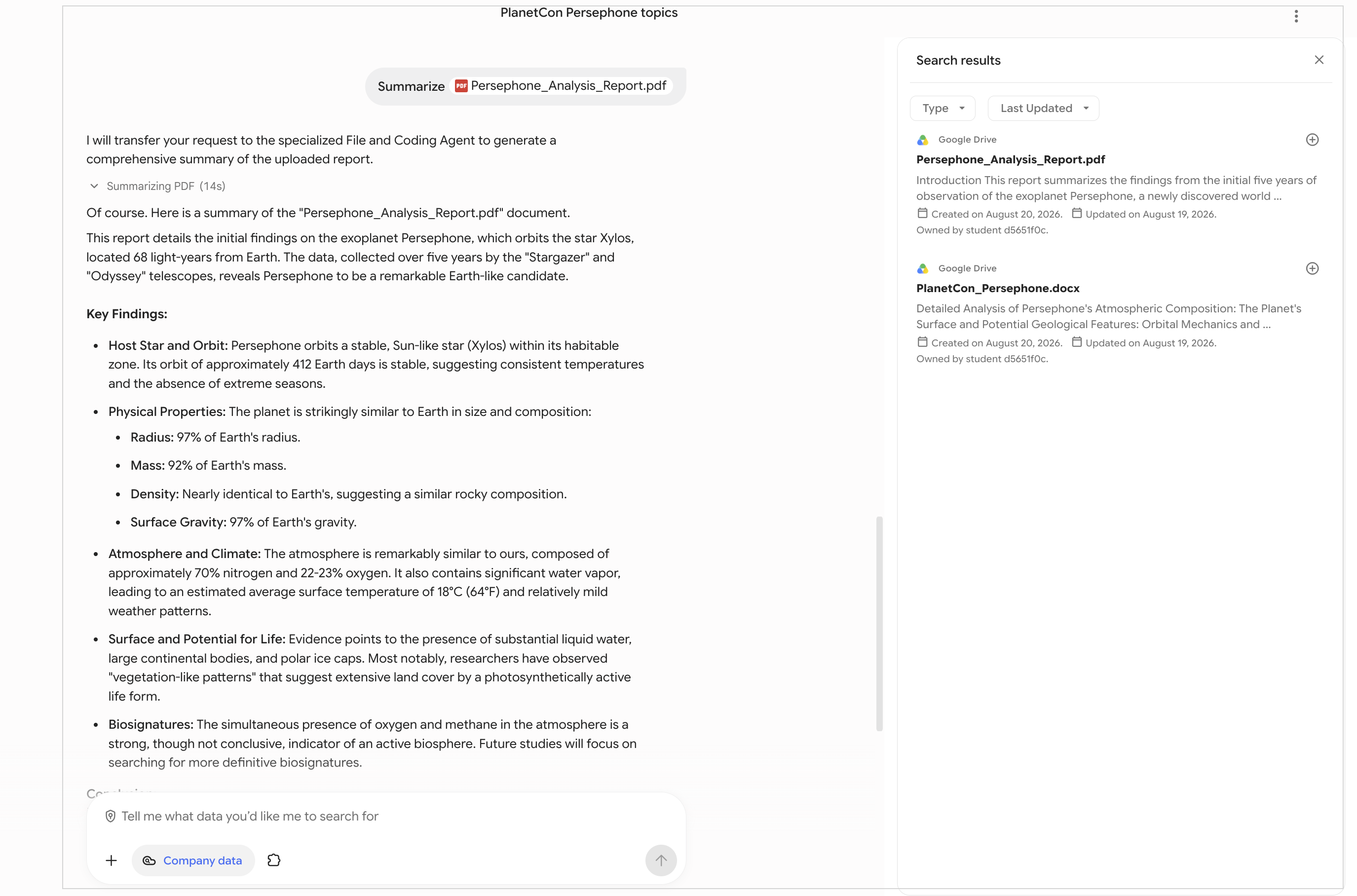
Click the file Persephone_Analysis_Report and press Enter to submit the query.
Sample Output:
In the search bar, enter the following:
Sample Output:
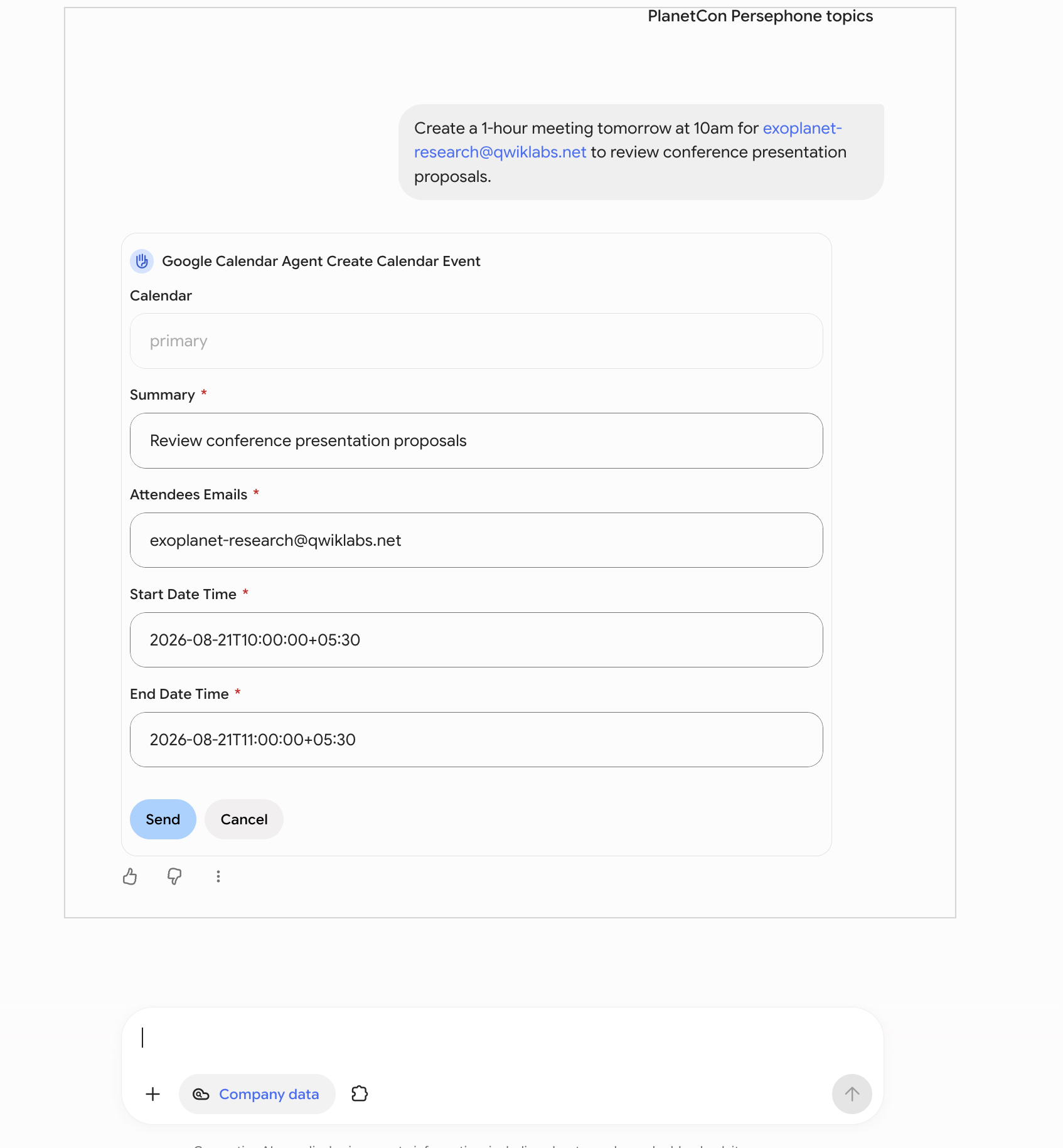
Approve the event-creation form presented to you.
Return to your calendar.google.com tab to see the meeting appear on your calendar.
Click Check my progress to verify the objective.
In this lab, you’ve learned how to deploy Gemini Enterprise to utilize Google’s combined expertise in search, generative AI, and cloud infrastructure to ease knowledge exchange throughout your organization.
Manual Last Updated September 09, 2026
Lab Last Tested September 09, 2026
When you have completed your lab, click End Lab. Qwiklabs removes the resources you’ve used and cleans the account for you.
You will be given an opportunity to rate the lab experience. Select the applicable number of stars, type a comment, and then click Submit.
The number of stars indicates the following:
You can close the dialog box if you don't want to provide feedback.
For feedback, suggestions, or corrections, please use the Support tab.
Copyright 2026 Google LLC. All rights reserved. Google and the Google logo are trademarks of Google LLC. All other company and product names may be trademarks of the respective companies with which they are associated.



This content is not currently available
We will notify you via email when it becomes available

Great!
We will contact you via email if it becomes available


One lab at a time
Confirm to end all existing labs and start this one