

Before you begin
- Labs create a Google Cloud project and resources for a fixed time
- Labs have a time limit and no pause feature. If you end the lab, you'll have to restart from the beginning.
- On the top left of your screen, click Start lab to begin

Clone the Repository
/ 20
Add cluster to the KubeConfig
/ 20
Deploy the App
/ 20
Test the App
/ 20
Delete App from cluster
/ 20

Google Kubernetes Engine (GKE) is a managed, production-ready environment for running containerized applications using Kubernetes. GKE Autopilot is a managed mode of operation in which Google manages your cluster infrastructure, including nodes, scaling, security, and other preconfigured settings. In Autopilot mode, GKE provisions compute resources based on your Kubernetes manifests, allowing you to focus on application development rather than operational maintenance.
In this lab, you containerize a sample application and deploy it to a GKE Autopilot cluster. You use Skaffold to automate the build and deployment process and verify the application's availability via an external load balancer.
In this lab, you learn how to perform the following tasks:
The features you explore in this lab provide significant advantages for production workloads outside of this environment:
Automated infrastructure management: Node configuration, sizing, and bin-packing are managed automatically, allowing teams to focus entirely on application logic rather than infrastructure maintenance.
Hands-free scaling: capacity scales automatically with workload demand, eliminating manual capacity planning and ensuring responsiveness under varying traffic patterns.
Hardened security by default: Automated node patching and restricted images provide a production-ready security posture out of the box without manual hardening.
Resource-based pricing: You are billed only for the resources (CPU, memory, and storage) requested by your pods, ensuring you don't pay for idle infrastructure overhead.
Read these instructions. Labs are timed and you cannot pause them. The timer, which starts when you click Start Lab, shows how long Google Cloud resources are made available to you.
This hands-on lab lets you do the lab activities in a real cloud environment, not in a simulation or demo environment. It does so by giving you new, temporary credentials you use to sign in and access Google Cloud for the duration of the lab.
To complete this lab, you need:
This lab uses Cloud Code to access Google Cloud products and services. You can view information about your cluster resources from the editor or via the command line.
Paste the IDE URL below into a new browser window:
In this task, you clone the application's source code repository to prepare the environment for deployment.
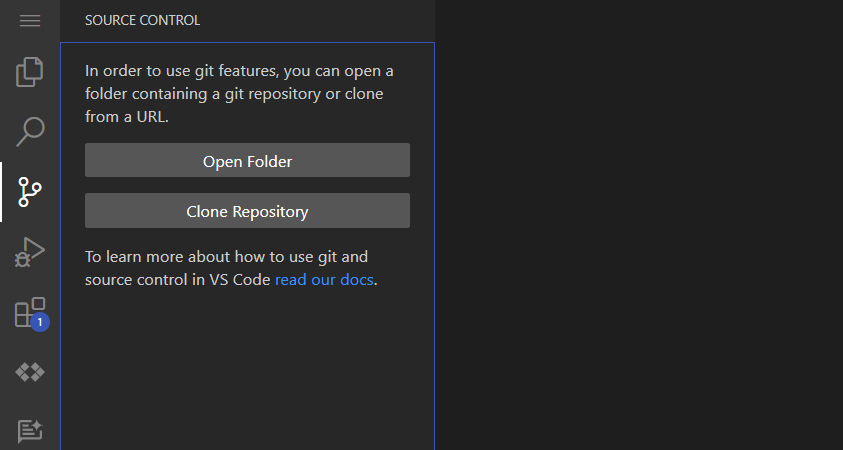
In your Cloud Code terminal, click Source control > Clone repository from the left pane.
Paste the following GitHub repository into Provide repository URL or pick a repository source. field:
Click Clone from URL.
Click OK to confirm the location.
When prompted to open the repo, click Open.
If prompted, click Yes, I trust the authors.
Click Check my progress to verify the objective.
GKE Autopilot is pre-provisioned for this lab. In this task, you update the local kubeconfig to point to the cluster. After the update is complete, you deploy the demo application.
On the Navigation menu (
gke-gcloud-auth-plugin to manage authentication between the client and GKE. This binary uses the Kubernetes Client-go Credential Plugin mechanism to provide GKE-specific authentication tokens.
Add the cluster credentials to the local kube-config:
Expected output:
Click Check my progress to verify the objective.
This lab utilizes Skaffold to build and deploy containers to Artifact Registry.
In the terminal, change to the application folder:
Set the region for the deployment:
Use Skaffold to deploy the source application:
A container image is built from source. Once available it's deployed to the GKE autopilot cluster.
Click Check my progress to verify the objective.
Now test that the application is working as specified.
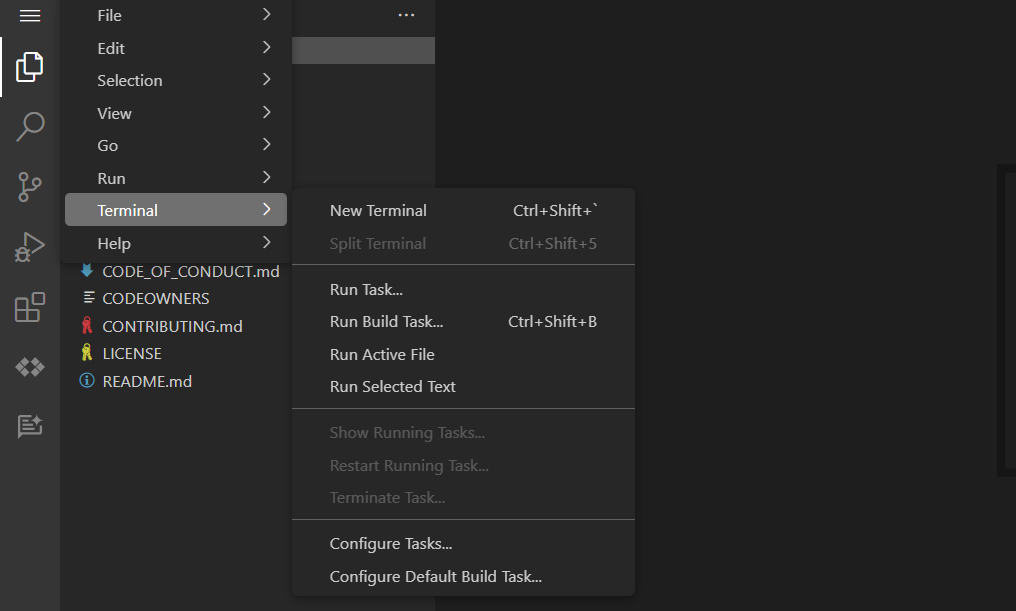
Launch a new terminal to test the application: On the Navigation menu (
Run the command below to verify the web-external load balancer has been created:
Open a new tab in your browser.
Enter the IP value returned as a HTTP site:
Expected output:
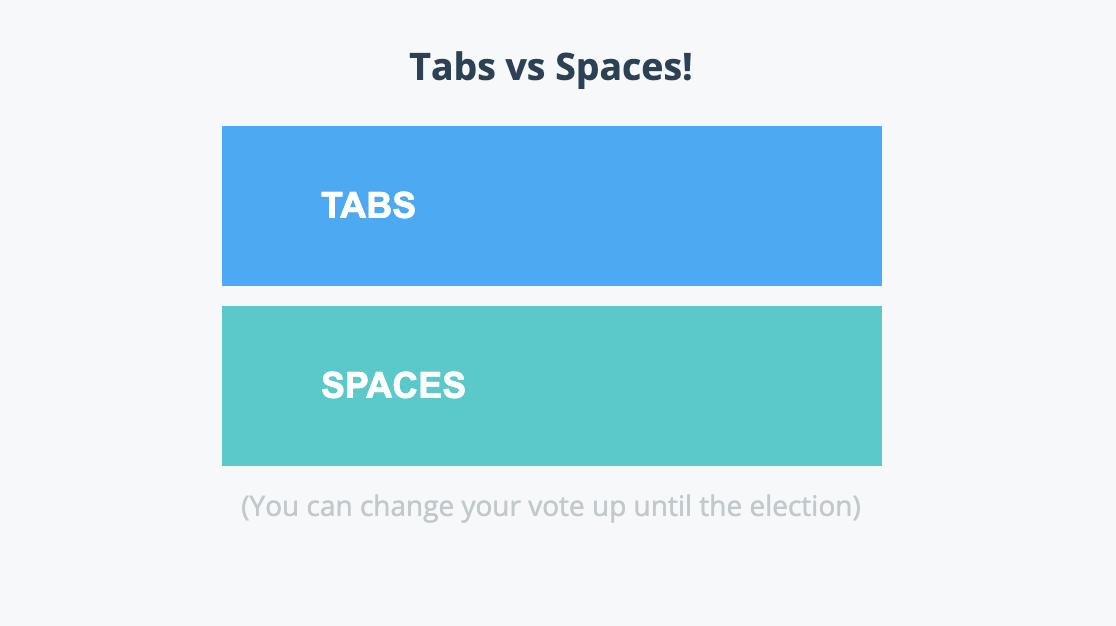
Vote by clicking either TABS or SPACES.
Update the voting app URL as follows:
Example output:
Click Check my progress to verify the objective.
Great job! You now have your voting application deployed to a cluster. GKE Autopilot has taken care of the management of the Kubernetes infrastructure.
Although you've terminated the application, the skaffold application is still active. If you re-run the skaffold application, it would use the existing resources created earlier.
To delete the application, you tell Skaffold that the application is no longer required:
Expected output:
Click Check my progress to verify the objective.
You have successfully deployed a containerized application to GKE Autopilot!
Search for "Qwik Starts" in the Google Skills catalog to find your next lab.
This lab is part of a series of labs called Qwik Starts. These labs are designed to give you some experience with the many features available on Google Cloud. Search for "Qwik Starts" in the Skills catalog to find the next lab you'd like to take!
...helps you make the most of Google Cloud technologies. Our classes include technical skills and best practices to help you get up to speed quickly and continue your learning journey. We offer fundamental to advanced level training, with on-demand, live, and virtual options to suit your busy schedule. Certifications help you validate and prove your skill and expertise in Google Cloud technologies.
Manual Last Updated March 5, 2026
Lab Last Tested March 5, 2026
Copyright 2026 Google LLC. All rights reserved. Google and the Google logo are trademarks of Google LLC. All other company and product names may be trademarks of the respective companies with which they are associated.



This content is not currently available
We will notify you via email when it becomes available

Great!
We will contact you via email if it becomes available


One lab at a time
Confirm to end all existing labs and start this one