GSP122

在本實驗室,您將瞭解如何透過指令列在虛擬機器上安裝並初始化 Cloud SDK,以及執行核心 gcloud 指令。Cloud SDK RPM 套件適用於 Red Hat Enterprise Linux 9 和 CentOS 9。
設定和需求
瞭解以下事項後,再點選「Start Lab」按鈕
請詳閱以下操作說明。實驗室活動會計時,且中途無法暫停。點選「Start Lab」後就會開始計時,顯示可使用 Google Cloud 資源的時間。
您將在真正的雲端環境完成實作實驗室活動,而不是模擬或示範環境。為此,我們會提供新的暫時憑證,供您在實驗室活動期間登入及存取 Google Cloud。
為了順利完成這個實驗室,請先確認:
- 可以使用標準的網際網路瀏覽器 (Chrome 瀏覽器為佳)。
注意事項:請使用無痕模式 (建議選項) 或私密瀏覽視窗執行此實驗室,這可以防止個人帳戶和學員帳戶之間的衝突,避免個人帳戶產生額外費用。
- 是時候完成實驗室活動了!別忘了,活動一旦開始將無法暫停。
注意事項:務必使用實驗室專用的學員帳戶。如果使用其他 Google Cloud 帳戶,可能會產生額外費用。
如何開始實驗室及登入 Google Cloud 控制台
-
按一下「Start Lab」按鈕。如果實驗室會產生費用,請在開啟的對話方塊中選取付款方式。右側的「Lab setup and access」面板會顯示下列項目:
- 「Open Google Cloud console」按鈕
- 此實驗室所需的臨時憑證 (使用者名稱和密碼)
- 完成此實驗室所需的其他資訊 (如有)
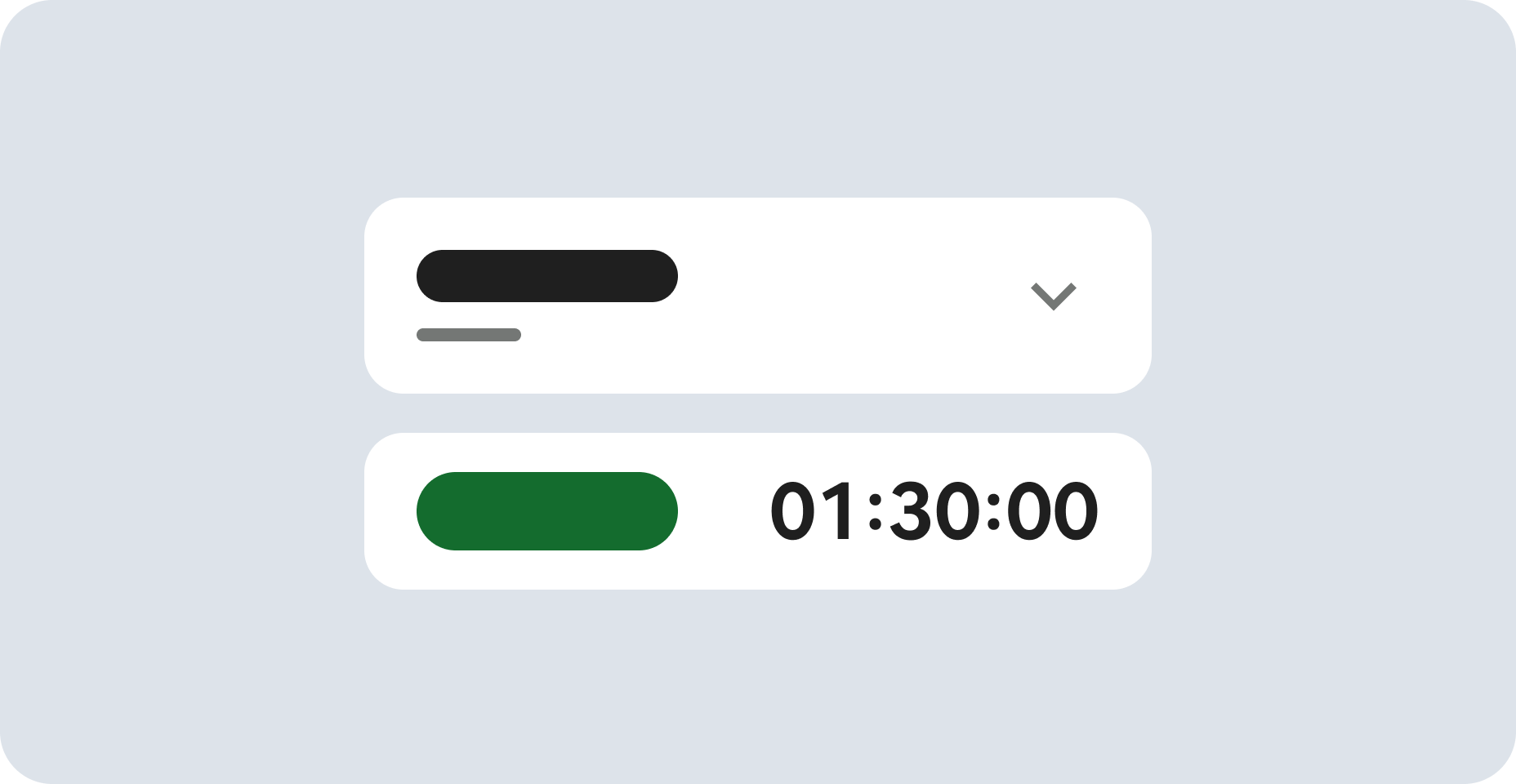
請注意,實驗室計時器位於頁面頂端附近,會顯示剩餘時間。
-
按一下「Open Google Cloud console」。如果使用 Chrome 瀏覽器,也可以按一下滑鼠右鍵,選取「在無痕視窗中開啟連結」。
接著,實驗室會啟動相關資源,並開啟另一個分頁,顯示「登入」頁面。
提示:您可以在不同的視窗並排開啟分頁。
注意:頁面顯示「選擇帳戶」對話方塊時,請點選「使用其他帳戶」。
-
如有必要,請將下方的 Username 貼到「登入」對話方塊。
{{{user_0.username | "Username"}}}
您也可以在「Lab setup and access」面板找到「Username」。
-
點選「下一步」。
-
複製下方的 Password,並貼到「歡迎使用」對話方塊。
{{{user_0.password | "Password"}}}
您也可以在「Lab setup and access」面板找到「Password」。
-
點選「下一步」。
重要事項:請務必使用實驗室提供的憑證,而非自己的 Google Cloud 帳戶憑證。
注意:如果使用自己的 Google Cloud 帳戶來進行這個實驗室,可能會產生額外費用。
-
繼續點按後續頁面:
- 接受條款及細則。
- 由於這是臨時帳戶,請勿新增救援選項或雙重驗證機制。
- 請勿申請免費試用。
Google Cloud 控制台稍後會在這個分頁開啟。
注意:如要使用 Google Cloud 產品和服務,請按一下「導覽選單」,或在「搜尋」欄位輸入服務或產品名稱。
啟動 Cloud Shell
Cloud Shell 是搭載多項開發工具的虛擬機器,提供永久的 5 GB 主目錄,而且在 Google Cloud 中運作。Cloud Shell 提供指令列存取權,方便您使用 Google Cloud 資源。
-
點按 Google Cloud 控制台頂端的「啟用 Cloud Shell」圖示  。
。
-
系統顯示視窗時,請按照下列步驟操作:
- 繼續操作 Cloud Shell 視窗。
- 授權 Cloud Shell 使用您的憑證發出 Google Cloud API 呼叫。
連線建立完成即代表已通過驗證,而且專案已設為您的 Project_ID:。輸出內容中有一行文字,宣告本工作階段的 Project_ID:
Your Cloud Platform project in this session is set to {{{project_0.project_id | "PROJECT_ID"}}}
gcloud 是 Google Cloud 的指令列工具,已預先安裝於 Cloud Shell,並支援 Tab 鍵自動完成功能。
- (選用) 您可以執行下列指令來列出使用中的帳戶:
gcloud auth list
- 點按「授權」。
輸出內容:
ACTIVE: *
ACCOUNT: {{{user_0.username | "ACCOUNT"}}}
To set the active account, run:
$ gcloud config set account `ACCOUNT`
- (選用) 您可以使用下列指令來列出專案 ID:
gcloud config list project
輸出內容:
[core]
project = {{{project_0.project_id | "PROJECT_ID"}}}
注意:如需 gcloud 的完整說明,請前往 Google Cloud 參閱 gcloud CLI 總覽指南。
設定區域
設定這個實驗室的專案區域:
gcloud config set compute/region {{{project_0.default_region | "REGION"}}}
gcloud config set compute/region {{{project_0.default_region | "REGION"}}}
工作 1:設定要使用的 VM
請建立採用 CentOS 或 Red Hat 的 VM。您可以自行選擇其中一種,兩者的操作步驟相同。
前往 Cloud 控制台,依序點選「Compute Engine」
>「VM 執行個體」
>「建立執行個體」
。
顯示「建立執行個體」按鈕的「VM 執行個體」頁面
前往「機器設定」專區。
請選取下列值:-
- 「區域」:
「可用區」:
點選「OS 和儲存空間」。
點選「變更」,開始設定開機磁碟並選取以下值:
「作業系統」:CentOS
「版本」
:
CentOS Stream 9
按一下「選取」。
點選「網路」。
「防火牆」
:允許 HTTP 流量
點選「建立」
。
點選「Check my progress」
,確認目標已達成。
建立 Compute Engine 執行個體並允許 HTTP 流量。
接著點選該執行個體的「SSH」
按鈕。
現在已可為這個執行個體設定 Cloud SDK。
工作 2:更新 Cloud SDK RPM 套件
Cloud SDK RPM 套件適用於 Red Hat Enterprise Linux 9 和 CentOS Stream 9,可能也適用於使用 yum 或 dnf 的 Fedora 系統,但這尚未經過測試。
在「SSH」
視窗執行下列指令,設定 Cloud SDK:
# Update YUM with Cloud SDK repo information:
sudo tee -a /etc/yum.repos.d/google-cloud-sdk.repo << EOM
[google-cloud-sdk]
name=Google Cloud SDK
baseurl=https://packages.cloud.google.com/yum/repos/cloud-sdk-el7-x86_64
enabled=1
gpgcheck=1
repo_gpgcheck=0
gpgkey=https://packages.cloud.google.com/yum/doc/yum-key.gpg
https://packages.cloud.google.com/yum/doc/rpm-package-key.gpg
EOM
# The indentation for the 2nd line of gpgkey is important.
# Install the Cloud SDK
sudo yum install google-cloud-sdk
# 更新 YUM 設定,加入 Cloud SDK 存放區資訊:
sudo tee -a /etc/yum.repos.d/google-cloud-sdk.repo << EOM
[google-cloud-sdk]
name=Google Cloud SDK
baseurl=https://packages.cloud.google.com/yum/repos/cloud-sdk-el7-x86_64
enabled=1
gpgcheck=1
repo_gpgcheck=0
gpgkey=https://packages.cloud.google.com/yum/doc/yum-key.gpg
https://packages.cloud.google.com/yum/doc/rpm-package-key.gpg
EOM
# gpgkey 第 2 行的縮排很重要。
# 安裝 Cloud SDK
sudo yum install google-cloud-sdk
- 系統提示您確認下載的資料總大小時,請回覆 Y。
工作 3:在執行個體初始化 SDK
請使用 gcloud init 指令,執行幾項常見的 SDK 設定工作,包括授權 SDK 工具使用您的使用者帳戶憑證存取 Google Cloud,以及完成預設 SDK 設定。
- 執行下列指令,初始化 SDK:
gcloud init --console-only
gcloud init --console-only
這樣可防止 gcloud init 指令啟動網路瀏覽器。請選擇第 2 個選項,使用新帳戶登入。
- 輸入新增帳戶的對應選項編號。
Pick cloud project to use:
[1] XXXXXxXXX-compute@developer.gserviceaccount.com
[2] Sign in with a new Google Account
...
Please enter your numeric choice or text value:
Pick cloud project to use:
[1] XXXXXxXXX-compute@developer.gserviceaccount.com
[2] Sign in with a new Google Account
...
Please enter your numeric choice or text value:
系統會顯示訊息,確認您目前是在虛擬機器上操作。
- 輸入 Y,允許系統使用您登入實驗室時所用的憑證 (也就是本實驗室的個人帳戶) 來驗證帳戶。
You are running on a Google Compute Engine virtual machine. It is recommended that you use service accounts for authentication. You can run:
$ gcloud config set account ‘ACCOUNT'
To switch accounts as necessary.
Y to authenticate with your personal acct
Do you want to continue (Y/n)?
You are running on a Google Compute Engine virtual machine. It is recommended that you use service accounts for authentication. You can run:
$ gcloud config set account ‘ACCOUNT'
To switch accounts as necessary.
Y to authenticate with your personal acct
Do you want to continue (Y/n)?
系統會提供一長串網址,請直接點選,或將該網址貼到新的瀏覽器視窗中。
- 系統可能會要求您再次選擇實驗室憑證,並允許存取您的帳戶。
開啟這個網址後,就會看到驗證碼。
-
複製驗證碼並貼到 SSH 視窗的命令提示字元中,然後按下 Enter 鍵。
-
接著輸入專案 ID 的對應選項編號。
成功完成設定步驟後,就會看到類似以下內容的確認訊息:
Your current project has been set to [qwiklabs-gcp-fe1e6438a8b814c2].
...
This gcloud configuration is called [default]
Your current project has been set to [qwiklabs-gcp-fe1e6438a8b814c2].
...
This gcloud configuration is called [default]
點選「Check my progress」,確認目標已達成。
在執行個體初始化 SDK
工作 4:執行核心 gcloud 指令
請執行下列 gcloud 指令,查看 SDK 安裝相關資訊:-
列出憑證儲存在這個 VM 上的帳戶:
gcloud auth list
gcloud auth list
Credentialed Accounts
ACTIVE ACCOUNT
* xxxxxxxx-compute@developer.gserviceaccount.com
gcpxxxxxxxxxx_student@qwiklabs.net
畫面上會顯示已儲存憑證的帳戶清單:
Credentialed Accounts
ACTIVE ACCOUNT
* xxxxxxxx-compute@developer.gserviceaccount.com
gcpxxxxxxxxxx_student@qwiklabs.net
以下指令會列出目前使用中的 SDK 設定屬性:
gcloud config list
gcloud config list
[compute]
Region = {{{project_0.default_region | "REGION"}}}
Zone = {{{project_0.default_zone | "ZONE"}}}
[core]
Account = gcpstaging10738_student@qwiklabs.net
Disable_usage_reporting = True
Project = qwiklabs-gcp-fe1e6438a8b814c2
畫面上會顯示屬性清單:
[compute]
Region = {{{project_0.default_region | "REGION"}}}
Zone = {{{project_0.default_zone | "ZONE"}}}
[core]
Account = gcpstaging10738_student@qwiklabs.net
Disable_usage_reporting = True
Project = qwiklabs-gcp-fe1e6438a8b814c2
執行下列指令,查看 Cloud SDK 安裝和使用中的 SDK 設定相關資訊:
gcloud info
gcloud info
摘要包含下列資訊:
系統
已安裝的 SDK 元件
目前使用的使用者帳戶和專案使用中的 SDK 設定屬性
執行下列指令,即可透過指令列查看
gcloud 指令和其他主題的相關資訊:
gcloud help
gcloud help
-
按下 Enter 鍵或空白鍵,即可向下捲動說明內容。
-
按下 q 鍵,離開說明。
使用說明功能時,可以指定指令。舉例來說,如要查看 gcloud compute instances create 的說明,可使用以下指令:
gcloud help compute instances create
gcloud help compute instances create
畫面上會顯示說明主題,其中包含指令說明、指令旗標和引數清單,以及使用範例。
恭喜!
您已學會如何透過指令列在 Red Hat 或 CentOS 虛擬機器上安裝並初始化 Cloud SDK,以及執行核心 gcloud 指令。
後續步驟/瞭解詳情
https://google.qwiklabs.com/catalog
https://cloud.google.com/sdk/docs/#rpm
Google Cloud 教育訓練與認證
協助您瞭解如何充分運用 Google Cloud 的技術。我們的課程會介紹專業技能和最佳做法,讓您可以快速掌握要領並持續進修。我們提供從基本到進階等級的訓練課程,並有隨選、線上和虛擬課程等選項,方便您抽空參加。認證可協助您驗證及證明自己在 Google Cloud 技術方面的技能和專業知識。
使用手冊上次更新日期:2025 年 3 月 10 日
實驗室上次測試日期:2025 年 3 月 10 日