Before you begin
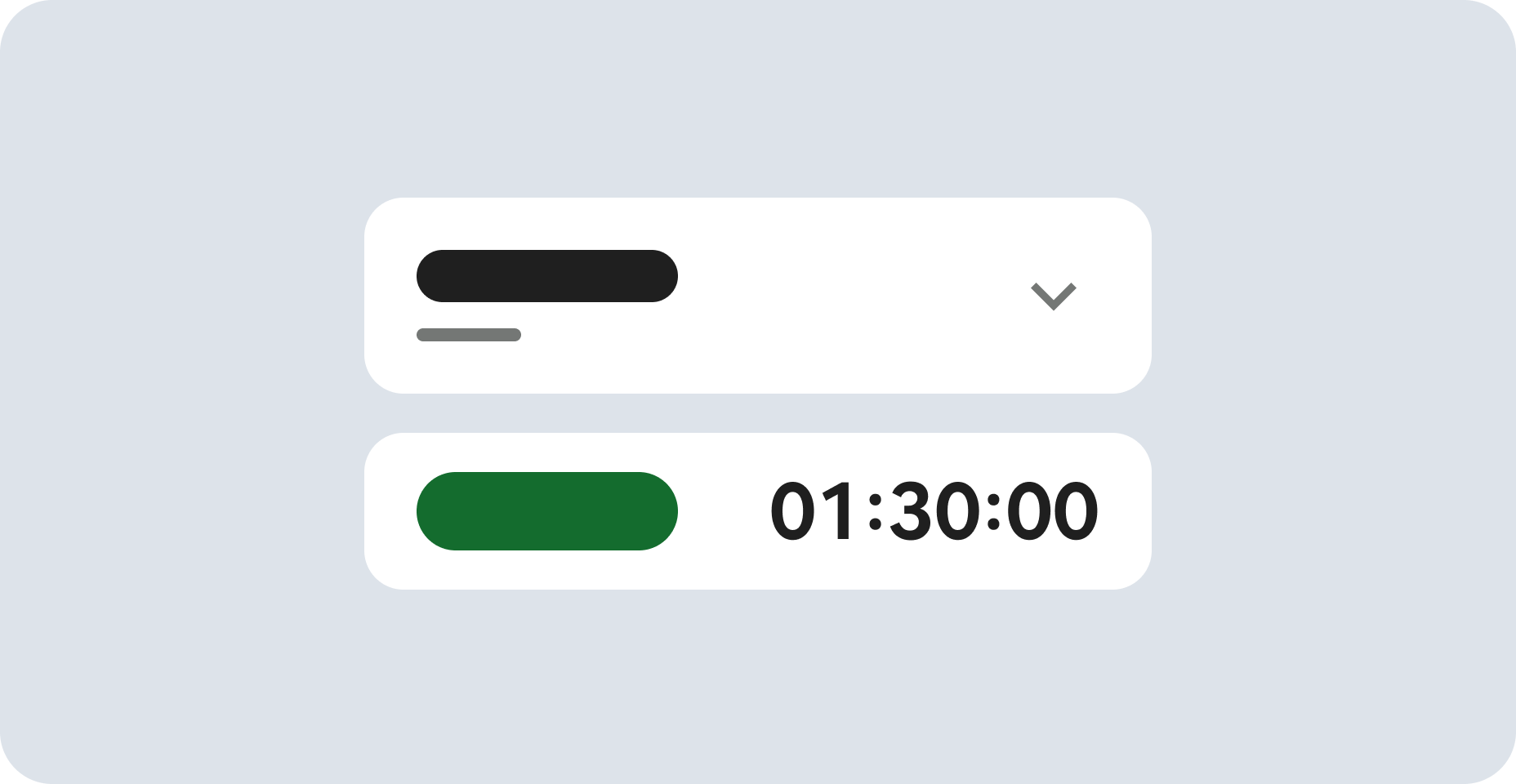
- Labs create a Google Cloud project and resources for a fixed time
- Labs have a time limit and no pause feature. If you end the lab, you'll have to restart from the beginning.
- On the top left of your screen, click Start lab to begin

Create Agent Platform Notebooks instance
/ 50
Clone a course repo within your Agent Platform Workbench instance
/ 50
Create Agent Platform Notebooks instance
/ 50
Clone a course repo within your Agent Platform Workbench instance
/ 50
本實驗室說明如何檢查 Vertex AI Gemini API 回傳的安全評分,以及如何設定安全門檻來篩選回覆。
每個實驗室都會提供新的 Google Cloud 專案和一組資源,讓您在時限內免費使用。
請以無痕視窗登入 Google Skills。
請記下實驗室時間限制 (例如 1:15:00),務必在時限內完成作業。
研究室不提供暫停功能。如有需要,您可以重新開始,但原先的進度恕無法保留。
準備就緒後,請按一下「Start lab」。
請記下研究室憑證 (使用者名稱和密碼),這組資訊將用於登入 Google Cloud 控制台。
按一下「Open Google Console」。
按一下「Use another account」,然後複製這個研究室的憑證,並貼入提示訊息。
如果使用其他憑證,系統會顯示錯誤或向您收取費用。
接受條款,然後略過資源復原頁面。
前往 Google Cloud 控制台,依序點選「導覽選單」>「API 和服務」>「程式庫」。
搜尋「Notebooks API」並按下 Enter 鍵。
點選搜尋結果中的「Notebooks API」;若尚未啟用 API,請按一下「啟用」。
前往 Google Cloud 控制台,依序點選「導覽選單」>「Vertex AI」>「資訊主頁」。
點選「啟用所有建議的 API」。
點選「Check my progress」確認目標已達成。
前往 Google Cloud 控制台,依序點選「導覽選單」>「Vertex AI」>「Workbench」。
在「執行個體」頁面,點選「建立新項目」。
請使用預設可用區和區域:
點選「開啟 JupyterLab」。 JupyterLab 視窗會在新分頁開啟。
點選「Check my progress」確認目標已達成。
如要複製 JupyterLab 執行個體中的筆記本,請按照下列步驟操作:
在 JupyterLab 開啟新的終端機視窗。
在指令列提示詞中執行下列指令:
asl-ml-immersion 目錄,確認可以查看內容。
此課程會用到的所有 Jupyter 筆記本實驗室檔案,都放在這個目錄。點選「Check my progress」確認目標已達成。
在筆記本介面中,依序前往「asl-ml-immersion」>「notebooks」>「responsible_ai」>「safety」>「solutions」,然後開啟「gemini_safety_ratings.ipynb」。
如果出現「Select Kernel」對話方塊,請選取「Python 3」。
在筆記本介面中,依序點選「Edit」>「Clear Outputs of All Cells」。
詳閱筆記本操作說明,然後執行筆記本中的所有內容。
提示:如要執行目前的儲存格,請點選儲存格,然後按下 Shift + Enter 鍵。如需其他儲存格指令,請查看筆記本 UI 中的「Run」部分。
完成實驗室後,請按一下「End Lab」。Google Skills 會移除您使用的資源,並清除所用帳戶。
您可以為實驗室的使用體驗評分。請選取合適的星級評等並提供意見,然後按一下「Submit」。
星級評等代表您的滿意程度:
如果不想提供意見回饋,您可以直接關閉對話方塊。
如有任何想法、建議或指教,請透過「Support」分頁提交。
Copyright 2026 Google LLC 保留所有權利。Google 和 Google 標誌是 Google LLC 的商標,其他公司和產品名稱則有可能是其關聯公司的商標。


This content is not currently available
We will notify you via email when it becomes available
Great!
We will contact you via email if it becomes available

One lab at a time
Confirm to end all existing labs and start this one
Complete this quick step to start your lab.