Questi contenuti non sono ancora ottimizzati per i dispositivi mobili.
Per un'esperienza ottimale, visualizza il sito su un computer utilizzando un link inviato via email.
GSP1245
Overview
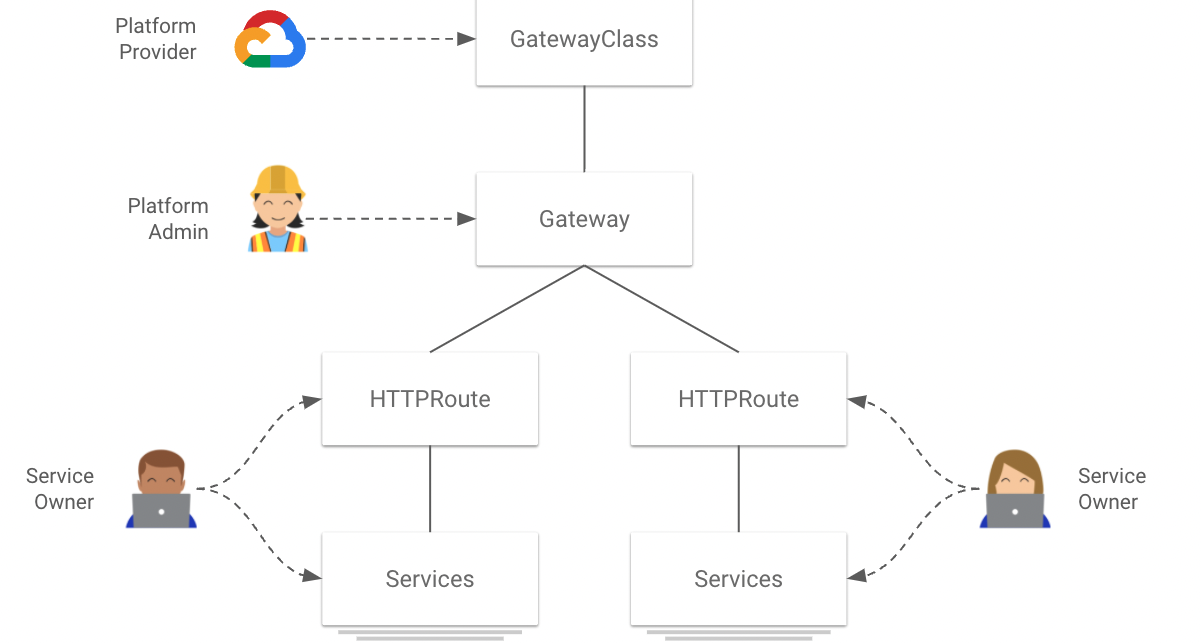
Multi-cluster Gateways make managing application networking across many clusters and teams easy and secure, which is useful in terms of scalability. GatewayClasses defines a cluster-scoped resource that's a template for creating load balancers in a cluster. In Google Kubernetes Engine (GKE), the gke-l7-gxlb-mc and gke-l7-rilb-mc GatewayClasses deploy multi-cluster Gateways that provide HTTP routing, traffic splitting, traffic mirroring, health-based failover, and more across different GKE clusters, Kubernetes Namespaces, and regions.
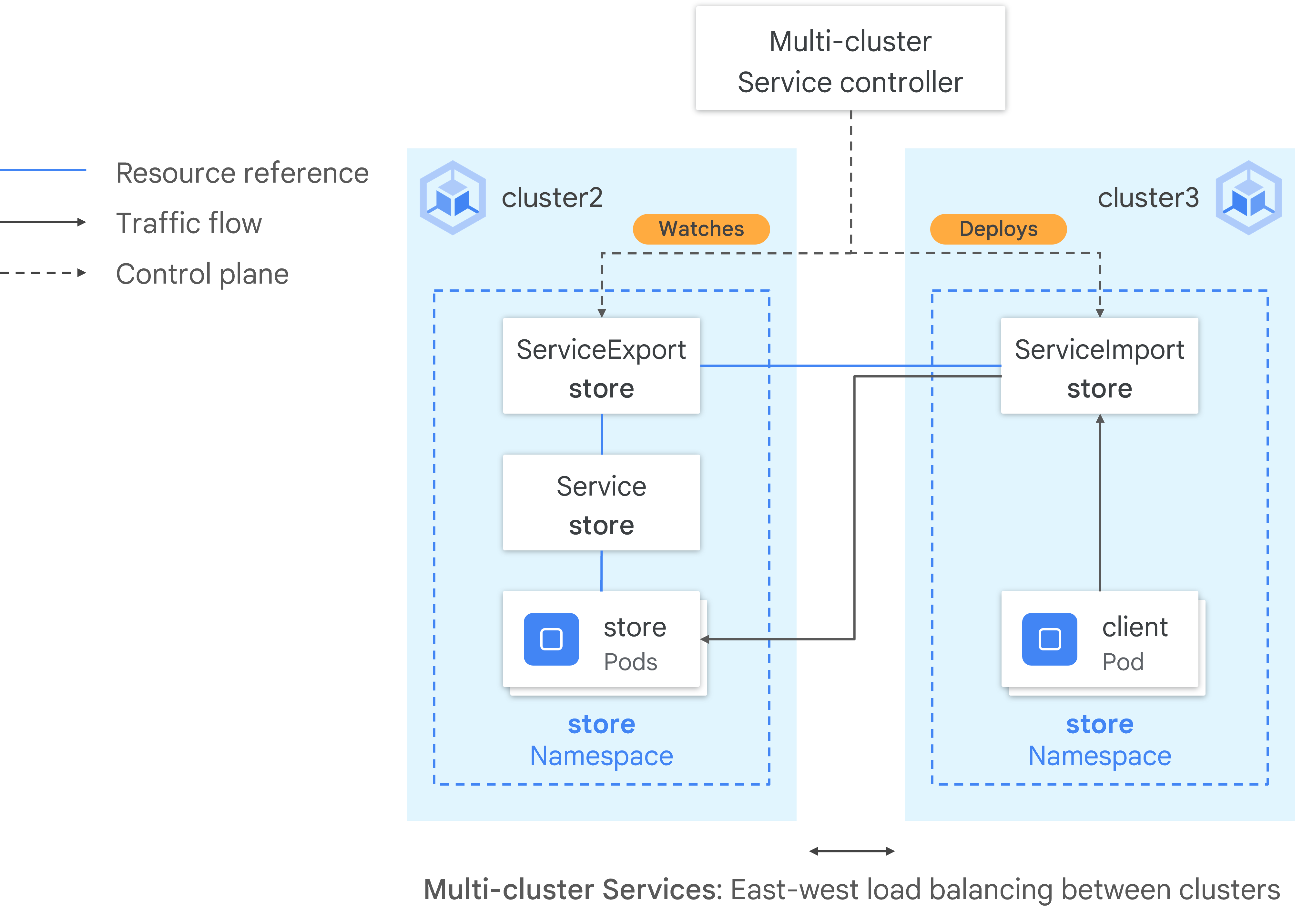
Multi-cluster Services (MCS) is an API standard for Services that span clusters. Its GKE controller also provides service-discovery across GKE clusters. The multi-cluster Gateway controller uses MCS API resources to group Pods into a Service that is addressable across or spans multiple clusters.
In this lab, you learn how to enable, use, and deploy the multi-cluster GKE Gateway controller. This Google-hosted controller provisions external and internal load balancers, which balance traffic across multiple Kubernetes clusters.
Objectives
In this lab, you learn how to perform the following tasks:
Create a Fleet in GKE.
Create and register GKE clusters to the fleet.
Enable and configure multi-cluster Services (MCS).
Enable and configure a multi-cluster Gateway.
Deploy a distributed application and balance traffic across clusters.
Setup and requirements
Before you click the Start Lab button
Read these instructions. Labs are timed and you cannot pause them. The timer, which starts when you click Start Lab, shows how long Google Cloud resources are made available to you.
This hands-on lab lets you do the lab activities in a real cloud environment, not in a simulation or demo environment. It does so by giving you new, temporary credentials you use to sign in and access Google Cloud for the duration of the lab.
To complete this lab, you need:
Access to a standard internet browser (Chrome browser recommended).
Note: Use an Incognito (recommended) or private browser window to run this lab. This prevents conflicts between your personal account and the student account, which may cause extra charges incurred to your personal account.
Time to complete the lab—remember, once you start, you cannot pause a lab.
Note: Use only the student account for this lab. If you use a different Google Cloud account, you may incur charges to that account.
How to start your lab and sign in to the Google Cloud Console
Click the Start Lab button. If you need to pay for the lab, a pop-up opens for you to select your payment method.
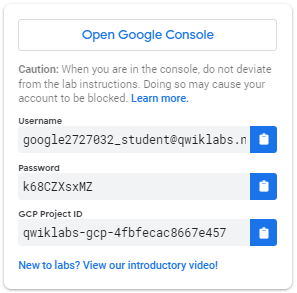
On the left is a panel populated with the temporary credentials that you must use for this lab.
Copy the username, and then click Open Google Console.
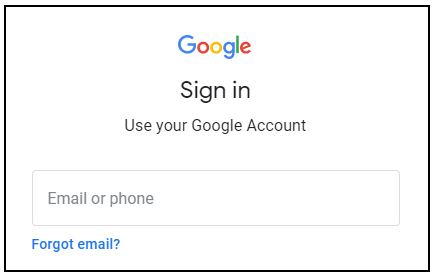
The lab spins up resources, and then opens another tab that shows the Sign in page.
Tip: Open the tabs in separate windows, side-by-side.
In the Sign in page, paste the username that you copied from the Connection Details panel. Then copy and paste the password.
Important: You must use the credentials from the Connection Details panel. Do not use your Qwiklabs credentials. If you have your own Google Cloud account, do not use it for this lab (avoids incurring charges).
Click through the subsequent pages:
Accept the terms and conditions.
Do not add recovery options or two-factor authentication (because this is a temporary account).
Do not sign up for free trials.
After a few moments, the Cloud Console opens in this tab.
Activate Cloud Shell
Cloud Shell is a virtual machine that is loaded with development tools. It offers a persistent 5GB home directory and runs on the Google Cloud. Cloud Shell provides command-line access to your Google Cloud resources.
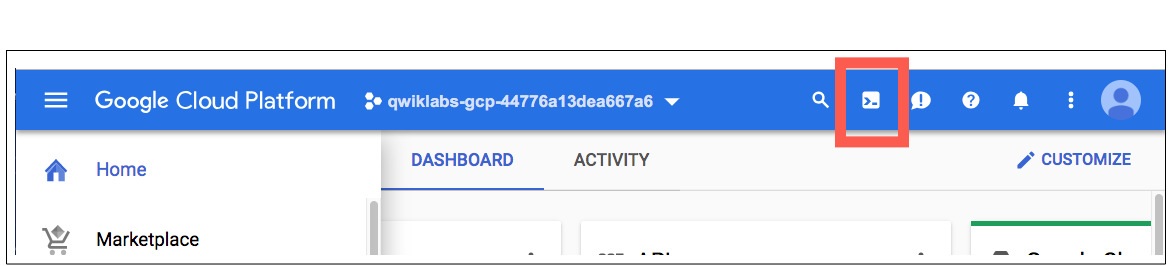
In the Cloud Console, in the top right toolbar, click the Activate Cloud Shell button.
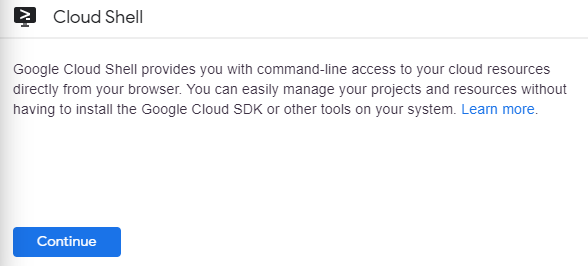
Click Continue.
It takes a few moments to provision and connect to the environment. When you are connected, you are already authenticated, and the project is set to your PROJECT_ID. For example:
gcloud is the command-line tool for Google Cloud. It comes pre-installed on Cloud Shell and supports tab-completion.
You can list the active account name with this command:
To get started, create a Fleet from the Google Cloud console.
In the Google Cloud console, go to the Navigation Menu (), and select Kubernetes Engine > Overview.
Click the Fleet Dashboard tab.
Click the Create a fleet button.
Click Edit fleet name or cluster list.
On the Fleet registration page, enter gke-enterprise-fleet in the Fleet name field. The fleet name cannot be changed after initial creation.
Click Save to save the fleet name.
Click Confirm to enable GKE Fleet.
Note: As an alternative to the console-based method, you can create a fleet by enabling the required APIs using gcloud, and running the following command:
gcloud container fleet create --display-name=gke-enterprise-fleet.
Click Close to complete the operation.
Task 1. Deploy the clusters
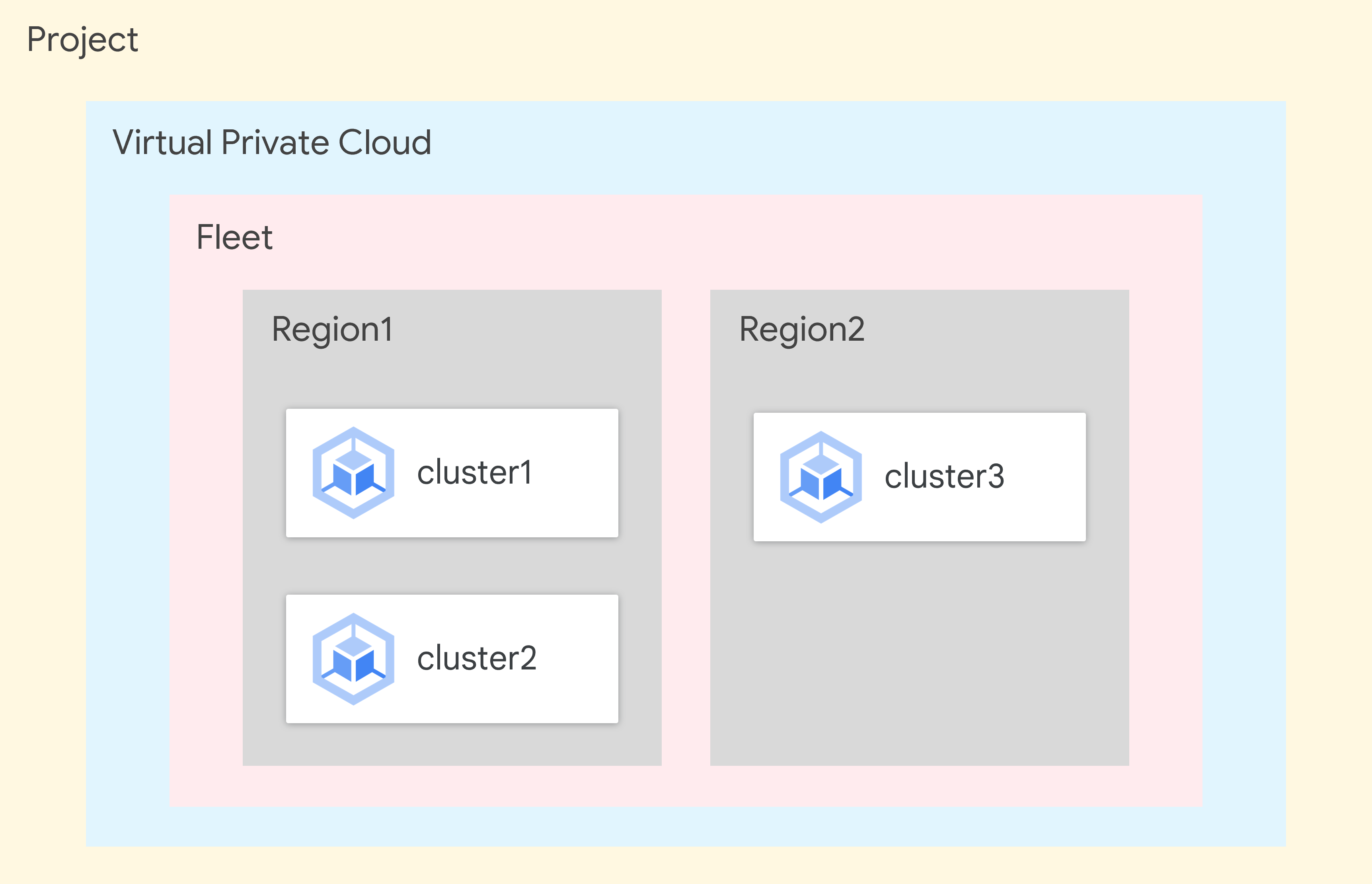
In this task, you deploy three GKE clusters across two different regions and in your project. All clusters are registered to the same fleet, allowing multi-cluster Gateways and Services to operate across them.
In Cloud Shell, run the following commands to create two GKE clusters in named cluster1 and cluster2, respectively, with the --async flag to avoid waiting for the other clusters to provision:
Create a GKE cluster in named cluster3 using the following command:
gcloud container clusters create cluster3 \
--zone={{{primary_project.default_zone_2|ZONE2}}} \
--enable-ip-alias \
--machine-type=e2-standard-4 \
--num-nodes=1 \
--workload-pool={{{primary_project.project_id|PROJECT_ID}}}.svc.id.goog \
--release-channel=regular \
--project={{{primary_project.project_id|PROJECT_ID}}}
Note: It can take up to 8 minutes to provision the GKE clusters.
Ensure all clusters are running using the following command:
gcloud container clusters list
Configure the cluster credentials
Next, configure cluster credentials with memorable names. This makes it easier to switch between clusters when deploying resources across several clusters.
Fetch the credentials for cluster1, cluster2, and cluster3 using the following commands:
This stores the credentials locally so that you can use your kubectl client to access the cluster API servers. By default, an auto-generated name is created for the credential.
Rename the cluster contexts so they are easier to reference later using the following commands:
Enable the multi-cluster Gateway API on the cluster1 cluster using the following command:
gcloud container clusters update cluster1 --gateway-api=standard --region={{{primary_project.default_zone_1|ZONE}}}
Note: It can take up to 5 minutes to enable the multi-cluster Gateway API.
Click Check my progress to verify the objective.
Set up your environment for multi-cluster Gateways
Task 2. Register the clusters to the fleet
Now it's time to register these clusters.
Register the clusters to a fleet using the following commands:
Click Check my progress to verify the objective.
Register the clusters in a fleet
Task 3. Enable multi-cluster Services (MCS)
In this task, you enable MCS in your fleet for the registered clusters. The MCS controller listens for import/export Services, so that GKE Services are routable across clusters, and traffic can be distributed across them.
Enable multi-cluster Services in your fleet for the registered clusters using the following command:
Click Check my progress to verify the objective.
Enable multi-cluster Services
Task 4. Enable the multi-cluster Gateway controller
Before using Gateway resources in GKE, you must enable the multi-cluster Gateway controller. The config cluster is the GKE cluster in which your Gateway and Route resources are deployed. It is a central place that controls routing across your clusters. In this instance, you use cluster1 as your config cluster.
Enable the multi-cluster Gateway controller for the cluster1 cluster using the following command:
The config cluster cluster1 can also host workloads, but in this lab you only run the Gateway controllers and configuration on it.
Create the Service and ServiceExports for the cluster2 cluster using the following command:
cat <<EOF > store-west-service.yaml
apiVersion: v1
kind: Service
metadata:
name: store
namespace: store
spec:
selector:
app: store
ports:
- port: 8080
targetPort: 8080
---
kind: ServiceExport
apiVersion: net.gke.io/v1
metadata:
name: store
namespace: store
---
apiVersion: v1
kind: Service
metadata:
name: store-west-2
namespace: store
spec:
selector:
app: store
ports:
- port: 8080
targetPort: 8080
---
kind: ServiceExport
apiVersion: net.gke.io/v1
metadata:
name: store-west-2
namespace: store
EOF
kubectl apply -f store-west-service.yaml --context=cluster2
Create the Service and ServiceExports for the cluster3 cluster using the following command:
cat <<EOF > store-east-service.yaml
apiVersion: v1
kind: Service
metadata:
name: store
namespace: store
spec:
selector:
app: store
ports:
- port: 8080
targetPort: 8080
---
kind: ServiceExport
apiVersion: net.gke.io/v1
metadata:
name: store
namespace: store
---
apiVersion: v1
kind: Service
metadata:
name: store-east-1
namespace: store
spec:
selector:
app: store
ports:
- port: 8080
targetPort: 8080
---
kind: ServiceExport
apiVersion: net.gke.io/v1
metadata:
name: store-east-1
namespace: store
EOF
kubectl apply -f store-east-service.yaml --context=cluster3
Ensure that the service exports have been successfully created using the following command:
kubectl get serviceexports --context cluster2 --namespace store
kubectl get serviceexports --context cluster3 --namespace store
Your output should look similar to the following.
Output:
# cluster2 cluster
NAME AGE
store 2m40s
store-west-2 2m40s
# cluster3 cluster
NAME AGE
store 2m25s
store-east-1 2m25s
This demonstrates that the store Service contains store Pods across both clusters, whereas the store-west-2 and store-east-1 Services only contain store Pods on their respective clusters. These overlapping Services are used to target the Pods across multiple clusters or a subset of Pods on a single cluster.
Click Check my progress to verify the objective.
Deploy the demo application
Task 6. Deploy the Gateway and HTTPRoute
Platform administrators manage and deploy Gateways to centralize security policies such as TLS, a security protocol that provides privacy and data integrity for Internet communications.
Service Owners in different teams deploy HTTPRoutes in their own namespace so that they can independently control their routing logic.
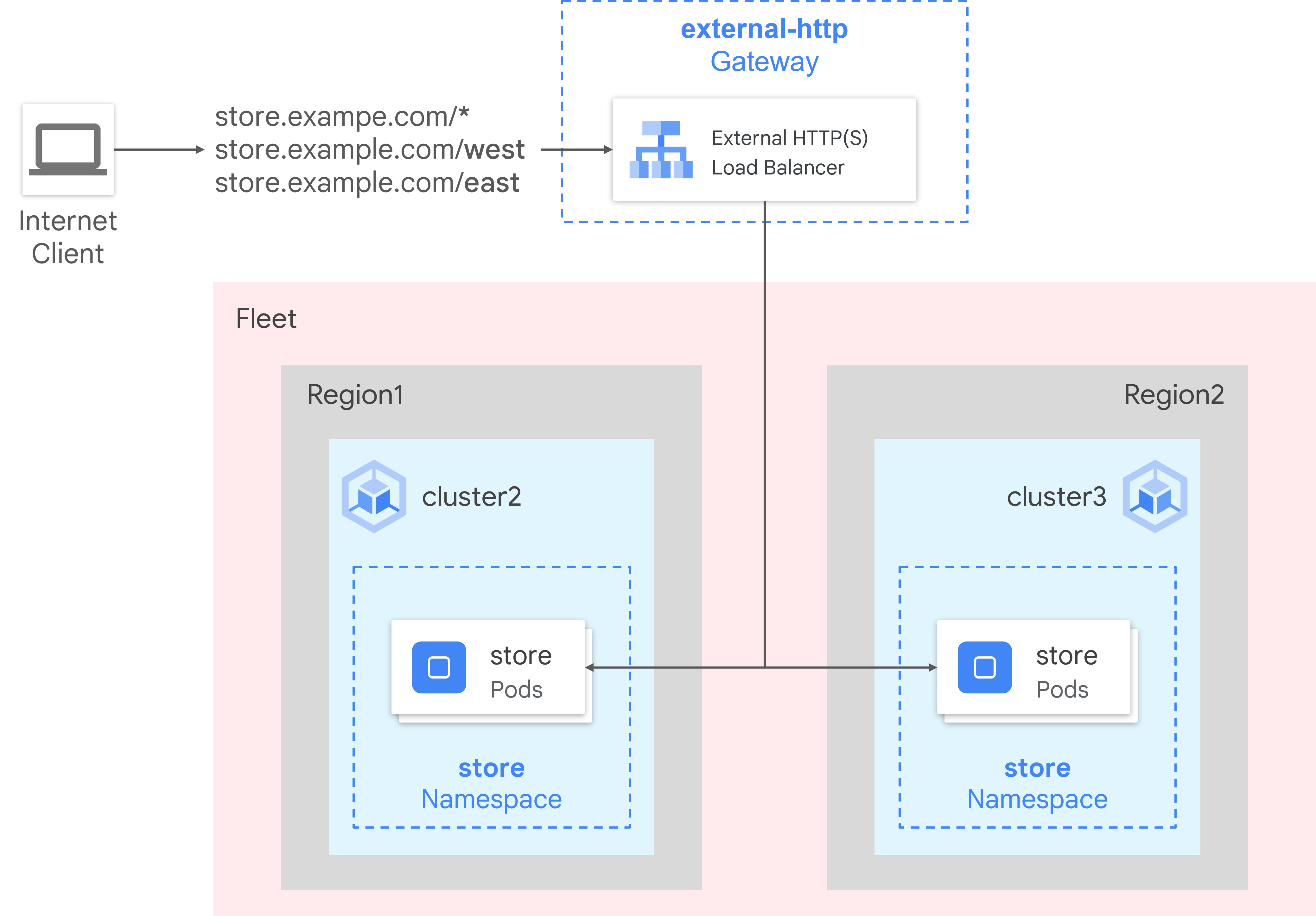
Once the applications have been deployed, you can configure a Gateway using the Gateway. This Gateway creates an external Application Load Balancer configured to distribute traffic across your target clusters.
Gateway and HTTPRoute are resources deployed in the config cluster, which in this case is the cluster1 cluster. HTTPRoute, specifically, is a Gateway API type for specifying routing behavior of HTTP requests from a Gateway listener to an API object.
Deploy the Gateway in the cluster1 config cluster using the following command:
Notice that the default requests are being sent to the closest backend defined by the default rule. In case the path /west is in the request, the request is routed to the service in cluster2. If the request's path matches /east, the request is routed to the cluster3 cluster.
View the status of the Gateway you just created in cluster1 using the following command:
kubectl describe gateway external-http --context cluster1 --namespace store
Output:
Status:
Addresses:
Type: IPAddress
Value: 35.190.90.199
Conditions:
Last Transition Time: 2024-04-08T11:11:44Z
Message: The OSS Gateway API has deprecated this condition, do not depend on it.
Observed Generation: 1
Reason: Scheduled
Status: True
Type: Scheduled
Last Transition Time: 2024-04-08T11:11:44Z
Message:
Observed Generation: 1
Reason: Accepted
Status: True
Type: Accepted
Last Transition Time: 2024-04-08T11:11:44Z
Message:
Observed Generation: 1
Reason: Programmed
Status: True
Type: Programmed
Last Transition Time: 2024-04-08T11:11:44Z
Message: The OSS Gateway API has altered the "Ready" condition semantics and reserved it for future use. GKE Gateway will stop emitting it in a future update, use "Programmed" instead.
Observed Generation: 1
Reason: Ready
Status: True
Type: Ready
Last Transition Time: 2024-04-08T11:11:44Z
Message:
Observed Generation: 1
Reason: Healthy
Status: True
Type: networking.gke.io/GatewayHealthy
Listeners:
Attached Routes: 0
Conditions:
Last Transition Time: 2024-04-08T11:11:44Z
Message:
Observed Generation: 1
Reason: Programmed
Status: True
Type: Programmed
Last Transition Time: 2024-04-08T11:11:44Z
Message: The OSS Gateway API has altered the "Ready" condition semantics and reserved it for future use. GKE Gateway will stop emitting it in a future update, use "Programmed" instead.
Observed Generation: 1
Reason: Ready
Status: True
Type: Ready
Name: http
Supported Kinds:
Group: gateway.networking.k8s.io
Kind: HTTPRoute
Events:
Type Reason Age From Message
---- ------ ---- ---- -------
Normal ADD 3m9s mc-gateway-controller store/external-http
Normal SYNC 68s (x13 over 3m1s) mc-gateway-controller store/external-http
Normal UPDATE 54s (x3 over 3m9s) mc-gateway-controller store/external-http
Normal SYNC 54s mc-gateway-controller SYNC on store/external-http was a success
Sometimes there are transient errors shown in the Events section. Wait until it shows the SYNC on store/external-http was a success message.
Note: It can take up to 10 minutes for the Gateway to fully deploy and serve traffic.
It takes some time for the external IP to be created. To ensure that it is, run the following command until you see the external IP:
kubectl get gateway external-http -o=jsonpath="{.status.addresses[0].value}" --context cluster1 --namespace store | xargs echo -e
If it doesn't return an external IP, wait a few minutes and run it again.
Once the Gateway has deployed successfully, retrieve the external IP address from external-http Gateway using the following command:
Send traffic to the root path of the domain using the following command:
curl http://${EXTERNAL_IP}
Note: If the curl command gives an error, wait a few minutes and try again.
This load balances traffic to the store ServiceImport, which is across clusters cluster2 and cluster3. The load balancer sends your traffic to the closest region to you, and you might not see responses from the other region.
If you see the default backend - 404 or curl: (52) Empty reply from server message, the Gateway is not ready yet. Wait a couple of minutes and try again.
Next, send traffic to the /west path to access the application located in the cluster2 cluster using the following command:
curl http://${EXTERNAL_IP}/west
This routes traffic to the store-west-2 ServiceImport, which only has Pods running on the cluster2 cluster. A cluster-specific ServiceImport like store-west-2 enables an application owner to explicitly send traffic to a specific cluster, rather than letting the load balancer make the decision.
The output confirms that the request was served by Pod from the cluster2 cluster.
Click Check my progress to verify the objective.
Deploy the Gateway and HTTPRoute
Congratulations!
In this lab, you registered the created GKE clusters to a fleet, enabled and configured the MCS and multi-cluster Gateway controllers, deployed a Gateway and HTTPRoute in the config cluster, and ran a distributed application across multiple clusters with a unique load balancer routing the traffic to the right pods. Through these steps, you've learned about the features and capabilities of GKE Enterprise and its scalability.
Manual Last Updated March 25, 2026
Lab Last Tested March 25, 2026
Copyright 2026 Google LLC All rights reserved. Google and the Google logo are trademarks of Google LLC. All other company and product names may be trademarks of the respective companies with which they are associated.
I lab creano un progetto e risorse Google Cloud per un periodo di tempo prestabilito
I lab hanno un limite di tempo e non possono essere messi in pausa. Se termini il lab, dovrai ricominciare dall'inizio.
In alto a sinistra dello schermo, fai clic su Inizia il lab per iniziare
Utilizza la navigazione privata
Copia il nome utente e la password forniti per il lab
Fai clic su Apri console in modalità privata
Accedi alla console
Accedi utilizzando le tue credenziali del lab. L'utilizzo di altre credenziali potrebbe causare errori oppure l'addebito di costi.
Accetta i termini e salta la pagina di ripristino delle risorse
Non fare clic su Termina lab a meno che tu non abbia terminato il lab o non voglia riavviarlo, perché il tuo lavoro verrà eliminato e il progetto verrà rimosso
Questi contenuti non sono al momento disponibili
Ti invieremo una notifica via email quando sarà disponibile
Bene.
Ti contatteremo via email non appena sarà disponibile
Un lab alla volta
Conferma per terminare tutti i lab esistenti e iniziare questo
Utilizza la navigazione privata per eseguire il lab
Il modo migliore per eseguire questo lab è utilizzare una finestra del browser in incognito o privata. Ciò evita eventuali conflitti tra il tuo account personale e l'account studente, che potrebbero causare addebiti aggiuntivi sul tuo account personale.
Learn how to enable, use, and deploy the multi-cluster Google Kubernetes Engine (GKE) Gateway controller.
Durata:
Configurazione in 2 m
·
Accesso da 90 m
·
Completamento in 90 m




 ), and select Kubernetes Engine > Overview.