Perform Exploratory Data Analysis Using Workbench and Python
Controlla i miei progressi
/ 40
Create Agent Platform Notebooks instance
Controlla i miei progressi
/ 30
Clone the lab repository
Controlla i miei progressi
/ 30
Perform Exploratory Data Analysis Using Workbench and Python
Controlla i miei progressi
/ 40
Questo lab potrebbe incorporare strumenti di AI a supporto del tuo apprendimento.
Questi contenuti non sono ancora ottimizzati per i dispositivi mobili.
Per un'esperienza ottimale, visualizza il sito su un computer utilizzando un link inviato via email.
Overview
In this lab you learn the process of analyzing a dataset stored in BigQuery using a Workbench Instance notebook to perform queries and present the data using various statistical plotting techniques. The analysis will help you discover patterns in the data.
Learning objectives
Create a Workbench Instance Notebook.
Connect to BigQuery datasets.
Perform statistical analysis on a Pandas Dataframe.
Create Seaborn plots for Exploratory Data Analysis in Python.
Write a SQL query to pick up specific fields from a BigQuery dataset.
Agent Platform is a unified platform for building, deploying, and managing machine learning (ML) applications.
Agent Platform Workbench notebooks provide a flexible and scalable solution for developing and deploying ML models on Google Cloud. Choose Workbench if you need more customization options and need complete control over your machine learning environment. It offers the security and compliance features needed for enterprise organizations and integrates with other Google Cloud services like Agent Platform and BigQuery for an enhanced data science and machine learning workflow.
BigQuery is a powerful, fully managed, serverless data warehouse that allows you to analyze and manage large datasets with ease. BigQuery uses a familiar standard SQL dialect, making it easy for analysts and data scientists to use without needing to learn a new language.
Agent Platform offers two Notebook Solutions, Workbench and Colab Enterprise.
Workbench
Agent Platform Workbench is a good option for projects that prioritize control and customizability. It’s great for complex projects spanning multiple files, with complex dependencies. It’s also a good choice for a data scientist who is transitioning to the cloud from a workstation or laptop.
Agent Platform Workbench Instances comes with a preinstalled suite of deep learning packages, including support for the TensorFlow and PyTorch frameworks.
Set up your lab environments
Lab setup
For each lab, you get a new Google Cloud project and set of resources for a fixed time at no cost.
Sign in to Google Skills using an incognito window.
Note the lab's access time (for example, 1:15:00), and make sure you can finish within that time.
There is no pause feature. You can restart if needed, but you have to start at the beginning.
When ready, click Start lab.
Note your lab credentials (Username and Password). You will use them to sign in to the Google Cloud Console.
Click Open Google Console.
Click Use another account and copy/paste credentials for this lab into the prompts.
If you use other credentials, you'll receive errors or incur charges.
Accept the terms and skip the recovery resource page.
Task 1. Create an Agent Platform Notebook instance
In the Google Cloud console, from the Navigation menu (), select Agent Platform > Overview.
Click Enable APIs > Enable.
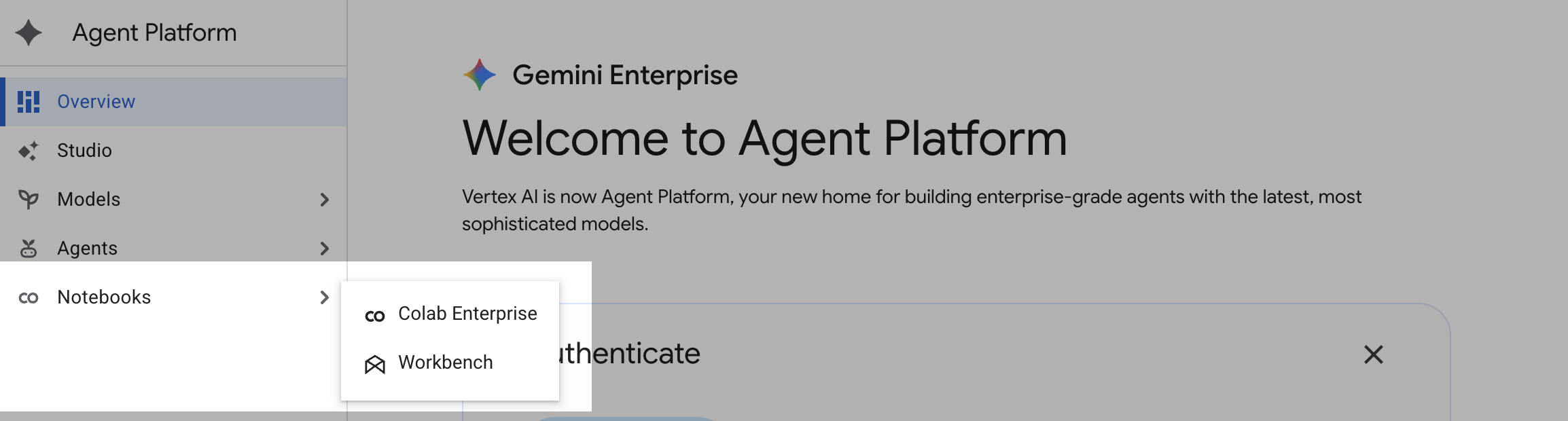
From the left navigation pane, click Notebooks > Workbench.
At the top of the Workbench page, ensure you are in the Instances view.
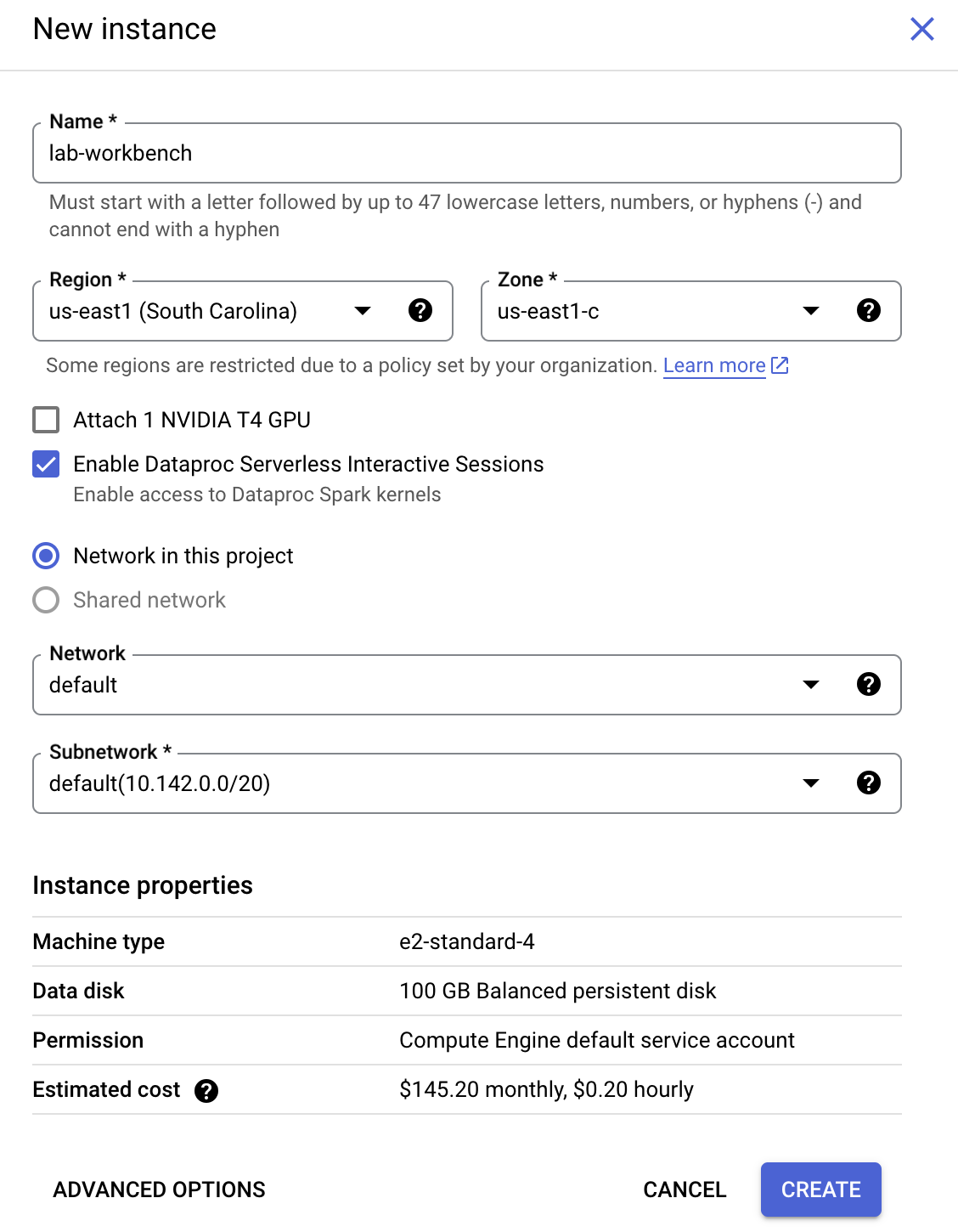
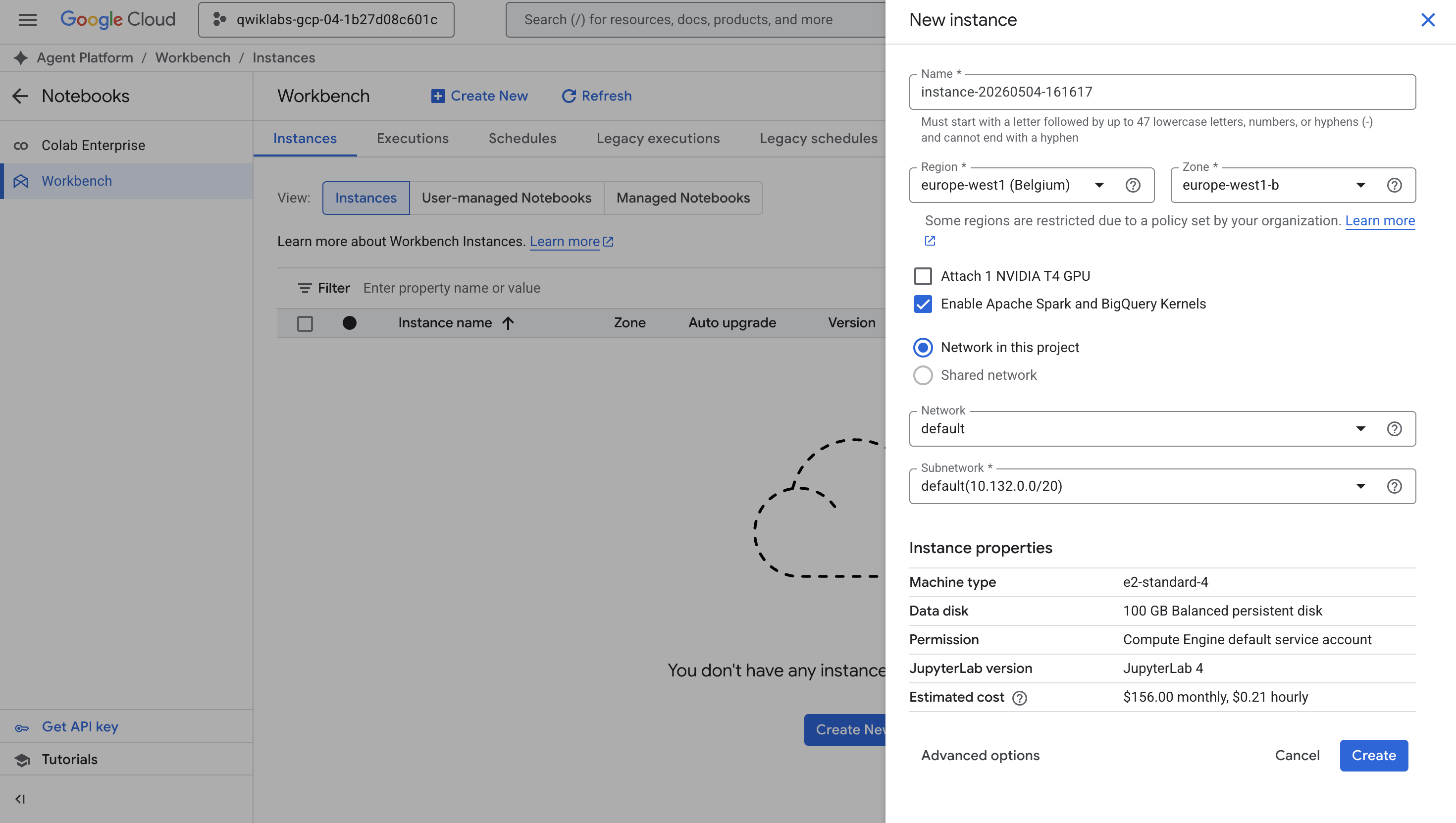
Click Create New.
Configure the Instance:
Name: lab-workbench
Region: Set the region to
Zone: Set the zone to
Advanced Options (Optional): If needed, click "Advanced Options" for further customization (e.g., machine type, disk size).
Click Create.
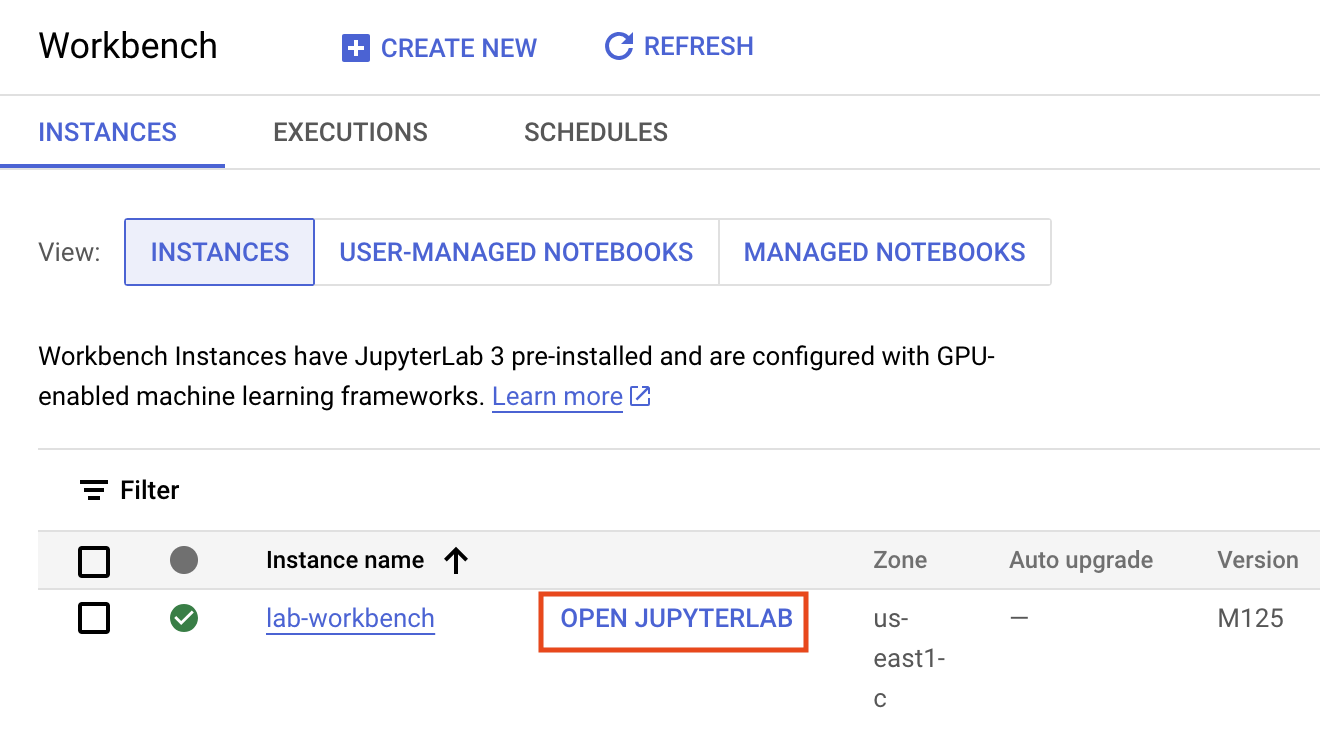
This will take a few minutes to create the instance. A green checkmark will appear next to its name when it's ready.
Click Open Jupyterlab next to the instance name to launch the JupyterLab interface. This will open a new tab in your browser.
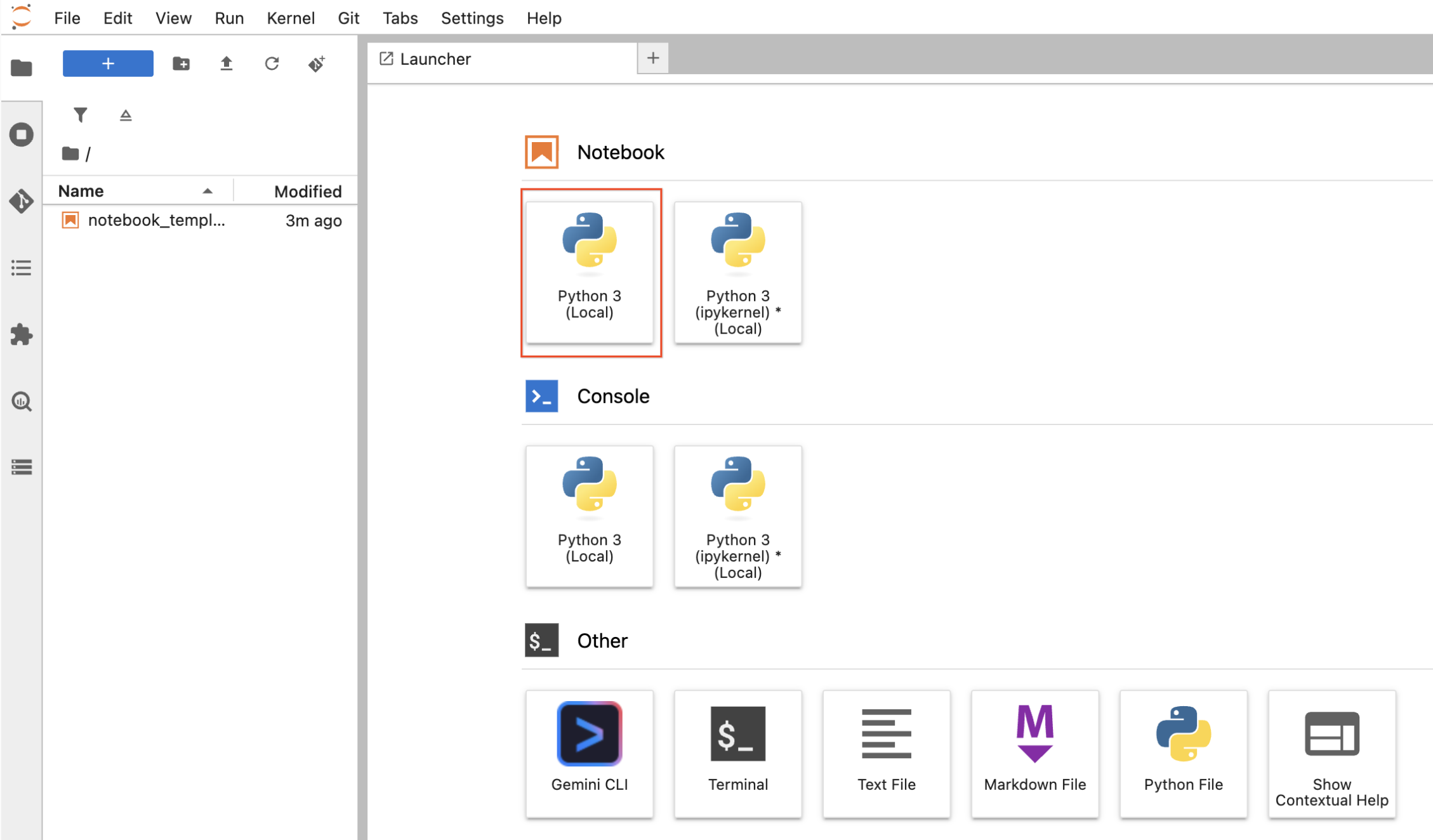
Click the Python 3 (Local) icon to launch a new Python notebook.
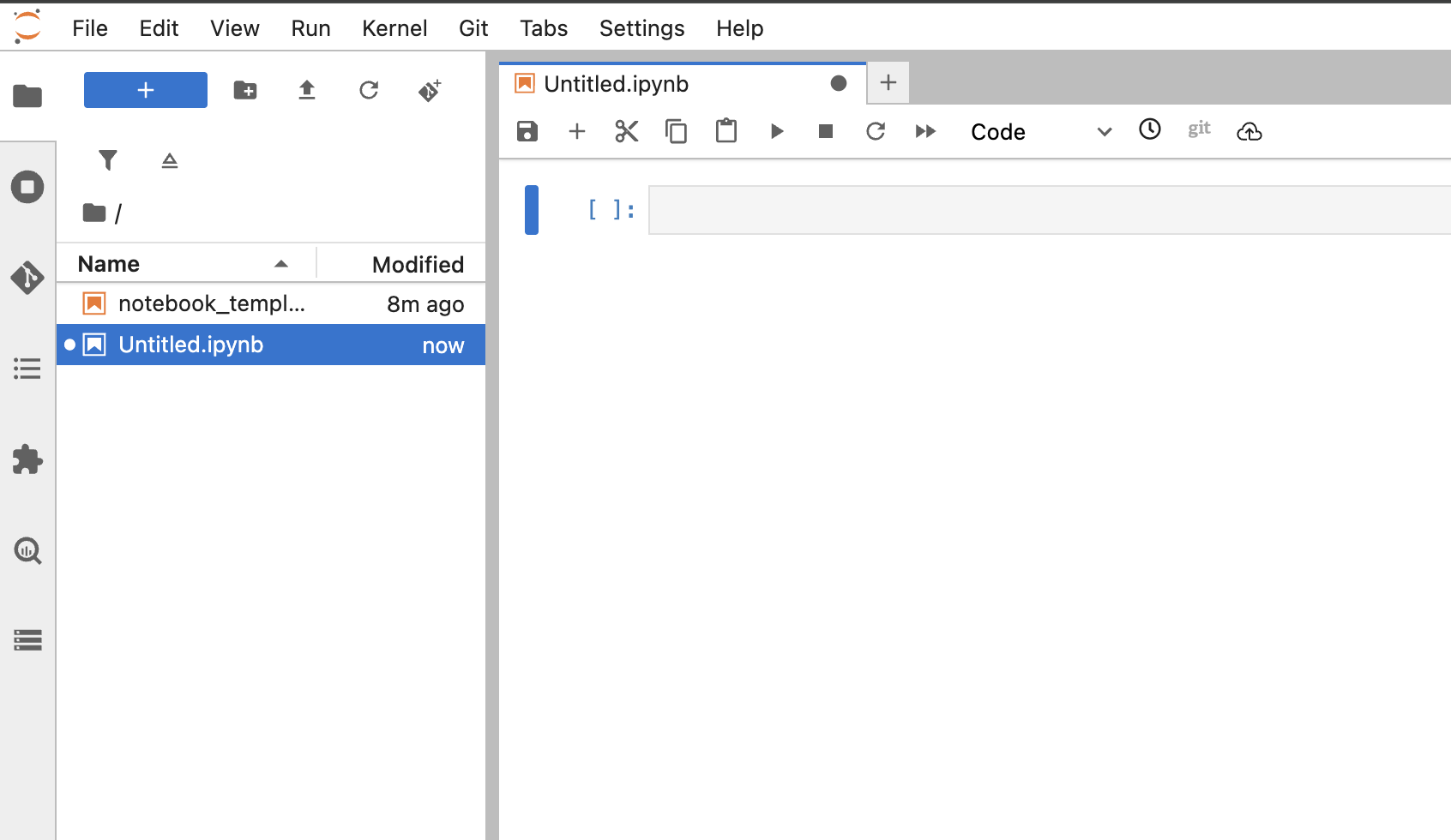
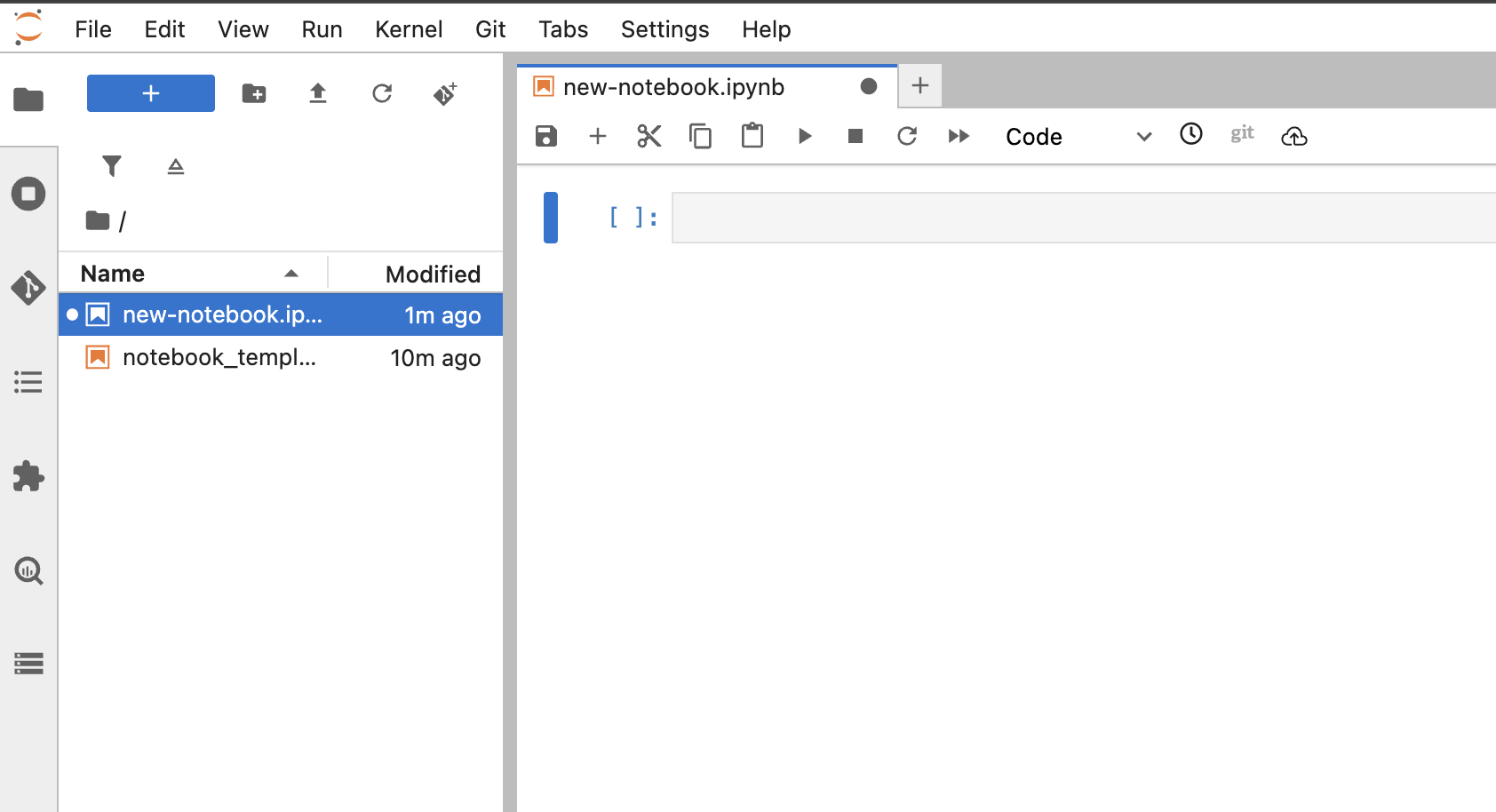
Right-click on the Untitled.ipynb file in the menu bar and select Rename Notebook to give it a meaningful name.
Your environment is set up. You are now ready to start working with your Agent Platform Workbench notebook.
Create Agent Platform Notebook instance
Task 2. Clone a repo within your Agent Platform Notebook instance
The GitHub repo contains both the lab file and solutions files for the course.
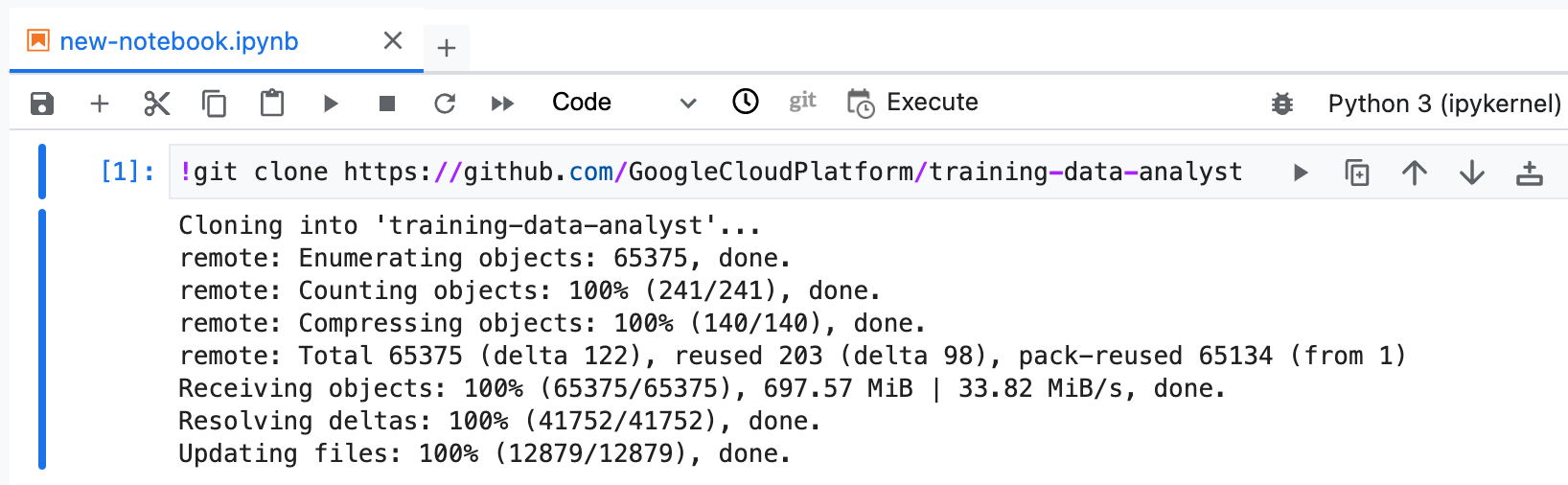
Copy and run the following code in the first cell of your notebook to clone the training-data-analyst repository.
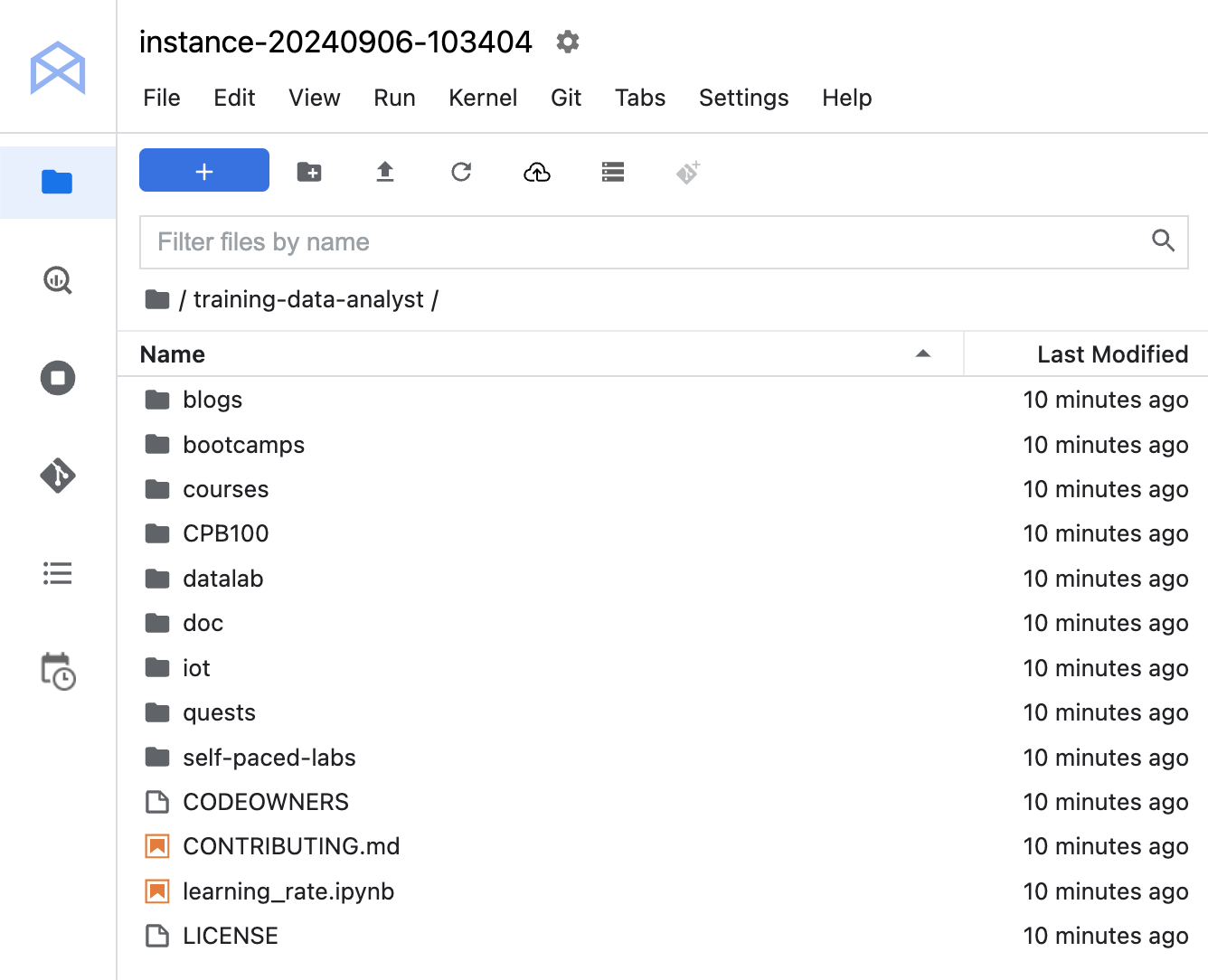
Confirm that you have cloned the repository. Double-click on the training-data-analyst directory and ensure that you can see its contents.
Clone a repo within your Agent Platform Notebooks instance
Task 3. Perform exploratory data analysis using workbench and python
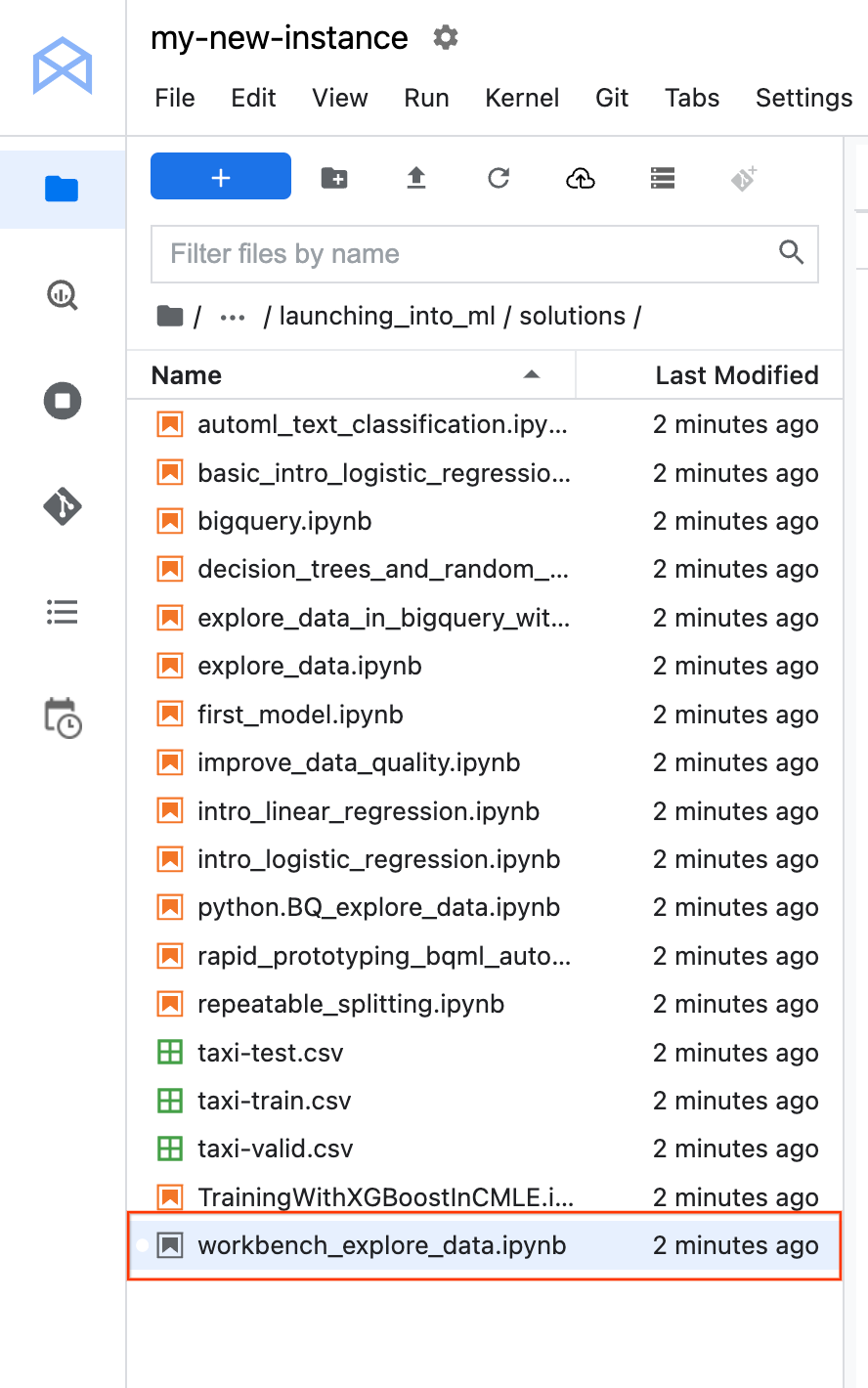
In the notebook interface, navigate to training-data-analyst > courses > machine_learning > deepdive2 > launching_into_ml > solutions and open workbench_explore_data.ipynb.
In the Select Kernel dialog, choose Python 3 from the list of available kernels.
In the notebook interface, click on Edit > Clear Outputs of All Cells (click on Edit, then in the drop-down menu, select Clear All Outputs).
Carefully read through the notebook instructions.
Perform Data Analysis using Workbench and Python
Congratulations!
In this lab, you learned how to:
Create a Workbench Instance Notebook.
Clone a GitHub repository.
Connect to a BigQuery dataset.
Perform statistical analysis on a Pandas Dataframe.
Create Seaborn plots for Exploratory Data Analysis in Python.
Write a SQL query to pick up specific fields from a BigQuery dataset.
End your lab
When you have completed your lab, click End Lab. Google Skills removes the resources you’ve used and cleans the account for you.
You will be given an opportunity to rate the lab experience. Select the applicable number of stars, type a comment, and then click Submit.
The number of stars indicates the following:
1 star = Very dissatisfied
2 stars = Dissatisfied
3 stars = Neutral
4 stars = Satisfied
5 stars = Very satisfied
You can close the dialog box if you don't want to provide feedback.
For feedback, suggestions, or corrections, please use the Support tab.
Manual Last Updated May 05, 2026
Lab Last Tested May 05, 2026
Copyright 2026 Google LLC All rights reserved. Google and the Google logo are trademarks of Google LLC. All other company and product names may be trademarks of the respective companies with which they are associated.
Prima di iniziare
I lab creano un progetto e risorse Google Cloud per un periodo di tempo prestabilito
I lab hanno un limite di tempo e non possono essere messi in pausa. Se termini il lab, dovrai ricominciare dall'inizio.
In alto a sinistra dello schermo, fai clic su Inizia il lab per iniziare
Utilizza la navigazione privata
Copia il nome utente e la password forniti per il lab
Fai clic su Apri console in modalità privata
Accedi alla console
Accedi utilizzando le tue credenziali del lab. L'utilizzo di altre credenziali potrebbe causare errori oppure l'addebito di costi.
Accetta i termini e salta la pagina di ripristino delle risorse
Non fare clic su Termina lab a meno che tu non abbia terminato il lab o non voglia riavviarlo, perché il tuo lavoro verrà eliminato e il progetto verrà rimosso
Questi contenuti non sono al momento disponibili
Possiamo inviarti una notifica via email quando sarà disponibile
Bene.
Ti contatteremo via email non appena sarà disponibile
Un lab alla volta
Conferma per terminare tutti i lab esistenti e iniziare questo
Utilizza la navigazione privata per eseguire il lab
Il modo migliore per eseguire questo lab è utilizzare una finestra del browser in incognito o privata. Ciò evita eventuali conflitti tra il tuo account personale e l'account studente, che potrebbero causare addebiti aggiuntivi sul tuo account personale.
Exploratory Data Analysis using Bigquery and and Workbench Instances
Durata:
Configurazione in 0 m
·
Accesso da 90 m
·
Completamento in 90 m


 ), select Agent Platform > Overview.
 Create New.