Overview
In this lab, you will use Terraform to create, update, and destroy Google Cloud resources. You will start by defining Google Cloud as the provider.
You will then create a VM instance without mentioning the network to see how terraform parses the configuration code. You will then edit the code to add network and create a VM instance on Google Cloud.
You will explore how to update the VM instance. You will edit the existing configuration to add tags and then edit the machine type. You will then execute terraform commands to destroy the resources created.
Objectives
In this lab you will learn how to perform the following tasks:
- Verify Terraform installation
- Define Google Cloud as the provider
- Create, change, and destroy Google Cloud resources by using Terraform
Task 1. Sign in to the Cloud Console
For each lab, you get a new Google Cloud project and set of resources for a fixed time at no cost.
-
Click the Start Lab button. If you need to pay for the lab, a pop-up opens for you to select your payment method.
On the left is the Lab Details panel with the following:
- The Open Google Cloud console button
- Time remaining
- The temporary credentials that you must use for this lab
- Other information, if needed, to step through this lab
-
Click Open Google Cloud console (or right-click and select Open Link in Incognito Window if you are running the Chrome browser).
The lab spins up resources, and then opens another tab that shows the Sign in page.
Tip: Arrange the tabs in separate windows, side-by-side.
Note: If you see the Choose an account dialog, click Use Another Account.
-
If necessary, copy the Username below and paste it into the Sign in dialog.
{{{user_0.username | "Username"}}}
You can also find the Username in the Lab Details panel.
-
Click Next.
-
Copy the Password below and paste it into the Welcome dialog.
{{{user_0.password | "Password"}}}
You can also find the Password in the Lab Details panel.
-
Click Next.
Important: You must use the credentials the lab provides you. Do not use your Google Cloud account credentials.
Note: Using your own Google Cloud account for this lab may incur extra charges.
-
Click through the subsequent pages:
- Accept the terms and conditions.
- Do not add recovery options or two-factor authentication (because this is a temporary account).
- Do not sign up for free trials.
After a few moments, the Google Cloud console opens in this tab.
Note: To view a menu with a list of Google Cloud products and services, click the Navigation menu at the top-left, or type the service or product name in the Search field.

Task 2. Check Terraform Installation
-
On the Google Cloud menu, click Activate Cloud Shell ( ). If a dialog box appears, click Continue.
-
If prompted, click Continue.
-
Confirm that Terraform is installed by running the following command:
Note: Don't worry if you get a warning that the version of Terraform is out of date, as the lab instructions will work with Terraform v1.0.5 and later.
terraform --version
Note: The available downloads for the latest version of Terraform can be found on the Terraform website. Terraform is distributed as a binary package for all supported platforms and architectures and Cloud Shell uses Linux 64-bit.
The output should look like this (do not copy; this is example output):
Terraform v1.5.7
Terraform comes pre-installed in Cloud Shell. With Terraform already installed, you can directly create some infrastructure.
Task 3. Add Google Cloud provider
- Create the
main.tf file:
touch main.tf
-
Click Open Editor on the toolbar of Cloud Shell. Click Open in a new window to leave the Editor open in a separate tab.
-
Copy the following code in the main.tf file.
terraform {
required_providers {
google = {
source = "hashicorp/google"
}
}
}
provider "google" {
project = "{{{project_0.project_id | Project ID}}}"
region = "{{{project_0.default_region | Region}}}"
zone = "{{{project_0.default_zone | Zone}}}"
}
- Click File > Save.
- Switch to the Cloud Shell and run the
terraform init command.
terraform init
The output should look like this (do not copy; this is example output):
Initializing the backend...
Initializing provider plugins...
- Finding hashicorp/google versions matching "4.15.0"...
- Installing hashicorp/google v4.15.0...
- Installed hashicorp/google v4.15.0 (signed by HashiCorp)
Terraform has created a lock file .terraform.lock.hcl to record the provider
selections it made above. Include this file in your version control repository
so that Terraform can guarantee to make the same selections by default when
you run "terraform init" in the future.
Terraform has been successfully initialized!
Task 4. Build the infrastructure
Let us try creating a compute instance without specifying the network parameter and see how terraform processes such configuration.
- Switch to the editor window. Within the
main.tf file, enter the following code block.
resource "google_compute_instance" "terraform" {
name = "terraform"
machine_type = "e2-micro"
boot_disk {
initialize_params {
image = "debian-cloud/debian-11"
}
}
}
-
Save the main.tf file by clicking File > Save.
-
Now run the following command to preview if the compute engine will be created.
terraform plan
- The configuration fails with the following error. This is because you cannot configure a compute engine without a network.
│ Error: Insufficient network_interface blocks
│
│ on main.tf line 15, in resource "google_compute_instance" "terraform":
│ 15: resource "google_compute_instance" "terraform" {
│
│ At least 1 "network_interface" blocks are required.
- Now add the network by including the following code segment to the
google_compute_instance block.
network_interface {
network = "default"
access_config {
}
}
The final code in main.tf file will look like this:
terraform {
required_providers {
google = {
source = "hashicorp/google"
}
}
}
provider "google" {
project = "{{{project_0.project_id | Project ID}}}"
region = "{{{project_0.default_region | Region}}}"
zone = "{{{project_0.default_zone | Zone}}}"
}
resource "google_compute_instance" "terraform" {
name = "terraform"
machine_type = "e2-micro"
boot_disk {
initialize_params {
image = "debian-cloud/debian-11"
}
}
network_interface {
network = "default"
access_config {
}
}
}
- Save the main.tf file by clicking File > Save.
- Now run the
terraform plan command to preview if the compute engine will be created.
terraform plan
Click Authorize when prompted.
The output should look like this (do not copy; this is example output):
Terraform used the selected providers to generate the following execution plan. Resource actions are indicated with the following symbols:
+ create
Terraform will perform the following actions:
# google_compute_instance.terraform will be created
+ resource "google_compute_instance" "terraform" {
+ can_ip_forward = false
+ cpu_platform = (known after apply)
+ current_status = (known after apply)
+ deletion_protection = false
...
Plan: 1 to add, 0 to change, 0 to destroy.
- Apply the desired changes by running the following command.
terraform apply
- Confirm the planned actions by typing
yes.
The output should look like this (do not copy; this is example output):
...
Apply complete! Resources: 1 added, 0 changed, 0 destroyed.
Note: If you get an error, revisit the previous steps to ensure that you have the correct code entered in the main.tf file.
Click Check my progress to verify the compute engine created.
Build the infrastructure
Verify on Cloud Console
In the Google Cloud console, verify that the resources were created.
-
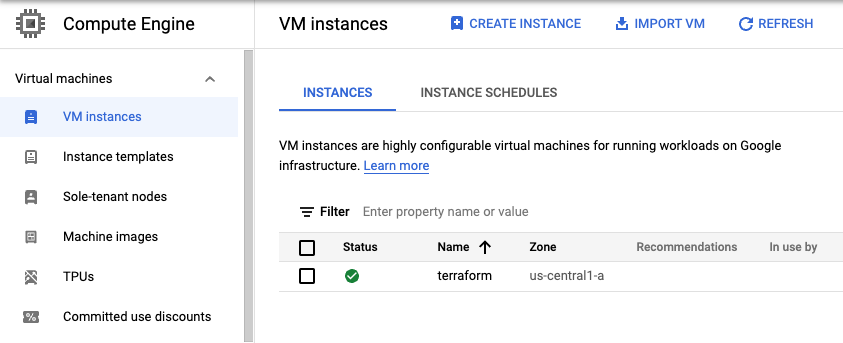
In the Google Cloud console, in the Navigation menu ( ), click Compute Engine > VM instances.
-
View the terraform instance created.
Task 5. Change the infrastructure
In this task, we will be performing 2 types of changes to the infrastructure:
- Adding network tags
- Editing the machine-type
Adding tags to the compute resource
In addition to creating resources, Terraform can also make changes to those resources.
- Add a
tags argument to the instance we just created so that it looks like this:
resource "google_compute_instance" "terraform" {
name = "terraform"
machine_type = "e2-micro"
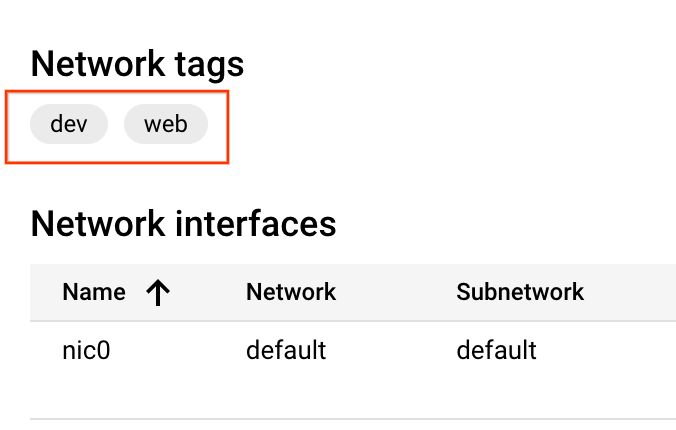
tags = ["web", "dev"]
# ...
}
- Run
terraform plan
terraform plan
- Run
terraform apply to update the instance.
terraform apply
The output should look like this (do not copy; this is example output):
Terraform used the selected providers to generate the following execution plan. Resource actions are indicated with the following symbols:
~ update in-place
Terraform will perform the following actions:
# google_compute_instance.terraform will be updated in-place
~ resource "google_compute_instance" "terraform" {
id = "projects/qwiklabs-gcp-00-da04aeabe9ab/zones/us-central1-c/instances/terraform"
name = "terraform"
~ tags = [
+ "dev",
+ "web",
]
# (17 unchanged attributes hidden)
# (4 unchanged blocks hidden)
}
Plan: 0 to add, 1 to change, 0 to destroy.
The prefix ~ means that Terraform will update the resource in-place.
- Respond
yes when promoted, and Terraform will add the tags to your instance.
Click Check my progress to verify the tags were added.
Adding tags to the compute resource
Editing the machine type without stopping the VM
Machine type of a VM cannot be changed on a running VM. Let us see how terraform processes the change in machine type for a running VM.
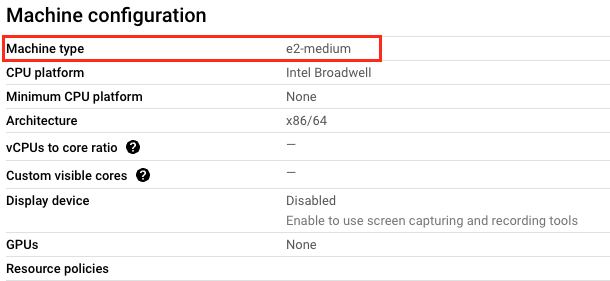
- Navigate to main.tf and edit the machine_type argument of terraform instance from
e2-micro to e2-medium so that it looks like this:
resource "google_compute_instance" "terraform" {
name = "terraform"
machine_type = "e2-medium"
tags = ["web", "dev"]
# ...
}
- Run
terraform plan
terraform plan
- Run
terraform apply again to update the instance.
terraform apply
The terraform apply fails with a warning as shown below. (do not copy; this is example output)
╷
│ Error: Changing the machine_type, min_cpu_platform, service_account, enable_display, shielded_instance_config, scheduling.node_affinities or network_interface.[#d].(network/subnetwork/subnetwork_project) or advanced_machine_features on a started instance requires stopping it. To acknowledge this, please set allow_stopping_for_update = true in your config. You can also stop it by setting desired_status = "TERMINATED", but the instance will not be restarted after the update.
│
│ with google_compute_instance.terraform,
│ on main.tf line 31, in resource "google_compute_instance" "terraform":
│ 31: resource "google_compute_instance" "terraform" {
- The machine-type cannot be changed on a running VM. To ensure the VM stops before updating the
machine_type, set allow_stopping_for_update argument to true so that the code looks like this:
resource "google_compute_instance" "terraform" {
name = "terraform"
machine_type = "e2-medium"
tags = ["web", "dev"]
boot_disk {
initialize_params {
image = "debian-cloud/debian-11"
}
}
network_interface {
network = "default"
access_config {
}
}
allow_stopping_for_update = true
}
- Run
terraform plan
terraform plan
- Run
terraform apply again to update the instance.
terraform apply
-
Respond yes when promoted.
-
Verify the change in machine-type and the tags added by navigating to the VM Instances in the Cloud console and clicking the terraform instance created.
Click Check my progress to verify the compute engine terraform machine type is e2-medium.
Change the infrastructure for machine-type
Task 6. Destroy the infrastructure
You have now seen how to build and change infrastructure. Before moving on to creating multiple resources and showing resource dependencies, you will see how to completely destroy your Terraform-managed infrastructure.
- Execute the following command. Answer
yes to execute this plan and destroy the infrastructure:
terraform destroy
The - prefix indicates that the instance and the network will be destroyed.
- Verify that the instance terraform no longer exists by navigating to the VM Instances in the Cloud console.
Click Check my progress to verify the infrastructure was destroyed.
Destroy the Infrastructure
Congratulations!
In this lab, you learned how to:
- Verify Terraform installation
- Define Google Cloud as the provider
- Create, change, and destroy Google Cloud resources by using Terraform
End your lab
When you have completed your lab, click End Lab. Google Skills removes the resources you’ve used and cleans the account for you.
You will be given an opportunity to rate the lab experience. Select the applicable number of stars, type a comment, and then click Submit.
The number of stars indicates the following:
- 1 star = Very dissatisfied
- 2 stars = Dissatisfied
- 3 stars = Neutral
- 4 stars = Satisfied
- 5 stars = Very satisfied
You can close the dialog box if you don't want to provide feedback.
For feedback, suggestions, or corrections, please use the Support tab.
Copyright 2026 Google LLC All rights reserved. Google and the Google logo are trademarks of Google LLC. All other company and product names may be trademarks of the respective companies with which they are associated.







