



准备工作
- 实验会创建一个 Google Cloud 项目和一些资源,供您使用限定的一段时间
- 实验有时间限制,并且没有暂停功能。如果您中途结束实验,则必须重新开始。
- 在屏幕左上角,点击开始实验即可开始

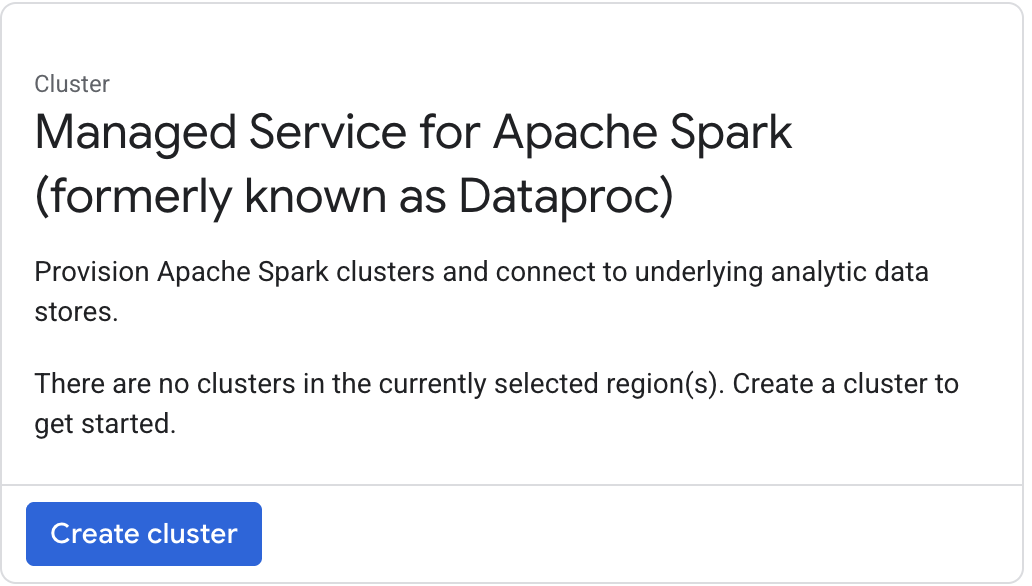
Create a cluster
/ 50
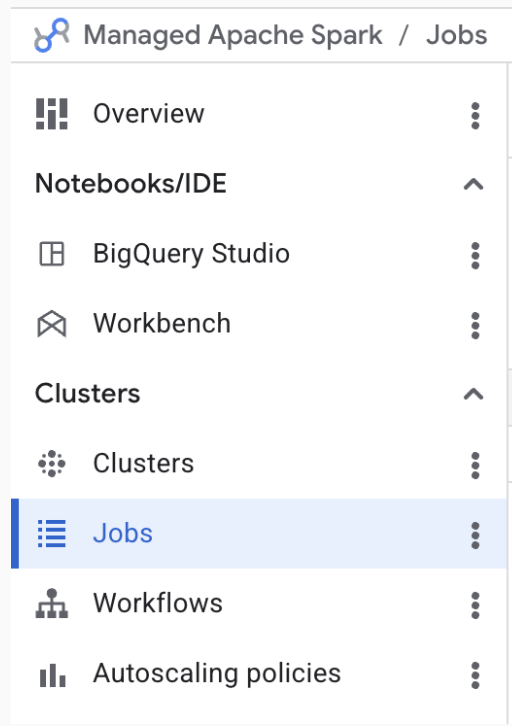
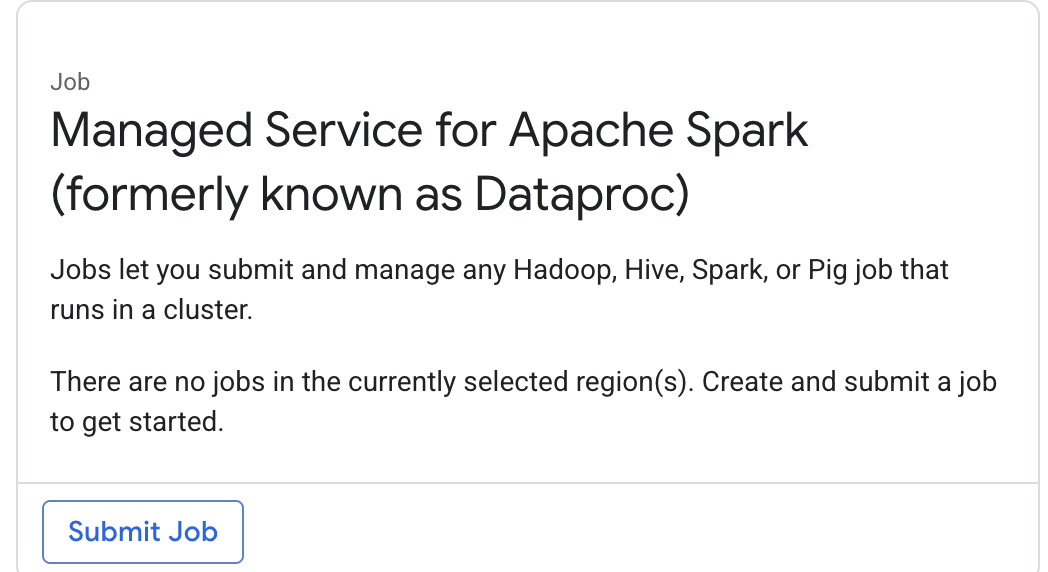
Submit a job to your cluster
/ 50


Managed Service for Apache Spark is a managed Spark and Hadoop service that lets you take advantage of open source data tools for batch processing, querying, streaming, and machine learning. Managed Service for Apache Spark automation helps you create clusters quickly, manage them easily, and save money by turning clusters off when you don't need them. With less time and money spent on administration, you can focus on your jobs and your data.
This lab is adapted from the Create a Managed Service for Apache Spark cluster by using the Google Cloud console guide.
Read these instructions. Labs are timed and you cannot pause them. The timer, which starts when you click Start Lab, shows how long Google Cloud resources are made available to you.
This hands-on lab lets you do the lab activities in a real cloud environment, not in a simulation or demo environment. It does so by giving you new, temporary credentials you use to sign in and access Google Cloud for the duration of the lab.
To complete this lab, you need:
Click the Start Lab button. If you need to pay for the lab, a dialog opens for you to select your payment method. On the left is the Lab Details pane with the following:
Click Open Google Cloud console (or right-click and select Open Link in Incognito Window if you are running the Chrome browser).
The lab spins up resources, and then opens another tab that shows the Sign in page.
Tip: Arrange the tabs in separate windows, side-by-side.
If necessary, copy the Username below and paste it into the Sign in dialog.
You can also find the Username in the Lab Details pane.
Click Next.
Copy the Password below and paste it into the Welcome dialog.
You can also find the Password in the Lab Details pane.
Click Next.
Click through the subsequent pages:
After a few moments, the Google Cloud console opens in this tab.

To assign storage permission to the service account, which is required for creating a cluster:
In the Google Cloud console, in the navigation menu (
Click Edit principal (pencil icon) for the Compute Engine default service account ([project-number]-compute@developer.gserviceaccount.com).
Click + Add another role.
For Select a role, search for Storage Admin, and select it from the results.
Click Save.
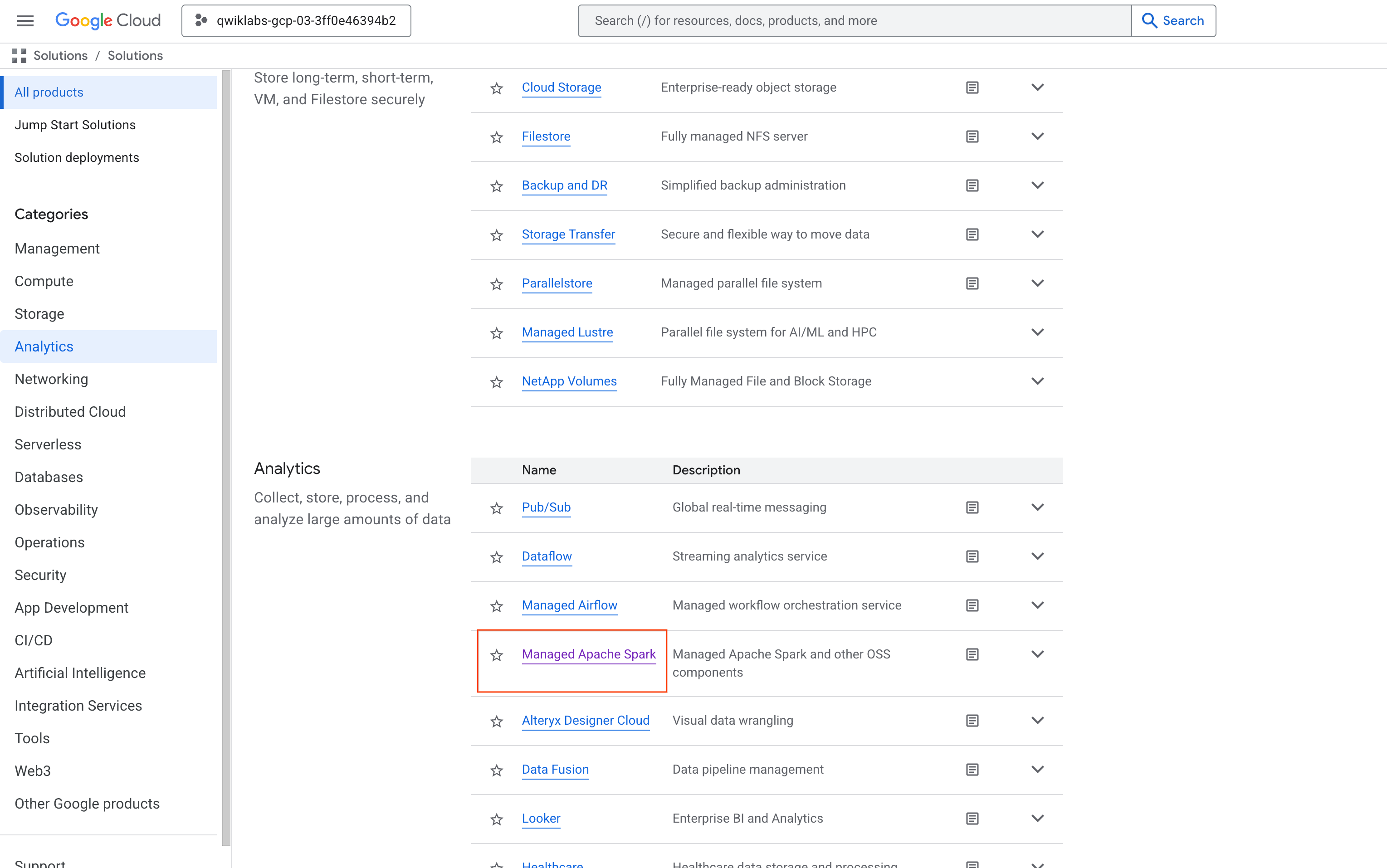
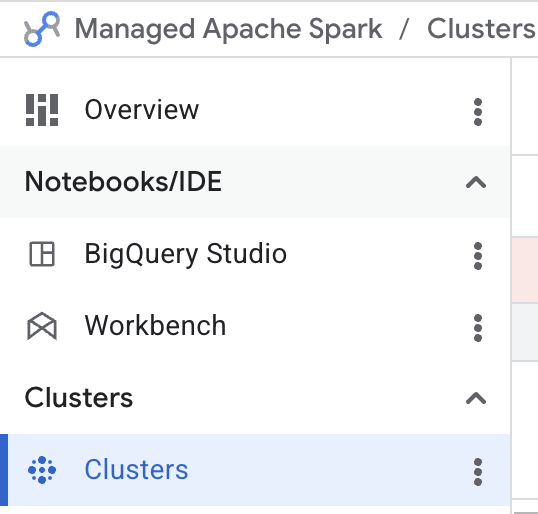
), click View All Products. Under Analytics, click on Managed Apache Spark.| Parameter | Value |
|---|---|
| Name | |
| Region | |
| Zone | |
| Expand Advanced configurations > Infrastructure, for Manager node > Primary disk type | Standard Persistent Disk |
| Manager node - Series | N2D |
| Manager node - Machine type | |
| Manager node - Primary disk size | 30 GB |
| Number of Worker Nodes | 2 |
| Worker node - Primary disk type | Standard Persistent Disk |
| Worker node - Series | N2D |
| Worker node - Machine type | |
| Worker node - Primary disk size | 30 GB |
| Expand Other > Internal IP only | Deselect Configure all instances to have only internal IP addresses |
Sorry, the server was not able to fulfill your request and proceed to the next task.Click Check my progress to verify your performed task.
| Parameter | Value |
|---|---|
| Region | |
| Cluster | |
| Job type | |
| Main class or jar | |
| Jar files | |
| Arguments |
Your job should appear in the Jobs list, which shows all your project's jobs with their cluster, type, and current status. The new job displays as "Running". When you see "Succeeded" as the status, you can proceed to the next steps.
Click Check my progress to verify your performed task.
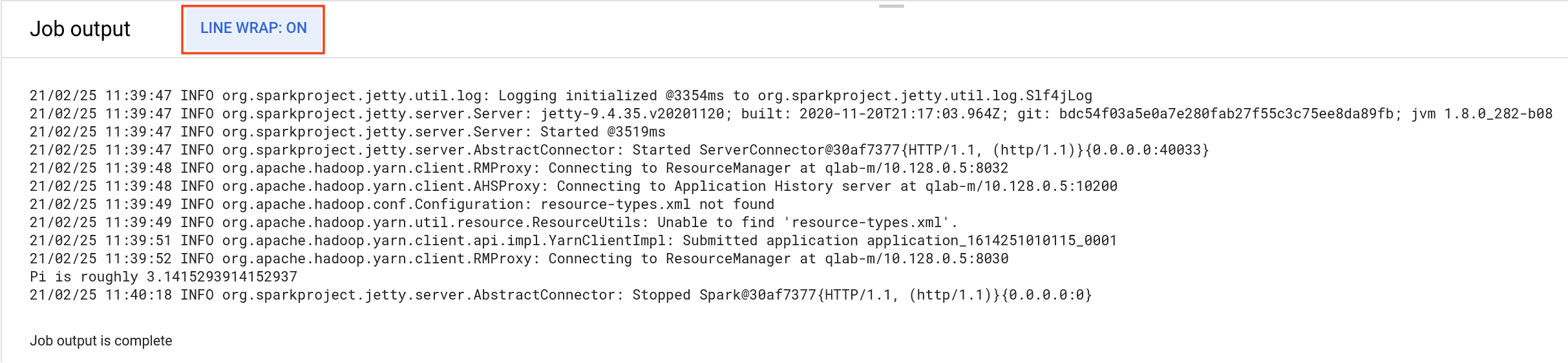
You should see that your job has successfully calculated a rough value for pi!
Below are multiple-choice questions to reinforce your understanding of this lab's concepts. Answer them to the best of your abilities.
You learned how to create a Managed Service for Apache Spark cluster, submit a Spark job, and shut down your cluster.
...helps you make the most of Google Cloud technologies. Our classes include technical skills and best practices to help you get up to speed quickly and continue your learning journey. We offer fundamental to advanced level training, with on-demand, live, and virtual options to suit your busy schedule. Certifications help you validate and prove your skill and expertise in Google Cloud technologies.
Manual Last Updated April 16, 2026
Lab Last Tested April 16, 2026
Copyright 2026 Google LLC. All rights reserved. Google and the Google logo are trademarks of Google LLC. All other company and product names may be trademarks of the respective companies with which they are associated.



此内容目前不可用
一旦可用,我们会通过电子邮件告知您

太好了!
一旦可用,我们会通过电子邮件告知您


一次一个实验
确认结束所有现有实验并开始此实验