
Before you begin
- Labs create a Google Cloud project and resources for a fixed time
- Labs have a time limit and no pause feature. If you end the lab, you'll have to restart from the beginning.
- On the top left of your screen, click Start lab to begin

Pull data from censustract_2018_5y using the BigQuery data connector
/ 50
Pull data from censustract_2018_5yr_top10000_housingunits using the BigQuery data connector
/ 50

In this scenario, you are a data analyst with strong experience in Google Sheets but are new to BigQuery. You are employed with a solar energy company who is interested in identifying U.S. counties with the highest number of homeowners who can benefit from a new grant. The new United States (U.S.) federal grant is available to homeowners with homes built before 1960 and annual incomes below $60,000 USD. You know that the necessary data to identify these homeowners is in your company's BigQuery data warehouse and would like to analyze the BigQuery data in Google Sheets.
Through the BigQuery data connector in Google Sheets, Connected Sheets provides you with the ability to access, analyze, visualize, and share BigQuery data without the need for any SQL.
In this lab, you learn how to get started with BigQuery data in Google Sheets by using the BigQuery data connector to pull data from BigQuery tables (in a Google Cloud project) into Google Sheets.
In this lab, you will learn how to perform the following tasks:
For each lab, you get a new Google Cloud project and set of resources for a fixed time at no cost.
Sign in to Google Skills using an incognito window.
Note the lab's access time (for example, 1:15:00), and make sure you can finish within that time.
There is no pause feature. You can restart if needed, but you have to start at the beginning.
When ready, click Start lab.
Note your lab credentials (Username and Password). You will use them to sign in to the Google Cloud Console.
Click Open Google Console.
Click Use another account and copy/paste credentials for this lab into the prompts.
If you use other credentials, you'll receive errors or incur charges.
Accept the terms and skip the recovery resource page.
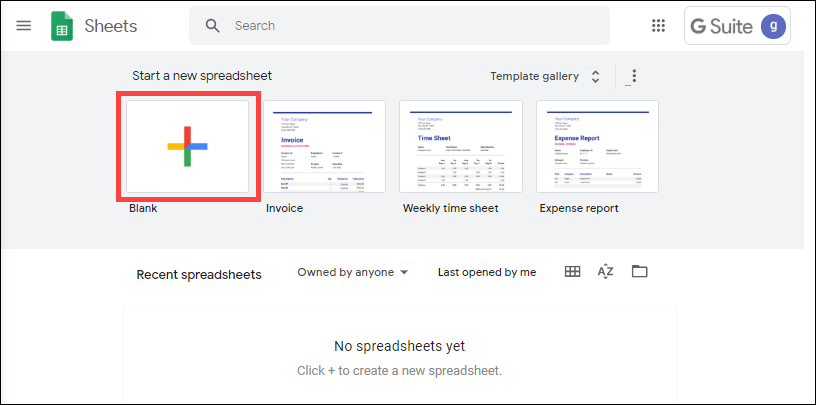
In this first task, you log into Google Workspace in this lab environment using the provided credentials and then open a new Google Sheet.
To open Sheets, right-click this provided link for Open Google Sheets, and select the option to open the link in a new incognito window.
To sign into Google Workspace, use the credentials (username and password) provided on the current lab page.
Be sure to:
In BigQuery, a table ID contains all of the information needed to locate the table (including the names of the Google Cloud Project, the BigQuery dataset, and the table) and is structured as follows:
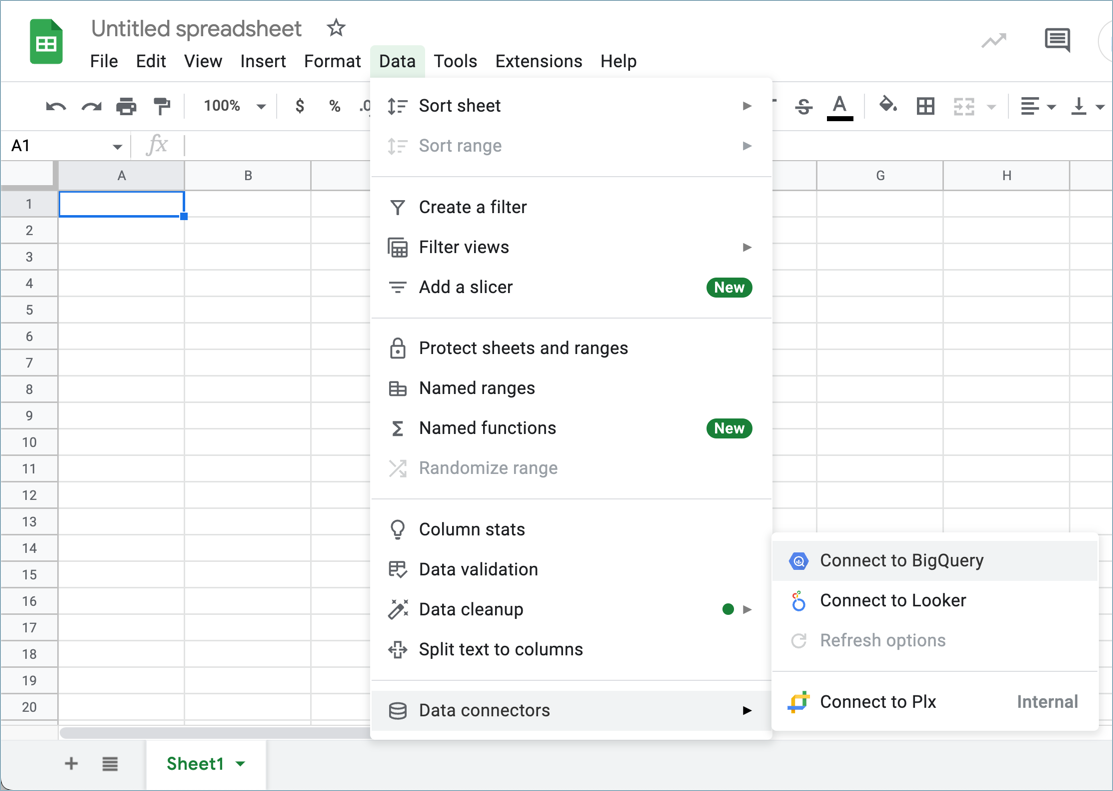
In this task, you use the BigQuery data connector to connect and pull the data from the following table in your lab-provided Google Cloud project into Google Sheets:
For Choose a cloud project, search for the
For Choose a dataset, select public_sector.
For Choose a table or view, select censustract_2018_5yr.
Click Connect.
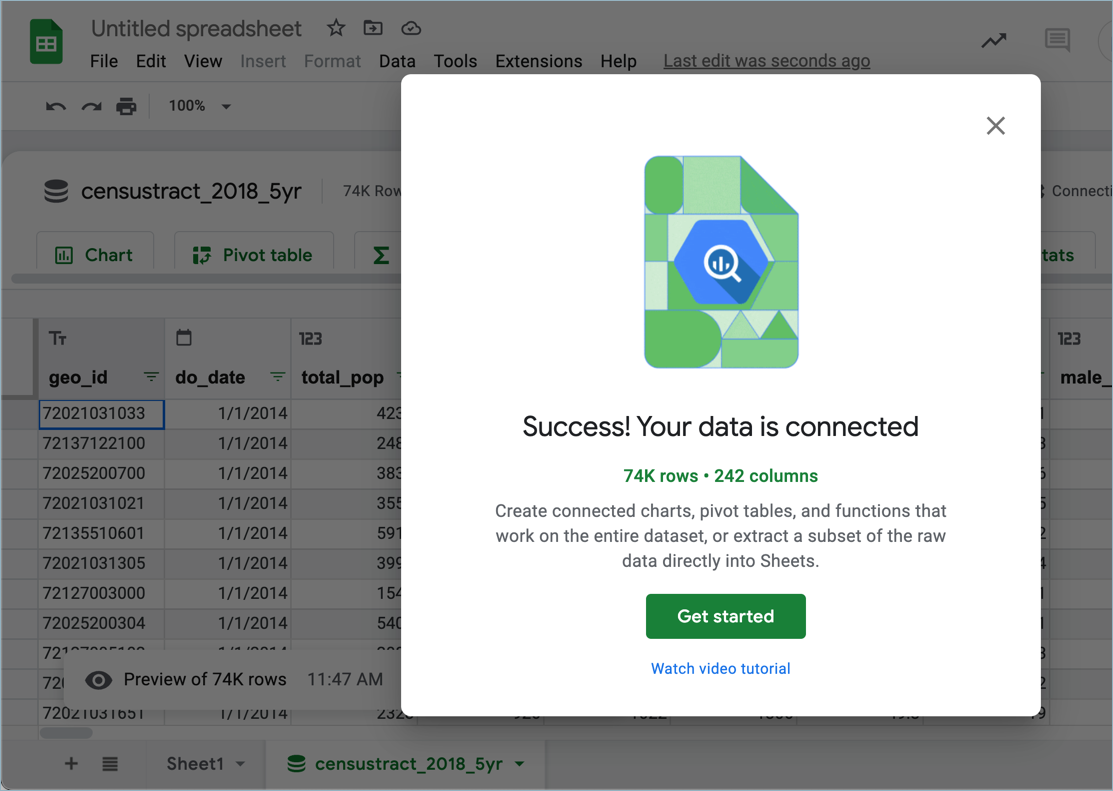
After a successful data connection, the data will populate the Google Sheet and resemble the following table structure with 74,000 records.
| geo_id | do_date | total_pop | households | more columns... |
|---|---|---|---|---|
| 72021031033 | 2014-01-01 | 4234 | 1536 | ... |
| 72137122100 | 2014-01-01 | 2483 | 834 | ... |
| 72025200700 | 2014-01-01 | 3832 | 1445 | ... |
| 72021031021 | 2014-01-01 | 3555 | 1376 | ... |
| 72135510601 | 2014-01-01 | 5915 | 1550 | ... |
Click Check my progress to verify the objective.
Test your new skills by pulling in another BigQuery dataset into your Google Sheet.
For this challenge, repeat the lab tasks as needed to pull data from the following BigQuery table ID:
After a successful data connection, the data will populate the Google Sheet and have the same table structure as censustract_2018_5yr but only contain 10,000 records.
Click Check my progress to verify the objective.
You have successfully used the BigQuery data connector to pull data from a BigQuery table into your Google Sheet!
When you have completed your lab, click End Lab. Google Skills removes the resources you’ve used and cleans the account for you.
You will be given an opportunity to rate the lab experience. Select the applicable number of stars, type a comment, and then click Submit.
The number of stars indicates the following:
You can close the dialog box if you don't want to provide feedback.
For feedback, suggestions, or corrections, please use the Support tab.
Copyright 2026 Google LLC All rights reserved. Google and the Google logo are trademarks of Google LLC. All other company and product names may be trademarks of the respective companies with which they are associated.



This content is not currently available
We will notify you via email when it becomes available

Great!
We will contact you via email if it becomes available


One lab at a time
Confirm to end all existing labs and start this one