
Before you begin
- Labs create a Google Cloud project and resources for a fixed time
- Labs have a time limit and no pause feature. If you end the lab, you'll have to restart from the beginning.
- On the top left of your screen, click Start lab to begin

Create Vertex AI Platform Notebooks instance and clone course repo
/ 10
Setup the data environment
/ 15
Run your pipeline from the command line
/ 10
Create a custom Dataflow Flex Template container image
/ 15
Create and stage the flex template
/ 10
Execute the template from the UI and using gcloud
/ 10

In this lab you:
Prerequisites:
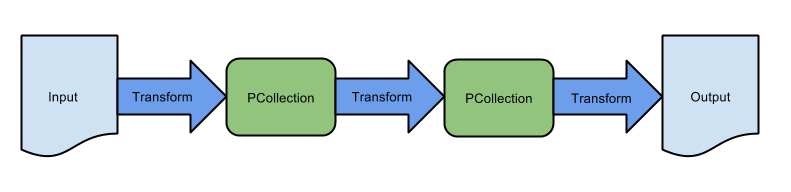
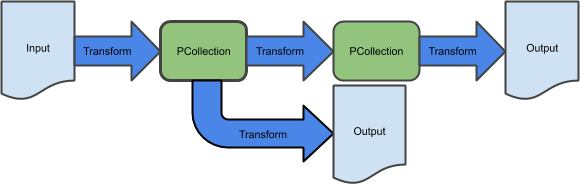
In the previous lab, you created a basic extract-transform-load sequential pipeline and used an equivalent Dataflow Template to ingest batch data storage on Google Cloud Storage. This pipeline consists of a sequence of transformations:
Many pipelines will not exhibit such simple structure though. In this lab, you build a more sophisticated, non-sequential pipeline.
The use case here is to optimize resource consumption. Products vary with respect to how they consume resources. Additionally, not all data is used in the same way within a business; some data will be regularly queried, for example, within analytic workloads, and some data will only be used for recovery. In this lab, you optimize the pipeline from the first lab for resource consumption, by storing only data that analysts will use in BigQuery while archiving other data in a very-low-cost highly durable storage service, Coldline storage in Google Cloud Storage.
For each lab, you get a new Google Cloud project and set of resources for a fixed time at no cost.
Sign in to Google Skills using an incognito window.
Note the lab's access time (for example, 1:15:00), and make sure you can finish within that time.
There is no pause feature. You can restart if needed, but you have to start at the beginning.
When ready, click Start lab.
Note your lab credentials (Username and Password). You will use them to sign in to the Google Cloud Console.
Click Open Google Console.
Click Use another account and copy/paste credentials for this lab into the prompts. If you use other credentials, you'll receive errors or incur charges.
Accept the terms and skip the recovery resource page.
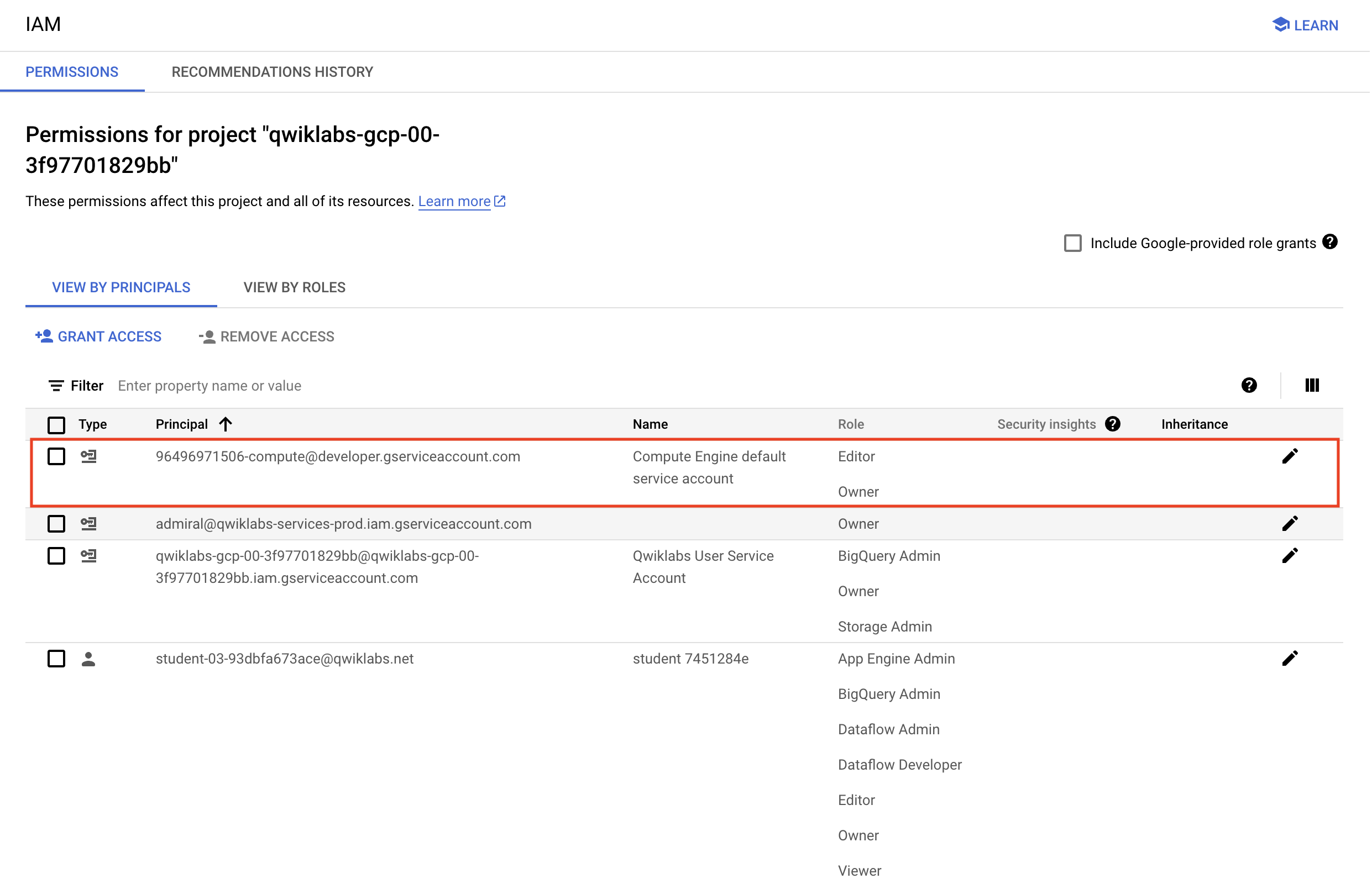
Before you begin your work on Google Cloud, you need to ensure that your project has the correct permissions within Identity and Access Management (IAM).
In the Google Cloud console, on the Navigation menu (
Confirm that the default compute Service Account {project-number}-compute@developer.gserviceaccount.com is present and has the editor role assigned. The account prefix is the project number, which you can find on Navigation menu > Cloud Overview > Dashboard.
editor role, follow the steps below to assign the required role.729328892908).{project-number} with your project number.For this lab, you will be running all commands in a terminal from your Instance notebook.
In the Google Cloud console, from the Navigation menu (
Click Enable All Recommended APIs.
In the Navigation menu, click Workbench.
At the top of the Workbench page, ensure you are in the Instances view.
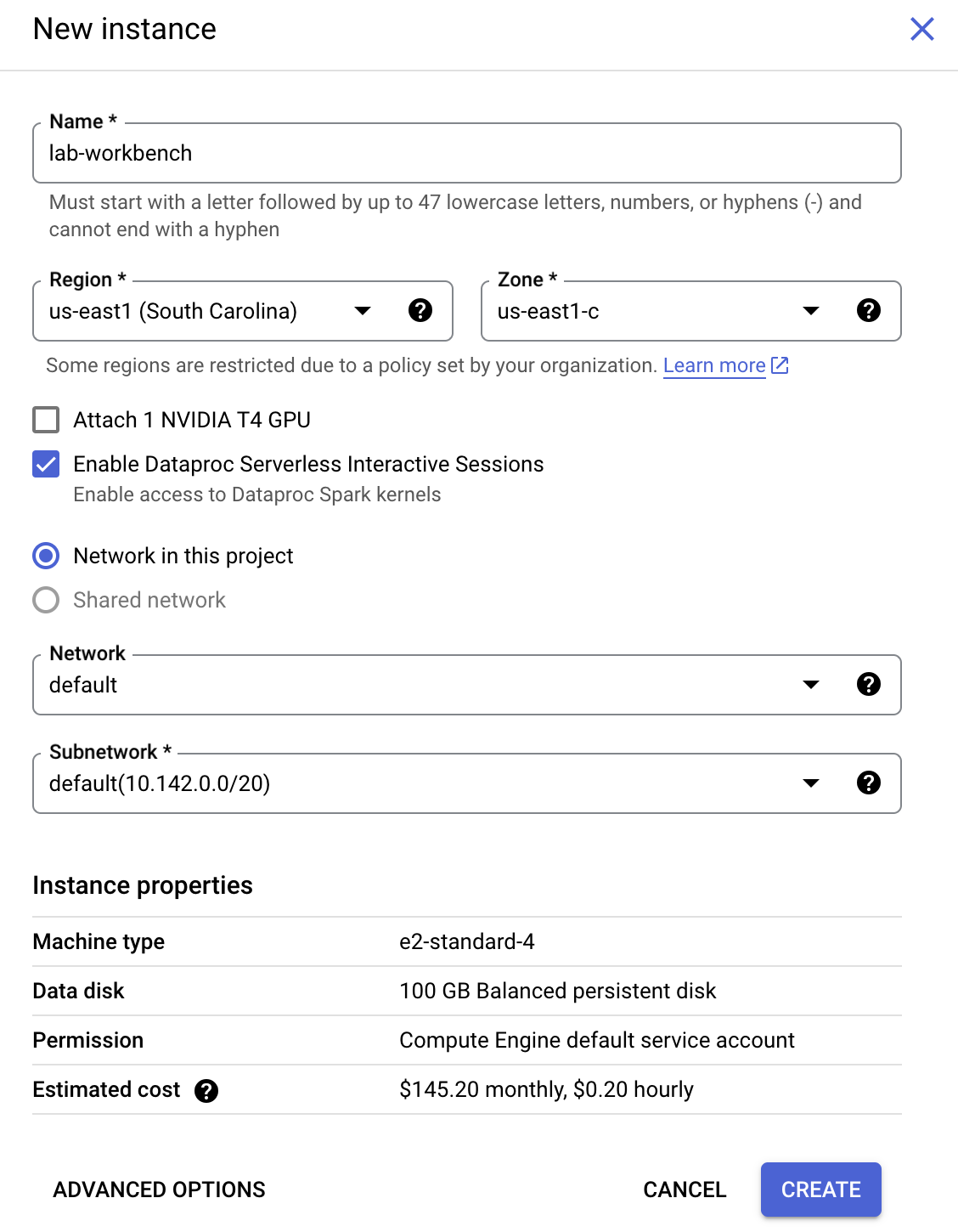
Click 
Configure the Instance:
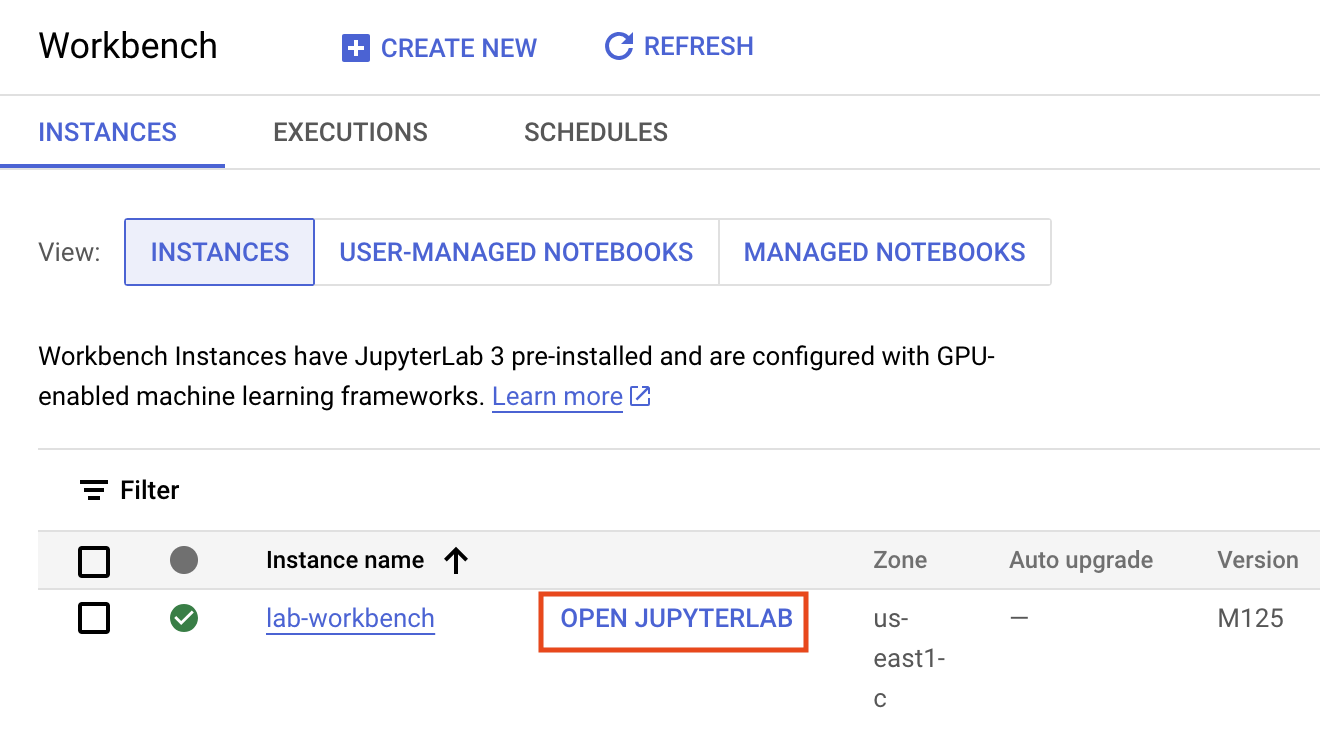
This will take a few minutes to create the instance. A green checkmark will appear next to its name when it's ready.
Next you will download a code repository for use in this lab.
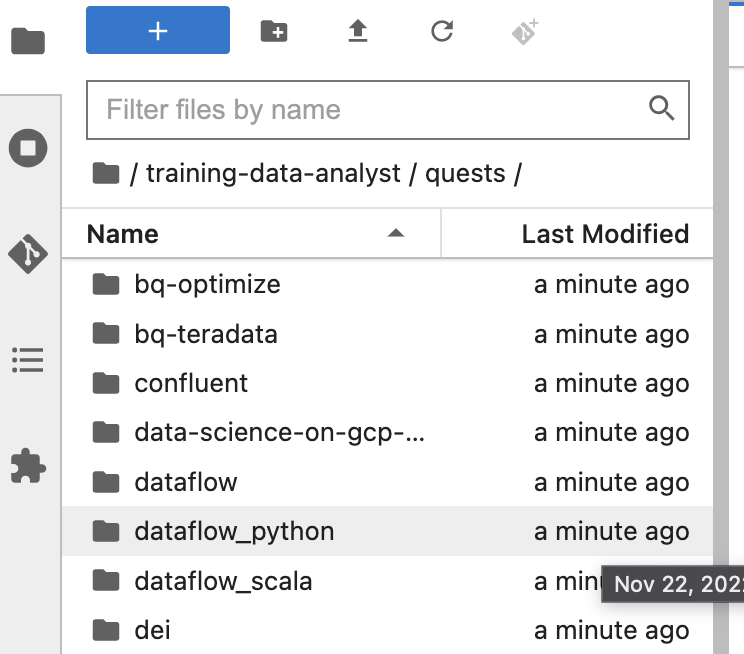
On the left panel of your notebook environment, in the file browser, you will notice the training-data-analyst repo added.
Navigate into the cloned repo /training-data-analyst/quests/dataflow_python/. You will see a folder for each lab, which is further divided into a lab sub-folder with code to be completed by you, and a solution sub-folder with a fully workable example to reference if you get stuck.
Click Check my progress to verify the objective.
In this part of the lab, you write a branching pipeline that writes data to both Google Cloud Storage and to BigQuery.
One way of writing a branching pipeline is to apply two different transforms to the same PCollection, resulting in two different PCollections.
If you get stuck in this or later sections, the solution is available here.
To complete this task, modify an existing pipeline by adding a branch that writes to Cloud Storage.
Create a new terminal in your IDE environment if you haven't already and copy and paste the following command:
Before you can begin editing the actual pipeline code, you need to ensure we have installed the necessary dependencies.
Go back to the terminal you opened before in your IDE environment, then create a virtual environment for our work in this labs:
Next, install the packages we will need to execute our pipeline:
Finally, ensure that the Dataflow API is enabled:
Open up my_pipeline.py in your IDE, which can be found in 2_Branching_Pipelines/labs/. Scroll down to the run() method, where the body of the pipeline is defined. It currently looks as follows:
Modify this code by adding a new branching transform that writes to Cloud Storage using textio.WriteToText before the each element is converted from json to dict.
If you get stuck in this or later sections, refer to the solution, which can be found here
Click Check my progress to verify the objective.
At the moment, the new pipeline doesn’t actually consumes less resources, since all data are being stored twice. To start improving resource consumption, we need to reduce the amount of duplicated data. The Google Cloud Storage bucket is intended to function as archival and backup storage, so it’s important that all data be stored there. However, not all data necessarily need to be sent to BigQuery.
Let’s assume that data analysts often look at what resources users access on the website, and how those access patterns differ as a function of geography and time. Only a subset of the fields would be necessary. Since we have parsed the json elements into dictionaries, we can easily use the pop method to drop a field from within a Python callable:
To complete this task, use a Python callable with beam.Map to drop the field user_agent, which our analysts will not be using in BigQuery.
There are many ways of filtering in Apache Beam. Since we are working with a PCollection of Python dictionaries, the easiest manner will be to leverage a lambda (anonymous) function as our filter, a function returning a boolean value, with beam.Filter. For example:
To complete this task, add a beam.Filter transform to the pipeline. You may filter on whatever criteria you wish, but as a suggestion try eliminating rows where num_bytes is greater than or equal to 120.
The pipeline currently has a number of parameters hard-coded into it, including the path to the input and the location of the table in BigQuery. However, the pipeline would be more useful if it could read any json file in Cloud Storage. Adding this feature requires adding to the set of command-line parameters.
Currently, we use an ArgumentParser to read in and parse command-line arguments. We then pass these arguments into the PipelineOptions() object we specify when creating our pipeline.
The PipelineOptions is used to interpret the options being read by the ArgumentParser. To add a new command-line argument to the parser, we can use the syntax:
To access a command-line parameter in code, parse the arugments and refer to the field in the resulting dictionary:
To complete this task, add command-line parameters for the input path, the Google Cloud Storage output path, and the BigQuery table name and update the pipeline code to access those parameters instead of constants.
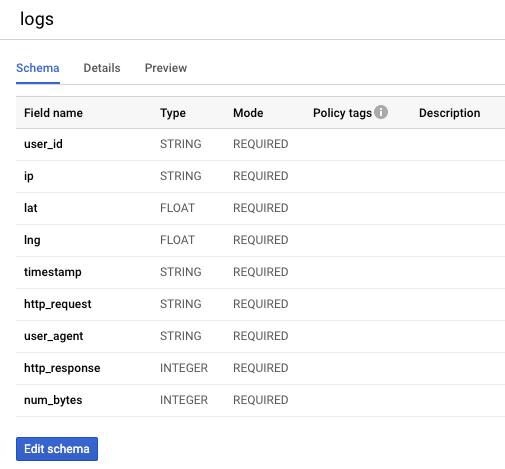
You may have noticed that the BigQuery table created in the last lab had a schema with all REQUIRED fields like this:
It may be desirable to create an Apache Beam schema with NULLABLE fields where data is missing, both for the pipeline execution itself and then a resulting BigQuery table with a schema that reflects this.
We can update the JSON BigQuery schema by adding a new property mode for a field we wish to be nullable:
To complete this task, mark the lat and lon fields as nullable in BigQuery schema
To complete this task, run your pipeline from the command line and pass the appropriate parameters. Remember to take note of the resulting BigQuery schema for NULLABLE fields. Your code should look something like this:
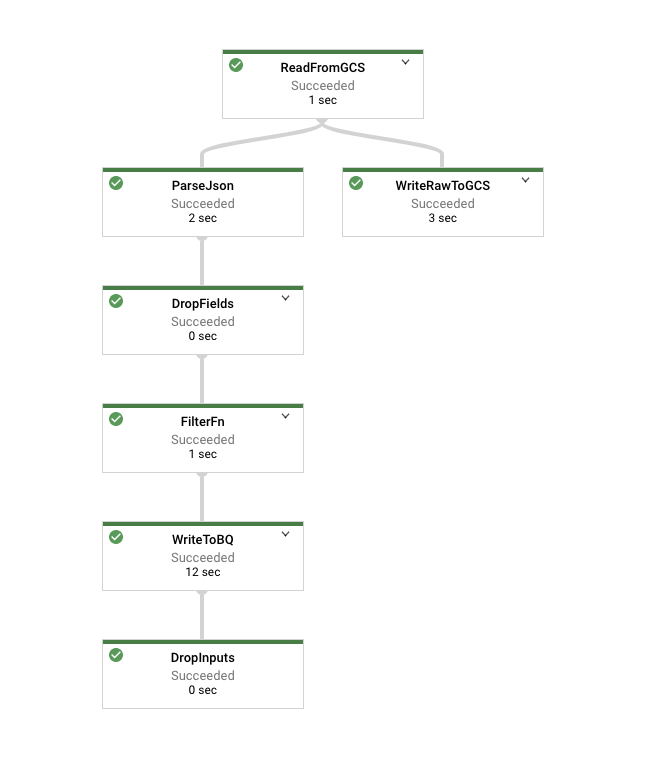
Navigate to the Cloud Dataflow Jobs page and look at the job as it’s running. Its graph should resemble the following:
Click on the node representing your Filter function, which in the above picture is called FilterFn. In the panel that appears on the right hand side, you should see that more elements were added as inputs than were written as outputs.
Now click on the node representing the write to Cloud Storage. Since all elements were written, this number should agree with the number of elements in the input to the Filter function.
Once pipeline has finished, examine the results in BigQuery by querying your table. Note that the number of records in the table should agree with the number of elements that were output by the Filter function.
Click Check my progress to verify the objective.
A pipeline that accepts command-line parameters is vastly more useful than one with those parameters hard-coded. However, running it requires creating a development environment. An even better option for pipelines that are expected to be re-run by a variety of different users or in a variety of different contexts would be to use a Dataflow Template.
There are many Dataflow Templates that have been created already as part of Google Cloud Platform, which you can explore here. But none of them perform the same function as the pipeline in this lab. Instead, in this part of the lab, you convert the pipeline into a newer custom Dataflow Flex Template (as opposed to custom Traditional Template).
Converting a pipeline into a custom Flex Dataflow Template requires the use a Docker container to package up not just your code but the dependencies, a Dockerfile to describe what code to build, Cloud Build to build the underlying container that will be executed at runtime to create the actual job, and a metadata file to describe the job parameters.
pip3 freeze to record the packages and their versions being used in our environment.Next, we will create our Dockerfile. This will specify the code and the dependencies we need to use.
a. To complete this task, create a New File in the dataflow_python/2_Branching_Pipelines/lab folder in the file explorer of your IDE.
b. To create New File, click on File >> New >> Text File
c. Rename the file name as Dockerfile, to rename the file name right click on it.
d. Open Dockerfile in the editorial panel, click on file to open it.
e. Copy the below code to the Dockerfile file and save it:
Click Check my progress to verify the objective.
To run a template, you need to create a template spec file in a Cloud Storage containing all of the necessary information to run the job, such as the SDK information and metadata.
a. Create a New File in the dataflow_python/2_Branching_Pipelines/lab folder in the file explorer of your IDE.
b. To create New File, click on File >> New >> Text File.
c. Rename the file name as metadata.json, to rename the file name right click on it.
d. Open metadata.json file in the editor panel. To open the file right click on the metadata.json file then select open With >> Editor.
e. To complete this task, create a metadata.json file in the following format that accounts for all of the input parameters your pipeline expects. Refer to the solution here if you need. This does require you to write your own parameter regex checking. While not best practice, ".*" will match on any input.
Click Check my progress to verify the objective.
To complete this task, follow the instructions below.
Go to the Cloud Dataflow page in the GCP Console.
Click CREATE JOB FROM TEMPLATE.
Enter a valid job name in the Job Name field.
Select Custom Template from the Dataflow template drop-down menu.
Enter the Cloud Storage path to your template file in the template Cloud Storage path field.
Input the appropriate items under Required parameters
a. For Input file path, enter
b. For Output file location, enter
c. For BigQuery output table, enter
Click Run Job.
One of the benefits of using Dataflow Templates is the ability to execute them from a wider variety of contexts, other than a development environment. To demonstrate this, use gcloud to execute a Dataflow Template from the command line.
To complete this task, execute the following command in your terminal, modifying the parameters as appropriate:
Click Check my progress to verify the objective.
When you have completed your lab, click End Lab. Google Skills removes the resources you’ve used and cleans the account for you.
You will be given an opportunity to rate the lab experience. Select the applicable number of stars, type a comment, and then click Submit.
The number of stars indicates the following:
You can close the dialog box if you don't want to provide feedback.
For feedback, suggestions, or corrections, please use the Support tab.
Copyright 2026 Google LLC All rights reserved. Google and the Google logo are trademarks of Google LLC. All other company and product names may be trademarks of the respective companies with which they are associated.



This content is not currently available
We will notify you via email when it becomes available

Great!
We will contact you via email if it becomes available


One lab at a time
Confirm to end all existing labs and start this one