
始める前に
- ラボでは、Google Cloud プロジェクトとリソースを一定の時間利用します
- ラボには時間制限があり、一時停止機能はありません。ラボを終了した場合は、最初からやり直す必要があります。
- 画面左上の [ラボを開始] をクリックして開始します

Launch Vertex AI Workbench instance
/ 50
Clone a course repository within a Vertex AI Workbench instance
/ 50

Duration is 1 min
In this notebook, we will implement text models to recognize the probable source (Github, Tech-Crunch, or The New-York Times) of the titles we have in the title dataset we constructed a related AutoML processed lab.
In this lab, you will:
For each lab, you get a new Google Cloud project and set of resources for a fixed time at no cost.
Sign in to Google Skills using an incognito window.
Note the lab's access time (for example, 1:15:00), and make sure you can finish within that time.
There is no pause feature. You can restart if needed, but you have to start at the beginning.
When ready, click Start lab.
Note your lab credentials (Username and Password). You will use them to sign in to the Google Cloud Console.
Click Open Google Console.
Click Use another account and copy/paste credentials for this lab into the prompts.
If you use other credentials, you'll receive errors or incur charges.
Accept the terms and skip the recovery resource page.
In the Google Cloud console, from the Navigation menu (
Click Enable All Recommended APIs.
In the Navigation menu, click Workbench.
At the top of the Workbench page, ensure you are in the Instances view.
Click 
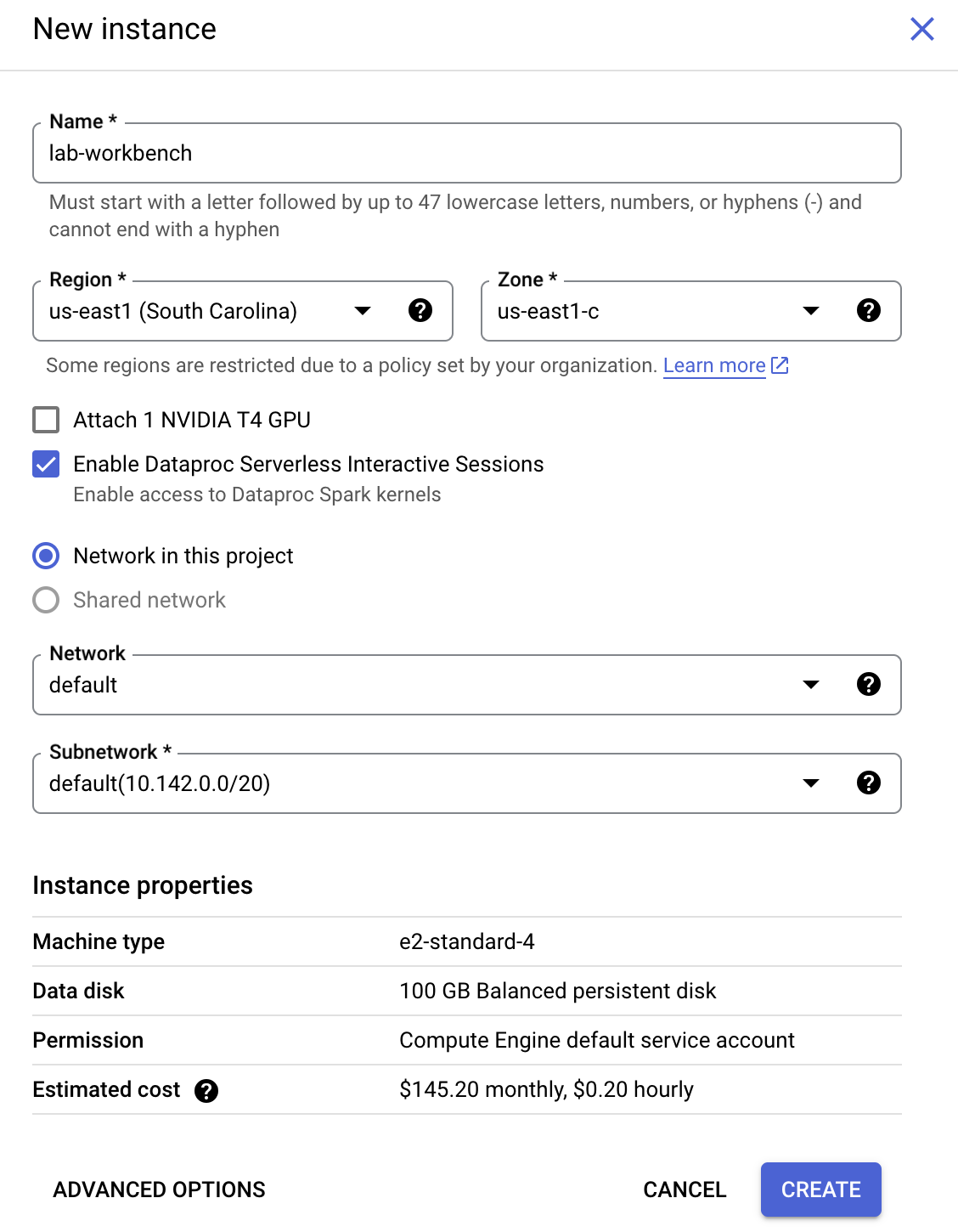
Configure the Instance:
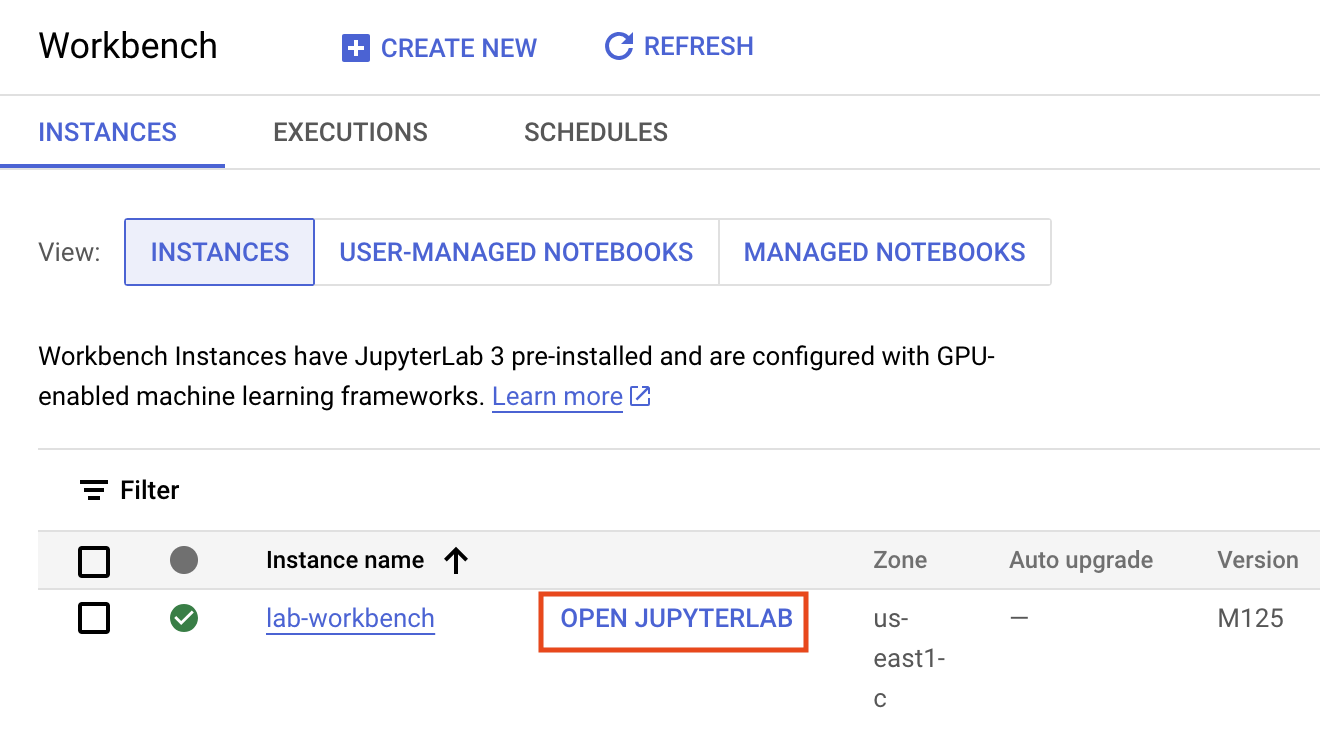
This will take a few minutes to create the instance. A green checkmark will appear next to its name when it's ready.
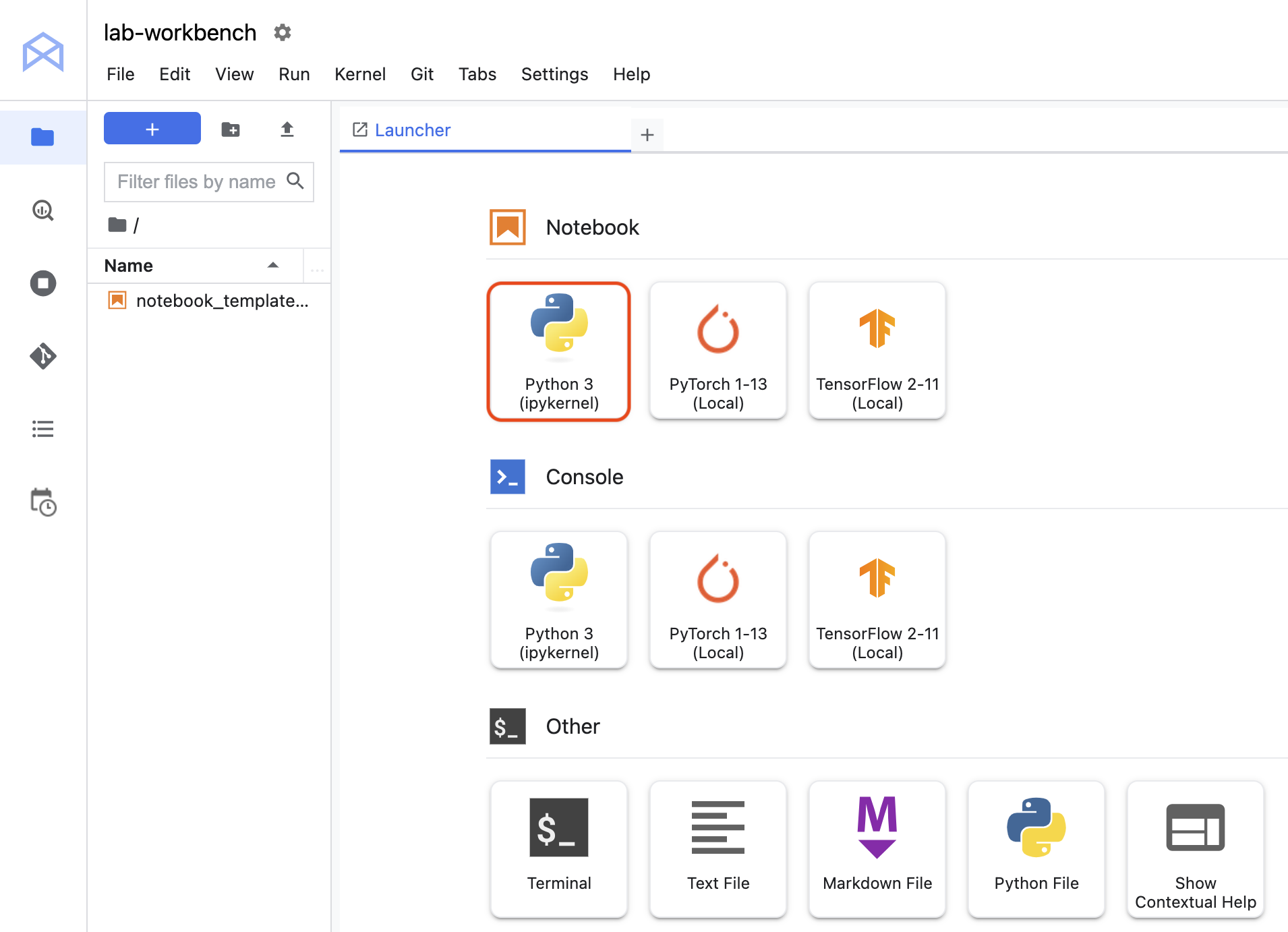
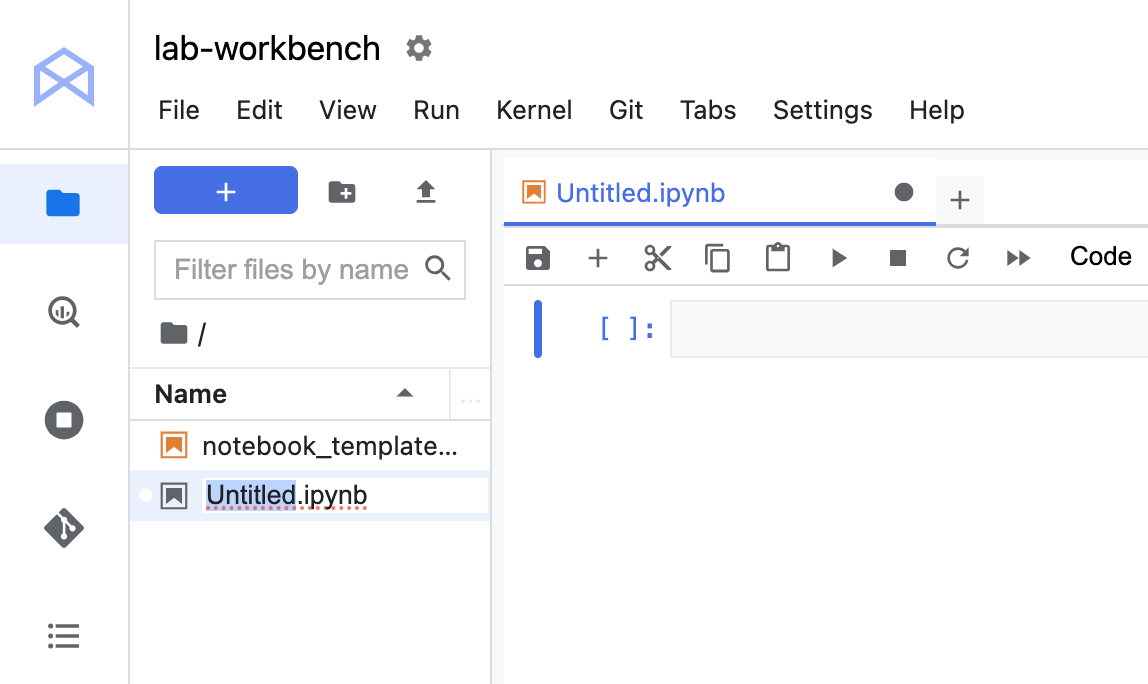
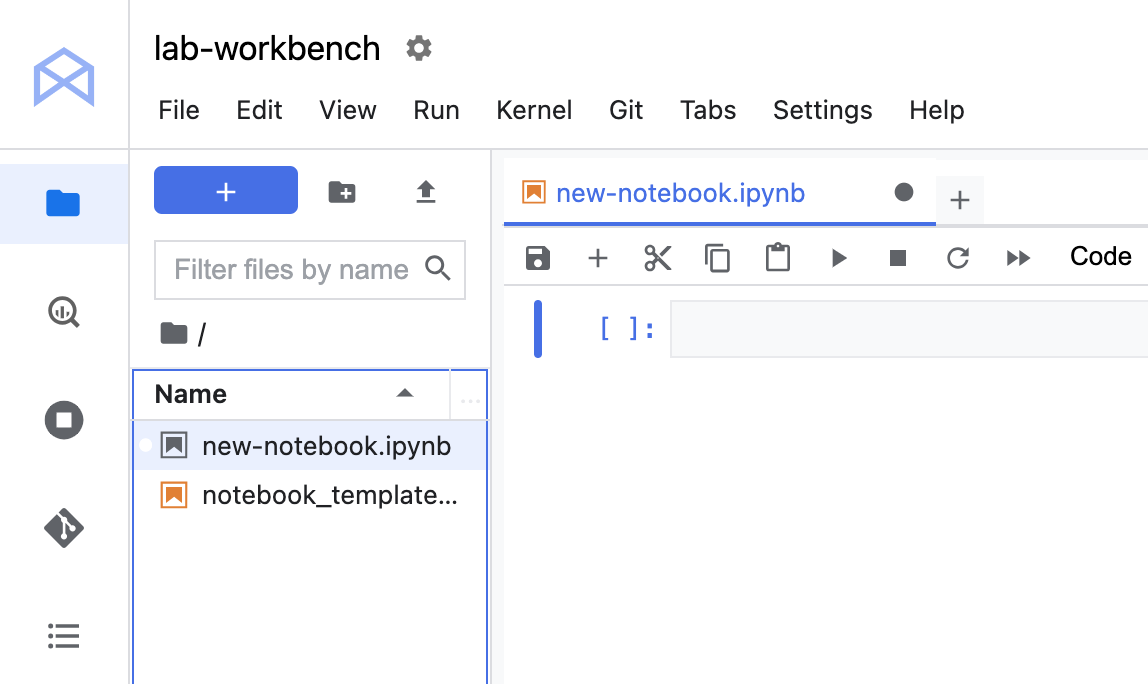
Untitled.ipynb file in the menu bar and select Rename Notebook to give it a meaningful name.Your environment is set up. You are now ready to start working with your Vertex AI Workbench notebook.
Click Check my progress to verify the objective.
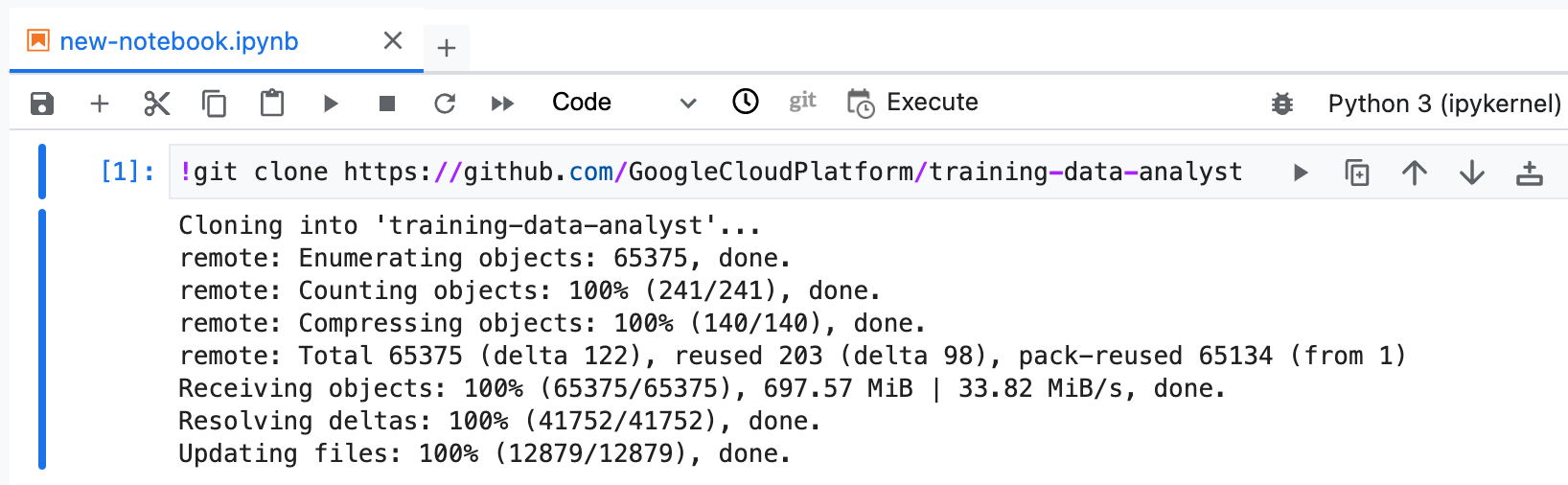
The GitHub repo contains both the lab file and solutions files for the course.
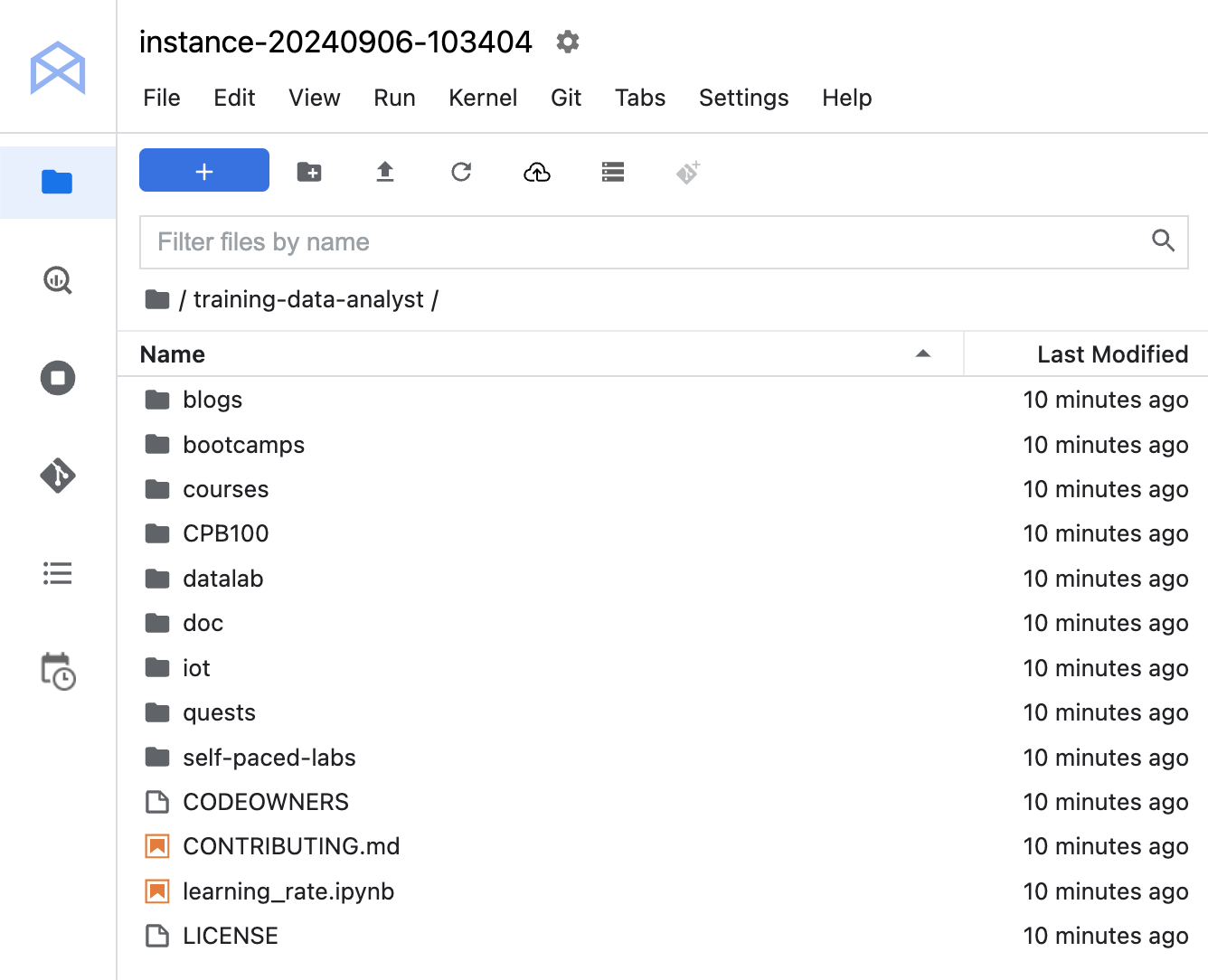
training-data-analyst repository.training-data-analyst directory and ensure that you can see its contents.Click Check my progress to verify the objective.
Duration is 60 min
In the notebook interface, navigate to training-data-analyst > courses > machine_learning > deepdive2 > text_classification > labs > keras_for_text_classification.ipynb.
In the Select Kernel dialog, choose TensorFlow 2-11 (Local) from the list of available kernels.
In the notebook interface, click on Edit > Clear All Outputs.
Carefully read through the notebook instructions and fill in lines marked with #TODO where you need to complete the code.
Tip: To run the current cell, click the cell and press SHIFT+ENTER. Other cell commands are listed in the notebook UI under Run.
When you have completed your lab, click End Lab. Google Skills removes the resources you’ve used and cleans the account for you.
You will be given an opportunity to rate the lab experience. Select the applicable number of stars, type a comment, and then click Submit.
The number of stars indicates the following:
You can close the dialog box if you don't want to provide feedback.
For feedback, suggestions, or corrections, please use the Support tab.
Copyright 2026 Google LLC All rights reserved. Google and the Google logo are trademarks of Google LLC. All other company and product names may be trademarks of the respective companies with which they are associated.



このコンテンツは現在ご利用いただけません
利用可能になりましたら、メールでお知らせいたします

ありがとうございます。
利用可能になりましたら、メールでご連絡いたします


1 回に 1 つのラボ
既存のラボをすべて終了して、このラボを開始することを確認してください