
准备工作
- 实验会创建一个 Google Cloud 项目和一些资源,供您使用限定的一段时间
- 实验有时间限制,并且没有暂停功能。如果您中途结束实验,则必须重新开始。
- 在屏幕左上角,点击开始实验即可开始

Create Cloud Managed Apache Spark
/ 50
Create a Logistic Regression Model
/ 50


In this lab, you implement logistic regression using a machine learning library for Apache Spark. Spark runs on a managed service in Google Cloud, which removes the need to manually set up and manage clusters. You will use this environment to build a model from a multivariable dataset.
Managed Apache Spark is a fast, easy-to-use, fully managed service for running Apache Spark workloads without the need to provision or manage clusters. It integrates seamlessly with other services in Google Cloud, providing a powerful and cost-efficient platform for data processing, analytics, and machine learning.
Apache Spark is an analytics engine for large-scale data processing. Logistic regression is available as a module in Spark’s machine learning library, MLlib (also known as Spark ML), which includes implementations for standard machine learning algorithms such as k-means clustering, random forests, alternating least squares, decision trees, and support vector machines. Spark can run on a Managed Apache Spark service in Google Cloud, enabling efficient parallel processing of very large datasets without the need to manage cluster infrastructure.
The base dataset this lab uses is retrieved from the US Bureau of Transport Statistics. The dataset provides historical information about internal flights in the United States and can be used to demonstrate a wide range of data science concepts and techniques. This lab provides the data as a set of CSV formatted text files.
Read these instructions. Labs are timed and you cannot pause them. The timer, which starts when you click Start Lab, shows how long Google Cloud resources are made available to you.
This hands-on lab lets you do the lab activities in a real cloud environment, not in a simulation or demo environment. It does so by giving you new, temporary credentials you use to sign in and access Google Cloud for the duration of the lab.
To complete this lab, you need:
Click the Start Lab button. If you need to pay for the lab, a dialog opens for you to select your payment method. On the left is the Lab Details pane with the following:
Click Open Google Cloud console (or right-click and select Open Link in Incognito Window if you are running the Chrome browser).
The lab spins up resources, and then opens another tab that shows the Sign in page.
Tip: Arrange the tabs in separate windows, side-by-side.
If necessary, copy the Username below and paste it into the Sign in dialog.
You can also find the Username in the Lab Details pane.
Click Next.
Copy the Password below and paste it into the Welcome dialog.
You can also find the Password in the Lab Details pane.
Click Next.
Click through the subsequent pages:
After a few moments, the Google Cloud console opens in this tab.

Normally, the first step in writing Hadoop jobs is to get a Hadoop installation going. This involves setting up a cluster, installing Hadoop on it, and configuring the cluster so that the machines all know about one another and can communicate with one another in a secure manner.
Then, you'd start the YARN and MapReduce processes and finally be ready to write Hadoop programs. However, on Google Cloud, a managed Apache Spark service simplifies this workflow by providing a fully managed environment for executing Apache Spark applications, eliminating the need to configure and manage underlying Hadoop components such as YARN and MapReduce.
If you are using Apache Spark, a managed Apache Spark service in Google Cloud provides a fully managed, serverless environment where you can simply submit a Spark application and the service handles its execution. In this sense, managed Apache Spark serves as a streamlined execution platform for Spark workloads, similar to how Dataflow is used for Apache Beam. In modern cloud architectures, these managed services may also share underlying infrastructure components to provide scalable and efficient data processing.
In this section you create a VM and then a Managed Apache Spark cluster on the VM.
In the Cloud Console, on the Navigation menu (
Click the SSH button next to startup-vm VM to launch a terminal and connect.
Click Connect to confirm the SSH connection.
If prompted, click Authorize.
Run following command to clone the repository data-science-on-gcp, and navigate to the directory 06_dataproc:
Set the project and bucket variable using the following code:
Open the create_cluster.sh file to edit:
Make the following three changes:
--zone ${REGION}-a
e2-standard-4
e2-standard-4
\ at the end, so it looks like: cloud-platform \
--public-ip-address
Your final version should look like the following:
Save file by using Ctrl+X, then press Y and enter.
Now, create a Managed Apache Spark cluster to run jobs on, using the bucket variable you defined earlier:
This command may take a few minutes.
In the Cloud Console, open the Navigation menu > View All Products. Under Analytics section, click Managed Apache Spark.
In the Clusters list, click on the cluster name to view cluster details.
Sorry, the server was not able to fulfill your request and proceed to the next task.Click the Web Interfaces tab and then click JupyterLab towards the bottom of the right pane.
In the Notebook launcher section click Python 3 to open a new notebook.
To use a Notebook, you enter commands into a cell. Be sure you run the commands in the cell by either pressing Shift + Enter, or clicking the triangle on the Notebook top menu to Run selected cells and advance.
Set up a google cloud storage bucket where your raw files are hosted:
Run the cell by either pressing Shift + Enter, or clicking the triangle on the Notebook top menu to Run selected cells and advance.
Create a spark session using the following code block:
Once that code is added at the start of any Spark Python script, any code developed using the interactive Spark shell or Jupyter notebook will also work when launched as a standalone script.
Enter the following commands into new cell:
Run the cell.
When you launched this lab, an automated script provided data to you as a set of prepared CSV files and was placed into your Cloud Storage bucket.
traindays DataFrame by reading in a prepared CSV that the automated script puts into your Cloud Storage bucket.The CSV identifies a subset of days as valid for training. This allows you to create views of the entire flights dataset which is divided into a dataset used for training your model and a dataset used to test or validate that model.
Enter and run the following commands into the new cell:
Create a Spark SQL view:
You will use the all_flights-00001-* shard file for this, as it has a representative subset of the full dataset and can be processed in a reasonable amount of time:
#inputs = 'gs://{}/data-science-on-gcp/flights/tzcorr/all_flights-*'.format(BUCKET) # FULL
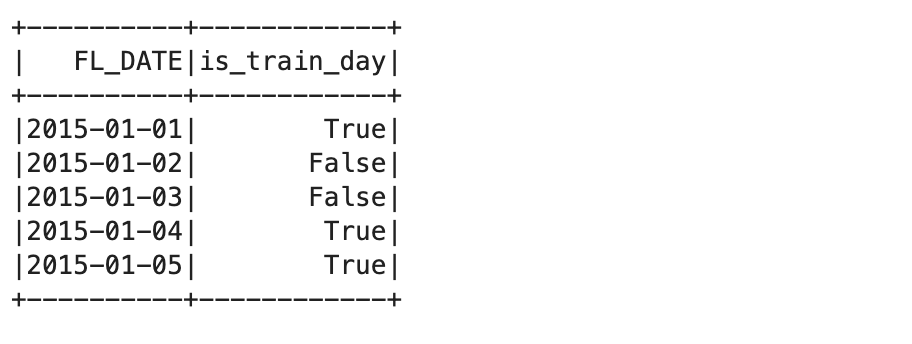
Query the first few records from the training dataset view:
This displays the first five records in the training table:
The next stage in the process is to identify the source data files.
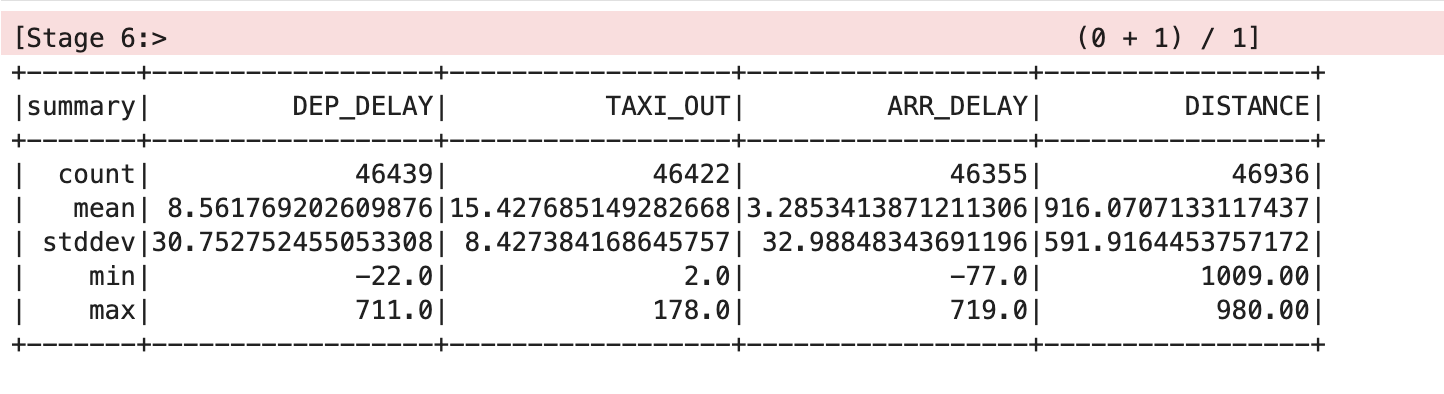
The mean and standard deviation values have been rounded to two decimal places for clarity in this table, but you will see the full floating point values on screen.
The table shows that there are some issues with the data. Not all of the records have values for all of the variables, there are different count stats for DEP_DELAY, TAXI_OUT, ARR_DELAY and DISTANCE. This happens because:
Flights are scheduled but never depart
Some depart but are cancelled before take off
Some flights are diverted and therefore never arrive
Now read the data into Spark SQL from the input file you created:
Ask Spark to provide some analysis of the dataset:
This should output something similar to the following:
Now you can create a function that converts a set of data points in your DataFrame into a training example. A training example contains a sample of the input features and the correct answer for those inputs.
In this case, you answer whether the arrival delay is less than 15 minutes. The labels you use as inputs are the values for departure delay, taxi out time, and flight distance.
Enter and run the following into the new cell to create the definition for the training example function:
Map this training example function to the training dataset:
Enter and run the following command to provide a training DataFrame for the Spark logistic regression module:
The training DataFrame creates a logistic regression model based on your training dataset.
intercept=True parameter because the prediction for arrival delay does not equal zero when all of the inputs are zero in this case.intercept=False.When this train method finishes, the lrmodel object will have weights and an intercept value that you can inspect:
The output looks similar to the following:
These weights, when used with the formula for linear regression, allow you to create a model using code in the language of your choice.
Test this by providing some input variables for a flight that has:
The result of 1 predicts the flight will be on time.
Now try it with a much longer departure delay of 36 minutes:
The result of 0 predicts the flight won't be on time.
These results are not probabilities; they are returned as either true or false based on a threshold which is set by default to 0.5.
You can return the actual probability by clearing the threshold:
Notice the results are probabilities, with the first close to 1 and the second close to 0.
Set the threshold to 0.7 to correspond to your requirement to be able to cancel meetings if the probability of an on time arrival falls below 70%:
Your outputs are once again 1 and 0, but now they reflect the 70% probability threshold that you require and not the default 50%.
You can save a Spark logistic regression model directly to Cloud Storage. This allows you to reuse a model without having to retrain the model from scratch.
A storage location contains only one model. This avoids interference with other existing files which would cause model loading issues. To do this, make sure your storage location is empty before you save your Spark regression model.
Enter the following code in new cell and run:
This should report an error stating CommandException: 1 files/objects could not be removed because the model has not been saved yet. The error indicates that there are no files present in the target location. You must be certain that this location is empty before attempting to save the model and this command guarantees that.
Save the model by running:
Now destroy the model object in memory and confirm that it no longer contains any model data:
Now retrieve the model from storage:
The model parameters, i.e. the weights and intercept values, have been restored.
Test the model with a scenario that will definitely not arrive on time:
This prints out 0, predicting the flight will probably arrive late, given your 70% probability threshold.
Finally, retest the model using data for a flight that should arrive on time:
This prints out 1, predicting that the flight will probably arrive on time, given your 70% probability threshold.
Enter the following code into a new cell and run the cell:
With the thresholds removed, you get probabilities. The probability of arriving late increases as the departure delay increases.
At a departure delay of 20 minutes and a taxi-out time of 10 minutes, this is how the distance affects the probability that the flight is on time:
As you can see, the effect is relatively minor. The probability increases from about 0.63 to about 0.76 as the distance changes from a very short hop to a cross-continent flight.
Run the following in new cell:
On the other hand, if you hold the taxi-out time and distance constant and examine the dependence on departure delay, you see a more dramatic impact.
You will use the all-flights-00002-* shard to evaluate the model.
To evaluate the logistic regression model, you need test data:
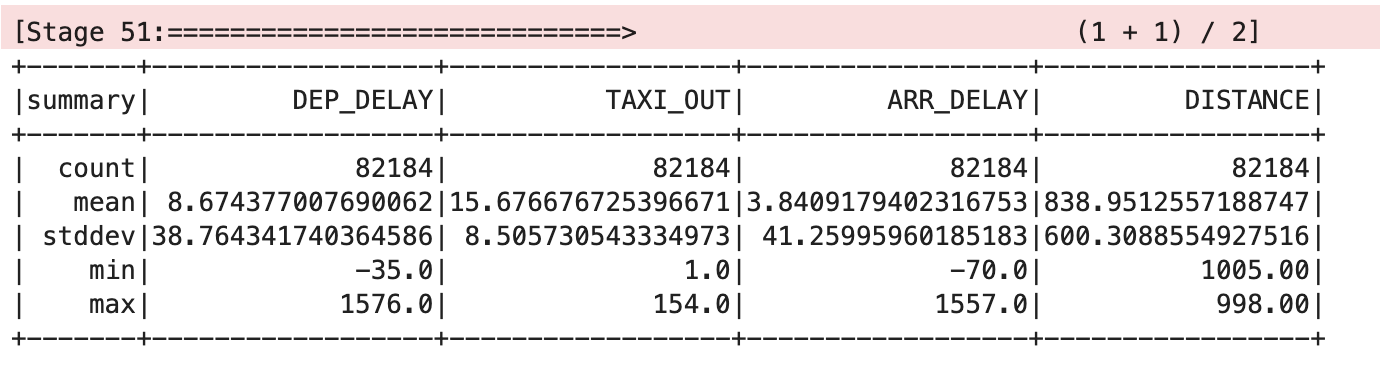
Describe and show the result.
This should output something similar to the following:
Define a eval function and return total cancel, total noncancel, correct cancel and correct noncancel flight details:
Now, evaluate the model by passing correct predicted label:
Output:
Keep only those examples near the decision threshold which is greater than 65% and less than 75%:
Output:
Now you know how to use Apache Spark to perform logistic regression using a managed Apache Spark service in Google Cloud.
Check out the lab titled Machine Learning with TensorFlow in Vertex AI.
Data Science on the Google Cloud Platform, 2nd Edition: O'Reilly Media, Inc.
...helps you make the most of Google Cloud technologies. Our classes include technical skills and best practices to help you get up to speed quickly and continue your learning journey. We offer fundamental to advanced level training, with on-demand, live, and virtual options to suit your busy schedule. Certifications help you validate and prove your skill and expertise in Google Cloud technologies.
Manual Last Updated April 20, 2026
Lab Last Tested April 20, 2026
Copyright 2026 Google LLC. All rights reserved. Google and the Google logo are trademarks of Google LLC. All other company and product names may be trademarks of the respective companies with which they are associated.



此内容目前不可用
一旦可用,我们会通过电子邮件告知您

太好了!
一旦可用,我们会通过电子邮件告知您


一次一个实验
确认结束所有现有实验并开始此实验