Questi contenuti non sono ancora ottimizzati per i dispositivi mobili.
Per un'esperienza ottimale, visualizza il sito su un computer utilizzando un link inviato via email.
Overview
In this lab, you will learn how to install the Cloud logging and monitoring agents on Windows VMs.
Objectives
In this lab, you will learn how to:
Create service accounts with appropriate role assignments so that the agents installed on your VMs can write log entries and metrics into Cloud Monitoring.
Install the Windows Cloud Monitoring agents for logging and monitoring.
Setup and requirements
For each lab, you get a new Google Cloud project and set of resources for a fixed time at no cost.
Sign in to Google Skills using an incognito window.
Note the lab's access time (for example, 1:15:00), and make sure you can finish within that time.
There is no pause feature. You can restart if needed, but you have to start at the beginning.
When ready, click Start lab.
Note your lab credentials (Username and Password). You will use them to sign in to the Google Cloud Console.
Click Open Google Console.
Click Use another account and copy/paste credentials for this lab into the prompts.
If you use other credentials, you'll receive errors or incur charges.
Accept the terms and skip the recovery resource page.
Task 1. Configure service accounts and role assignments
It's a best practice to create service accounts for your VMs, and to assign those accounts the minimal set of roles required for the VMs to perform their jobs. In this task, you'll create a service accounts and assign them only the roles required to write log entries and metrics data into Cloud Monitoring.
In Google Cloud Console, from the navigation menu () , select IAM & Admin > Service Accounts.
Click CREATE SERVICE ACCOUNT. This account will be used by your Windows VM.
Name the service account windows-servers.
Click CREATE AND CONTINUE.
Assign the Logging > Logs Writer role to the service account.
Click + ADD ANOTHER ROLE.
Assign the Monitoring > Monitoring Metric Writer role to the service account.
Click CONTINUE.
Click DONE.
This account will be used for the Windows VM you create.
Click Check my progress to verify the objective.
Configure service accounts
Task 2. Create the VMs
In this task, you'll create a Windows VM. You will configure the VM to use an appropriate service account that will allow the installed agents to write their data to Cloud Monitoring.
Create Windows VM
In the VM instances page, click CREATE INSTANCE to create your Windows VM.
Configure your VM with the following settings (leave other settings at defaults):
Property
Value
Name
windows-server
Region
us-central1
Zone
us-central1-a
Boot disk
Click Change, select Operating system: Windows server and version: Windows Server 2019 Datacenter Core then click Select.
Identity and API accesss > Service account
windows-servers
Allow HTTP traffic
Enabled
Click Create.
You may continue on to Task 3 while the Windows VM finishes starting.
Click Check my progress to verify the objective.
Create the VMs
Task 3. Install, configure, and test Ops Agent
In this task, you will install the Cloud Ops Agent on your VM. The Ops Agent is the primary agent for collecting telemetry from your Compute Engine instances. Combining logging and metrics into a single agent, the Ops Agent uses Fluent Bit for logs, which supports high-throughput logging, and the OpenTelemetry Collector for metrics.
You will check the VM logs before and after agent installation to see how installing the agent results in more logs being recorded.
Investigate log entries before agent installation
In Google Cloud Console, from the navigation menu, select Logging.
In Resource dropdown, select VM Instance and click Apply.
In Log name dropdown, view the log types available. Leave it as default and click on Run Query.
Note the current log entries. There are only audit log entries, detailing actions such as creating the VMs. There are no syslog entries, Apache log entries, etc.
Configure remote Windows management
From your main browser window (not in Incognito mode), download Spark View RDP from Chrome Web Store. Once you navigate to the download page, click on the Add to Chrome button. Click on Add Extension in case of any pop-ups.
In the VM instances screen, click the drop-down next to RDP in the Connect column of the VM listing; select Set Windows password.
In the Set new Windows password modal dialog, click Set. Note the username and the password; you will need to use them later. (You can copy/paste into a text editor or note-taking app, or write them down.)
Install the Cloud Ops Agent on the Windows server
Open the Spark RDP application.
Enter the external IP address of the windows-server instance in the Computer field.
Then enter your Windows user name and password. Leave other field at default.
In the VM instances window, reset the window-server instance.
Verify that the Ops Agent is generating log entries
In Google Cloud Console, from the navigation menu, select Monitoring > Dashboard.
In the table of dashboards, locate the VM Instances entry, and then click on the name.
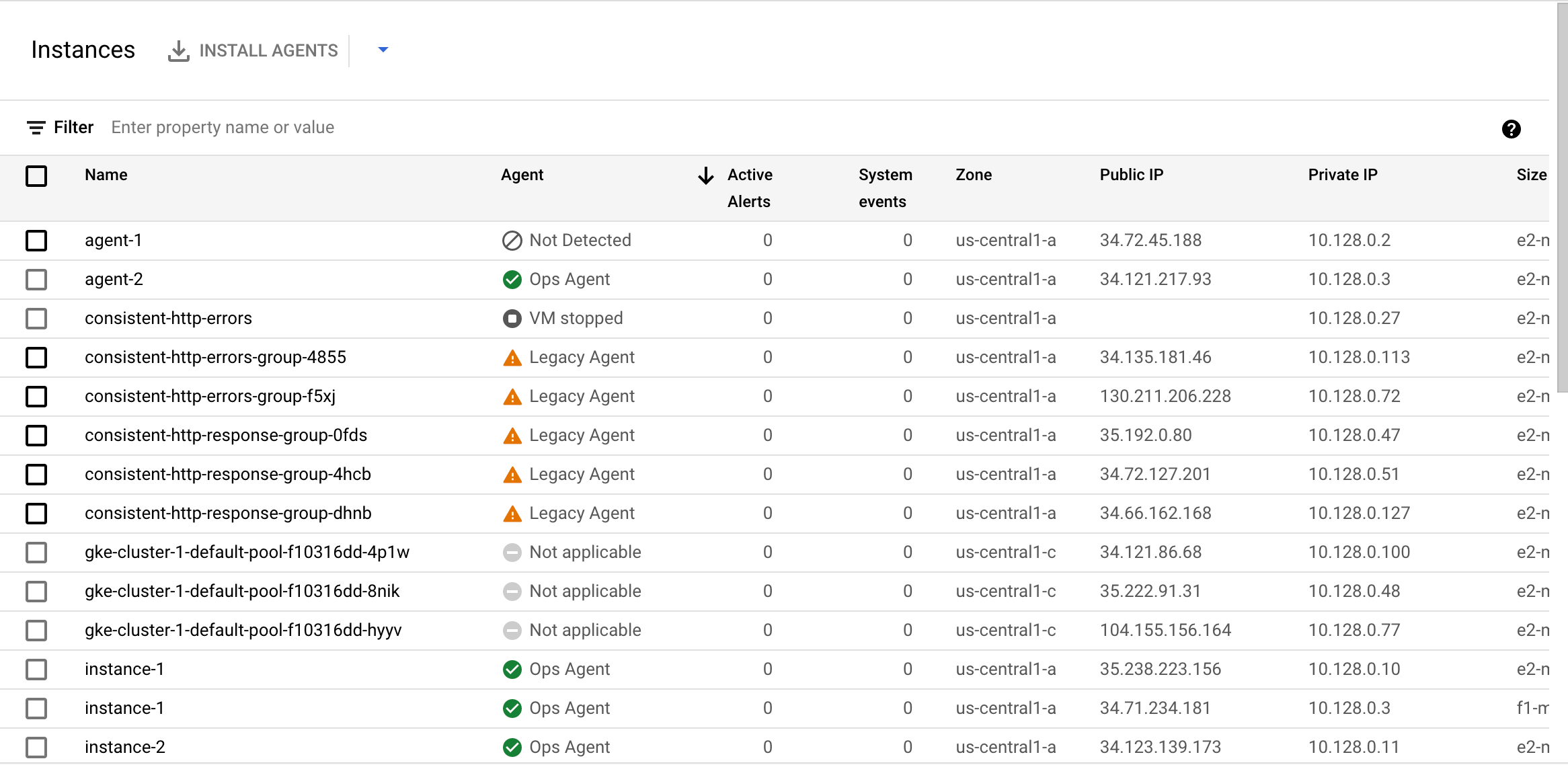
The Inventory tab on the VM Instances dashboard lists all VMs and includes a status column for your agent, as shown in the following screenshot:
The Agent column reports the following values:
Not detected: You don't have an agent installed. If Cloud Monitoring doesn't detect any agents installed on the Compute Engine instance, then you can install an agent by doing the following:
Select the VM instances on which you want to install agents.
Click the Install agents option on the Instances table, which brings up an installation workflow in the dashboard, and follow the instructions. The Ops Agent is the default agent that is installed, but the installation workflow provides a link to install the legacy agents.
The Ops Agent collects both metrics and logs by default. You can change this default behavior by configuring the Ops Agent.
Ops Agent: You are running the Ops Agent.
Legacy agent: You are running the legacy Monitoring or the Logging agent. See Migrating from the legacy agents to the Ops Agent for information on transitioning to the Ops Agent.
Not applicable: This VM is not a supported platform for running the agent.
VM stopped: The VM is not running, so the agent's status is not known.
Review
In this lab, you had the chance to do the following:
Create service accounts
Assign roles
Create a Windows VM configured to run with user-created service accounts
Install the Cloud Ops agent on a Windows VM
Explore agent-populated logs
Also, keep in mind that Cloud Logging can collect logs and metrics data from non-GCP systems. Google provides Cloud Monitoring agents that can be installed on AWS EC2 instances, and you can install fluentd and collectd agents on on-premise machines, enabling them to write data to the Cloud Monitoring service.
End your lab
When you have completed your lab, click End Lab. Google Skills removes the resources you’ve used and cleans the account for you.
You will be given an opportunity to rate the lab experience. Select the applicable number of stars, type a comment, and then click Submit.
The number of stars indicates the following:
1 star = Very dissatisfied
2 stars = Dissatisfied
3 stars = Neutral
4 stars = Satisfied
5 stars = Very satisfied
You can close the dialog box if you don't want to provide feedback.
For feedback, suggestions, or corrections, please use the Support tab.
Copyright 2026 Google LLC All rights reserved. Google and the Google logo are trademarks of Google LLC. All other company and product names may be trademarks of the respective companies with which they are associated.
I lab creano un progetto e risorse Google Cloud per un periodo di tempo prestabilito
I lab hanno un limite di tempo e non possono essere messi in pausa. Se termini il lab, dovrai ricominciare dall'inizio.
In alto a sinistra dello schermo, fai clic su Inizia il lab per iniziare
Utilizza la navigazione privata
Copia il nome utente e la password forniti per il lab
Fai clic su Apri console in modalità privata
Accedi alla console
Accedi utilizzando le tue credenziali del lab. L'utilizzo di altre credenziali potrebbe causare errori oppure l'addebito di costi.
Accetta i termini e salta la pagina di ripristino delle risorse
Non fare clic su Termina lab a meno che tu non abbia terminato il lab o non voglia riavviarlo, perché il tuo lavoro verrà eliminato e il progetto verrà rimosso
Questi contenuti non sono al momento disponibili
Ti invieremo una notifica via email quando sarà disponibile
Bene.
Ti contatteremo via email non appena sarà disponibile
Un lab alla volta
Conferma per terminare tutti i lab esistenti e iniziare questo
Utilizza la navigazione privata per eseguire il lab
Il modo migliore per eseguire questo lab è utilizzare una finestra del browser in incognito o privata. Ciò evita eventuali conflitti tra il tuo account personale e l'account studente, che potrebbero causare addebiti aggiuntivi sul tuo account personale.
Configuring and using Cloud Operations logging and monitoring.
Durata:
Configurazione in 0 m
·
Accesso da 90 m
·
Completamento in 90 m


 ) , select IAM & Admin > Service Accounts.