
Deploy a Go App

Check my progress

/ 5

This lab may incorporate AI tools to support your learning.

GSP070

Google Cloud 自學實驗室

總覽

App Engine 可讓開發人員專心處理最在行的事:編寫程式碼。App Engine 標準環境是以 Google 基礎架構上執行的容器執行個體為基礎。從數種可用的執行階段選擇一種來預先設定容器,而每個執行階段也包含支援 App Engine 標準 API 的程式庫。對於許多應用程式,標準環境的執行階段與程式庫應該就能滿足需求。

App Engine 提供兩種 Go 程式語言環境選項。這兩種環境的開發流程相同,皆以程式碼為中心,可快速、有效地調整規模,處理不斷增加的需求。您還能使用 Google 經實證的供應技術,迅速建構網路、行動和 IoT 應用程式,並將管理負擔降到最低。儘管這兩種環境相似度極高,但仍有幾項重要差異。

App Engine 標準環境可讓您輕鬆建構及部署應用程式,即使面對大量負載與資料,應用程式仍會穩定可靠地執行。您的應用程式是在自有的安全可靠環境執行,不受伺服器的硬體、作業系統或實體位置影響。支援 Go 1.11

App Engine 彈性環境會根據 Compute Engine 自動調整應用程式的規模,同時達到負載平衡。

本實作實驗室將說明如何建立可顯示簡短訊息的小型 App Engine 應用程式。

學習內容

  • 下載應用程式
  • 測試應用程式
  • 部署應用程式

設定和需求

瞭解以下事項後,再點選「Start Lab」按鈕

請詳閱以下操作說明。實驗室活動會計時,且中途無法暫停。點選「Start Lab」後就會開始計時,顯示可使用 Google Cloud 資源的時間。

您將在真正的雲端環境完成實作實驗室活動,而不是模擬或示範環境。為此,我們會提供新的暫時憑證,供您在實驗室活動期間登入及存取 Google Cloud。

為了順利完成這個實驗室,請先確認:

  • 可以使用標準的網際網路瀏覽器 (Chrome 瀏覽器為佳)。
注意事項:請使用無痕模式 (建議選項) 或私密瀏覽視窗執行此實驗室,這可以防止個人帳戶和學員帳戶之間的衝突,避免個人帳戶產生額外費用。
  • 是時候完成實驗室活動了!別忘了,活動一旦開始將無法暫停。
注意事項:務必使用實驗室專用的學員帳戶。如果使用其他 Google Cloud 帳戶,可能會產生額外費用。

如何開始研究室及登入 Google Cloud 控制台

  1. 點選「Start Lab」按鈕。如果實驗室會產生費用,畫面上會出現選擇付款方式的對話方塊。左側的「Lab Details」窗格會顯示下列項目:

    • 「Open Google Cloud console」按鈕
    • 剩餘時間
    • 必須在這個研究室中使用的臨時憑證
    • 完成這個實驗室所需的其他資訊 (如有)
  2. 點選「Open Google Cloud console」;如果使用 Chrome 瀏覽器,也能按一下滑鼠右鍵,選取「在無痕視窗中開啟連結」

    接著,實驗室會啟動相關資源,並開啟另一個分頁,顯示「登入」頁面。

    提示:您可以在不同的視窗中並排開啟分頁。

    注意:如果頁面中顯示「選擇帳戶」對話方塊,請點選「使用其他帳戶」
  3. 如有必要,請將下方的 Username 貼到「登入」對話方塊。

    {{{user_0.username | "Username"}}}

    您也可以在「Lab Details」窗格找到 Username。

  4. 點選「下一步」

  5. 複製下方的 Password,並貼到「歡迎使用」對話方塊。

    {{{user_0.password | "Password"}}}

    您也可以在「Lab Details」窗格找到 Password。

  6. 點選「下一步」

    重要事項:請務必使用實驗室提供的憑證,而非自己的 Google Cloud 帳戶憑證。 注意:如果使用自己的 Google Cloud 帳戶來進行這個實驗室,可能會產生額外費用。
  7. 按過後續的所有頁面:

    • 接受條款及細則。
    • 由於這是臨時帳戶,請勿新增救援選項或雙重驗證機制。
    • 請勿申請免費試用。

Google Cloud 控制台稍後會在這個分頁開啟。

注意:如要使用 Google Cloud 產品和服務,請點選「導覽選單」,或在「搜尋」欄位輸入服務或產品名稱。「導覽選單」圖示和搜尋欄位

啟動 Cloud Shell

Cloud Shell 是搭載多項開發工具的虛擬機器,提供永久的 5 GB 主目錄,而且在 Google Cloud 中運作。Cloud Shell 提供指令列存取權,方便您使用 Google Cloud 資源。

  1. 點按 Google Cloud 控制台頂端的「啟用 Cloud Shell」圖示 「啟動 Cloud Shell」圖示

  2. 系統顯示視窗時,請按照下列步驟操作:

    • 繼續操作 Cloud Shell 視窗。
    • 授權 Cloud Shell 使用您的憑證發出 Google Cloud API 呼叫。

連線建立完成即代表已通過驗證,而且專案已設為您的 Project_ID。輸出內容中有一行文字,宣告本工作階段的 Project_ID

Your Cloud Platform project in this session is set to {{{project_0.project_id | "PROJECT_ID"}}}

gcloud 是 Google Cloud 的指令列工具,已預先安裝於 Cloud Shell,並支援 Tab 鍵自動完成功能。

  1. (選用) 您可以執行下列指令來列出使用中的帳戶:
gcloud auth list
  1. 點按「授權」

輸出內容:

ACTIVE: * ACCOUNT: {{{user_0.username | "ACCOUNT"}}} To set the active account, run: $ gcloud config set account `ACCOUNT`
  1. (選用) 您可以使用下列指令來列出專案 ID:
gcloud config list project

輸出內容:

[core] project = {{{project_0.project_id | "PROJECT_ID"}}} 注意:如需 gcloud 的完整說明,請前往 Google Cloud 參閱 gcloud CLI 總覽指南

設定專案區域

gcloud config set compute/region {{{project_0.default_region | "filled in at lab start"}}}

工作 1:啟用 Google App Engine Admin API

開發人員可透過 App Engine Admin API 佈建及管理 App Engine 應用程式。

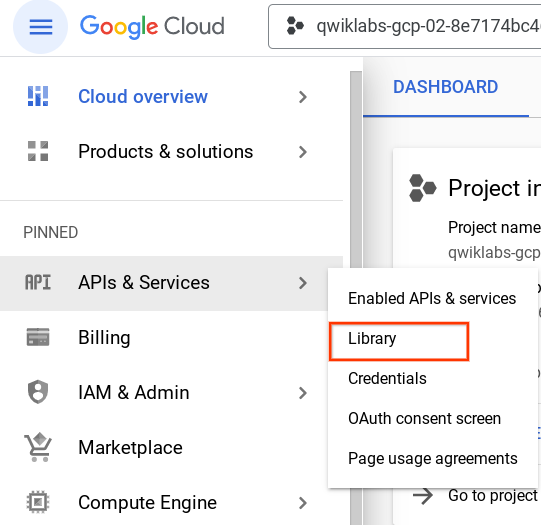
  1. 在左選單依序點選「API 和服務」>「程式庫」

「程式庫」選項的導覽路徑。

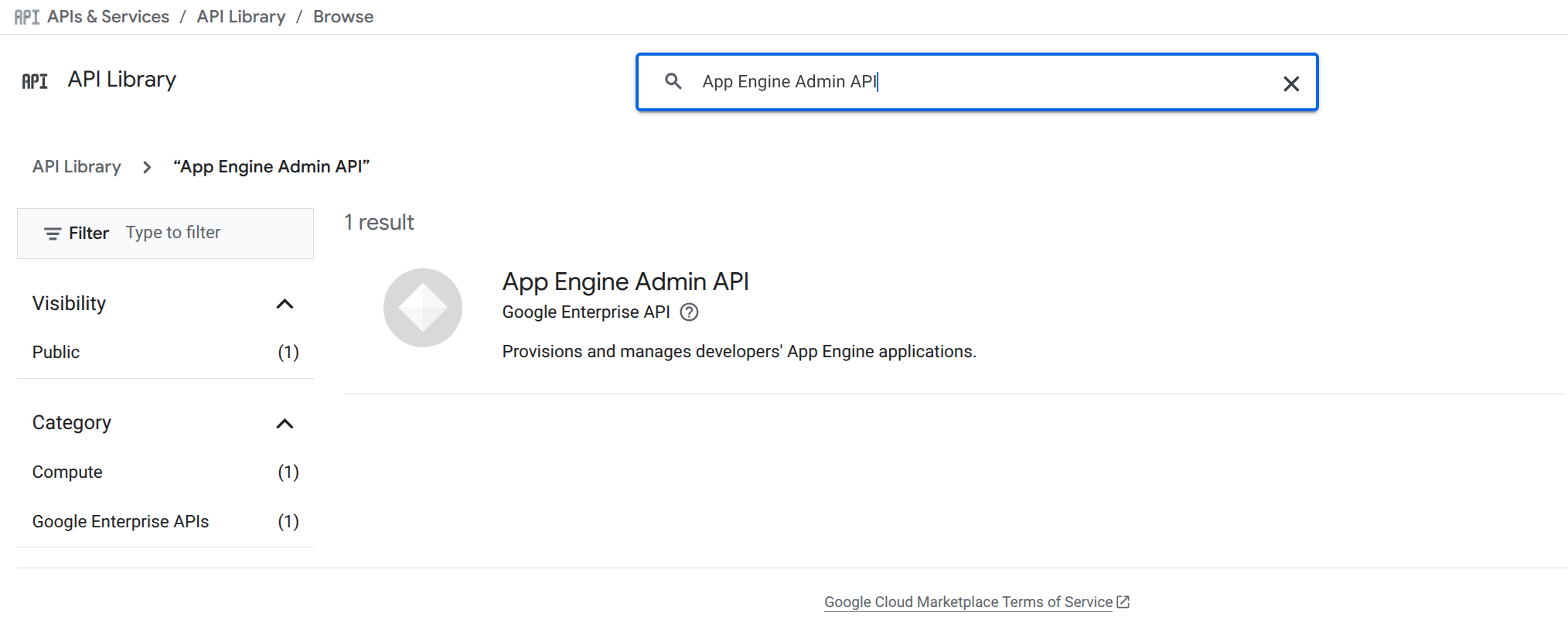
  1. 在搜尋框輸入「App Engine Admin API」。
  2. 點選「App Engine Admin API」

醒目顯示的 Google App Engine Admin API 結果。

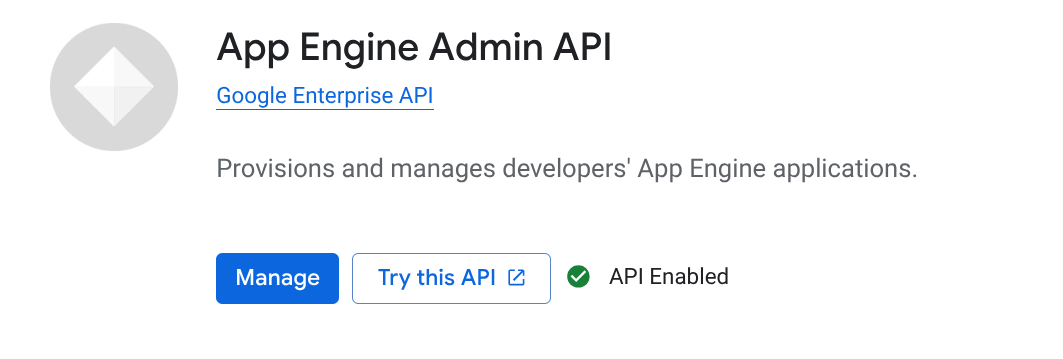
  1. 點選「啟用」(如有需要)。

醒目顯示的「啟用」按鈕

工作 2:下載 Hello World 應用程式

我們建立了 Go 適用的簡易 Hello World 應用程式,方便您快速瞭解如何在 Google Cloud 部署應用程式。請按照下列步驟,將 Hello World 下載到 Google Cloud 執行個體。

  1. 開啟 Cloud Shell 工作階段,輸入下列指令來複製 Hello World 範例應用程式存放區:
git clone https://github.com/GoogleCloudPlatform/golang-samples.git
  1. 前往包含程式碼範例的目錄:
cd golang-samples/appengine/go11x/helloworld

工作 3:部署應用程式

  1. 如要將應用程式部署至 App Engine,請在 app.yaml 檔案所在的應用程式根目錄,執行以下指令:
sudo apt-get install google-cloud-sdk-app-engine-go gcloud app deploy
  1. 輸入代表所在區域的數字:

輸出內容範例:

Creating App Engine application in project [qwiklabs-gcp-58a2268dafa9e708] and region [asia-south1]....done. Services to deploy: descriptor: [/home/gcpstaging8142_student/helloworld/app.yaml] source: [/home/gcpstaging8142_student/helloworld] target project: [qwiklabs-gcp-58a2268dafa9e708] target service: [default] target version: [20171117t080909] target url: [https://qwiklabs-gcp-58a2268dafa9e708.appspot.com] Do you want to continue (Y/n)?
  1. 系統提示時,請輸入 Y 確認部署服務。

輸出內容範例:

Beginning deployment of service [default]... Some files were skipped. Pass `--verbosity=info` to see which ones. You may also view the gcloud log file, found at [/tmp/tmp.4CytrNBIMQ/logs/2017.11.17/08.06.15.720314.log]. ╔════════════════════════════════════════════════════════════╗ ╠═ Uploading 2 files to Google Cloud Storage ═╣ ╚════════════════════════════════════════════════════════════╝ File upload done. Updating service [default]...done. Waiting for operation [apps/qwiklabs-gcp-58a2268dafa9e708/operations/27b6d801-9018-4a86-b8c0-6082f78fb09f] to complete...done. Updating service [default]...done. Deployed service [default] to [https://qwiklabs-gcp-58a2268dafa9e708.appspot.com] You can stream logs from the command line by running: $ gcloud app logs tail -s default To view your application in the web browser run: $ gcloud app browse

工作 4:查看您的應用程式

  1. 輸入下列指令,啟動瀏覽器:
gcloud app browse
  1. 然後點選提供的連結。

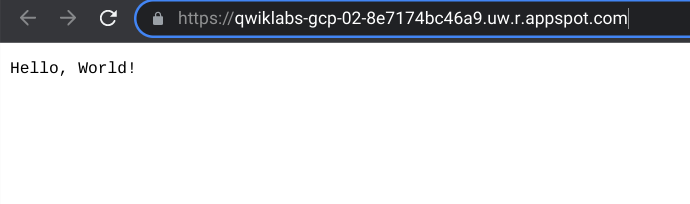
輸出內容範例,請注意您的連結會不同:

網頁上顯示「Hello, World!」。

應用程式已部署完成,您可以在瀏覽器看到簡短訊息。

點選「Check my progress」確認目標已達成。

部署您的應用程式。

工作 5:學以致用

接受測驗,測試您對 Google Cloud Platform 瞭解多少。如有多個正確的選項,請複選。

恭喜!

您已使用 App Engine 部署基本應用程式。

後續步驟/瞭解詳情

Google Cloud 教育訓練與認證

協助您瞭解如何充分運用 Google Cloud 的技術。我們的課程會介紹專業技能和最佳做法,讓您可以快速掌握要領並持續進修。我們提供從基本到進階等級的訓練課程,並有隨選、線上和虛擬課程等選項,方便您抽空參加。認證可協助您驗證及證明自己在 Google Cloud 技術方面的技能和專業知識。

使用手冊上次更新日期:2025 年 12 月 19 日

實驗室上次測試日期:2025 年 12 月 19 日

Copyright 2026 Google LLC 保留所有權利。Google 和 Google 標誌是 Google LLC 的商標,其他公司和產品名稱則有可能是其關聯公司的商標。

Before you begin

  1. Labs create a Google Cloud project and resources for a fixed time
  2. Labs have a time limit and no pause feature. If you end the lab, you'll have to restart from the beginning.
  3. On the top left of your screen, click Start lab to begin

Use private browsing

  1. Copy the provided Username and Password for the lab
  2. Click Open console in private mode

Sign in to the Console

  1. Sign in using your lab credentials. Using other credentials might cause errors or incur charges.
  2. Accept the terms, and skip the recovery resource page
  3. Don't click End lab unless you've finished the lab or want to restart it, as it will clear your work and remove the project

This content is not currently available

We will notify you via email when it becomes available

Great!

We will contact you via email if it becomes available

One lab at a time

Confirm to end all existing labs and start this one

Use private browsing to run the lab

Using an Incognito or private browser window is the best way to run this lab. This prevents any conflicts between your personal account and the Student account, which may cause extra charges incurred to your personal account.

Complete this quick step to start your lab.



