
实验设置说明和要求
保护您的账号和进度。请务必在无痕浏览器窗口中,使用实验凭证运行此实验。

Serverless Data Analysis with Dataflow: Side Inputs (Python)

实验 1 小时 30 分钟 universal_currency_alt 5 积分 show_chart 高级
info 此实验可能会提供 AI 工具来支持您学习。
此内容尚未针对移动设备进行优化。
为获得最佳体验,请在桌面设备上访问通过电子邮件发送的链接。

Overview

In this lab, you learn how to load data into BigQuery and run complex queries. Next, you will execute a Dataflow pipeline that can carry out Map and Reduce operations, use side inputs and stream into BigQuery.

Objective

In this lab, you learn how to use BigQuery as a data source into Dataflow, and how to use the results of a pipeline as a side input to another pipeline.

  • Read data from BigQuery into Dataflow
  • Use the output of a pipeline as a side-input to another pipeline

Setup

For each lab, you get a new Google Cloud project and set of resources for a fixed time at no cost.

  1. Sign in to Google Skills using an incognito window.

  2. Note the lab's access time (for example, 1:15:00), and make sure you can finish within that time. There is no pause feature. You can restart if needed, but you have to start at the beginning.

  3. When ready, click Start lab.

  4. Note your lab credentials (Username and Password). You will use them to sign in to the Google Cloud Console.

  5. Click Open Google Console.

  6. Click Use another account and copy/paste credentials for this lab into the prompts. If you use other credentials, you'll receive errors or incur charges.

  7. Accept the terms and skip the recovery resource page.

Check project permissions

Before you begin your work on Google Cloud, you need to ensure that your project has the correct permissions within Identity and Access Management (IAM).

  1. In the Google Cloud console, on the Navigation menu (Navigation menu icon), select IAM & Admin > IAM.

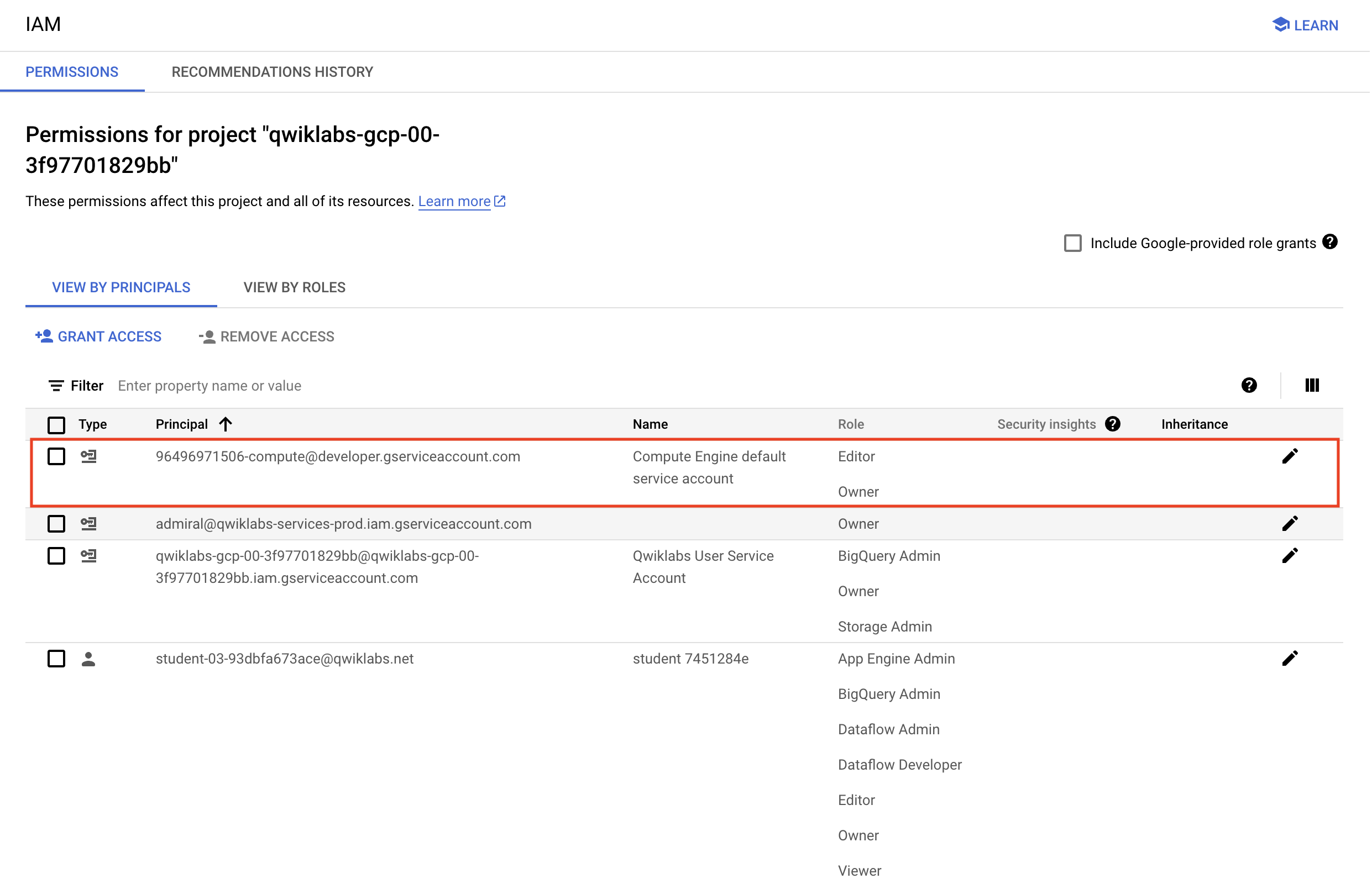
  2. Confirm that the default compute Service Account {project-number}-compute@developer.gserviceaccount.com is present and has the editor role assigned. The account prefix is the project number, which you can find on Navigation menu > Cloud Overview > Dashboard.

Compute Engine default service account name and editor status highlighted on the Permissions tabbed page

Note: If the account is not present in IAM or does not have the editor role, follow the steps below to assign the required role.
  1. In the Google Cloud console, on the Navigation menu, click Cloud Overview > Dashboard.
  2. Copy the project number (e.g. 729328892908).
  3. On the Navigation menu, select IAM & Admin > IAM.
  4. At the top of the roles table, below View by Principals, click Grant Access.
  5. For New principals, type:
{project-number}-compute@developer.gserviceaccount.com
  1. Replace {project-number} with your project number.
  2. For Role, select Project (or Basic) > Editor.
  3. Click Save.

Task 1. Preparation

Assign the Dataflow Developer role

If the account does not have the Dataflow Developer role, follow the steps below to assign the required role.

  1. On the Navigation menu, click IAM & Admin > IAM.

  2. Select the default compute Service Account {project-number}-compute@developer.gserviceaccount.com.

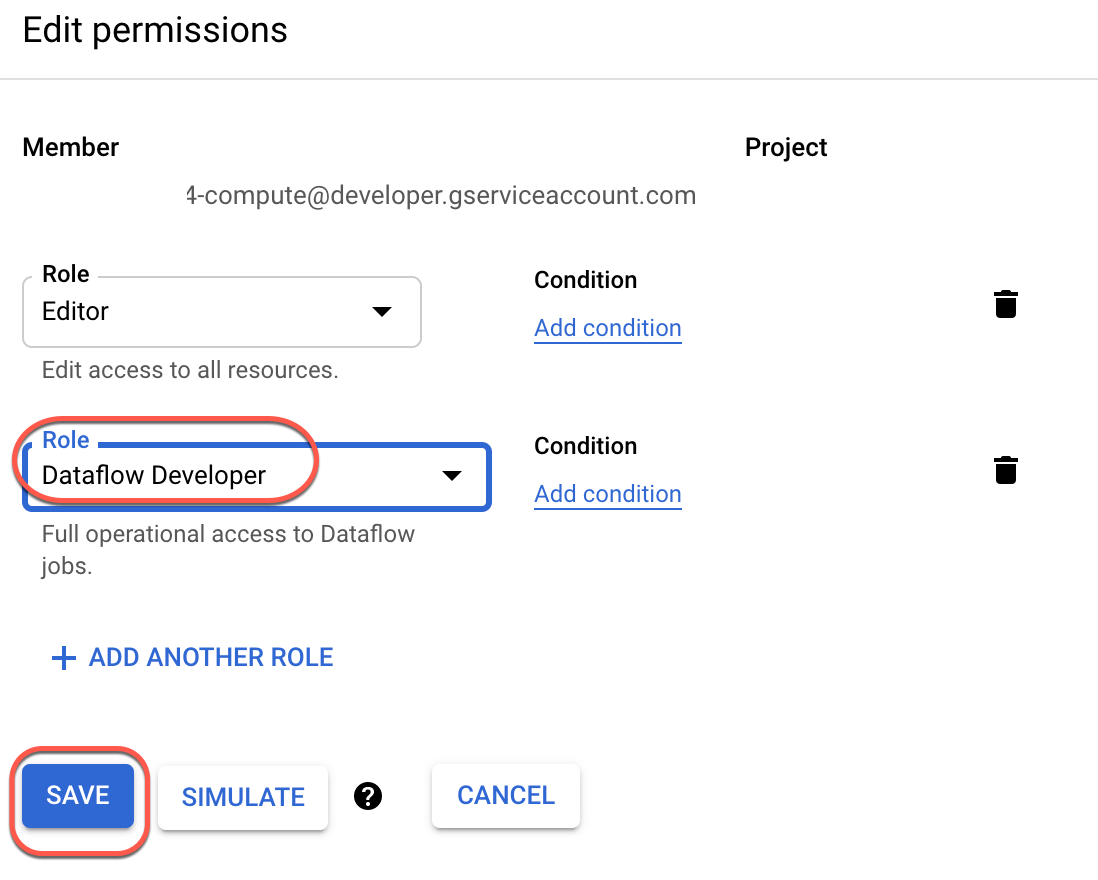
  3. Select the Edit option (the pencil on the far right).

  4. Click Add Another Role.

  5. Click inside the box for Select a Role. In the Type to filter selector, type and choose Dataflow Developer.

  6. Click Save.

Edit permissions page

Ensure that the Dataflow API is successfully enabled

  1. On the Google Cloud Console title bar, click Activate Cloud Shell. If prompted, click Continue.

  2. Run the following commands to ensure that the Dataflow API is enabled cleanly in your project. If prompted, click Authorize:

gcloud services disable dataflow.googleapis.com gcloud services enable dataflow.googleapis.com

Open the SSH terminal and connect to the training VM

You will be running all code from a curated training VM.

  1. In the Console, on the Navigation menu (Navigation menu icon), click Compute Engine > VM instances.

  2. Locate the line with the instance called training-vm.

  3. On the far right, under Connect, click on SSH to open a terminal window. If prompted, click Authorize.

  4. In this lab, you will enter CLI commands on the training-vm.

Download Code Repository

  • Next you will download a code repository for use in this lab. In the training-vm SSH terminal enter the following:
git clone https://github.com/GoogleCloudPlatform/training-data-analyst

Create a Cloud Storage bucket

Follow these instructions to create a bucket.

  1. In the Console, on the Navigation menu, click Cloud Storage > Buckets.
  2. Click + Create.
  3. Specify the following, and leave the remaining settings as their defaults:
Property Value (type value or select option as specified)
Name
Location type > Region
  1. Click Create.

  2. If you get the Public access will be prevented prompt, select Enforce public access prevention on this bucket and click Confirm.

  3. In the training-vm SSH terminal enter the following to create three environment variables. One named "BUCKET", another named "PROJECT", and the last named "REGION". Verify that each exists with the echo command:

BUCKET="{{{project_0.project_id|project_place_holder_text}}}" echo $BUCKET PROJECT="{{{project_0.project_id|project_place_holder_text}}}" echo $PROJECT REGION="{{{project_0.startup_script.gcp_region|region_place_holder_text}}}" echo $REGION

Task 2. Try using BigQuery query

  1. In the console, on the Navigation menu (Navigation menu icon), click BigQuery.
  2. If prompted click Done.
  3. Click "+" (SQL Query) and type the following query:
SELECT content FROM `cloud-training-demos.github_repos.contents_java` LIMIT 10
  1. Click on Run.

What is being returned?

The BigQuery table cloud-training-demos.github_repos.contents_java contains the content (and some metadata) of all the Java files present in GitHub in 2016.

  1. To find out how many Java files this table has, type the following query and click Run:
SELECT COUNT(*) FROM `cloud-training-demos.github_repos.contents_java`

How many files are there in this dataset?

Is this a dataset you want to process locally or on the cloud?

Task 3. Explore the pipeline code

  1. Return to the training-vm SSH terminal and navigate to the directory /training-data-analyst/courses/data_analysis/lab2/python and view the file JavaProjectsThatNeedHelp.py.

View the file with Nano. Do not make any changes to the code. Press Ctrl+X to exit Nano.

cd ~/training-data-analyst/courses/data_analysis/lab2/python nano JavaProjectsThatNeedHelp.py

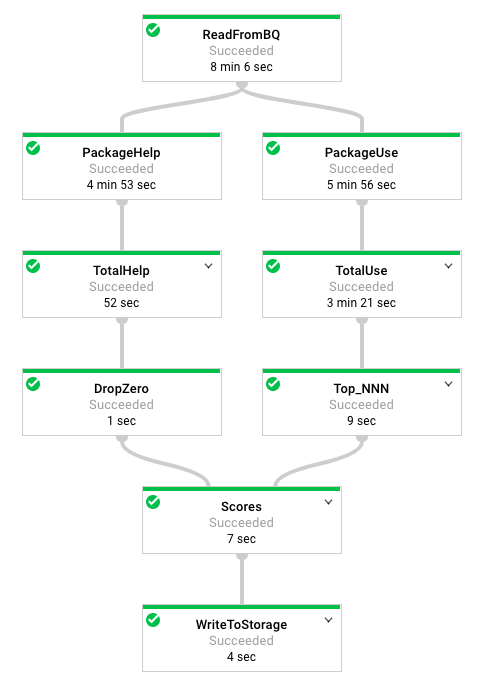
Refer to this diagram as you read the code. The pipeline looks like this:

Pipeline diagram

  1. Answer the following questions:
  • Looking at the class documentation at the very top, what is the purpose of this pipeline?
  • Where does the content come from?
  • What does the left side of the pipeline do?
  • What does the right side of the pipeline do?
  • What does ToLines do? (Hint: look at the content field of the BigQuery result)
  • Why is the result of ReadFromBQ stored in a named PCollection instead of being directly passed to another step?
  • What are the two actions carried out on the PCollection generated from ReadFromBQ?
  • If a file has 3 FIXMEs and 2 TODOs in its content (on different lines), how many calls for help are associated with it?
  • If a file is in the package com.google.devtools.build, what are the packages that it is associated with?
  • popular_packages and help_packages are both named PCollections and both used in the Scores (side inputs) step of the pipeline. Which one is the main input and which is the side input?
  • What is the method used in the Scores step?
  • What Python data type is the side input converted into in the Scores step?
Note: The Java version of this program is slightly different from the Python version. The Java SDK supports AsMap and the Python SDK doesn't. It supports AsDict instead. In Java, the PCollection is converted into a View as a preparatory step before it is used. In Python, the PCollection conversion occurs in the step where it is used.

Task 4. Execute the pipeline

  1. The program requires BUCKET, PROJECT, and REGION values and whether you want to run the pipeline locally using --DirectRunner or on the cloud using --DataFlowRunner.

  2. Execute the pipeline locally by typing the following into the training-vm SSH terminal:

python3 JavaProjectsThatNeedHelp.py --bucket $BUCKET --project $PROJECT --region $REGION --DirectRunner Note: Please ignore the warning if any, such as 'BeamDeprecationWarning', and move forward.
  1. Once the pipeline has finished executing, On the Navigation menu (Navigation menu icon), click Cloud Storage > Buckets and click on your bucket. You will find the results in the javahelp folder. Click on the Result object to examine the output.

  2. Execute the pipeline on the cloud by typing the following into the training-vm SSH terminal:

python3 JavaProjectsThatNeedHelp.py --bucket $BUCKET --project $PROJECT --region $REGION --DataFlowRunner Note: Please ignore the warning if any, such as 'BeamDeprecationWarning', and move forward.
  1. Return to the browser tab for Console. On the Navigation menu (Navigation menu icon), click View All Products, and select Dataflow from the Analytics section.

  2. Click on your job to monitor progress.

Note: The process may take some time. Wait until the job succeeds.
  1. Once the pipeline has finished executing, On the Navigation menu (Navigation menu icon) click Cloud Storage > Buckets and click on your bucket. You will find the results in the javahelp folder. Click on the Result object to examine the output. The file name will be the same but you will notice that the file creation time is more recent.

Click Check my progress to verify the objective. Execute the pipeline

End your lab

When you have completed your lab, click End Lab. Google Skills removes the resources you’ve used and cleans the account for you.

You will be given an opportunity to rate the lab experience. Select the applicable number of stars, type a comment, and then click Submit.

The number of stars indicates the following:

  • 1 star = Very dissatisfied
  • 2 stars = Dissatisfied
  • 3 stars = Neutral
  • 4 stars = Satisfied
  • 5 stars = Very satisfied

You can close the dialog box if you don't want to provide feedback.

For feedback, suggestions, or corrections, please use the Support tab.

Copyright 2026 Google LLC All rights reserved. Google and the Google logo are trademarks of Google LLC. All other company and product names may be trademarks of the respective companies with which they are associated.

准备工作

  1. 实验会创建一个 Google Cloud 项目和一些资源,供您使用限定的一段时间
  2. 实验有时间限制,并且没有暂停功能。如果您中途结束实验,则必须重新开始。
  3. 在屏幕左上角,点击开始实验即可开始

使用无痕浏览模式

  1. 复制系统为实验提供的用户名密码
  2. 在无痕浏览模式下,点击打开控制台

登录控制台

  1. 使用您的实验凭证登录。使用其他凭证可能会导致错误或产生费用。
  2. 接受条款,并跳过恢复资源页面
  3. 除非您已完成此实验或想要重新开始,否则请勿点击结束实验,因为点击后系统会清除您的工作并移除该项目

此内容目前不可用

一旦可用,我们会通过电子邮件告知您

太好了!

一旦可用,我们会通过电子邮件告知您

一次一个实验

确认结束所有现有实验并开始此实验

使用无痕浏览模式运行实验

使用无痕模式或无痕浏览器窗口是运行此实验的最佳方式。这可以避免您的个人账号与学生账号之间发生冲突,这种冲突可能导致您的个人账号产生额外费用。




