
始める前に
- ラボでは、Google Cloud プロジェクトとリソースを一定の時間利用します
- ラボには時間制限があり、一時停止機能はありません。ラボを終了した場合は、最初からやり直す必要があります。
- 画面左上の [ラボを開始] をクリックして開始します


In this exercise, you follow the process used on the User Profile journey to develop Service Level Indicators (SLIs) and Service Level Objectives (SLOs) for the Buy In-Game Currency journey.
In this lab, you learn how to perform the following tasks:
If you are attending an in-person, instructor-led event, please take a moment to form into teams of approximately 4 people. If you are attending virtually, please do the exercise on your own.
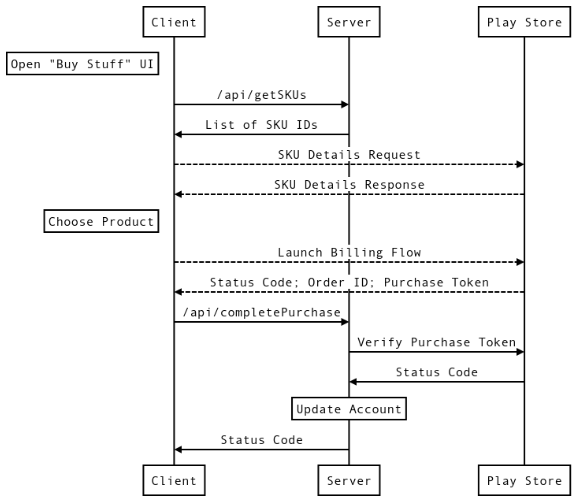
Buy In-Game Currency user journey.Buy In-Game Currency
Our most important user journey is the one that generates all our revenue: users buying in-game currency via in-app purchases. Requests to the Play Store are only visible from the client. We see between 0.1 and 1 completed purchase every second; this spikes to 10 purchases per second after the release of a new area as players try to meet its requirements.
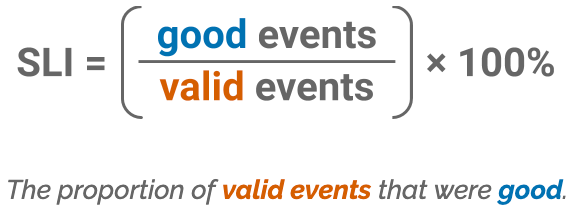
Remember the SLI equation:
Have someone on your team create a copy of the following file and share it with the rest of the team: SLO Worksheet.
As a team, use the worksheet and plan at least one SLI/SLO. Feel free to do more if you have the time. Be prepared to present your ideas to the class.
You successfully planned SLIs and SLOs.
When you have completed your lab, click End Lab. Google Skills removes the resources you’ve used and cleans the account for you.
You will be given an opportunity to rate the lab experience. Select the applicable number of stars, type a comment, and then click Submit.
The number of stars indicates the following:
You can close the dialog box if you don't want to provide feedback.
For feedback, suggestions, or corrections, please use the Support tab.
Copyright 2026 Google LLC All rights reserved. Google and the Google logo are trademarks of Google LLC. All other company and product names may be trademarks of the respective companies with which they are associated.



このコンテンツは現在ご利用いただけません
利用可能になりましたら、メールでお知らせいたします

ありがとうございます。
利用可能になりましたら、メールでご連絡いたします


1 回に 1 つのラボ
既存のラボをすべて終了して、このラボを開始することを確認してください