
![The Deploy Kubeflow Pipelines page, wherein the Cluster field is highlighted; cluster-1 [us-central1-a]](https://cdn.qwiklabs.com/7hNGiVqhlzq%2B93cIHQbdOP4vkCShEStbKbJFvGAfKAA%3D)

准备工作
- 实验会创建一个 Google Cloud 项目和一些资源,供您使用限定的一段时间
- 实验有时间限制,并且没有暂停功能。如果您中途结束实验,则必须重新开始。
- 在屏幕左上角,点击开始实验即可开始

Add the Editor permission for Cloud Build service account
/ 10
Creating an instance of AI Platform Pipelines
/ 10
Build the image and push it to your project's Container Registry
/ 10
Create an instance of Vertex AI Platform Notebooks
/ 10
Clone the mlops-on-gcp repo within your Vertex AI Platform Notebooks instance
/ 10
Preparing the lab dataset
/ 10
Create training and validation splits
/ 10
Develop a training application
/ 10
Submit an AI Platform hyperparameter tuning job
/ 10
Deploy the model to AI Platform Prediction
/ 10

In this lab, you develop a multi-class classification model, package the model as a Docker image, and run the model on AI Platform Training as a training application. The training application trains a multi-class classification model that predicts the type of forest cover from cartographic data. The dataset used in the lab is based on the Covertype Data Set from the UCI Machine Learning Repository.
Scikit-learn is one of the most useful libraries for machine learning in Python. The training code uses Scikit-learn for data pre-processing and modeling.
The code is instrumented using the hypertune package. Therefore, it can be used with an AI Platform hyperparameter tuning job to serch for the best combination of hyperparameter values by optimizing the metrics you specify.
For each lab, you get a new Google Cloud project and set of resources for a fixed time at no cost.
Sign in to Google Skills using an incognito window.
Note the lab's access time (for example, 1:15:00), and make sure you can finish within that time.
There is no pause feature. You can restart if needed, but you have to start at the beginning.
When ready, click Start lab.
Note your lab credentials (Username and Password). You will use them to sign in to the Google Cloud Console.
Click Open Google Console.
Click Use another account and copy/paste credentials for this lab into the prompts.
If you use other credentials, you'll receive errors or incur charges.
Accept the terms and skip the recovery resource page.
Cloud Shell is a virtual machine that contains development tools. It offers a persistent 5-GB home directory and runs on Google Cloud. Cloud Shell provides command-line access to your Google Cloud resources. gcloud is the command-line tool for Google Cloud. It comes pre-installed on Cloud Shell and supports tab completion.
Click the Activate Cloud Shell button (
Click Continue.
It takes a few moments to provision and connect to the environment. When you are connected, you are also authenticated, and the project is set to your PROJECT_ID.
(Output)
(Example output)
(Output)
(Example output)
Click Check my progress to verify the objective.
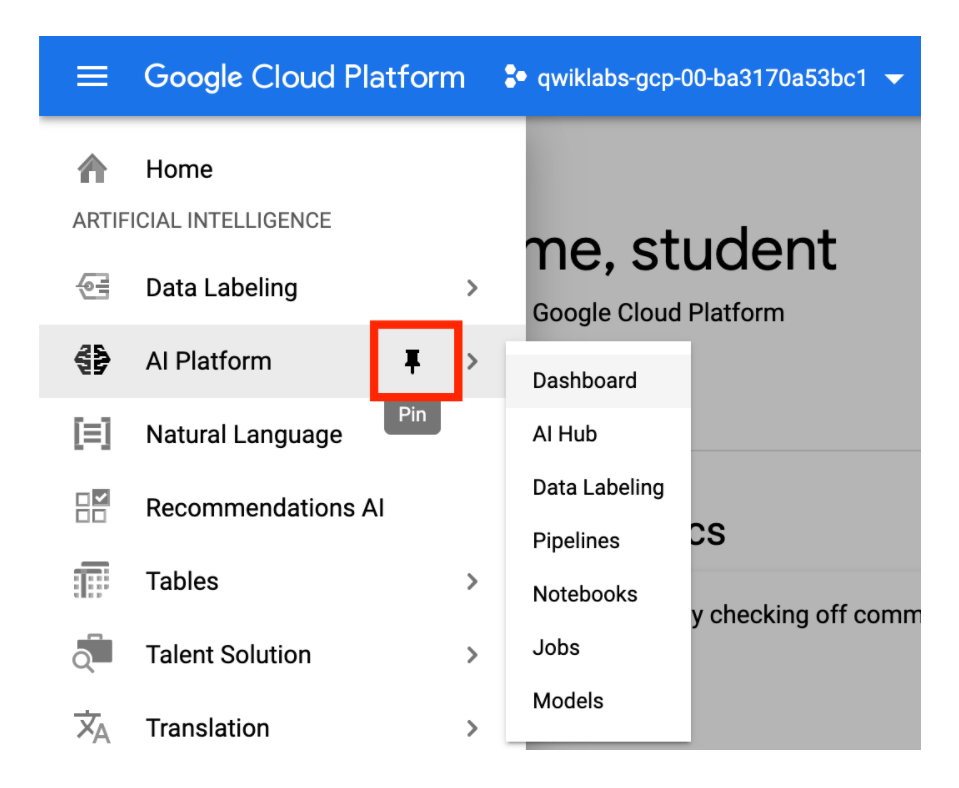
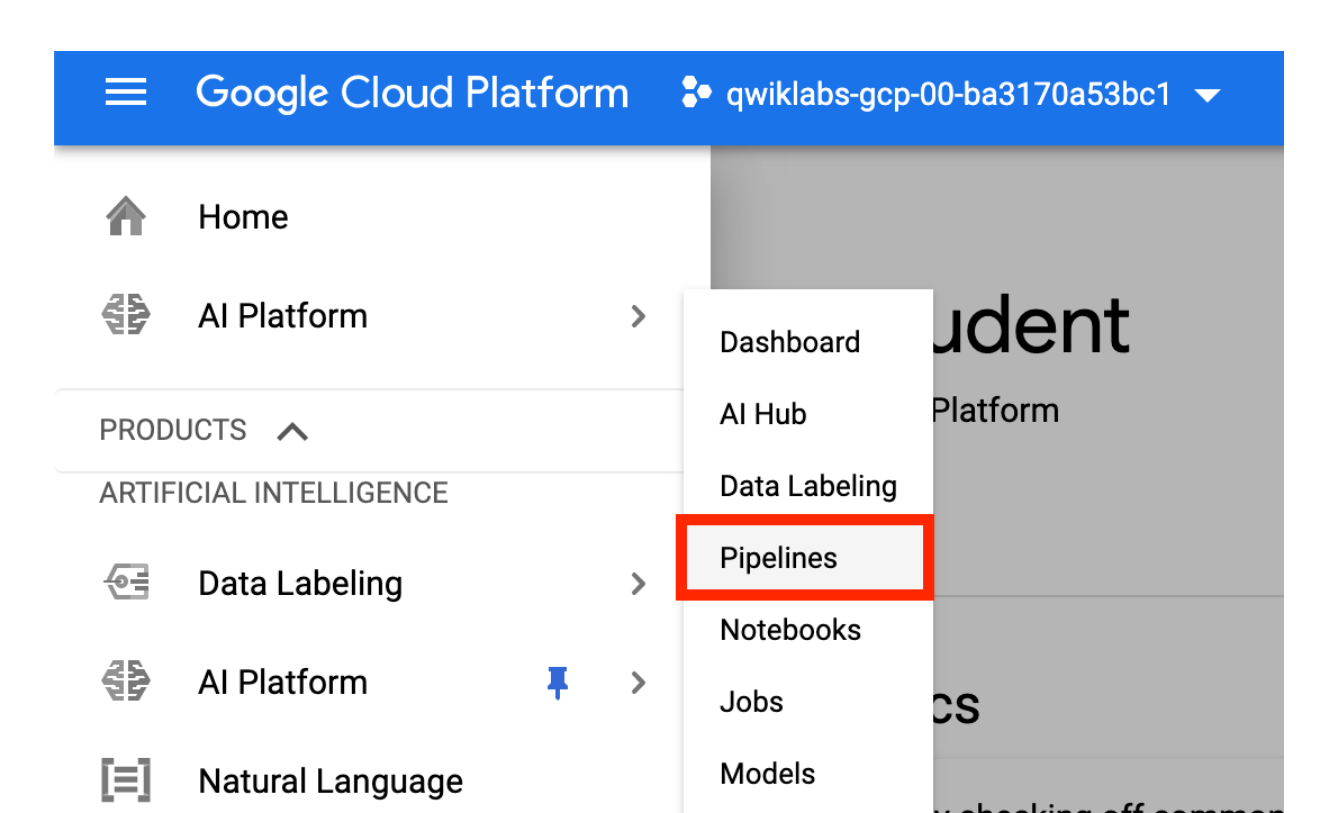
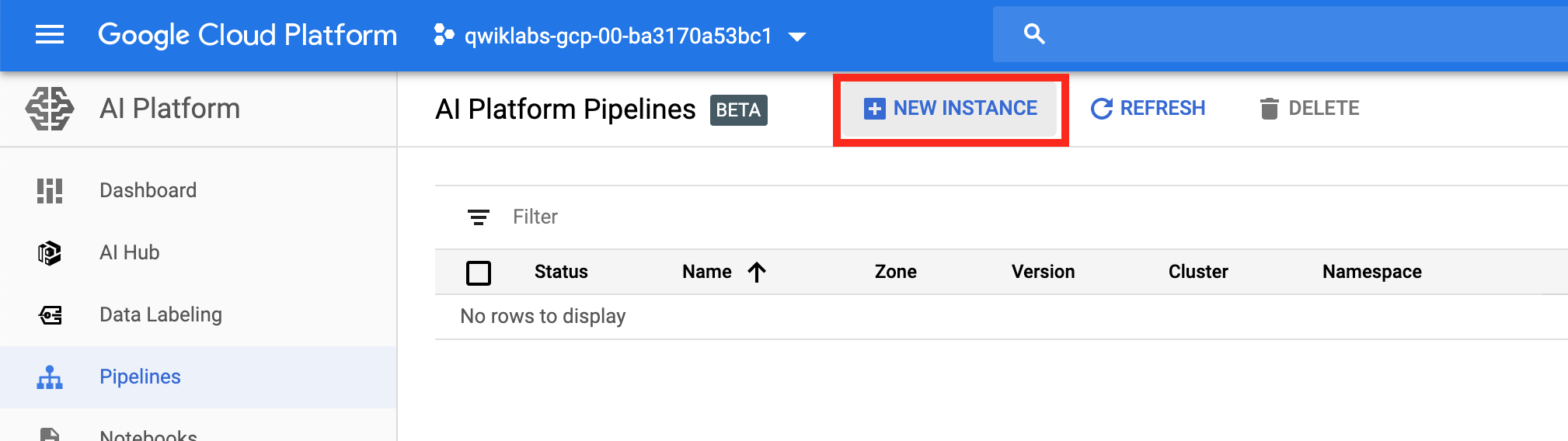
This should take 2-3 minutes to complete. Wait for the cluster to finish before proceeding to the next step.
When the cluster is complete the cloud shell will show a status similar to the image below.
The cluster you created in Step 2 will appear by default in the selection window.
You will see the individual services of KFP deployed to your GKE cluster. Wait for the deployment to finish before proceeding to the next task.
Click Check my progress to verify the objective.
An instance of Vertex AI Platform Notebooks is used as a primary experimentation/development workbench. The instance is configured using a custom container image that includes all Python packages required for this lab.
Click Check my progress to verify the objective.
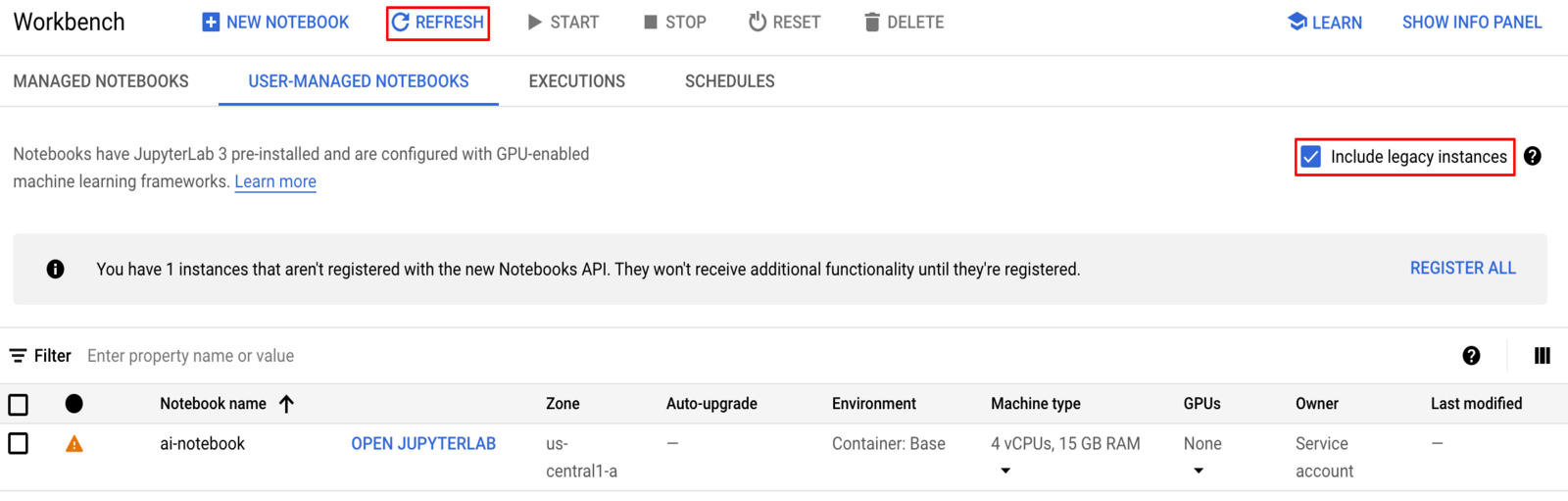
If you want to use a different ZONE and INSTANCE_NAME, replace us-central1-a with the zone of your choice as [YOUR_ZONE] and replace ai-notebook with the instance name of your choice as [YOUR_INSTANCE_NAME]:
This may take up to 5 minutes to complete.
The Vertex AI Platform Workbench instance, takes 2 to 3 minutes to reflect.
Click Check my progress to verify the objective.
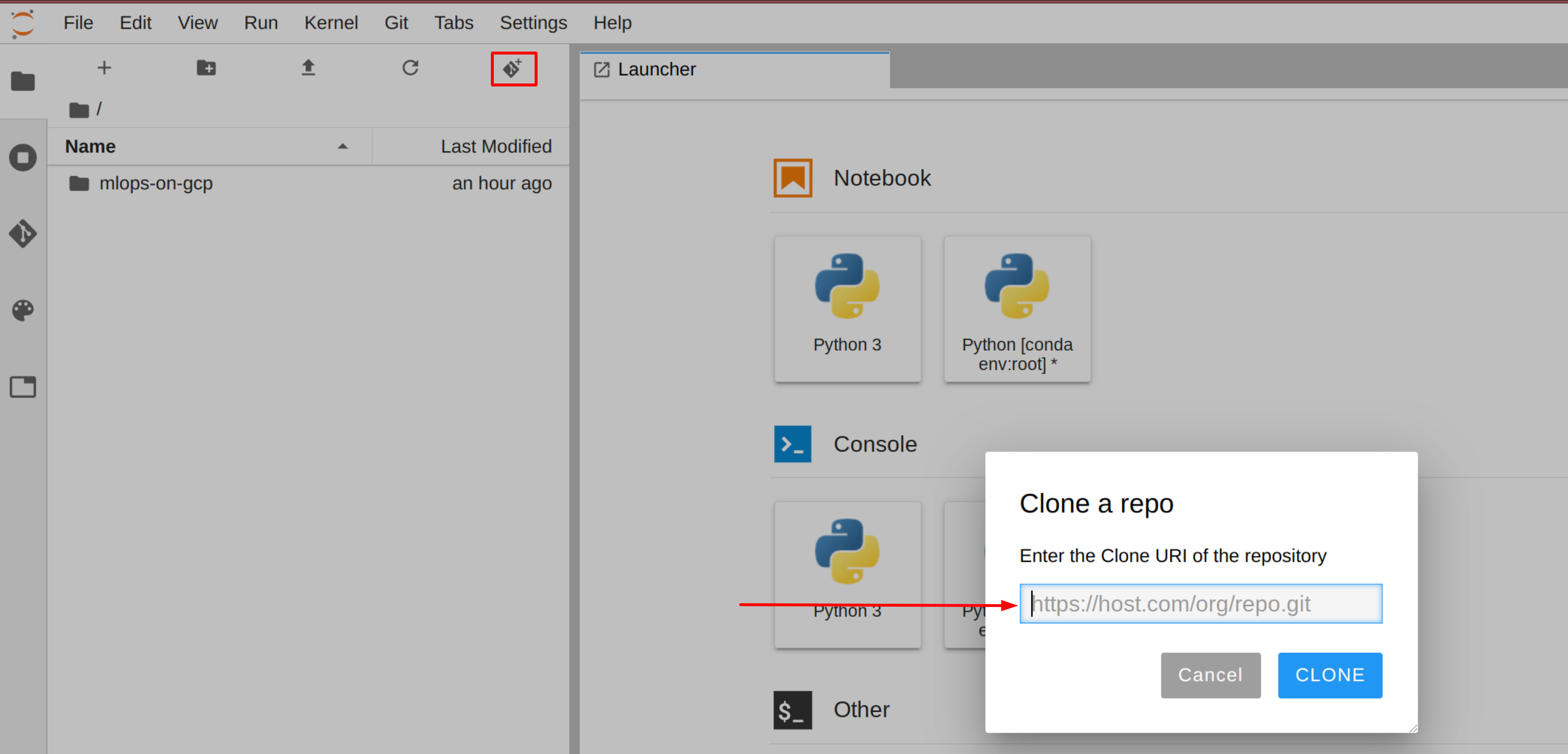
To clone the mlops-on-gcp notebook in your JupyterLab instance:
In JupyterLab, click the Terminal icon to open a new terminal.
At the command-line prompt, type in the following command and press Enter:
Confirm that you have cloned the repository by double clicking on the mlops-on-gcp directory and ensuring that you can see its contents. The files for all the Jupyter notebook-based labs throughout this course are available in this directory.
Click Check my progress to verify the objective.
In the notebook interface, navigate to mlops-on-gcp > on_demand > kfp-caip-sklearn > lab-01-caip-containers > exercises, and open lab-01.ipynb.
In the notebook interface, click Edit > Clear All Outputs.
Carefully read through the notebook instructions and fill in lines marked with #TODO where you need to complete the code.
The pipeline ingests data from BigQuery. While executing the cells in the notebook, you set the BigQuery parameters, created a BigQuery dataset, and uploaded the Covertype CSV data into a table.
Click Check my progress to verify the objective.
Click Check my progress to verify the objective.
Click Check my progress to verify the objective.
Click Check my progress to verify the objective.
Click Check my progress to verify the objective.
In this lab you learned how to develop a training application, package it as a Docker image, and run it on AI Platform Training.
When you have completed your lab, click End Lab. Google Skills removes the resources you’ve used and cleans the account for you.
You will be given an opportunity to rate the lab experience. Select the applicable number of stars, type a comment, and then click Submit.
The number of stars indicates the following:
You can close the dialog box if you don't want to provide feedback.
For feedback, suggestions, or corrections, please use the Support tab.
Copyright 2026 Google LLC All rights reserved. Google and the Google logo are trademarks of Google LLC. All other company and product names may be trademarks of the respective companies with which they are associated.



此内容目前不可用
一旦可用,我们会通过电子邮件告知您

太好了!
一旦可用,我们会通过电子邮件告知您


一次一个实验
确认结束所有现有实验并开始此实验