Vertex AI is now Gemini Enterprise Agent Platform! We are currently updating our content to reflect this change. Please bear with us if you encounter naming inconsistencies during this transition.
Applica le tue competenze nella console Google Cloud
Istruzioni e requisiti di configurazione del lab
Proteggi il tuo account e i tuoi progressi. Per eseguire questo lab, utilizza sempre una finestra del browser privata e le credenziali del lab.
Data to Insights: Unioning and Joining Datasets v1.1
Lab
1 ora
universal_currency_alt
5 crediti
show_chart
Introduttivi
info
Questo lab potrebbe incorporare strumenti di AI a supporto del tuo apprendimento.
Questi contenuti non sono ancora ottimizzati per i dispositivi mobili.
Per un'esperienza ottimale, visualizza il sito su un computer utilizzando un link inviato via email.
Overview
JOINs enrich your dataset by potentially adding fields (horizontally).
UNIONs append more data to your table (vertically). When you understand the relationships between your tables, use UNIONS to append records to a consolidated table, and JOINs to enrich your results with data from multiple sources.
This lab focuses on how to create new reporting tables using SQL JOINS and UNIONs.
Objectives
In this lab you learn how to perform the following tasks:
Describe Unioning and Joining Datasets.
Describe Joining Tables.
Describe Working with NULLs.
Setup and requirements
For each lab, you get a new Google Cloud project and set of resources for a fixed time at no cost.
Sign in to Google Skills using an incognito window.
Note the lab's access time (for example, 1:15:00), and make sure you can finish within that time.
There is no pause feature. You can restart if needed, but you have to start at the beginning.
When ready, click Start lab.
Note your lab credentials (Username and Password). You will use them to sign in to the Google Cloud Console.
Click Open Google Console.
Click Use another account and copy/paste credentials for this lab into the prompts.
If you use other credentials, you'll receive errors or incur charges.
Accept the terms and skip the recovery resource page.
Task 1. Practice unioning and joining datasets
Open BigQuery Console
In the Google Cloud Console, select Navigation menu > BigQuery.
The Welcome to BigQuery in the Cloud Console message box opens. This message box provides a link to the quickstart guide and lists UI updates.
Click Done.
Compose the query in BigQuery EDITOR.
Ensure #standardSQL is set as your first line of code.
Write a Query that will count the number of tax filings by calendar year for all IRS Form 990 filings.
Use the below partially-written query as a guide.
Hint: You will need to use Table Wildcards * with _TABLE_SUFFIX.
#standardSQL
# UNION Wildcard and returning a table suffix
SELECT
COUNT(*) as number_of_filings,
AS year_filed
FROM `bigquery-public-data.irs_990.irs_990`
GROUP BY year_filed
ORDER BY year_filed DESC
Compare with the below solution:
#standardSQL
# UNION Wildcard and returning a table suffix
SELECT
COUNT(*) as number_of_filings,
_TABLE_SUFFIX AS year_filed
FROM `bigquery-public-data.irs_990.irs_990_*`
GROUP BY year_filed
ORDER BY year_filed DESC
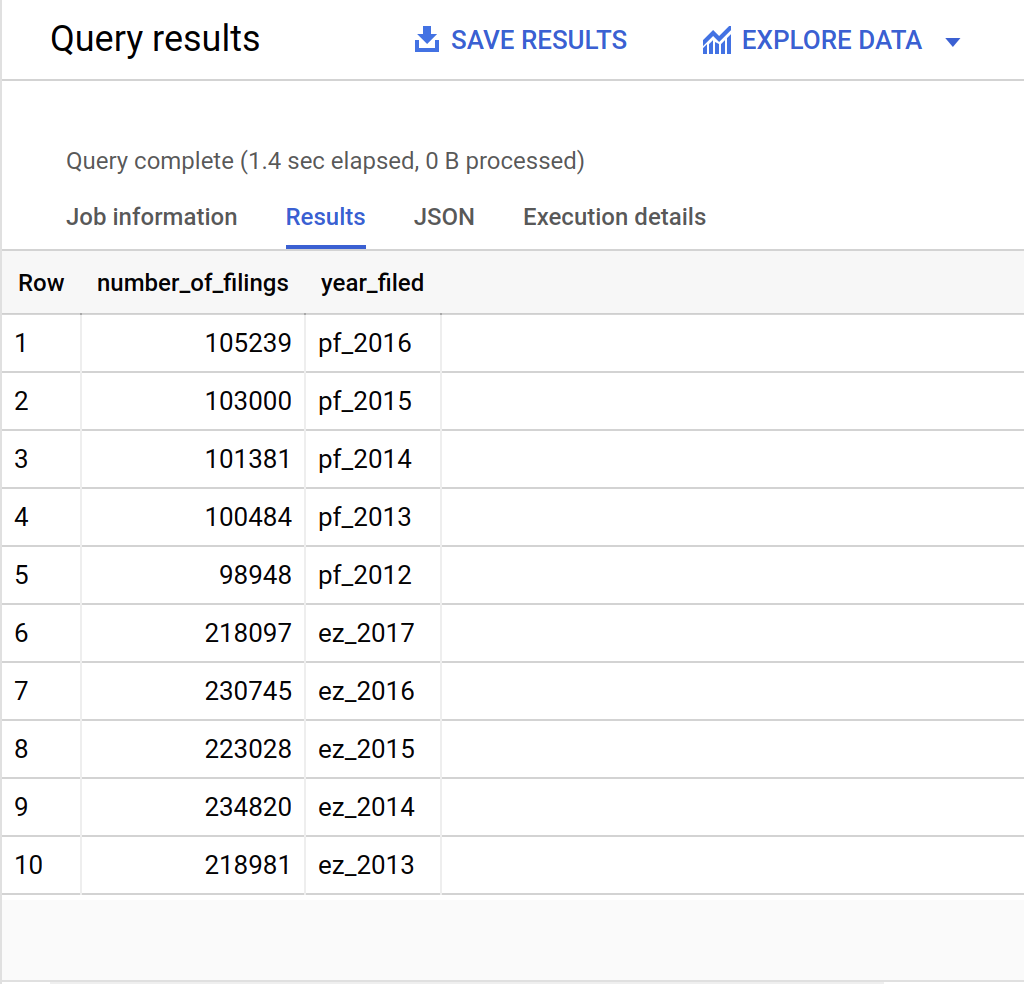
Run the query and confirm against the results below.
Result:
Modify the query you just wrote to only include the IRS tables with the following format: irs_990_YYYY (i.e. filter out pf, ez, ein). Start with the partially completed query below:
#standardSQL
# UNION Wildcard and returning a table suffix
SELECT
COUNT(*) as number_of_filings,
CONCAT(,_TABLE_SUFFIX) AS year_filed
FROM `bigquery-public-data.irs_990.irs_990_*`
GROUP BY year_filed
ORDER BY year_filed DESC
Compare with the below solution:
#standardSQL
# UNION Wildcard and returning a table suffix
SELECT
COUNT(*) as number_of_filings,
CONCAT("2",_TABLE_SUFFIX) AS year_filed
FROM `bigquery-public-data.irs_990.irs_990_2*`
GROUP BY year_filed
ORDER BY year_filed DESC
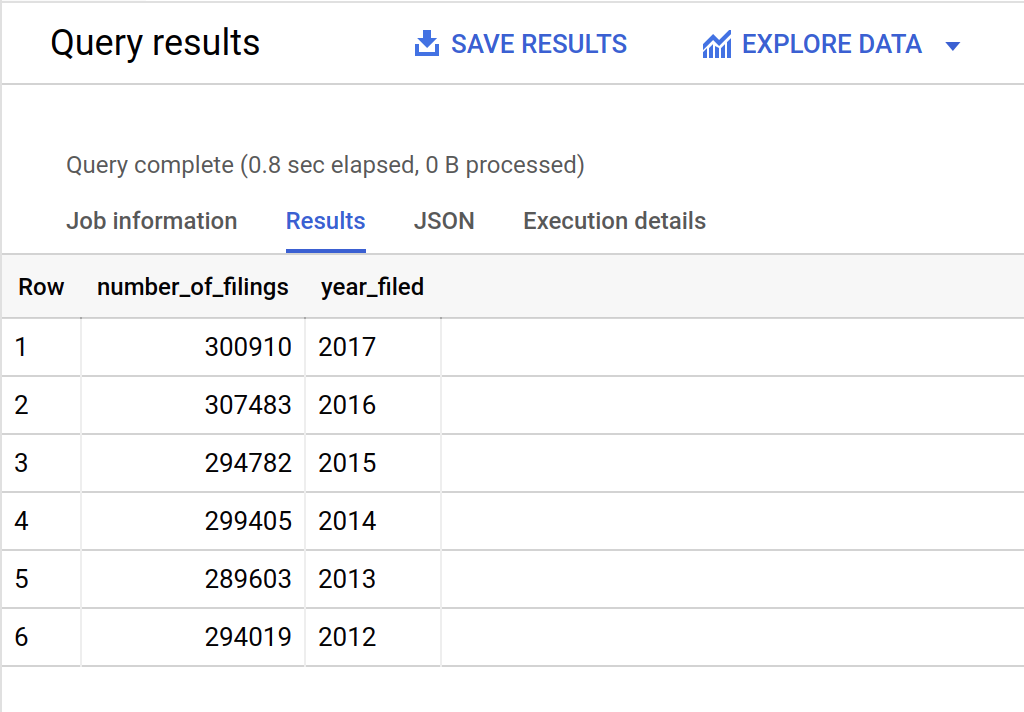
Run the query and confirm the result:
Lastly, modify your query to only include tax filings from tables on or after 2013. Also include average totrevenue and average totfuncexpns as additional metrics.
Hint: Consider using _TABLE_SUFFIX in a filter.
Compare with the below solution:
#standardSQL
# count of filings, revenue, expenses since 2013
SELECT
CONCAT("20",_TABLE_SUFFIX) AS year_filed,
COUNT(ein) AS nonprofit_count,
AVG(totrevenue) AS avg_revenue,
AVG(totfuncexpns) AS avg_expenses
FROM `bigquery-public-data.irs_990.irs_990_20*`
WHERE _TABLE_SUFFIX >= '13'
GROUP BY year_filed
ORDER BY year_filed DESC
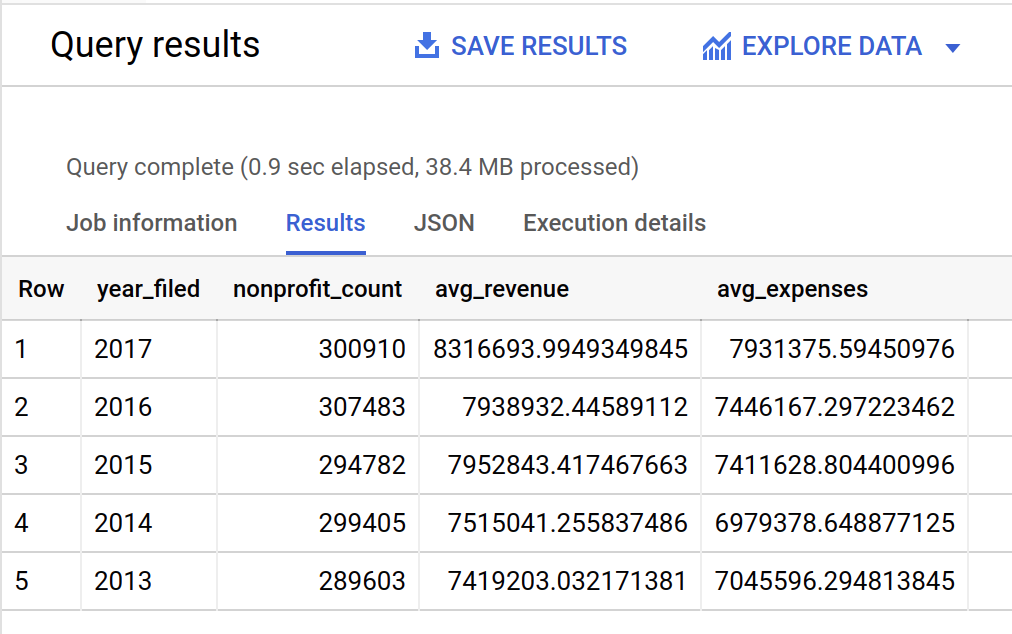
Run the query and confirm the result:
Task 2. Practice joining tables
Find the Org Names of all EINs for 2015 with some revenue or expenses. You will need to join tax filing table data with the organization details table.
Start with the below query and fill in the tables, join condition, and any filter you will need:
#standard SQL
# Find the Org Names of all EINs for 2015 with some revenue or expenses, limit 100
SELECT
tax.ein AS tax_ein,
org.ein AS org_ein,
org.name,
tax.totrevenue,
tax.totfuncexpns
FROM
AS tax
JOIN
AS org
ON
tax.ein =
WHERE
> 0
LIMIT
100;
Compare your query to the below solution:
#standardSQL
# Find the Org Names of all EINs for 2015 with some revenue or expenses, limit 100
SELECT
tax.ein AS tax_ein,
org.ein AS org_ein,
org.name,
tax.totrevenue,
tax.totfuncexpns
FROM
`bigquery-public-data.irs_990.irs_990_2015` AS tax
JOIN
`bigquery-public-data.irs_990.irs_990_ein` AS org
ON
tax.ein = org.ein
WHERE
tax.totrevenue + tax.totfuncexpns > 0
LIMIT
100;
Run the Query.
Confirm the results show 100 records, the names of the Organization, and at least some expenses or revenues.
Clear the BigQuery EDITOR.
Task 3. Practicing working with NULLs
Write a query to find where tax records exist for 2015 but no corresponding Org Name.
Fill out the partially written starter query below:
#standardSQL
# Find where tax records exist for 2015 but no corresponding Org Name
SELECT
tax.ein AS tax_ein,
org.ein AS org_ein,
org.name,
tax.totrevenue,
tax.totfuncexpns
FROM
`bigquery-public-data.irs_990.irs_990_2015` tax
FULL # Complete the JOIN
`bigquery-public-data.irs_990.irs_990_ein` org
ON
WHERE
IS NULL # put tax.ein or org.ein to check here (one is correct)
Compare your solution to the below:
#standardSQL
# Find where tax records exist for 2015 but no corresponding Org Name
SELECT
tax.ein AS tax_ein,
org.ein AS org_ein,
org.name,
tax.totrevenue,
tax.totfuncexpns
FROM
`bigquery-public-data.irs_990.irs_990_2015` tax
FULL JOIN
`bigquery-public-data.irs_990.irs_990_ein` org
ON
tax.ein = org.ein
WHERE
org.ein IS NULL
Run the Query.
Question: How many tax filings occurred in 2015 but have no corresponding record in the Organization Details table?
Answer: 14,123 (your answer may be higher as new EIN numbers get added to the public base table)
Congratulations!
You have completed the UNIONING and JOINING Datasets lab.
Learning review
Use Union Wildcards to treat multiple tables as a single group
Use _TABLE_SUFFIX to filter wildcard tables and create calculated fields with the table name
FULL JOINs (also called FULL OUTER JOINs) include all records from each joined table regardless of whether there are matches on the join key
Having non-unique join keys can result in an unintentional CROSS JOIN (more output rows than input rows) which should be avoided
Use COUNT() and GROUP BY to determine if a key field is indeed unique
End your lab
When you have completed your lab, click End Lab. Google Skills removes the resources you’ve used and cleans the account for you.
You will be given an opportunity to rate the lab experience. Select the applicable number of stars, type a comment, and then click Submit.
The number of stars indicates the following:
1 star = Very dissatisfied
2 stars = Dissatisfied
3 stars = Neutral
4 stars = Satisfied
5 stars = Very satisfied
You can close the dialog box if you don't want to provide feedback.
For feedback, suggestions, or corrections, please use the Support tab.
Copyright 2026 Google LLC All rights reserved. Google and the Google logo are trademarks of Google LLC. All other company and product names may be trademarks of the respective companies with which they are associated.
I lab creano un progetto e risorse Google Cloud per un periodo di tempo prestabilito
I lab hanno un limite di tempo e non possono essere messi in pausa. Se termini il lab, dovrai ricominciare dall'inizio.
In alto a sinistra dello schermo, fai clic su Inizia il lab per iniziare
Utilizza la navigazione privata
Copia il nome utente e la password forniti per il lab
Fai clic su Apri console in modalità privata
Accedi alla console
Accedi utilizzando le tue credenziali del lab. L'utilizzo di altre credenziali potrebbe causare errori oppure l'addebito di costi.
Accetta i termini e salta la pagina di ripristino delle risorse
Non fare clic su Termina lab a meno che tu non abbia terminato il lab o non voglia riavviarlo, perché il tuo lavoro verrà eliminato e il progetto verrà rimosso
Questi contenuti non sono al momento disponibili
Ti invieremo una notifica via email quando sarà disponibile
Bene.
Ti contatteremo via email non appena sarà disponibile
Un lab alla volta
Conferma per terminare tutti i lab esistenti e iniziare questo
Utilizza la navigazione privata per eseguire il lab
Il modo migliore per eseguire questo lab è utilizzare una finestra del browser in incognito o privata. Ciò evita eventuali conflitti tra il tuo account personale e l'account studente, che potrebbero causare addebiti aggiuntivi sul tuo account personale.
UNIONING and JOINING Datasets
Durata:
Configurazione in 0 m
·
Accesso da 60 m
·
Completamento in 60 m