
Before you begin
- Labs create a Google Cloud project and resources for a fixed time
- Labs have a time limit and no pause feature. If you end the lab, you'll have to restart from the beginning.
- On the top left of your screen, click Start lab to begin

Deploy a GKE cluster
/ 50
Upgrade GKE cluster
/ 50

In this lab, you will upgrade a GKE cluster using the Google Cloud Console.
In this lab, you learn how to perform the following task:
For each lab, you get a new Google Cloud project and set of resources for a fixed time at no cost.
Sign in to Google Skills using an incognito window.
Note the lab's access time (for example, 1:15:00), and make sure you can finish within that time.
There is no pause feature. You can restart if needed, but you have to start at the beginning.
When ready, click Start lab.
Note your lab credentials (Username and Password). You will use them to sign in to the Google Cloud Console.
Click Open Google Console.
Click Use another account and copy/paste credentials for this lab into the prompts. If you use other credentials, you'll receive errors or incur charges.
Accept the terms and skip the recovery resource page.
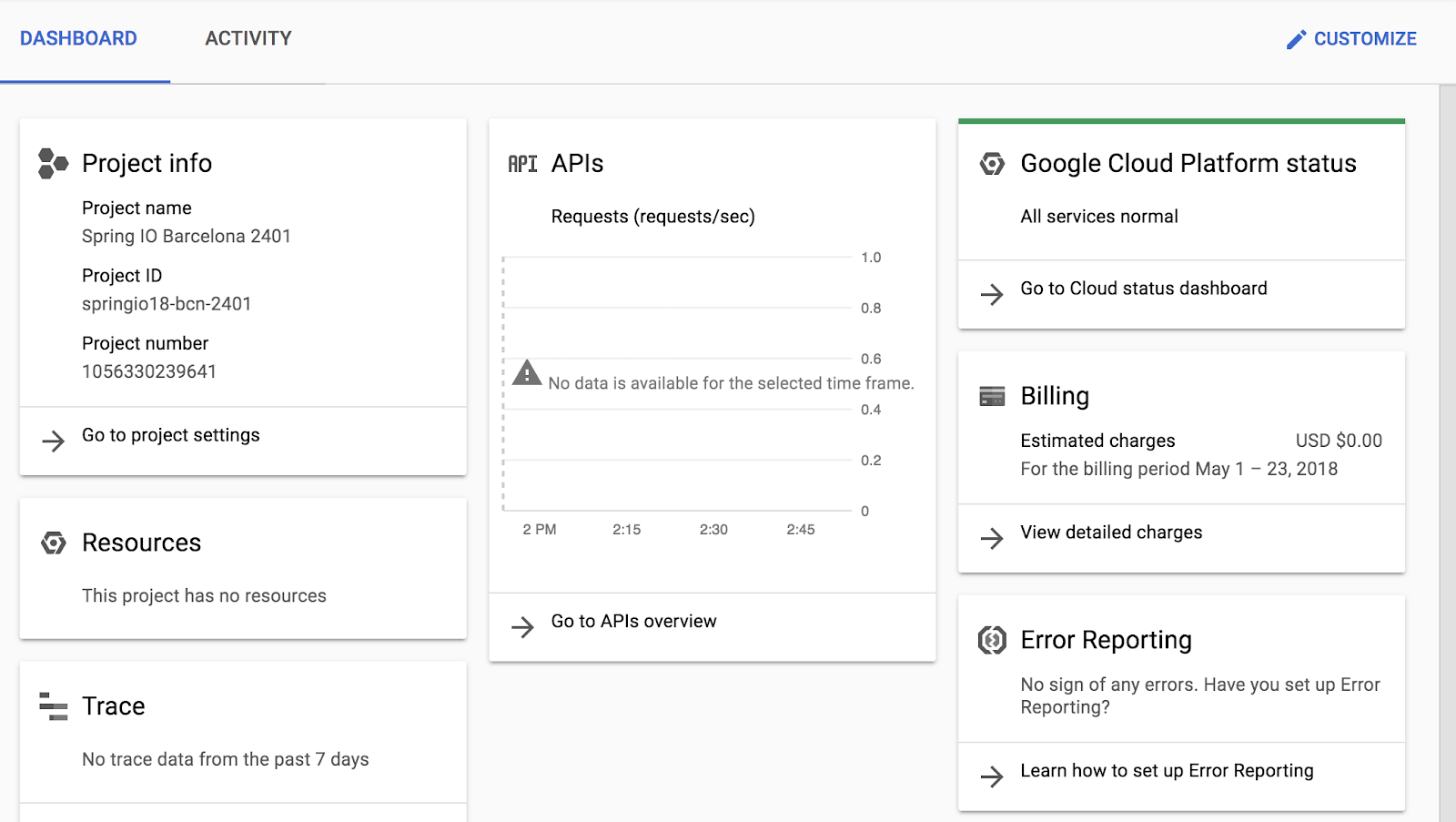
After you complete the initial sign-in steps, the project dashboard appears.
In this task, you use Google Cloud Console to deploy a GKE cluster running a Kubernetes version that is not the most recent release. You will upgrade this cluster to a more recent release in a later task.
In the Google Cloud Console, on the Navigation menu (
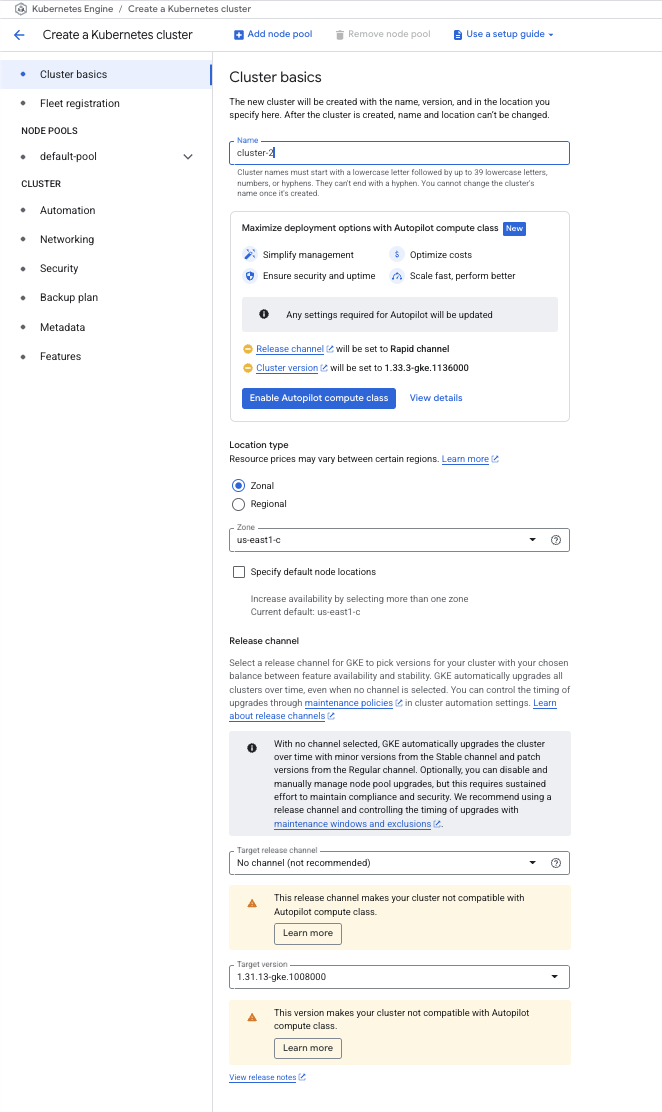
Click + Create to begin creating a GKE cluster.
Click Configure for Standard: You manage your cluster.
For Location type select Zonal and from the dropdown select
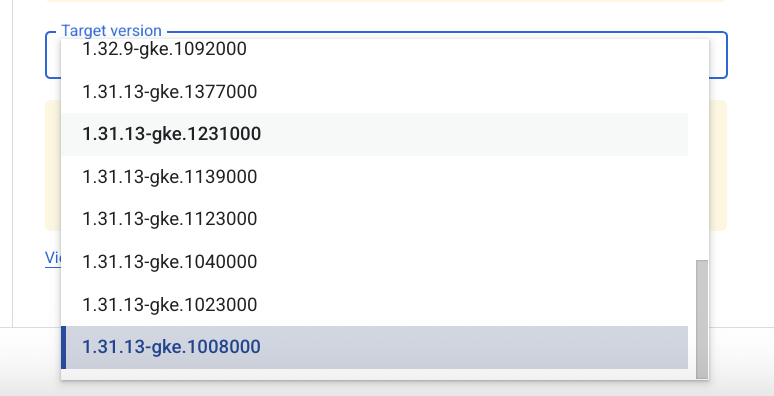
In the Release Channel section, choose No channel (not recommended) as the Target release channel, and then click on the version dropdown to expand the list of available Kubernetes versions.
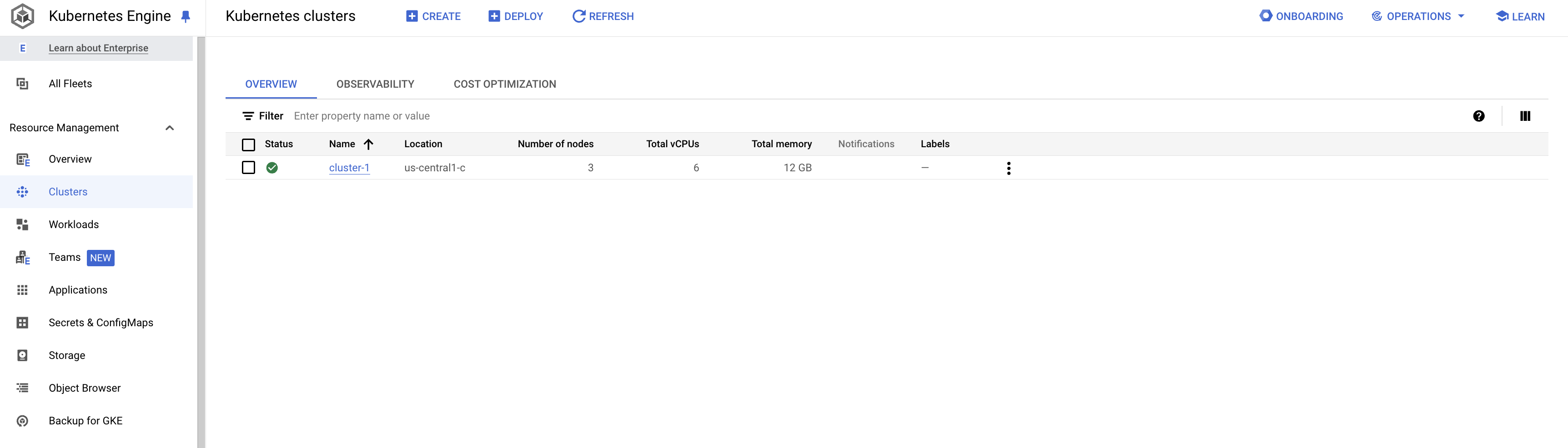
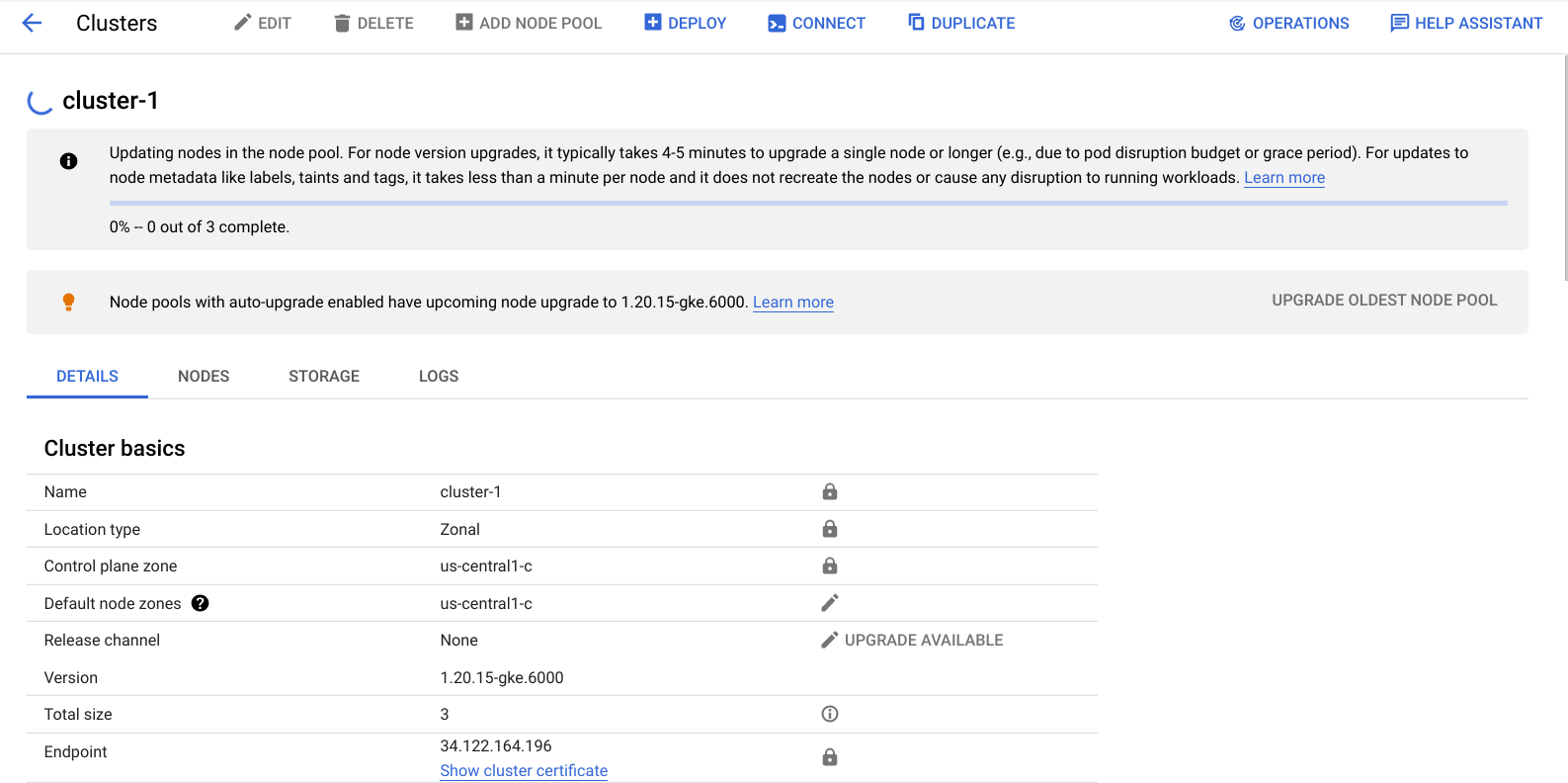
When provisioning is complete, the Kubernetes Engine > Clusters page looks like the screenshot:
Click Check my progress to verify the objective.
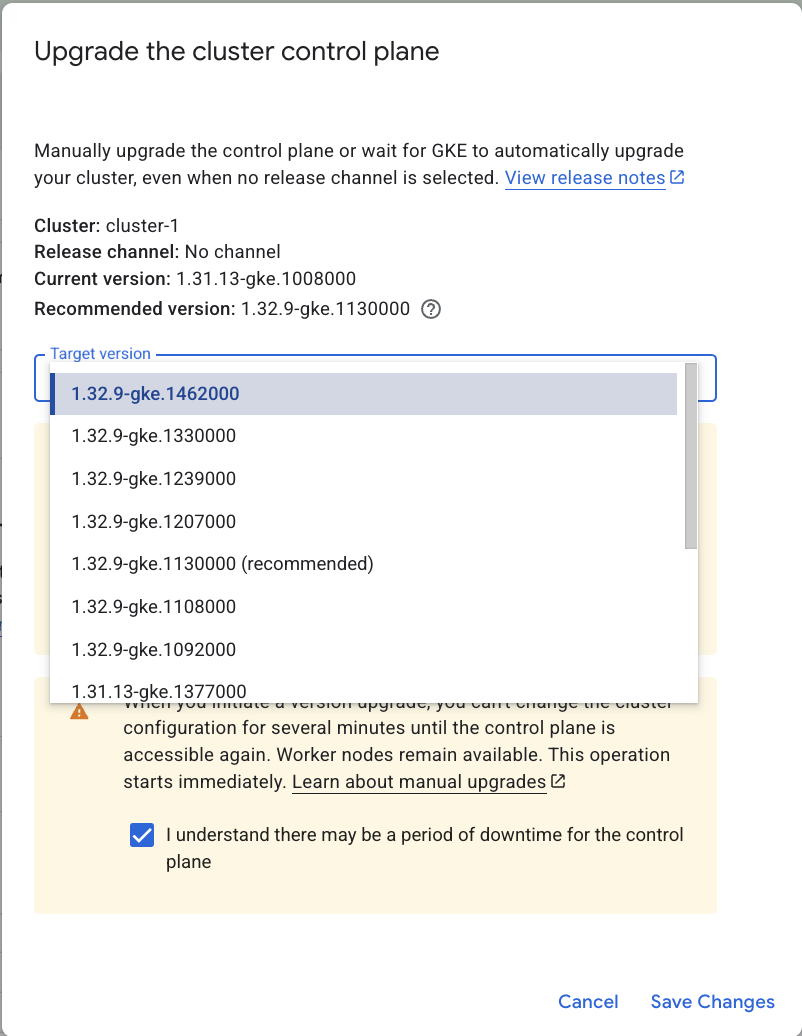
In this task, you upgrade your GKE cluster and all of the nodes.
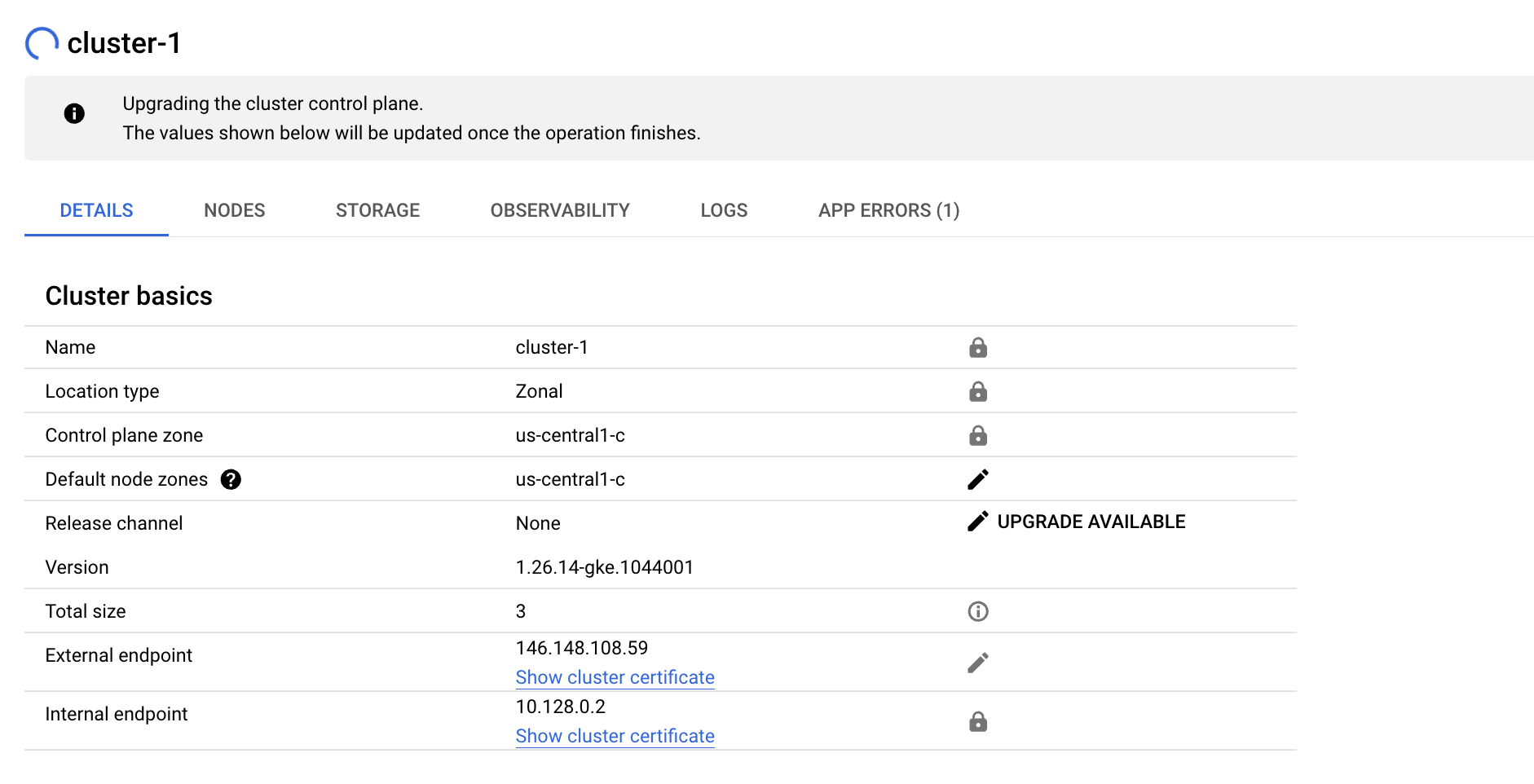
), in the Kubernetes Engine section, click Clusters.You can refresh the page to check the status of the upgrade.
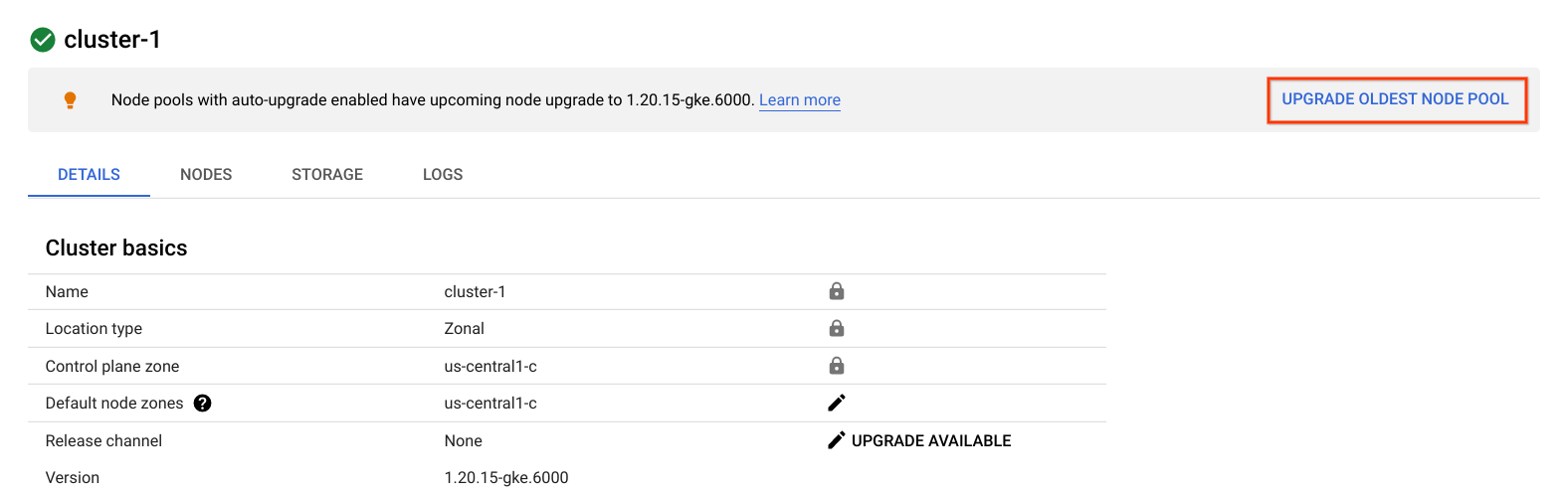
When the control plane upgrade has completed, the control plane version number changes to the version that you selected in the upgrade wizard.
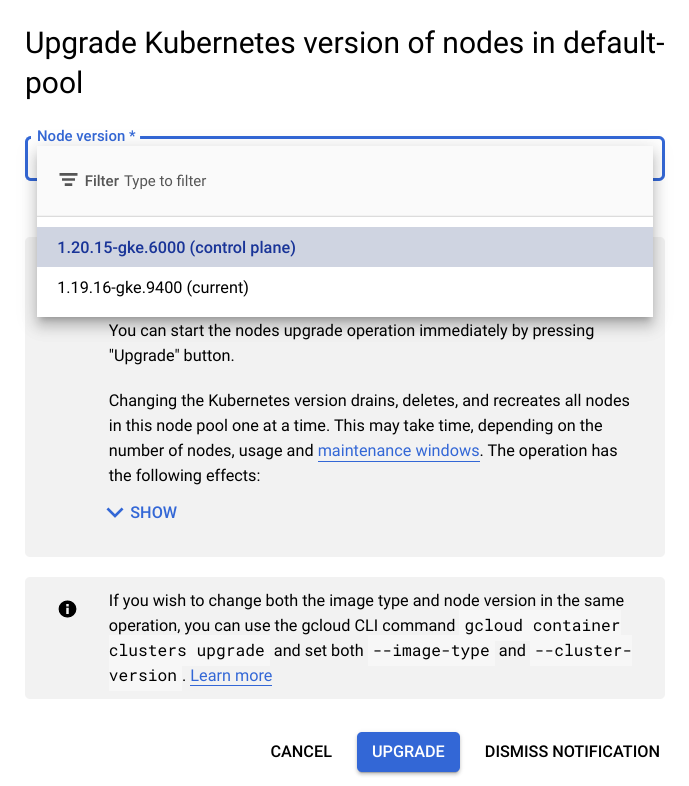
You must now upgrade the nodes of your cluster to the same version as the control plane.
Because this process must upgrade all nodes in your cluster, it might take several minutes to complete.
You can check the status by refreshing the web browser. A progress bar appears.
When the node pool upgrade process finishes, your cluster upgrade is complete.
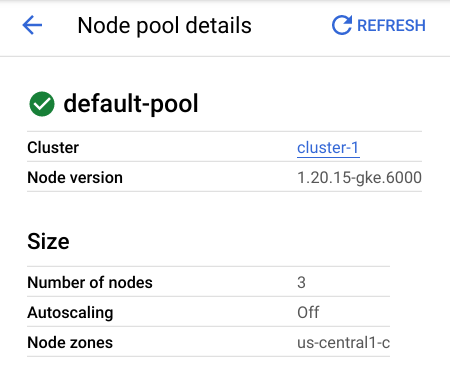
When all of the nodes have been upgraded the new version is reflected in the node pool details pane.
Click Check my progress to verify the objective.
When you have completed your lab, click End Lab. Google Skills removes the resources you’ve used and cleans the account for you.
You will be given an opportunity to rate the lab experience. Select the applicable number of stars, type a comment, and then click Submit.
The number of stars indicates the following:
You can close the dialog box if you don't want to provide feedback.
For feedback, suggestions, or corrections, please use the Support tab.
Copyright 2026 Google LLC All rights reserved. Google and the Google logo are trademarks of Google LLC. All other company and product names may be trademarks of the respective companies with which they are associated.



This content is not currently available
We will notify you via email when it becomes available

Great!
We will contact you via email if it becomes available


One lab at a time
Confirm to end all existing labs and start this one