
Before you begin
- Labs create a Google Cloud project and resources for a fixed time
- Labs have a time limit and no pause feature. If you end the lab, you'll have to restart from the beginning.
- On the top left of your screen, click Start lab to begin

Start a GKE cluster
/ 50
Run and deploy a container
/ 50
Start a GKE cluster
/ 50
Run and deploy a container
/ 50
在本研究室中,您將建立包含多個容器的 Google Kubernetes Engine 叢集,而且每個容器都含有一個網路伺服器。接著,在叢集前方設置負載平衡器,並查看叢集的內容。
在本研究室中,您將瞭解如何執行下列工作:
kubectl 部署及管理 Docker 容器。在每個研究室中,您都能在固定時間內免付費建立新的 Google Cloud 專案,並使用一組資源。
請透過無痕式視窗登入 Qwiklabs。
請記下研究室的存取時間 (例如 1:15:00),並確保自己能在時間限制內完成作業。
研究室不提供暫停功能。如有需要,您可以重新開始,但原先的進度恕無法保留。
準備就緒後,請按一下「Start lab」。
請記下研究室憑證 (使用者名稱和密碼),這組資訊將用於登入 Google Cloud 控制台。
按一下「Open Google Console」。
按一下「Use another account」,然後複製這個研究室的憑證,並貼入提示訊息。
如果使用其他憑證,系統會顯示錯誤或向您收取費用。
接受條款,然後略過資源復原頁面。
記下 Google Cloud 專案的名稱。這個值會顯示在 Google Cloud 控制台的頂端列中,格式為 qwiklabs-gcp- 後接十六進位數字。
在 Google Cloud 控制台的「導覽選單」
在已啟用 API 的清單中向下捲動,確認下列兩個 API 皆已啟用:
如果找不到上述任一 API,請點選頂端的「啟用 API 和服務」,然後依名稱搜尋清單未列出的 API,並針對目前的專案啟用 (先前記下的 GCP 專案名稱這時就能派上用場)。
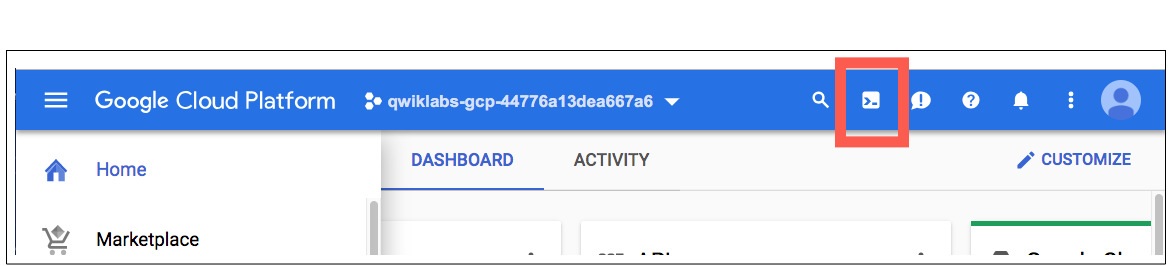
在 Google Cloud 控制台右上方的工具列中,按一下「啟用 Cloud Shell」按鈕。
按一下「繼續」。
在 Cloud Shell 提示中輸入下列指令,匯出名為 MY_ZONE 的環境變數。
啟動 Kubernetes Engine 代管的 Kubernetes 叢集,將這個叢集命名為 webfrontend 並設為執行 2 個節點:
Kubernetes Engine 會為您佈建虛擬機器,因此叢集需要幾分鐘的時間才能建立完成。
建立叢集後,請使用下列指令查看您安裝的 Kubernetes 版本:
gcloud container clusters create 指令已自動為您驗證 kubectl。
在 GCP 控制台的「導覽選單」
您現在已可使用 Kubernetes 叢集。
點選「Check my progress」來確認目標已達成。
在 Cloud Shell 指令列提示中,啟動 nginx 容器的單一執行個體 (nginx 是很常見的網路伺服器)。
Kubernetes 中的所有容器都是在 pod 內執行。由於您使用上述 kubectl create 指令,因此 Kubernetes 會建立由單一 pod 組成的 Deployment,而且該 pod 中有 nginx 容器。即使 pod 執行時所在的節點發生錯誤,Kubernetes Deployment 也會保持指定數量的 pod 正常運作。在這項指令中,您啟動了預設數量 (即 1 個) 的 pod。
查看執行 nginx 容器的 pod:
向網際網路公開 nginx 容器:
Kubernetes 已建立一個 Service,以及一個附加公開 IP 位址的外部負載平衡器。在這個 Service 的生命週期內,此 IP 位址將維持不變。凡是傳送到該公開 IP 位址的網路流量,都會轉送至 Service 背後的 pod (在此情況下為 nginx pod)。
查看新的 Service:
您可以使用畫面上顯示的外部 IP 位址,從遠端測試 nginx 容器並與其通訊。
「External-IP」欄位可能需要幾秒鐘的時間才會填入 Service 的外部 IP 位址。這是正常的狀況。只要每隔幾秒重新執行 kubectl get services 指令,直到該欄位填入位址即可。
開啟新的網路瀏覽器分頁,並將叢集的外部 IP 位址貼到網址列中。畫面上會顯示 Nginx 瀏覽器的預設首頁。
向上擴充透過 Service 執行的 pod 數量:
當應用程式越來越受歡迎,而您想增加該應用程式的可用資源時,向上擴充 Deployment 是相當實用的做法。
確認 Kubernetes 已更新 pod 數量:
確認外部 IP 位址並未改變:
返回用來查看叢集外部 IP 位址的網路瀏覽器分頁,並重新整理網頁,確認 nginx 網路伺服器仍有回應。
點選「Check my progress」來確認目標已達成。
在本研究室中,您已成功設定 Kubernetes Engine 內的 Kubernetes 叢集。此外,您也在叢集中加入一個包含應用程式的 pod、公開此應用程式,並且調度該應用程式的資源。
如果您已完成研究室,請按一下「End Lab」(關閉研究室)。Google Cloud Skills Boost 會移除您使用的資源,並清除所用帳戶。
您可以針對研究室的使用體驗評分。請選取合適的星級評等並提供意見,然後按一下「Submit」(提交)。
星級評等代表您的滿意程度:
如果不想提供意見回饋,您可以直接關閉對話方塊。
如有任何想法、建議或指教,請透過「Support」(支援) 分頁提交。
Copyright 2026 Google LLC 保留所有權利。Google 和 Google 標誌是 Google LLC 的商標,其他公司和產品名稱則有可能是其關聯公司的商標。



This content is not currently available
We will notify you via email when it becomes available

Great!
We will contact you via email if it becomes available


One lab at a time
Confirm to end all existing labs and start this one
Complete this quick step to start your lab.