GSP344

Overview
In a challenge lab you’re given a scenario and a set of tasks. Instead of following step-by-step instructions, you will use the skills learned from the labs in the course to figure out how to complete the tasks on your own! An automated scoring system (shown on this page) will provide feedback on whether you have completed your tasks correctly.
When you take a challenge lab, you will not be taught new Google Cloud concepts. You are expected to extend your learned skills, like changing default values and reading and researching error messages to fix your own mistakes.
To score 100% you must successfully complete all tasks within the time period!
This lab is recommended for students who are enrolled in the Develop Serverless Apps with Firebase course. Are you ready for the challenge?
Setup and requirements
Before you click the Start Lab button
Read these instructions. Labs are timed and you cannot pause them. The timer, which starts when you click Start Lab, shows how long Google Cloud resources are made available to you.
This hands-on lab lets you do the lab activities in a real cloud environment, not in a simulation or demo environment. It does so by giving you new, temporary credentials you use to sign in and access Google Cloud for the duration of the lab.
To complete this lab, you need:
- Access to a standard internet browser (Chrome browser recommended).
Note: Use an Incognito (recommended) or private browser window to run this lab. This prevents conflicts between your personal account and the student account, which may cause extra charges incurred to your personal account.
- Time to complete the lab—remember, once you start, you cannot pause a lab.
Note: Use only the student account for this lab. If you use a different Google Cloud account, you may incur charges to that account.
Provision the environment
- Link to the project:
gcloud config set project $(gcloud projects list --format='value(PROJECT_ID)' --filter='qwiklabs-gcp')
- Clone the repo:
git clone https://github.com/rosera/pet-theory.git
Challenge scenario
Cymbal is expanding its digital services to include a "Retro Cinema" archive. They have acquired a massive historical dataset containing details of thousands of Netflix shows and movies. However, their current infrastructure cannot handle the search queries or scale required for global access.
To solve this, the development team has decided to move to a serverless architecture. They need a system that can ingest the Netflix CSV data, store it in a scalable NoSQL database, and provide a REST API for a web-based frontend.
Your challenge
As a developer in Cymbal's digital services, you are tasked with building this end-to-end solution. You provision a Cloud Firestore database, import the Netflix dataset, and deploy both a backend API and a frontend application using Cloud Run. Your final goal is to ensure the production frontend can dynamically filter and display Netflix titles based on their release year.
Task 1. Create a Firestore database
In this task, you create a Firestore database in Native mode to store the Netflix media records.
When you create the Firestore database, configure it with the following:
- Create a Firestore database
- Use Firestore Native mode
- Add location
Click Check my progress to verify that you've performed the above task. Create a Firestore database
Task 2. Import the database
In this task, use a Node.js script to import the Netflix CSV dataset into your Firestore collection.
Example Firestore schema:
| Collection |
Document |
Field |
| data |
70234439 |
[dataset] |
The Netflix Shows Dataset includes the following information:
| Field |
Description |
| show_id: |
Unique ID for every Movie / Tv Show |
| type: |
Identifier - A Movie or TV Show |
| title: |
Title of the Movie / Tv Show |
| director: |
Director of the Movie |
| cast: |
Actors involved in the movie / show |
| country: |
Country where the movie / show was produced |
| date_added: |
Date it was added on Netflix |
| release_year: |
Actual release year of the movie / show |
| rating: |
TV Rating of the movie / show |
| duration: |
Total Duration - in minutes or number of seasons |
To populate the database, perform the following:
- Use the sample code from
pet-theory/lab06/firebase-import-csv/solution:
npm install
- To import CSV use the node
pet-theory/lab06/firebase-import-csv/solution/index.js:
node index.js netflix_titles_original.csv
Note: Verify the Firestore database has been updated by viewing the data in the Firestore UI.
Click Check my progress to verify that you've performed the above task. Populate the Firestore database
Task 3. Create the REST API
In this task, you containerize and deploy a baseline REST API to Cloud Run to prepare for database integration.
Cloud Run development
| Field |
Value |
| Artifact Registry repository name |
rest-api-repo |
| Artifact Registry image |
rest-api:0.1 |
| Cloud Run service |
netflix-dataset-service |
| Permission |
--allow-unauthenticated |
To create the REST API, implement the following tasks:
- Access
pet-theory/lab06/firebase-rest-api/solution-01.
- Build and deploy the code to Google Artifact Registry.
- Deploy the image as a Cloud Run service.
Note: Deploy your service with 1 max instance to ensure you do not exceed the max limit for Cloud Run instances.
- Go to Cloud Run and click netflix-dataset-service then copy the service URL:
SERVICE_URL=copy url from your netflix-dataset-service -
curl -X GET $SERVICE_URL should respond with: {"status":"Netflix Dataset! Make a query."}
Click Check my progress to verify that you've performed the above task. Deploy and test the REST API
Task 4. Configure Firestore API access
In this task, you deploy an updated version of the API that queries the Netflix data directly from Firestore.
Deploy Cloud Run revision 0.2
| Field |
Value |
| Artifact Registry Image |
rest-api:0.2 |
| Cloud Run service |
netflix-dataset-service |
| Permission |
--allow-unauthenticated |
Use Cloud Build to create an updated container image and deploy the new revision to Cloud Run:
- Access
pet-theory/lab06/firebase-rest-api/solution-02.
- Build the updated application.
- Use Cloud Build to tag and deploy image revision to Artifact Registry.
- Deploy the new image a Cloud Run service.
Note: Deploy your service with 1 max instance to ensure you do not exceed the max limit for Cloud Run instances.
- Go to Cloud Run and click netflix-dataset-service then copy the service URL:
SERVICE_URL=copy url from your netflix-dataset-service -
curl -X GET $SERVICE_URL/2019 should respond with json dataset
Click Check my progress to verify that you've performed the above task. Deploy and test the Rest API
Task 5. Deploy the staging frontend
In this task, use Cloud Build to package the staging application and deploy it as a Cloud Run service.
For the frontend, use the following information:
| Field |
Value |
| REST_API_SERVICE |
REST API SERVICE URL |
| Artifact Registry image |
frontend-staging:0.1 |
| Cloud Run service |
frontend-staging-service |
Package and deploy the application as a Cloud Run service:
- Access
pet-theory/lab06/firebase-frontend.
- Build the frontend staging application.
- Use Cloud Build to tag and deploy image revision to Artifact Registry.
- Deploy the new image as a Cloud Run service.
Note: Deploy your service with 1 max instance to ensure you do not exceed the max limit for Cloud Run instances.
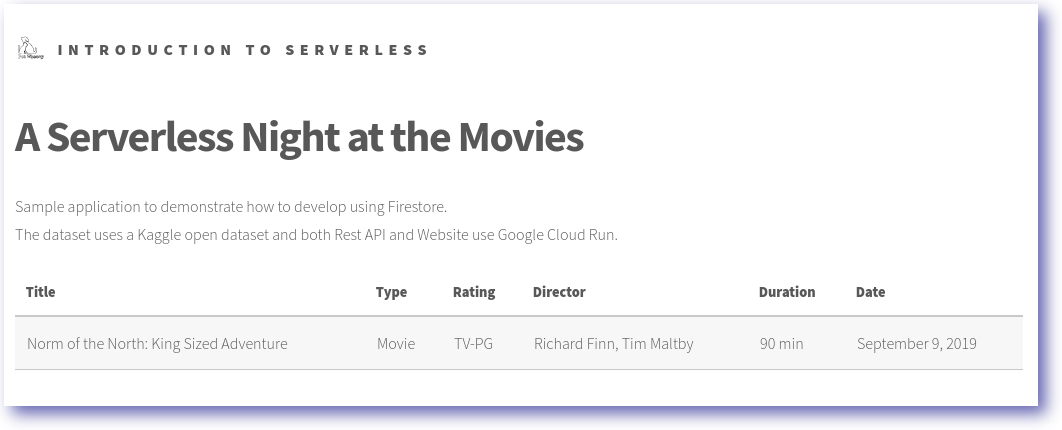
- Frontend access to the REST API and Firestore database.
- Access the frontend service URL.
Note: It's using a demo dataset to provide the onscreen entries.
Click Check my progress to verify that you've performed the above task. Deploy the staging frontend
Task 6. Deploy the production frontend
In this task, update the frontend logic to fetch real-world data and deploy the final production version of the Netflix browser.
| Field |
Value |
| REST_API_SERVICE |
REST API SERVICE URL |
| Artifact Registry image |
frontend-production:0.1 |
| Cloud Run service |
frontend-production-service |
To complete this section successfully, you are required to implement the following tasks:
- Access
pet-theory/lab06/firebase-frontend/public.
- In the
public directory, update app.js to use the REST API.
- Don't forget to append the year to the SERVICE_URL.
- Use Cloud Build to tag and deploy image revision to Artifact Registry.
- Deploy the new image a Cloud Run service. Note: Deploy your service with 1 max instance to ensure you do not exceed the max limit for Cloud Run instances.
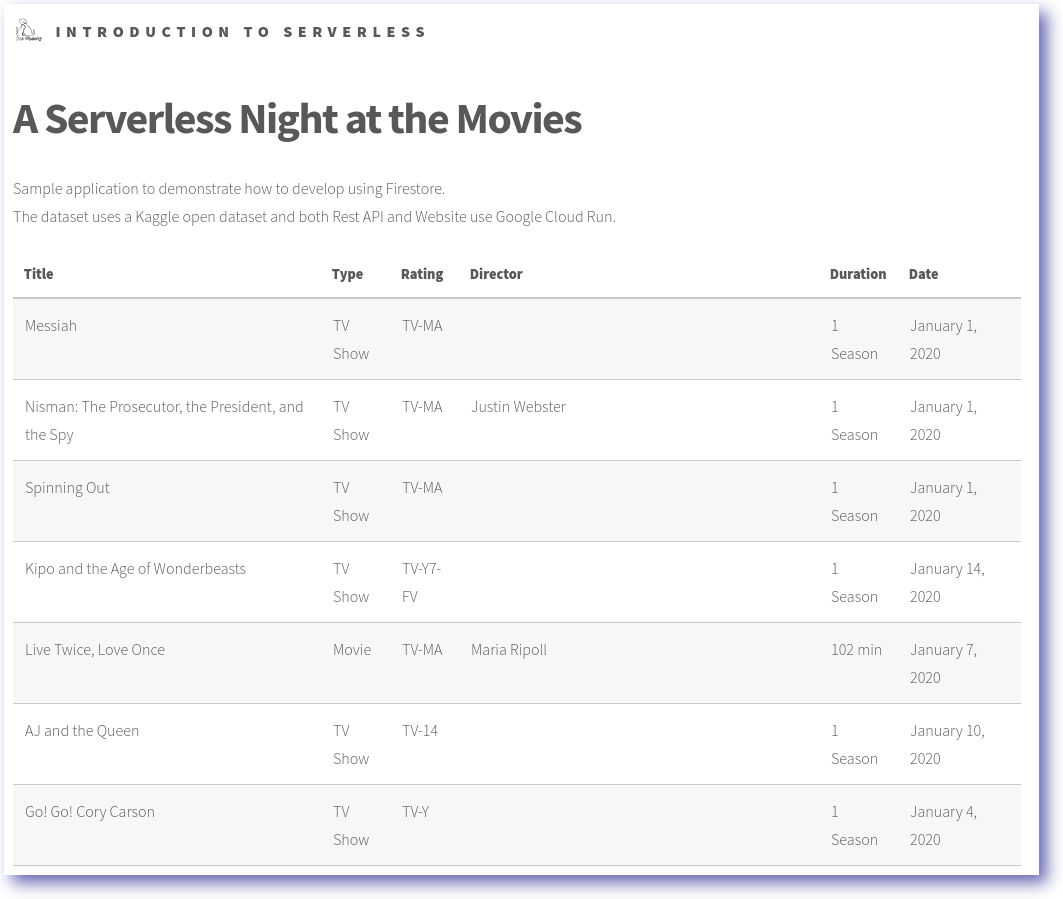
- Frontend access to the REST API and Firestore database.
Now that the services have been deployed you will be able to see the contents of the Firestore database using the frontend service.
Click Check my progress to verify that you've performed the above task. Deploy the production frontend
Congratulations!
Congratulations! In this lab, you have successfully created a Firestore database, populated it with data, created a REST API, and deployed a frontend application that interacts with the Firestore database and REST API. You also learned how to deploy a staging and production frontend application.
Earn your next skill badge
This self-paced lab is part of the Develop Serverless Apps with Firebase skill badge course. Completing this skill badge course earns you the badge above, to recognize your achievement. Share your badge on your resume and social platforms, and announce your accomplishment using #GoogleCloudBadge.
Google Cloud training and certification
...helps you make the most of Google Cloud technologies. Our classes include technical skills and best practices to help you get up to speed quickly and continue your learning journey. We offer fundamental to advanced level training, with on-demand, live, and virtual options to suit your busy schedule. Certifications help you validate and prove your skill and expertise in Google Cloud technologies.
Manual Last Updated May 12, 2026
Lab Last Tested May 12, 2026
Copyright 2026 Google LLC. All rights reserved. Google and the Google logo are trademarks of Google LLC. All other company and product names may be trademarks of the respective companies with which they are associated.







