

Before you begin
- Labs create a Google Cloud project and resources for a fixed time
- Labs have a time limit and no pause feature. If you end the lab, you'll have to restart from the beginning.
- On the top left of your screen, click Start lab to begin

Configure the destination instance (AlloyDB for PostgreSQL)
/ 30
Configure connection profiles for the source and destination instances
/ 30
Promote the destination instance
/ 40

Ready to begin the journey to achieve zero-downtime database modernization and migration across different database options? You can now conquer heterogeneous migration with Database Migration Service!
In this lab, you learn how to bypass legacy toolchains and dive straight into the efficient, automated workflow of the Database Migration Service. Specifically, you execute a heterogeneous migration, moving from proprietary T-SQL to open-source PostgreSQL, leveraging Google's integrated AI for maximum speed. You learn how to use the Database Migration Service Conversion Workspace, which is critical for overcoming heterogeneous compatibility issues, providing explainability, and enabling user-guided fixes. It turns weeks of manual effort into hours of targeted review. Last, you run a continuous migration job and ensure minimal downtime by handling the full data load and then maintaining real-time synchronization until the final, safe cutover.
For this lab environment, the following infrastructure has been created using Terraform: a Cloud SQL for SQL Server source, an AlloyDB for PostgreSQL destination, and secure Private Connectivity (VPC Peering/Private Service Connect, PSC) between them. This allows you to focus entirely on the critical migration data flow, conversion, and validation steps.
If you have not already, click Start Lab to initiate the Terraform process (completes in 20 minutes), and in the meantime, you can review the lab instructions to get an overall sense of the workflow.
In this lab, you migrate a database schema and data from Cloud SQL for SQL Server to an AlloyDB for PostgreSQL cluster using the Database Migration Service Conversion Workspace (including code remediation) and a continuous migration job.
Read these instructions. Labs are timed and you cannot pause them. The timer, which starts when you click Start Lab, shows how long Google Cloud resources are made available to you.
This hands-on lab lets you do the lab activities in a real cloud environment, not in a simulation or demo environment. It does so by giving you new, temporary credentials you use to sign in and access Google Cloud for the duration of the lab.
To complete this lab, you need:
Click the Start Lab button. If you need to pay for the lab, a dialog opens for you to select your payment method. On the left is the Lab Details pane with the following:
Click Open Google Cloud console (or right-click and select Open Link in Incognito Window if you are running the Chrome browser).
The lab spins up resources, and then opens another tab that shows the Sign in page.
Tip: Arrange the tabs in separate windows, side-by-side.
If necessary, copy the Username below and paste it into the Sign in dialog.
You can also find the Username in the Lab Details pane.
Click Next.
Copy the Password below and paste it into the Welcome dialog.
You can also find the Password in the Lab Details pane.
Click Next.
Click through the subsequent pages:
After a few moments, the Google Cloud console opens in this tab.

Before Database Migration Service can initiate the migration process, you need to prepare the destination AlloyDB cluster by creating a dedicated database and a user with the necessary privileges.
In this task, you use the AlloyDB Studio (query editor) in the Cloud Console to configure the user and new database both named dms.
In the Google Cloud Console, on the Navigation menu (
In the AlloyDB menu, review the Clusters page to see the list of clusters including a cluster named alloydb-cluster-skillsdms.
It may take a few minutes for both the cluster and instance to be fully provisioned.
When you see a Status of Ready (green checkmark) for both the cluster named alloydb-cluster-skillsdms and the instance named alloydb-instance-skillsdms, you can proceed to the next step.
Click on the instance named alloydb-instance-skillsdms.
In the AlloyDB menu under Primary cluster, click AlloyDB Studio.
Provide the following details to sign in, and click Authenticate.
| Property | Value |
|---|---|
| Database | Select postgres |
| Authentication method | Select Built-in database authentication |
| User | Select dms |
| Password | Welcome123# |
Now that you are connected to the AlloyDB instance via AlloyDB Studio, you can execute the following SQL to configure a low-privilege migration user and a target database both named dms. Using a dedicated user (dms) for the migration enhances security and isolates the migration process from other database operations.
On the AlloyDB Studio page, click the Untitled Query tab to access the query window.
To create the destination database named dms and automatically assign ownership to the user named dms, copy and paste the following query in the query window, and click Run.
When the query has executed successfully, you see a message that says Statement executed successfully.
Click Check my progress to verify the objective.
In this task, you first confirm the presence of the schema and data that Database Migration Service will read and migrate. This step ensures the source is accessible and contains the objects expected for migration (e.g., tables like customers, stored procedures). Then, you configure the Cloud SQL for SQL Server instance to support Change Data Capture (CDC) for continuous migration.
In this section, you review some data in the Cloud SQL for SQL Server instance to get an overview of the data that is being migrated. In a later task for the migration job, you run similar queries to verify the row count for these same tables in the destination instance.
In the Google Cloud Console, on the Navigation menu (
Click on the instance ID called mssql-instance-skillsdms.
In the Cloud SQL menu under Primary instance, click Cloud SQL Studio.
Provide the following details to sign in, and click Authenticate.
| Property | Value |
|---|---|
| Database | Select dms |
| User | Select sqlserver |
| Password | Welcome123# |
On the Cloud SQL Studio page, click the Untitled Query tab to access the query window.
To run a simple query to confirm data presence, copy and paste the following query in the query window, and click Run.
The returned number of rows is 8.
The returned number of rows is 91.
In this section, you configure the Cloud SQL for SQL Server instance to support Change Data Capture (CDC), which is a process to continuously read updated data from a source data instance and write these changes to a destination data instance in real time. CDC begins with a full data dump from the source to the destination, similar to a one-time migration. With CDC enabled, any additional updates in the source (after the initial data dump) are sent to the destination immediately (in this example, AlloyDB for PostgreSQL).
In the Cloud SQL Studio query window, click Clear to remove the previous query text.
To configure the instance to support CDC for all tables, copy and paste the following query in the query window, and click Run.
In this section, you identify the internal IP for the Cloud SQL for SQL Server instance, which you need to create the source connection profile used by the migration job.
Hover over the Cloud SQL icon (
In the Cloud SQL menu under Primary instance, click Connections.
In the Summary tab, copy the Internal IP address (for example, 10.134.0.3) for use in the next task.
Connection profiles are persistent entities in Database Migration Service that securely store connectivity information. They can be reused across Conversion Workspaces and migration jobs.
In this task, you configure Connection Profiles for the source (Cloud SQL for SQL Server) and destination (AlloyDB for PostgreSQL) instances. You begin with creating the destination connection profile first to allow time for the Private Service Connect option to fully provision before you specify it in the source connection profile.
In the Google Cloud Console, on the Navigation menu (
In the Database Migration menu (left), click Connection profiles.
Click Create profile.
For Source engine, under the section for SQL Server, select Cloud SQL for SQL Server.
For Destination engine, select AlloyDB for PostgreSQL.
For Choose the profile type to create, select Destination.
Enter the required information for connection profile name and ID:
| Property | Value |
|---|---|
| Connection profile name | alloydb-destination-profile |
| Connection profile ID | Keep the auto-generated value |
| Region |
| Property | Value |
|---|---|
| Cluster ID | In the dropdown menu, select alloydb-cluster-skillsdms. |
| Hostname or IP address | Click in the box to see the available values, and select the Public IP (for example, 34.21.12.174 or 136.111.93.38), not the internal IP (for example, 10.133.1.2) |
| Port | 5432 |
| Username | dms |
| Password | Welcome123# |
Click Continue
For Connectivity method, select Public IP.
Click Run Test to test the configuration settings.
Your connection profile test was successful.
Your connection profile test was successful, click Create.A new connection profile named alloydb-destination-profile appears in the Connection profiles list.
On the Connection profiles page, click Create Profile to create a new connection profile.
For Source engine, under the section for SQL Server, select Cloud SQL for SQL Server.
For Destination engine, select AlloyDB for PostgreSQL.
For Choose the profile type to create, select Source.
Enter the required information for connection profile name and ID:
| Property | Value |
|---|---|
| Connection profile name | sqlserver-source-profile |
| Connection profile ID | Keep the auto-generated value |
| Region |
| Property | Value |
|---|---|
| Hostname or IP address | Enter the internal IP for the Cloud SQL for SQL Server source instance that you copied in the previous task (for example, 10.134.0.3) |
| Port | 1433 |
| Username | sqlserver |
| Password | Welcome123# |
| Database | dms |
For Encryption Type, select None.
For Connectivity method, select Private connectivity (VPC peering).
For Private connectivity configuration, select dms-pc.
dms-pc to show up in the drop down menu for Private connectivity configuration. Until then, you see a message that says there is no connection created in the current region.Please exit and re-enter the Edit window (step 6) until you see the dms-pc in the dropdown menu for Private connectivity configuration.
Click Save.
Under Test connection profile, click Run test to test the configuration settings.
Your connection profile test was successful.
Your connection profile test was successful, click Create.A new connection profile named sqlserver-source-profile appears in the Connection profiles list.
Click Check my progress to verify the objective.
The Conversion Workspace is the core tool for heterogeneous migration with Database Migration Service, enabling schema and code translation from proprietary T-SQL syntax to open-source PostgreSQL. The built-in auto-conversion feature leverages Google's AI model named Gemini to automatically apply fixes to common, complex code conversion issues that the deterministic engine struggles with (e.g., specific CURSOR or XML handling), significantly reducing manual effort.
In this task, you create and auto-convert a workspace, review conversion issues, and apply the converted schema to the destination database in AlloyDB for PostgreSQL.
In the Database Migration menu (left), select Conversion workspaces.
Click Set up workspace, and then enter the required information:
| Property | Value |
|---|---|
| Conversion workspace name | sqlserver-to-alloydb-workspace |
| Conversion workspace ID | Keep the auto-generated value |
| Region | |
| Source | Select Cloud SQL for SQL Server. |
| Destination | Select AlloyDB for PostgreSQL. |
You are not enabling auto-conversion at this time, as you will explore that Gemini option later in the lab.
Click Create workspace & continue.
When prompted, click Enable for Gemini for Google Cloud API.
On the Define source and pull schema snapshot tab, for Source connection profile, select sqlserver-source-profile.
Click Pull schema snapshot & continue.
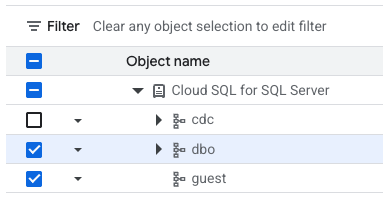
All object names except cdc now have enabled checkboxes next to the name.
In this section, you review the conversion issues for tables identified by the tool.
In the left menu, under Object name, expand the dropdown arrow next to dbo to see the list of options.
Click on Tables.
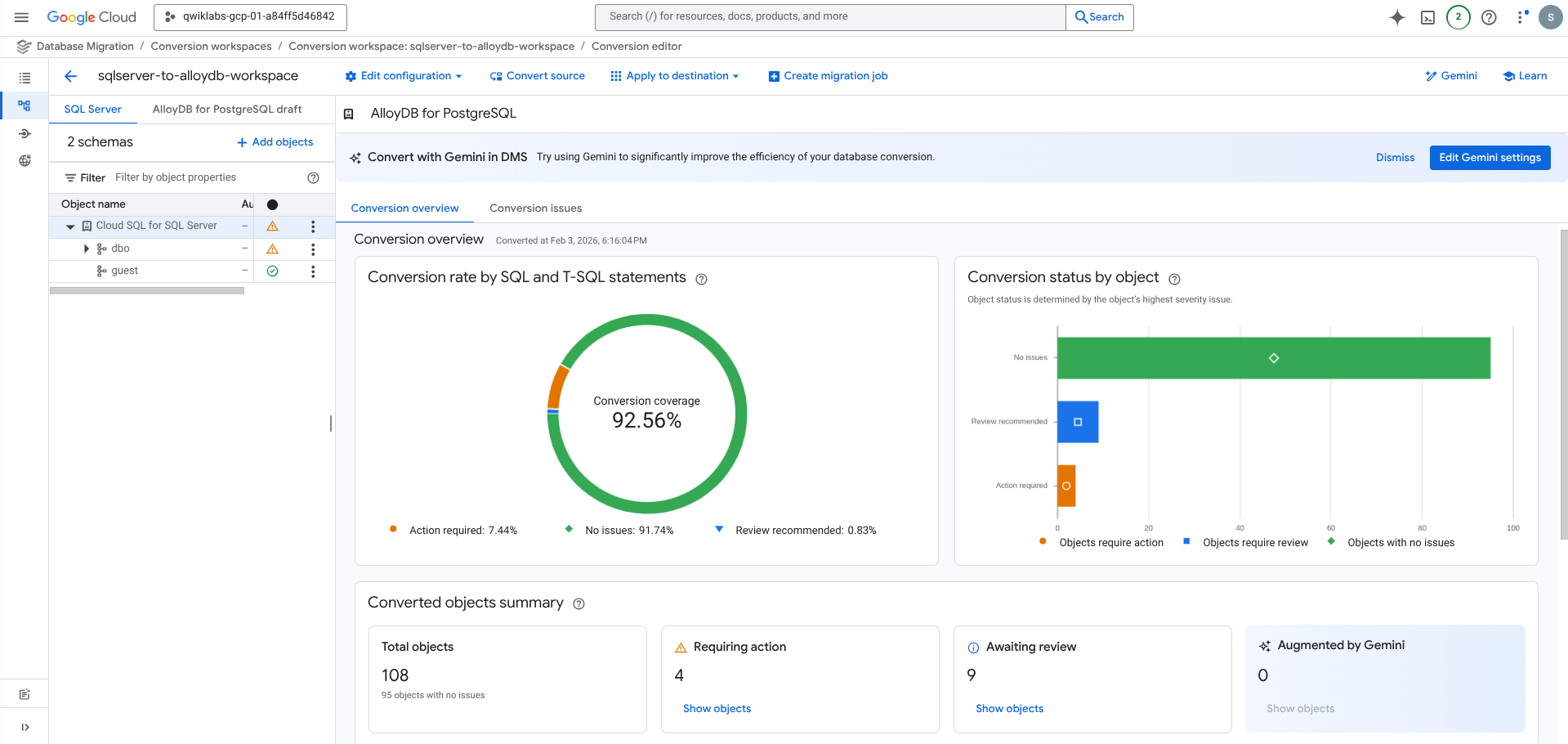
Notice that the Conversion coverage updates to a new value (for example, 90.7%).
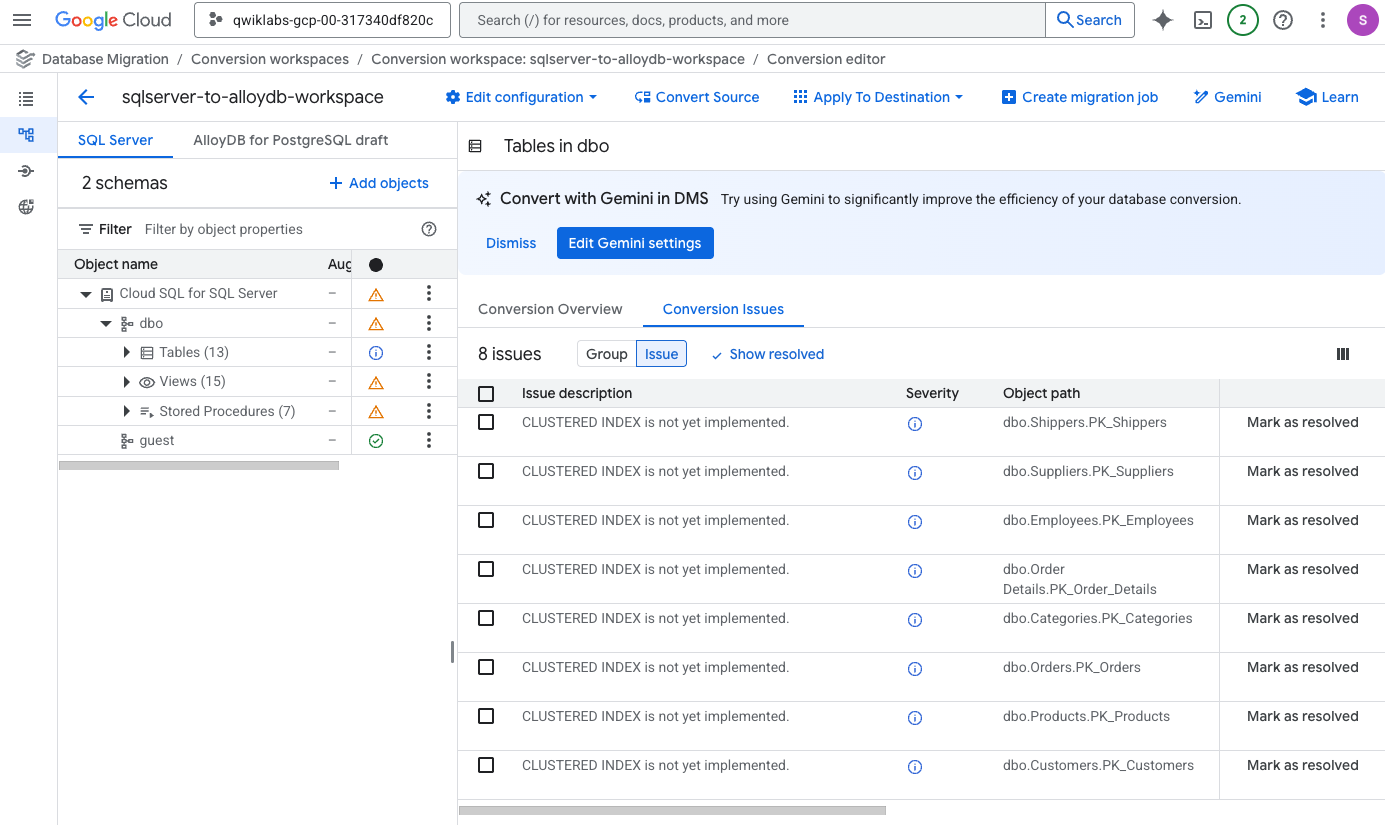
On the main details pane for Tables in dbo, click on the Conversion Issues tab (next to Conversion Overview).
In the Conversion Issues table, click on the tab named Issue (next to Group).
The primary recurring issue for tables is CLUSTERED INDEX is not yet implemented. This is due to the fact that the indexing options are different between SQL Server and PostgreSQL; in particular, PostgreSQL does not use clustered indexes.
Click on the checkbox next to Issue description to select all eight of the issues, and click Mark as resolved.
When prompted, click on Mark all resolved to confirm.
In this section, you review the conversion issues for a view identified by the tool and use the interactive editor to fix incompatible code.
In the left menu, under Object name, expand the dropdown arrow next to View to see the list of options.
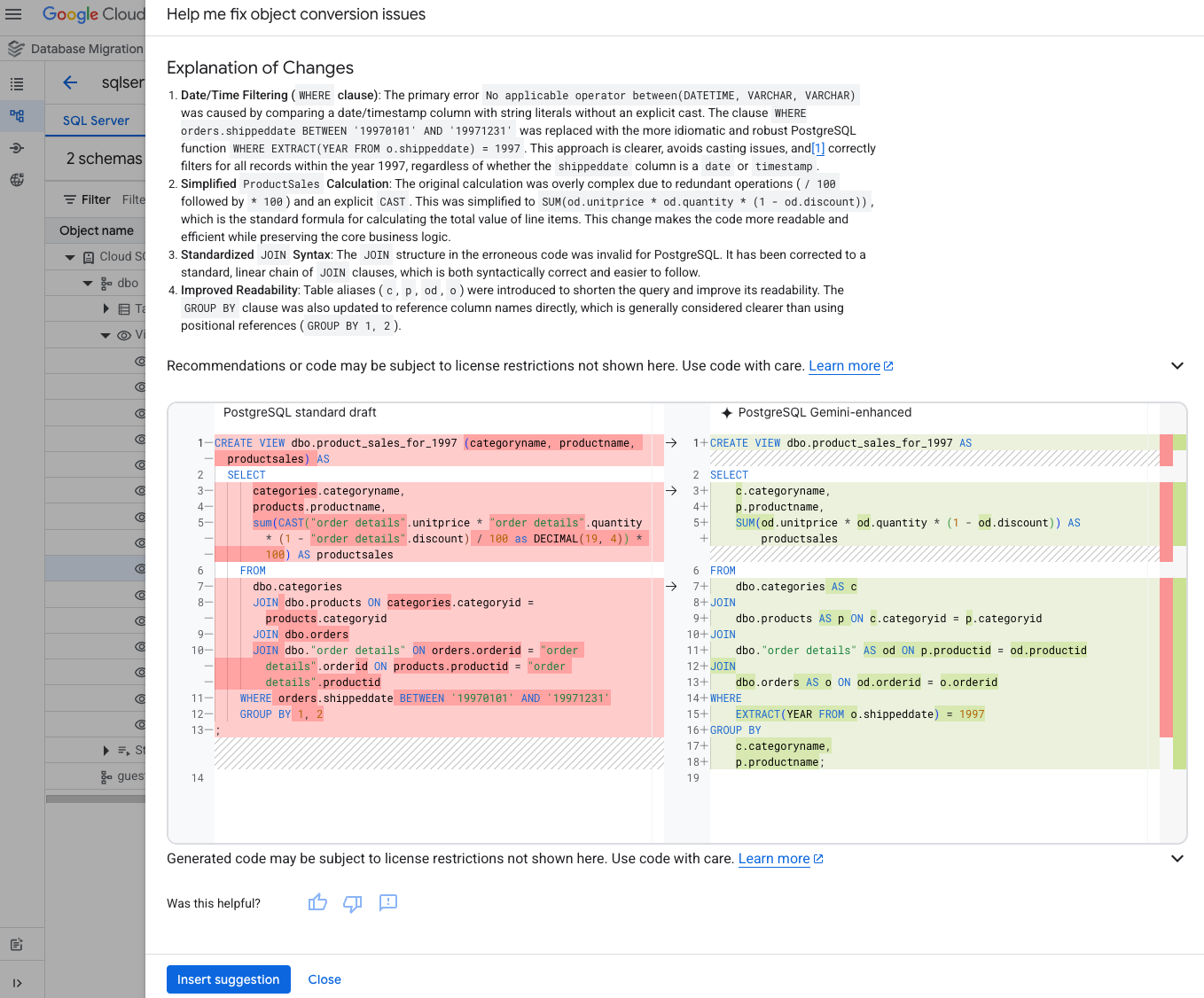
Click on the name for a view that has an issue identified, such as the view named Product_Sales_for_1997.
dbo.Product_Sales_for_1997 is a view in SQL Server that contains the product sales data for the year 1997.
Notice that the original code for SQL Server is provided in the left window, and a starting point for the code in PostgreSQL is provided in the right window. In the next steps, you use Gemini to finalize the code.
Above the code pane for AlloyDB for PostgreSQL draft (right window), click Save your changes represented by the floppy disk icon (
When prompted, click Save changes to confirm.
This view has been converted successfully. In an upcoming section, you enable auto-conversion with Gemini, so that the other views can also be converted.
In this section, you review the conversion issues for a stored procedure identified by the tool and use the interactive editor to fix incompatible code.
In the left menu, under Object name, expand the dropdown arrow next to Stored Procedures to see the list of options.
Click on the name for a stored procedure that has an issue identified, such as the stored procedure named CustOrderHist or Employee_Sales_by_Country.
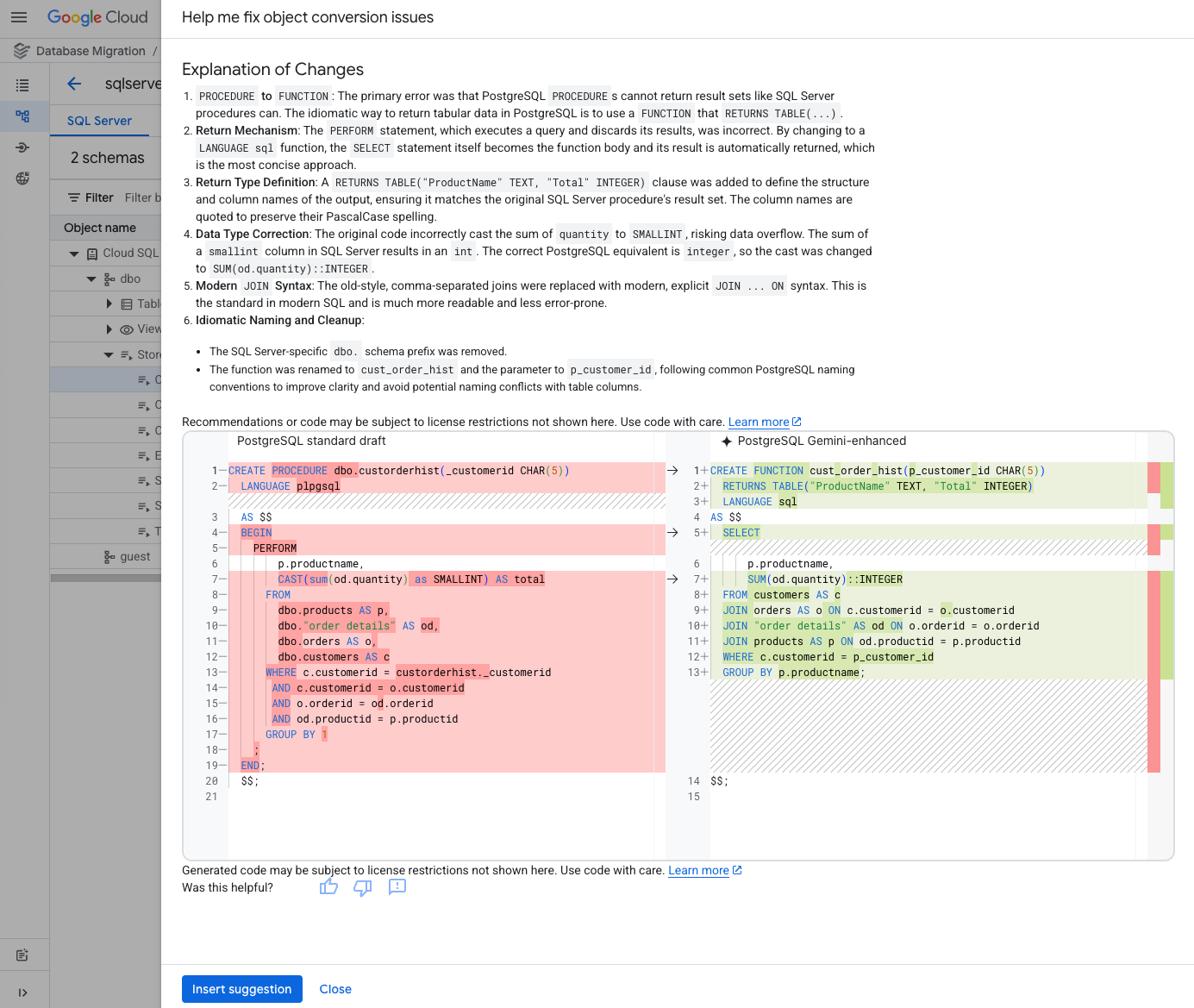
CustOrderHist is a stored procedure in SQL Server that returns a set of results from the order history.
Again, notice that the original code for SQL Server is provided in the left window, and a starting point for the code in PostgreSQL is provided in the right window. In the next steps, you use Gemini to finalize the code.
Above the code pane for AlloyDB for PostgreSQL draft (right window), click Save your changes represented by the floppy disk icon (
When prompted, click Save changes to confirm.
This stored procedure has been converted successfully.
In the next steps, you enable auto-conversion with Gemini, so that all stored procedures and views from the previous sections can be converted.
Above the code pane for AlloyDB for PostgreSQL draft, click Gemini to edit the Gemini settings.
Enable the option for Auto-conversion, and click Save settings.
When prompted, click Convert to confirm.
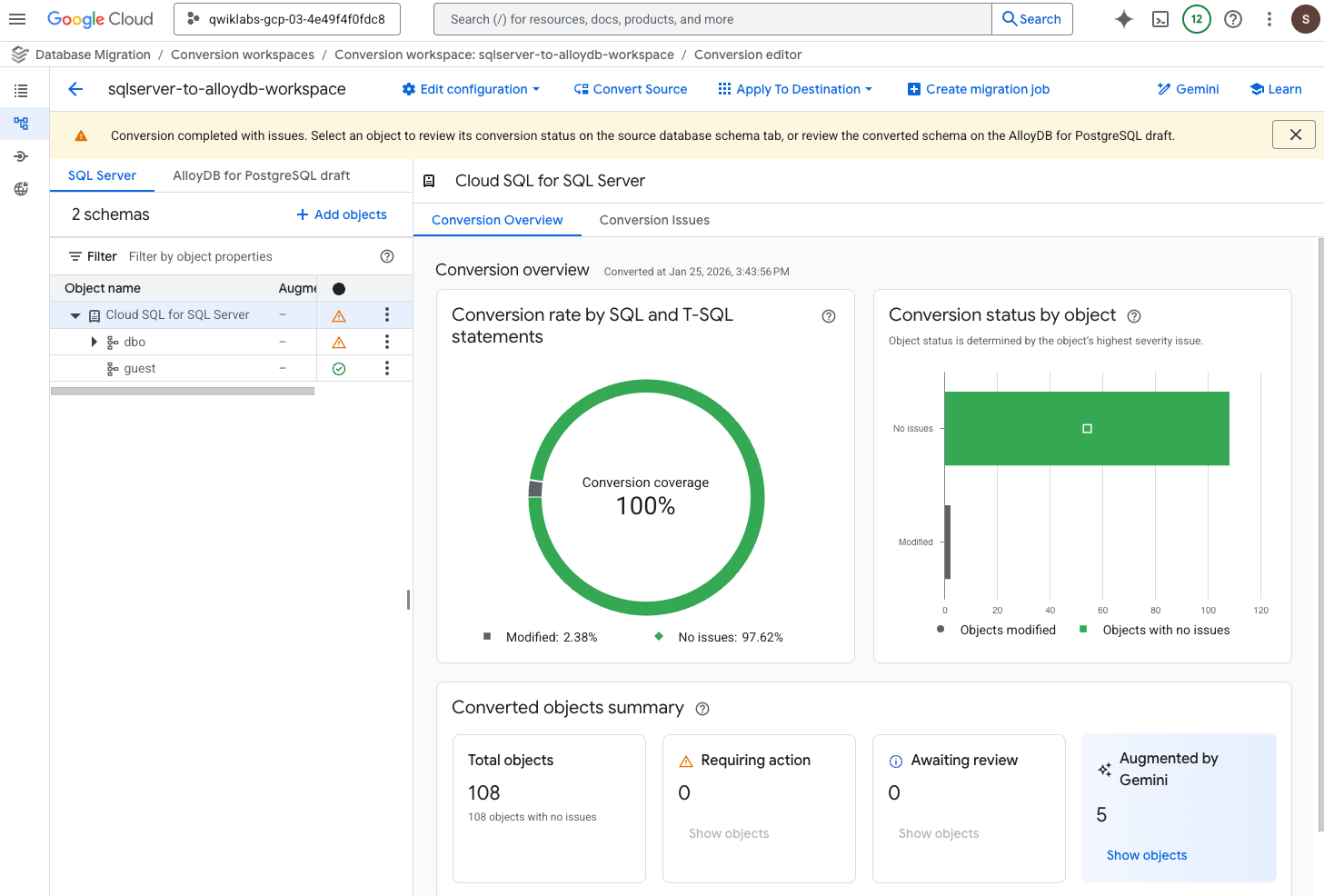
Conversion completed with issues, you can safely ignore this warning and move on to the next steps.
Click on the checkbox next to Issue category and group to select all the issue groups, and click Mark all resolved.
When prompted, click on Mark all resolved to confirm.
Click on Conversion overview (next to Conversion Issues).
In the left menu, under Object name, click Cloud SQL for SQL Server.
Notice that the conversion coverage is now 100%.
After completing the previous sections, you are now ready to create the schema and the code in the destination database (the Apply operation).
Notice in this step, you are skipping the test of this configuration. In an actual production environment, it is recommended to test before applying it to the destination.
For Destination Connection Profile, select alloydb-destination-profile.
Click Define & continue.
Notice in this step, you are skipping the test of this configuration again. In an actual production environment, it is recommended to test before continuing.
All object names now have enabled checkboxes next to the name.
Click Apply To Destination.
When prompted, click Apply to confirm.
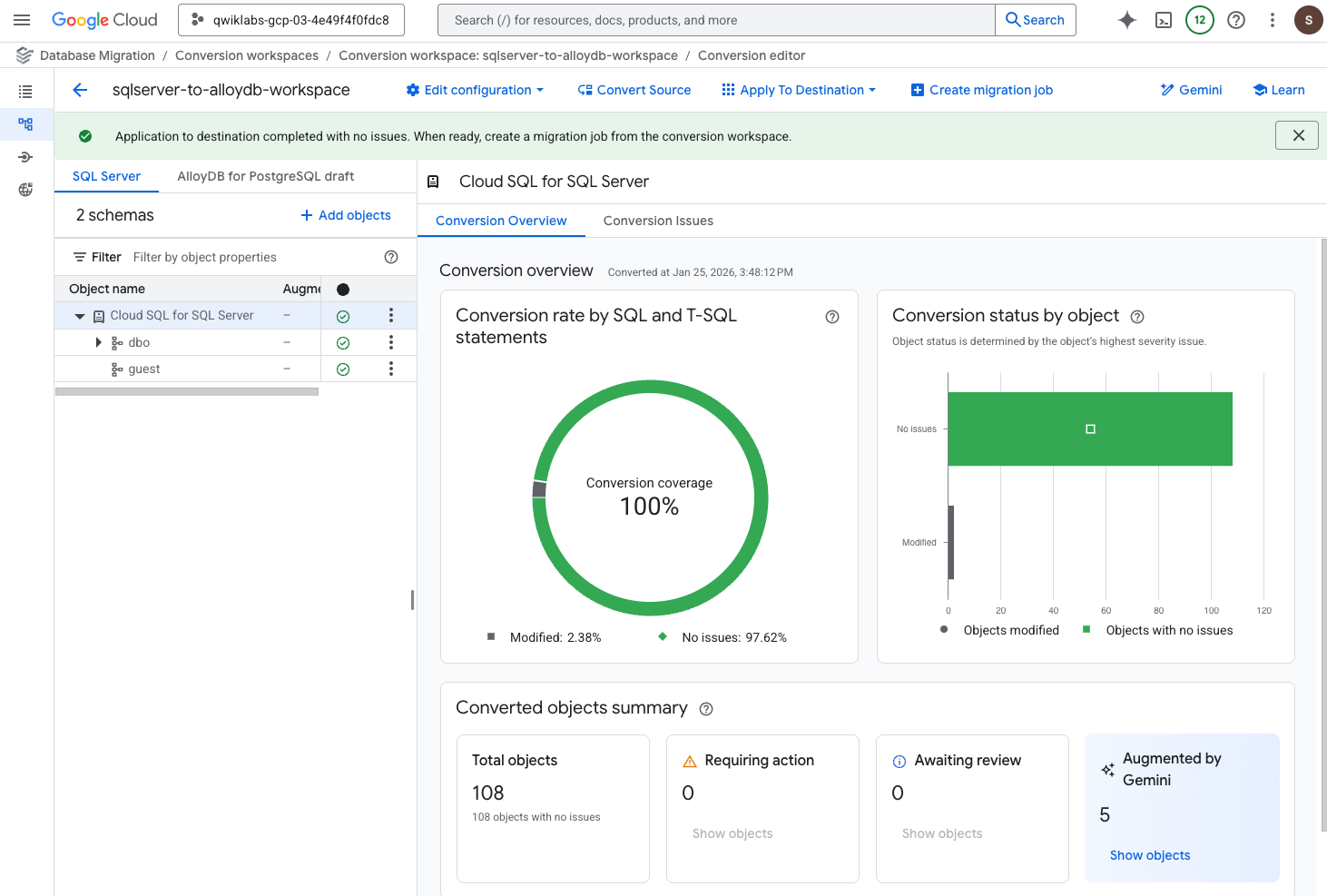
Application to destination completed with no issues. When ready, create a migration job from the conversion workspace, and you can proceed to the next steps.
In Task 1, you configured the Cloud SQL for SQL Server instance to support CDC for continuous migration. Now that the schema and code are prepared, you create a continuous migration job to move the data from Cloud SQL for SQL Server to AlloyDB for PostgreSQL and ensure ongoing synchronization with minimal downtime.
In the Database Migration menu (left), select Migration jobs.
Click + Create migration job, and enter the required information:
| Property | Value |
|---|---|
| Migration job name | demo-migration-job |
| Migration job ID | Keep the auto-generated value |
| Source database engine | Under SQL Server, select Cloud SQL for SQL Server. |
| Destination database engine | Select AlloyDB for PostgreSQL. |
| Destination region | |
| Migration job type | Select Continuous. |
One-time for the migration job type.
Click Save & continue.
On the Define a source tab, for the Source connection profile, select sqlserver-source-profile, and click Save & continue.
On the Define a destination tab, for the Destination connection profile, select alloydb-destination-profile, and click Save & continue.
On the Configure migration objects tab, for Conversion workspace, select sqlserver-to-alloydb-workspace.
For Select objects to migrate, select all the objects by clicking in the Filter checkbox next to Object name.
All object names now have enabled checkboxes next to the name.
Click Save & continue.
Click Create & start job.
In this section, you skip testing the migration job. In an actual production environment, it is recommended to test before running the job.
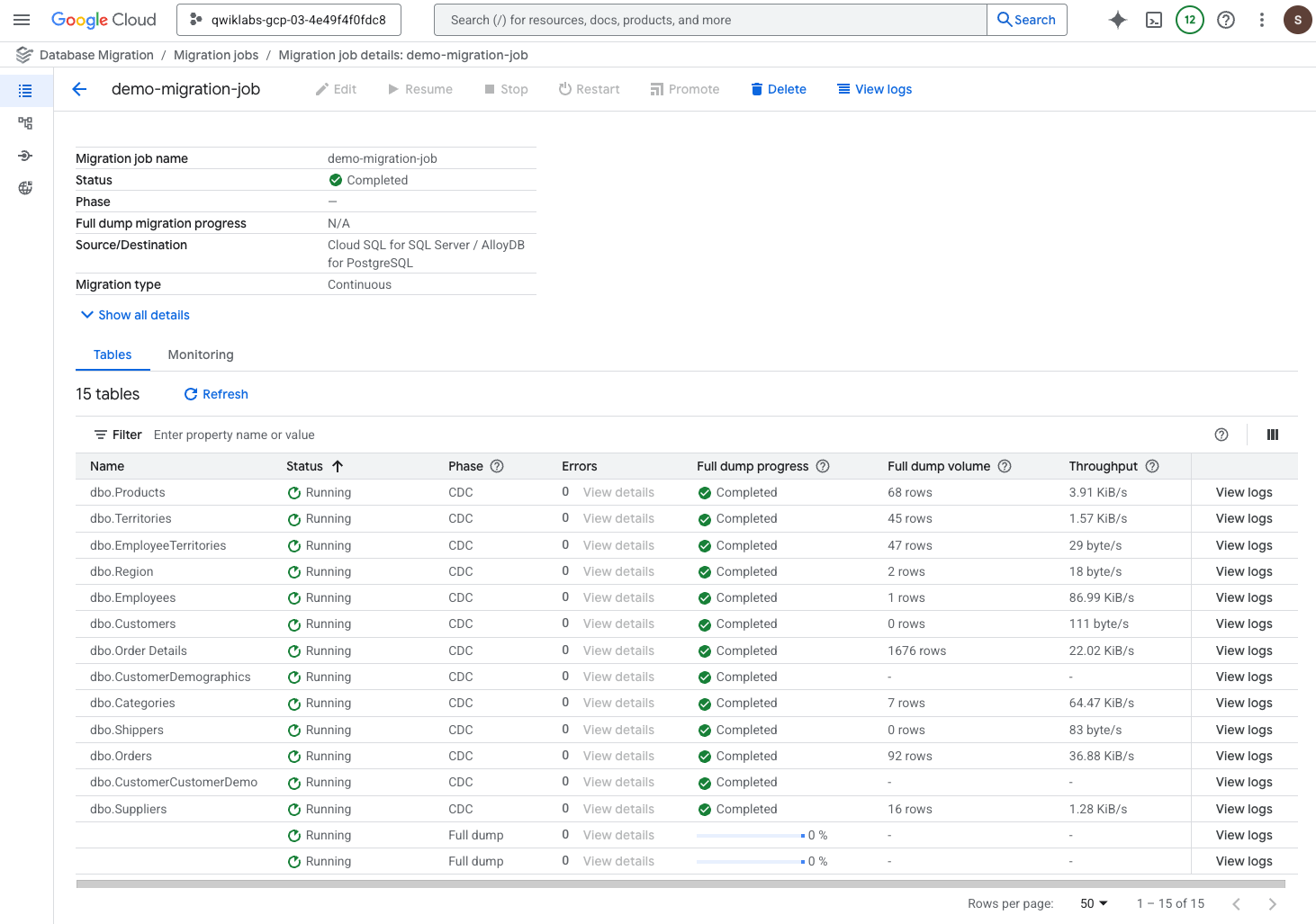
On the Migration jobs page, click the migration job named demo-migration-job to see the details page.
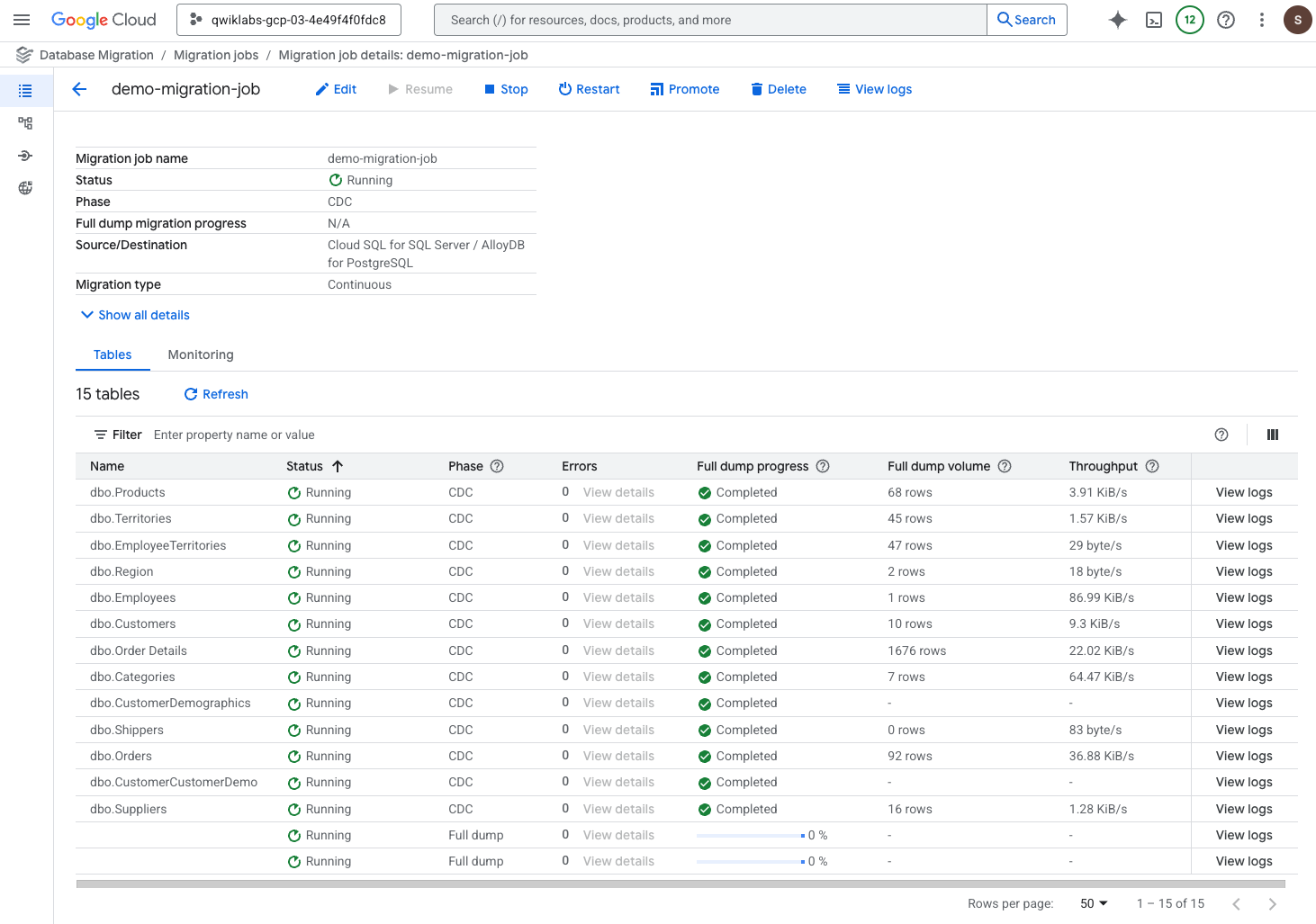
Review the migration job status.
Full dump to CDC for the job and all tables, you can proceed to the next task.
For one-time migration jobs, you would proceed when the phase has changed from "Full dump" to "Ready to promote".
Leave this browser tab open, and proceed to the next section.
In this task, you validate the continuous migration job and then complete the job by promoting the destination instance, which disconnects it from the source instance.
For both one-time and continuous migration jobs, you can validate the initial data dump by running queries for which you can compare the results between the source and destination instances. Recall that in Task 2, you ran some queries for row count; in this section, you repeat these queries but now in the destination instance.
In the left menu of this lab instruction page, click on the Open Google Cloud console button again to open a new browser tab for the console using Incognito mode.
In the Google Cloud Console, on the Navigation menu (
On the Clusters page, click on the instance named alloydb-instance-skillsdms.
In the AlloyDB menu under Primary cluster, click AlloyDB Studio.
Provide the following details to sign in, and click Authenticate.
| Property | Value |
|---|---|
| Database | Select dms |
| Authentication method | Select Built-in database authentication |
| User | Select dms |
| Password | Welcome123# |
On the AlloyDB Studio page, click the Untitled Query tab to access the query window.
To repeat the same query that you ran in the source database (Cloud SQL for SQL Server) in Task 2, copy and paste the following query in the query window, and click Run.
When the query has executed successfully, you see a message that says Statement executed successfully.
Notice that the same number of rows are returned (8 rows) as the source database (Cloud SQL for SQL Server) which you queried in Task 2.
When the query has executed successfully, you see a message that says Statement executed successfully.
Notice that the same number of rows are returned (91 rows) as the source database (Cloud SQL for SQL Server) which you queried in Task 2.
Leave this browser tab open, and proceed to the next section.
If you were completing a one-time migration job, you would skip this section validating CDC, and proceed to the next section to promote the destination instance as the final step for the migration job.
When CDC is enabled for continuous migration jobs, you can validate that CDC is functioning as expected by making some updates in the source instance and verifying that the changes are being written to the destination instance.
In this section, you verify CDC is executing successfully by adding a new row to the Customers table in the Cloud SQL for SQL Server instance and then query the updated row count in the AlloyDB for PostgreSQL instance.
In the left menu of this lab instruction page, click on the Open Google Cloud console button again to open a new browser tab for the console using Incognito mode.
In the Google Cloud Console, on the Navigation menu (
Click on the instance ID called mssql-instance-skillsdms.
In the Cloud SQL menu under Primary instance, click Cloud SQL Studio.
Provide the following details to sign in, and click Authenticate.
| Property | Value |
|---|---|
| Database | Select dms |
| User | Select sqlserver |
| Password | Welcome123# |
On the Cloud SQL Studio page, click the Untitled Query tab to access the query window.
To add a new row to the table named Customers, copy and paste the following query in the query window, and click Run.
When the query has executed successfully, you see a message that says Statement executed successfully.
Return to the browser tab for AlloyDB for PostgreSQL to verify that the new row has been written to the destination instance.
Run the count query again on the Customers table in the destination instance:
Notice that the returned row count is now 92, which indicates that a new row has been written to the table.
In this final section, you complete the migration job by promoting the destination instance, which disconnects it from the source instance.
Return to the browser tab for the Database Migration Service migration job.
On the top menu bar of the migration job page, click Promote.
When prompted, click Promote to confirm.
Promotion to Completed, the migration job has completed successfully, and you can click on the progress check below to receive the completed score. It can take up to 10 minutes for the migration job page to display an updated Phase value of Completed.
Click Check my progress to verify the objective.
You have successfully completed a heterogeneous database migration from Cloud SQL for SQL Server to AlloyDB for PostgreSQL using the full feature set of Google Cloud's Database Migration Service, including AI-assisted schema conversion via the Conversion Workspace and a continuous migration job.
...helps you make the most of Google Cloud technologies. Our classes include technical skills and best practices to help you get up to speed quickly and continue your learning journey. We offer fundamental to advanced level training, with on-demand, live, and virtual options to suit your busy schedule. Certifications help you validate and prove your skill and expertise in Google Cloud technologies.
Manual Last Updated April 9, 2026
Lab Last Tested April 9, 2026
Copyright 2026 Google LLC. All rights reserved. Google and the Google logo are trademarks of Google LLC. All other company and product names may be trademarks of the respective companies with which they are associated.



This content is not currently available
We will notify you via email when it becomes available

Great!
We will contact you via email if it becomes available


One lab at a time
Confirm to end all existing labs and start this one