


Before you begin
- Labs create a Google Cloud project and resources for a fixed time
- Labs have a time limit and no pause feature. If you end the lab, you'll have to restart from the beginning.
- On the top left of your screen, click Start lab to begin

Run a Serverless for Apache Spark job in Dataproc with lineage captured
/ 20
Create an aspect type for critical data
/ 20
Add an aspect to BigQuery tables
/ 20
Submit a Data Lineage API request to pull the downstream lineage
/ 20
Enter a one-off OpenLineage event using the Data Lineage API
/ 20


Working with big datasets often involves transforming data into assets tailored to the needs of a specific project, and tracking all of the data transformations across multiple tools in your system can be tricky. Data lineage in Knowledge Catalog is a solution that provides a mechanism to:
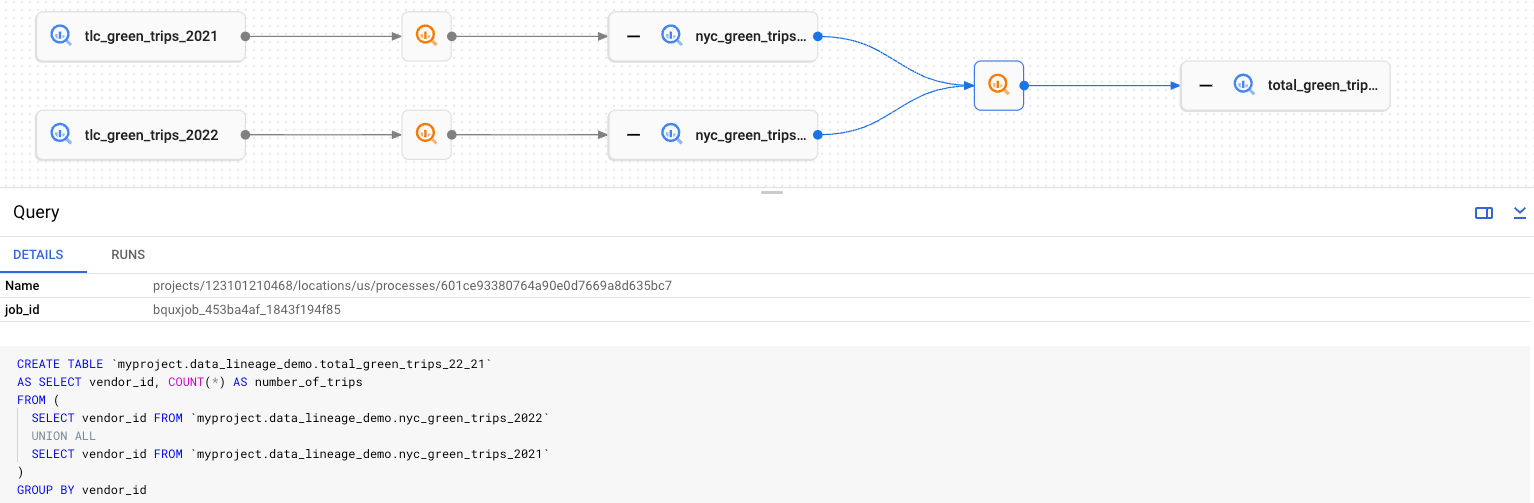
In Knowledge Catalog, you can review the lineage graph to see the lineage that has been natively gathered or manually added through the Data Lineage API. The lineage graph displays the upstream and downstream lineage of a root entry, which is the current entry that you are viewing. For example, the lineage graph below shows two data assets that are combined into a new data asset through a SQL query that includes a UNION statement. The two combined data assets are each part of the upstream lineage of the combined table, which is in the downstream lineage of each of the original tables.
Furthermore, through the Data Lineage API, you can import OpenLineage events to manually add additional lineage, alongside the lineage captured from natively supported Google Cloud services such as BigQuery, Dataflow, Managed Service for Apache Spark, Data Fusion, Cloud Composer, and Agent Platform. OpenLineage is an open platform for collecting and analyzing data lineage information that is used by data professionals to capture lineage events from data pipeline components which use an OpenLineage API such as Apache Airflow, Apache Spark, and dbt. With the Data Lineage API, you can manually add lineage information for any non-natively supported data sources, including data transformations jobs that occurred outside of the Google Cloud project.
In this lab, you start with a BigQuery dataset that has been loaded from data transformed outside of the Google Cloud project. Specifically, there are 89 BigQuery tables already loaded in a dataset named qwiklabs_bank that contain various data on bank customers, ATM transactions, loans, and more. These tables have been created through Apache Spark jobs outside of the Google Cloud project, and therefore, the lineage is not already captured. Throughout the lab, you run an additional Managed Service for Apache Spark job to transform the data further with the lineage captured. Then, you use data lineage graphs and the Data Lineage API to conduct impact analysis through exploring the downstream implications of updating specific tables and to add an OpenLineage event to capture data transformations from Apache Spark jobs executed outside of the Google Cloud project.
In this lab, you learn how to:
To complete this lab successfully, it is recommended that you have some foundational knowledge of data lineage and Knowledge Catalog, specifically:
Read these instructions. Labs are timed and you cannot pause them. The timer, which starts when you click Start Lab, shows how long Google Cloud resources are made available to you.
This hands-on lab lets you do the lab activities in a real cloud environment, not in a simulation or demo environment. It does so by giving you new, temporary credentials you use to sign in and access Google Cloud for the duration of the lab.
To complete this lab, you need:
Click the Start Lab button. If you need to pay for the lab, a dialog opens for you to select your payment method. On the left is the Lab Details pane with the following:
Click Open Google Cloud console (or right-click and select Open Link in Incognito Window if you are running the Chrome browser).
The lab spins up resources, and then opens another tab that shows the Sign in page.
Tip: Arrange the tabs in separate windows, side-by-side.
If necessary, copy the Username below and paste it into the Sign in dialog.
You can also find the Username in the Lab Details pane.
Click Next.
Copy the Password below and paste it into the Welcome dialog.
You can also find the Password in the Lab Details pane.
Click Next.
Click through the subsequent pages:
After a few moments, the Google Cloud console opens in this tab.

Cloud Shell is a virtual machine that is loaded with development tools. It offers a persistent 5GB home directory and runs on the Google Cloud. Cloud Shell provides command-line access to your Google Cloud resources.
Click Activate Cloud Shell 
Click through the following windows:
When you are connected, you are already authenticated, and the project is set to your Project_ID,
gcloud is the command-line tool for Google Cloud. It comes pre-installed on Cloud Shell and supports tab-completion.
Output:
Output:
gcloud, in Google Cloud, refer to the gcloud CLI overview guide.
If the Data Lineage API has not been enabled, click Enable.
If the Cloud Dataplex API has not been enabled, click Enable.
Google Cloud Serverless for Apache Spark workloads and sessions are natively integrated with Knowledge Catalog, allowing you to automatically capture data lineage events after you enable data lineage either at the project level or for a specific workflow or session. Once lineage is enabled, these events are captured and published to Knowledge Catalog.
In this task, you enable data lineage on Google Cloud Serverless for Apache Spark workloads at the project level, and then you run a Serverless for Apache Spark job in Managed Service for Apache Spark to review the captured lineage in a later task.
To enable data lineage at the project level, you can set custom project metadata for Managed Service for Apache Spark. After you set these values, all subsequent Spark batch workloads and interactive sessions that you run in the project will have data lineage enabled.
In the Google Cloud console, on the Navigation menu (
On the left menu pane, under Settings, click Metadata.
Click Edit, and then click Add item.
For Key 4, enter: DATAPROC_LINEAGE_ENABLED
For Value 4, enter: true
Click Add item again to add another key-value pair:
| Key 5 | Value 5 |
|---|---|
| DATAPROC_CLUSTER_SCOPES | https://www.googleapis.com/auth/cloud-platform |
Now that data lineage has been enabled at the project level, you can run a Serverless for Apache Spark job in Managed Service for Apache Spark with lineage captured.
In this lab environment, the BigQuery dataset named qwiklabs_bank contains tables that have been created from previous executions of qwiklabs_bank_1.py through qwiklabs_bank_9.py, so you only need to run qwiklabs_bank_10.py.
In the next steps, after you grant the necessary role to the service account and enable Private Google Access, you execute qwiklabs_bank_10.py.
qwiklabs_bank_10.py using Nano to learn how data is transformed in the script:As you scroll in the file, notice that one section in this script begins with raw ATM transaction data and completes some transformations to validate and finalize the ATM transaction data. In a later task, you explore the lineage for this ATM transaction data.
For example:
Press CTRL+X to close the file.
Next, run the following to give the Storage Admin role to the Compute Engine default service account:
qwiklabs_bank_10.py:No runtime version specified. Using the default runtime version. and proceed with the lab instructions. If you receive any other Managed Service for Apache Spark errors, be sure that you have restarted the Dataproc API following the instructions in the previous section named Enable the necessary APIs.
In Knowledge Catalog, aspects allow you to add custom metadata to assets for easy identification and retrieval, such as adding an aspect to certain assets to identify that they contain critical or sensitive data. You can also create reusable aspect types to rapidly add the same aspects to different data assets.
In this task, you create an aspect type for critical data and add the aspect to BigQuery tables that you want to label as critical data. In later tasks, you use the aspects to identify the downstream implications of data updates to specific tables, based on whether their downstream entries have an aspect for critical data.
In the Google Cloud console, on the Navigation menu (
On the left menu pane, under Manage Metadata, click Metadata types.
Click Create in the Aspect Types pane.
Enter the required information to define the aspect type:
| Property | Value |
|---|---|
| Display Name | Critical Data Aspect |
| Location |
| Property | Value |
|---|---|
| Field Display Name | Critical Data Flag |
| Type | Enum |
Select the Is Required checkbox.
Under Enum values, click Add an enum value.
For Value, type: Yes
Click Done.
Click Add an enum value again.
For Value, type: No
Click Done.
Click Save.
On the left menu pane, under Discover, click Search.
On the Search title bar, select Knowledge Catalog.
For Filters > Systems, select the BigQuery checkbox.
In the search box for Find resources across projects, enter ATM_Transaction_Fact, and then click ATM_Transaction_Fact from the search results.
Scroll down to the Aspects section. Next to Optional aspects, click Add.
Type Critical Data Aspect in the Filter field, and then click the Critical Data Aspect aspect from the results.
For Critical Data Flag, select Yes.
Click Save.
Repeat steps 4-8 for the table named Customer_Interaction_Summary.
Data lineage views are available for Knowledge Catalog entries, BigQuery assets, and Agent Platform resources. These lineage views are provided in graph and table formats and are very useful resources for conducting impact analysis to proactively identify downstream assets that could be affected by changes to a source table. Specifically, these lineage views allow you to visualize data asset flow and relationships, which is crucial for tracking data dependencies and understanding the full journey of a data asset.
In this task, you conduct impact analysis by visually exploring the data lineage graphs for specific BigQuery tables (some of which were transformed by the job you ran in Task 1) to identify whether there are any downstream implications of data updates to the reviewed tables.
In the Google Cloud console, on the Navigation menu (
In the Explorer pane, expand the arrow next to the project ID (
Under the dataset named qwiklabs_bank, click the table named Customer_Master.
In the table details pane, click the Lineage tab.
In the Graph view, notice that the table has an upstream entry that is an AVRO file, and a downstream entry named Customer_Interaction_Summary.
In addition to the Graph view, you can also review the List view to see the upstream and downstream entries for the table.
Notice that the same information as the Graph view is now provided as a table.
Click Graph to return to the graph view for Customer_Master, and click the box for the downstream entry named Customer_Interaction_Summary.
In the details pane for Customer_Interaction_Summary, scroll down to Aspects and review which aspects have been added to this table.
Based on the lineage information for Customer_Master and Customer_Interaction_Summary, answer the following question.
Be sure to click the Expand arrow for each downstream entry to see the full lineage for ATM_Transaction_Raw, which includes three downstream entries ending with ATM_Transaction_Fact.
In the Graph view, click on the box for ATM_Transaction_Raw.
In the details menu (right side), locate the section named Identifiers, and click the copy button for FQN, which is the fully qualified name provided as bigquery:project_id.dataset_name.table_name.
You use the FQN in the next task to programmatically pull the downstream lineage data for this table.
In addition to visually reviewing the lineage views available for some assets such as BigQuery tables, you can use the Data Lineage API to programmatically pull downstream lineage and related metadata about any asset that has associated data lineage.
In this task, you send requests to the Data Lineage API to programmatically pull the downstream lineage and dependencies of an entry (rather than visually reviewing the data lineage graph in BigQuery) as well as review the associated metadata for dependencies such as aspects that have been added to the assets.
The output includes a section that resembles the following:
From this API request, you have identified that the first entry in the downstream lineage for ATM_Transaction_Raw is the table named ATM_Transaction_Parsed.
The output includes a section that resembles the following:
From this API request, you have identified that the second entry in the downstream lineage for ATM_Transaction_Raw is the table named ATM_Transaction_Validated.
The output includes a section that resembles the following:
From this API request, you have identified that the third entry in the downstream lineage for ATM_Transaction_Raw is the table named ATM_Transaction_Fact.
Notice that this API request does not produce an output. From this API request, you have identified that ATM_Transaction_Fact is the final downstream entry for ATM_Transaction_Raw.
The output includes a section that resembles the following:
In the example above, the Knowledge Catalog entry name is:
projects/36248353385/locations/europe-west1/entryGroups/@bigquery/entries/bigquery.googleapis.com/projects/qwiklabs-gcp-00-3a54f469b10e/datasets/qwiklabs_bank/tables/ATM_Transaction_Fact
? after the DATAPLEX_ENTRY_NAME):The output includes a section that resembles the following:
Notice the critical data flag with a value of Yes for ATM_Transaction_Fact.
From these API requests, you have programmatically determined that updating or deleting the table named ATM_Transaction_Raw has downstream implications for a table with a critical data aspect (ATM_Transaction_Fact).
In addition to programmatically pulling downstream lineage through the Data Lineage API, you can also use the API to import OpenLineage events for data transformations that occurred outside of your current Google Cloud project. For assets that have data lineage views such as BigQuery tables, you can also review these imported events in the graph or table views for lineage.
In this task, you use the Data Lineage API to add an OpenLineage event to capture data transformations from an Apache Spark job executed outside of the Google Cloud project. Then, you return to BigQuery to see the lineage view for the OpenLineage event you added through the API.
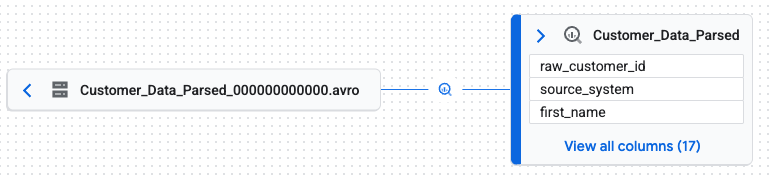
Notice that the only upstream lineage for this table is an AVRO file that was used during the import to BigQuery.
qwiklabs_bank_1.py using Nano to explore how Customer_Data_Raw was used to create Customer_Data_Parsed (lines 282-308):As you scroll in the file, notice that one section in this script begins with raw customer data and completes some transformations to parse the data into a new table.
For example:
Press CTRL+X to close the file.
Run the following command to post a one-off OpenLineage event into the lineage for Customer_Data_Parsed.
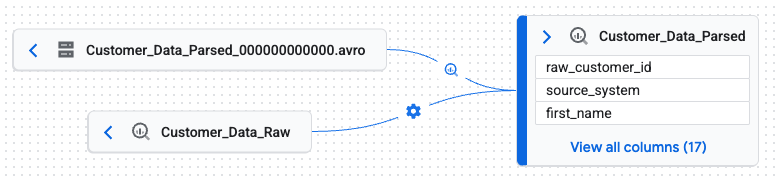
Notice that there is a new upstream entry capturing that Customer_Data_Raw was used to create Customer_Data_Parsed.
Repeat the steps in Task 5 to review qwiklabs_bank_2.py, and then use the Data Lineage API to capture that Customer_Data_Parsed was used to create Customer_Data_Validated.
In this lab, you executed a Serverless for Apache Spark job in Managed Service for Apache Spark with lineage captured and visually reviewed data lineage graphs in BigQuery. Then, you used the Data Lineage API to explore the downstream implications of updating tables and to add an OpenLineage event to capture data transformations from non-integrated services such as Apache Spark jobs executed outside of the Google Cloud project.
...helps you make the most of Google Cloud technologies. Our classes include technical skills and best practices to help you get up to speed quickly and continue your learning journey. We offer fundamental to advanced level training, with on-demand, live, and virtual options to suit your busy schedule. Certifications help you validate and prove your skill and expertise in Google Cloud technologies.
Manual Last Updated May 04, 2026
Lab Last Tested May 04, 2026
Copyright 2026 Google LLC. All rights reserved. Google and the Google logo are trademarks of Google LLC. All other company and product names may be trademarks of the respective companies with which they are associated.



This content is not currently available
We will notify you via email when it becomes available

Great!
We will contact you via email if it becomes available


One lab at a time
Confirm to end all existing labs and start this one