
Before you begin
- Labs create a Google Cloud project and resources for a fixed time
- Labs have a time limit and no pause feature. If you end the lab, you'll have to restart from the beginning.
- On the top left of your screen, click Start lab to begin

Enable the APIs
/ 10
Deploy the Agent
/ 90
Enable the APIs
/ 10
Deploy the Agent
/ 90


This lab focuses on the implementation and deployment of a client agent service using the Agent Development Kit (ADK) to build an AI agent that uses remote tools such as a Model Context Protocol (MCP) server. The key architectural principle demonstrated in this lab is the separation of concerns, with a distinct reasoning layer (the agent) communicating with a distinct tooling layer (the MCP server) via a secure API.
An MCP server is predeployed for you in this lab that provides data about the animals in a fictional zoo to LLMs. In this lab, you then build a tour guide agent, which consists of a Python application, for the fictional zoo. The agent uses the MCP server to access details about the zoo animals, and also uses Wikipedia to create the best tour guide experience.
Finally, you deploy the tour guide agent to Google Cloud Run, so it can be accessed by all zoo visitors rather than just running locally.
Explore other content in the Gemini Enterprise Agent Ready (GEAR) program.
In this lab, you learn how to perform the following tasks:
Cloud Run is a great choice for hosting ADK agents because it's a serverless platform, which means you can focus on your code and not on managing the underlying infrastructure. Cloud Run handles the operational work for you.
Think of it like a pop-up shop: it only opens and uses resources when customers (requests) arrive. When there are no customers, it closes down completely, and you don't pay for an empty store.
Read these instructions. Labs are timed and you cannot pause them. The timer, which starts when you click Start Lab, shows how long Google Cloud resources are made available to you.
This hands-on lab lets you do the lab activities in a real cloud environment, not in a simulation or demo environment. It does so by giving you new, temporary credentials you use to sign in and access Google Cloud for the duration of the lab.
To complete this lab, you need:
Cloud Shell is a virtual machine that is loaded with development tools. It offers a persistent 5GB home directory and runs on the Google Cloud. Cloud Shell provides command-line access to your Google Cloud resources.
Click Activate Cloud Shell 
Click through the following windows:
When you are connected, you are already authenticated, and the project is set to your Project_ID,
gcloud is the command-line tool for Google Cloud. It comes pre-installed on Cloud Shell and supports tab-completion.
Output:
Output:
gcloud, in Google Cloud, refer to the gcloud CLI overview guide.
In this task, you enable the relevant APIs and create a project folder to store the source code for your Python project's deployment.
Use this window as your IDE, with both the Cloud Shell Editor (top) and the Cloud Shell terminal (bottom), for the remainder of this lab.
Close any additional tutorial or Antigravity / Gemini panels that appear on the right side of the screen to save more of your window for your code editor.
In the terminal, enter the following command to set up your project:
Expected output: You should get an output message confirming the updated property.
Run the following command to enable all the necessary services:
Expected output: You should get an output message confirming that the operation was successful.
Click Check my progress to verify the objective.
Execute the following command, which creates a main folder in the lab for the agent's source code:
Now you're ready to create the requirements.txt file. This file lists the Python libraries that your zoo agent needs.
Run the following command to create the file within the zoo_guide_agent directory and launch it in Cloud Shell Editor so you can edit the file:
Add the following to the requirements.txt file and press CTRL+S to save your changes:
Run the command that follows in the terminal to install your Python packages and update your PATH:
Set variables for your current project, region, and user with these commands:
Create and open an .env file to authenticate the agent in the zoo_guide_agent directory with the following command:
The directory containing the .env file opens in the Cloud Shell Editor.
Add the following to the .env file and save your changes:
In this section, you establish a connection to your remote MCP server.
Return to the Cloud Shell terminal and run the following command to verify that the Cloud Run service identity has permission (roles/run.invoker) to call the remote MCP server:
Run the following command to save the MCP server URL to an environment variable:
Next, you run the following command to create the __init__.py file. This file tells Python that the zoo_guide_agent directory is a package:
In the Cloud Shell Editor that opens, add the following code to __init__.py and save your changes:
In this task, you configure the zoo tour guide agent's workflow. First, you import the relevant libraries for the initial setup. Then, you define the zoo agent's capabilities (which tools it uses) and you define the specialist agents. Thereafter, you define the workflow agent, and finally, you assemble the main workflow.
Return to the Cloud Shell terminal and run the following command to create the main agent.py file, which opens it in the Cloud Shell Editor so you can paste in the complete code for your multi-agent system in the steps that follow:
This first block brings in all the necessary libraries from the ADK and Google Cloud. It also sets up logging and loads the environment variables from your .env file, which is crucial for accessing your model and server URL.
Add the following code to your agent.py file:
An agent is only as good as the tools it can use. In this section, you define all the capabilities of your agent, including a custom function to save data, an MCP tool that connects to your secure MCP server, along with a Wikipedia tool.
Add the following code to the bottom of agent.py:
add_prompt_to_state: 📝 This tool remembers what a zoo visitor asks. When a visitor asks, "Where are the lions?", this tool saves that specific question into the agent's memory so the other agents in the workflow know what to research.
How: It's a Python function that writes the visitor's prompt into the shared tool_context.state dictionary. This tool context represents the agent's short-term memory for a single conversation. Data saved to the state by one agent can be read by the next agent in the workflow.
MCPToolset: 🦁 This is used to connect the tour guide agent to the zoo MCP server predeployed in this lab. This server has special tools for looking up specific information about zoo animals, like their name, age, and enclosure.
How: It securely connects to the zoo's private server URL. It uses get_id_token to automatically get a secure "keycard" (a service account ID token) to prove its identity and gain access.
LangchainTool: 🌍 This gives the tour guide agent general world knowledge. When a visitor asks a question that isn't in the zoo's database, like "What do lions eat in the wild?", this tool lets the agent look up the answer on Wikipedia.
How: It acts as an adapter, allowing your agent to use the pre-built WikipediaQueryRun tool from the LangChain library.
Resources:
In this section, you define two specialist agents—the researcher agent and response formatter agent. The researcher agent is the "brain" of your operation. This agent takes the user's prompt from the shared State, examines its powerful tools (the Zoo's MCP Server Tool and the Wikipedia Tool), and decides which ones to use to find the answer.
The response formatter agent's role is presentation. It doesn't use any tools to find new information. Instead, it takes the raw data gathered by the Researcher agent (passed via the State) and uses the LLM's language skills to transform it into a friendly, conversational response.
Add the following code to the bottom of agent.py:
The workflow agent acts as the 'back-office' manager for the zoo tour. It takes a research request and ensures that the two agents you defined in step 3 perform their jobs in the correct order: first research, then formatting. This creates a predictable and reliable process for answering a zoo visitor's question(s).
How: It's a SequentialAgent, a special type of agent that doesn't think for itself. Its only job is to run a list of sub_agents (the researcher and formatter) in a fixed sequence, automatically passing the shared memory from one to the next.
Add the following block of code to the bottom of agent.py:
The main workflow is designated via the root_agent, which is what the ADK framework uses as the starting point for all new conversations. This agent's primary role is to orchestrate the overall process. It acts as the initial controller, managing the first turn of the conversation.
Add this final block of code to the bottom of agent.py and save your changes:
Your agent.py file is now complete!
By building it this way, you can see how each component—tools, worker agents, and manager agents—has a specific role in creating the final, intelligent system. Next up, deployment!
With your local environment ready, the next step is to prepare your Google Cloud project for the zoo tour guide agent's deployment.
This involves a final check of your agent's file structure to ensure it's compatible with the deployment command. More importantly, you configure a critical IAM permission that allows your deployed Cloud Run service to act on your behalf and call the Agent Platform models. Completing this step ensures the cloud environment is ready to run your agent successfully.
Return to the Cloud Shell terminal and run the following command to load the variables into your shell session:
Run the following command to verify that the service account has the Agent Platform User role (roles/aiplatform.user), which gives it permission to make predictions and call Google's models:
With your local code ready and your Google Cloud project prepared, it's time to deploy the agent.
In this task, you use the adk deploy cloud_run command, which is a convenient tool that automates the entire deployment workflow. This single command packages your code, builds a container image, pushes it to Artifact Registry, and launches the service on Cloud Run to make it accessible on the web.
Run the following command to deploy your agent:
If you're prompted whether you'd like to continue and/or to allow unauthenticated invocations to [zoo-tour-guide], type Y in each case, and press ENTER.
Run the following command to modify the configuration settings of the existing Cloud Run service:
Once the agent has successfully been deployed to Cloud Run, it outputs the Service URL, which you can use to open it in a new browser tab.
It should resemble the following format. Service URL output:
Because you used the --with_ui flag while deploying to Cloud Run, you should see the ADK developer UI.
Click Check my progress to verify the objective.
With your agent now live on Cloud Run, in this task you perform a test to confirm that the deployment was successful and the agent is working as expected. You need to use the public Service URL to access the ADK's web interface and interact with the agent.
Open the public Cloud Run service URL that was output in the previous task in your web browser or CTRL+click on the URL in the output (it should open in a new browser tab). This opens the ADK Developer UI.
If you get a notification, asking whether you'd like Cloud Shell to open the external website, click Open to confirm.
Toggle Token Streaming to On in the upper right of the ADK toolbar.
You can now interact with the Zoo agent.
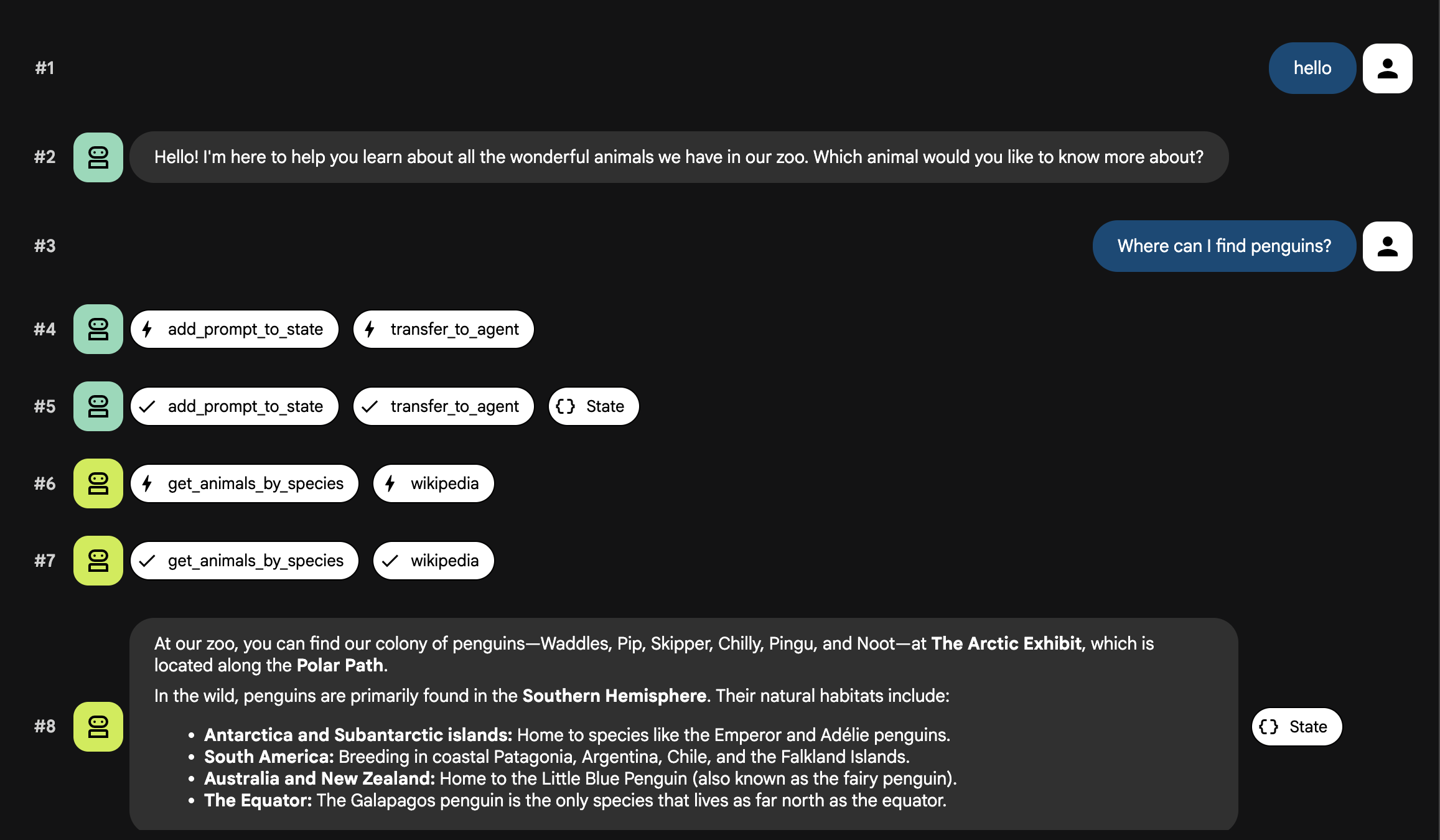
Observe the result. The agent should respond quickly with its standard greeting:
You should get a response similar to the following:
To test general knowledge (Wikipedia only):
To test combining internal and external data:
About lions (testing both tools again):
About polar bears (testing for animals that might not be in the zoo):
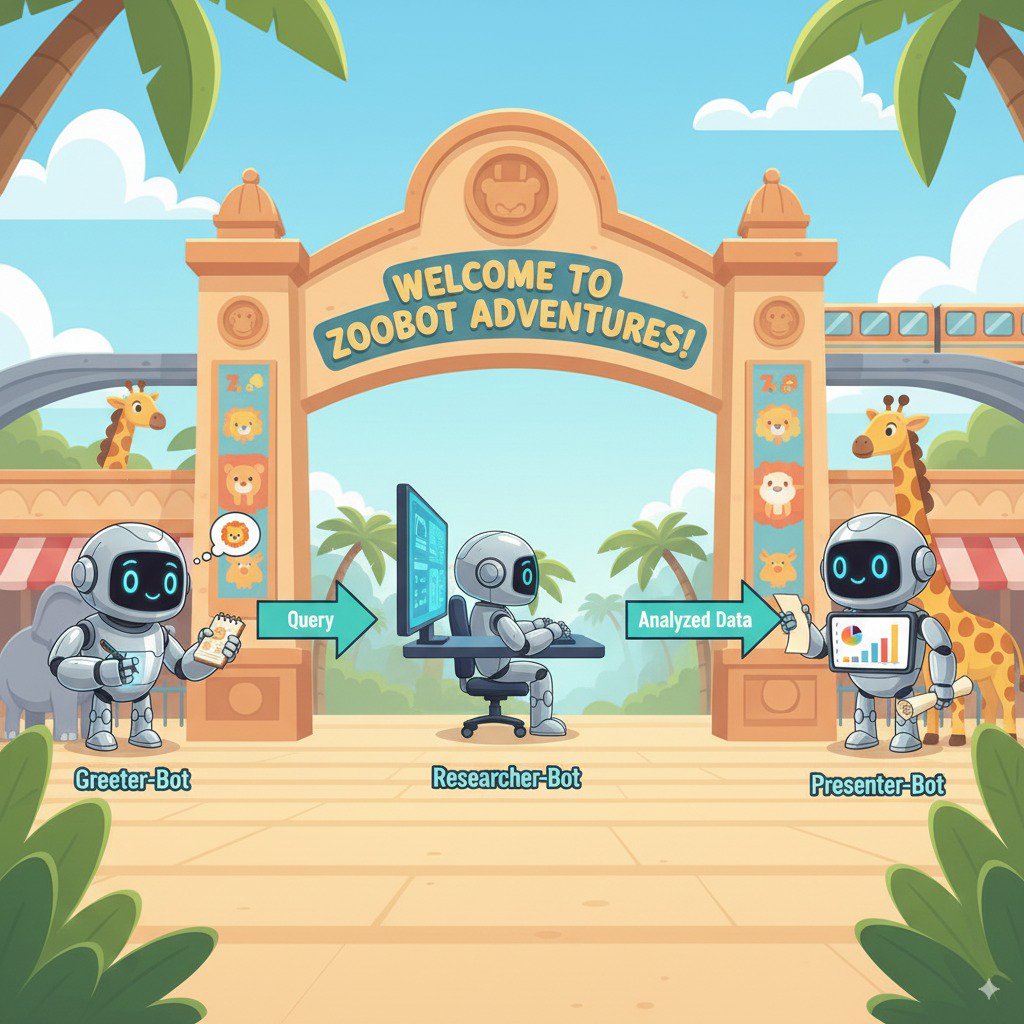
Your system operates as an intelligent, multi-agent team. The process is managed by a clear sequence to ensure a smooth and efficient flow from a user's question to the final, detailed answer.
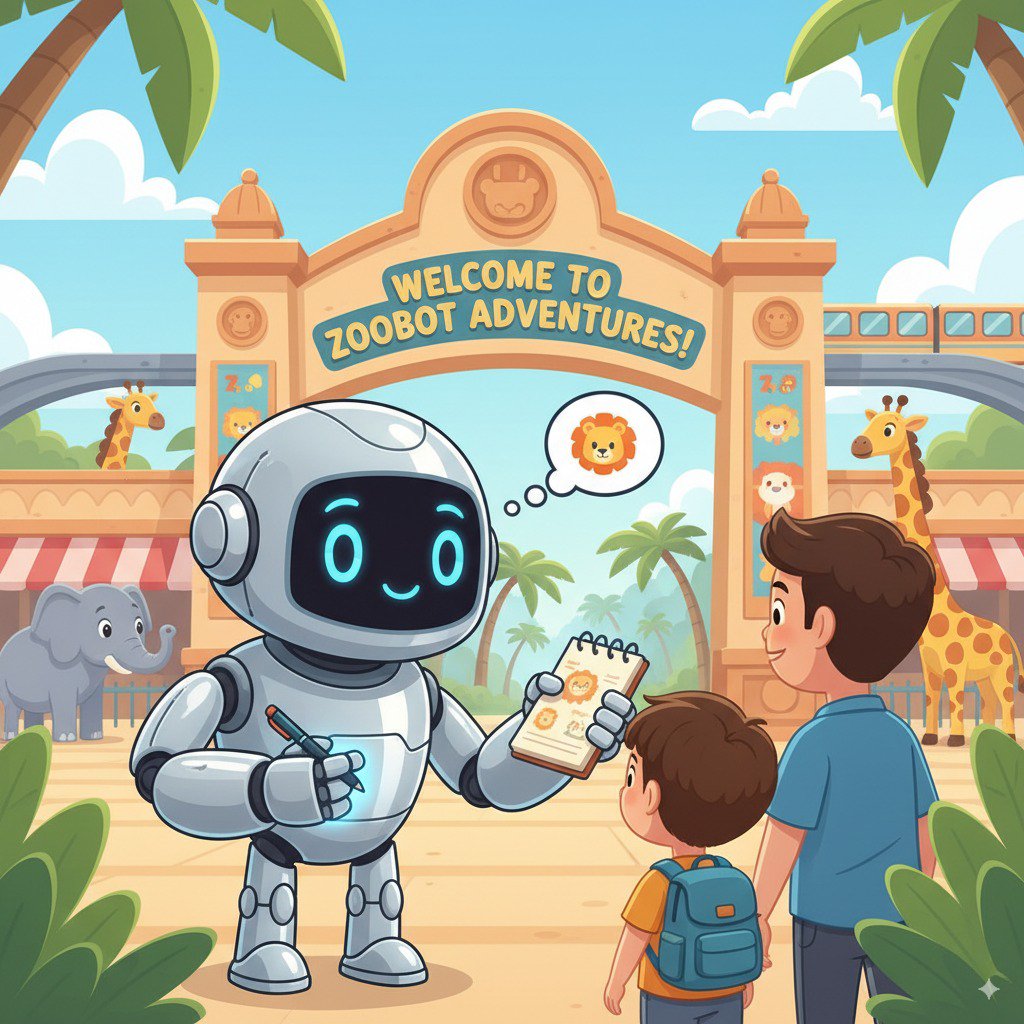
1. The Zoo Greeter (The Welcome Desk)
The entire process begins with the greeter agent.
Its Job: To start the conversation. Its instruction is to greet the user and ask what animal they would like to learn about.
Its Tool: When the user replies, the Greeter uses its add_prompt_to_state tool to capture their exact words (e.g., "tell me about the lions") and save them in the system's memory.
The Handoff: After saving the prompt, it immediately passes control to its sub-agent, the tour_guide_workflow.
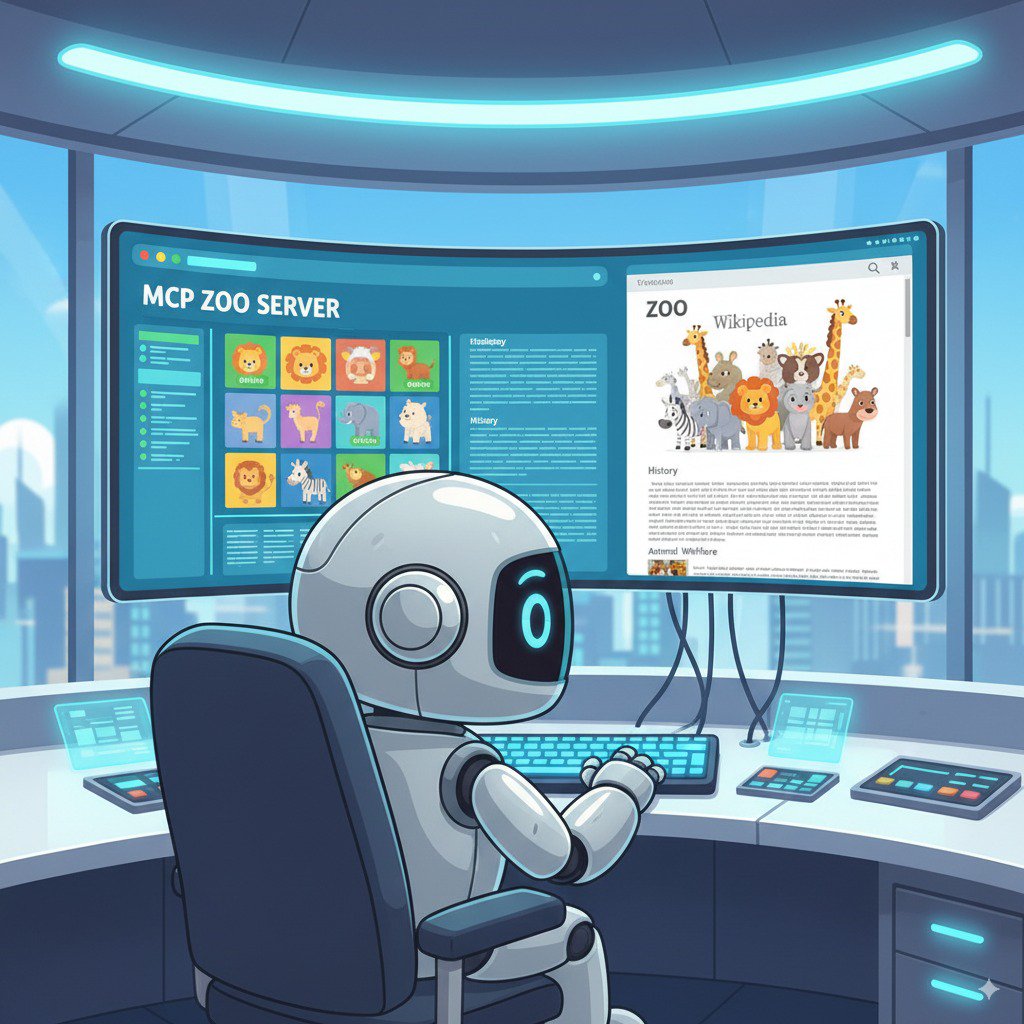
2. The Comprehensive Researcher (The Super-Researcher)
This is the first step in the main workflow and the "brain" of the operation. Instead of a large team, you now have a single, highly-skilled agent that can access all the available information.
Its Job: To analyze the user's question and form an intelligent plan. It uses the language model's powerful tool use capability to decide if it needs:
Its Action: It executes the necessary tool(s) to gather all the required raw data. For example, if asked "How old are our lions and what do they eat in the wild?", it will call the MCP server for the ages and the Wikipedia tool for the diet information.
3. The Response Formatter (The Presenter)
Once the Comprehensive Researcher has gathered all the facts, this is the final agent to run.
Its Job: To act as the friendly voice of the Zoo Tour Guide. It takes the raw data (which could be from one or both sources) and polishes it.
Its Action: It synthesizes all the information into a single, cohesive, and engaging answer. Following its instructions, it first presents the specific zoo information and then adds the interesting general facts.
The Final Result: The text generated by this agent is the complete, detailed answer that the user sees in the chat window.
In this task, you delete the Cloud resources you created in this lab to avoid incurring future costs.
Return to your Cloud Shell terminal tab and run the following command:
If you are interested in learning more about building Agents, check out the following resources:
In this lab, you explored how to structure a Python project for deployment with the ADK command-line interface, implemented a multi-agent workflow, connected to a remote MCP server to consume its tools, augmented internal data by integrating external tools like the Wikipedia API, and deployed the agent as a serverless container to Cloud Run.
Manual Last Updated October 5, 2026
Lab Last Tested October 5, 2026
Copyright 2026 Google LLC. All rights reserved. Google and the Google logo are trademarks of Google LLC. All other company and product names may be trademarks of the respective companies with which they are associated.



This content is not currently available
We can notify you via email when it becomes available

Great!
We can contact you via email if it becomes available


One lab at a time
Confirm to end all existing labs and start this one