

Before you begin
- Labs create a Google Cloud project and resources for a fixed time
- Labs have a time limit and no pause feature. If you end the lab, you'll have to restart from the beginning.
- On the top left of your screen, click Start lab to begin

Enable the necessary APIs
/ 10
Perform the necessary policy bindings
/ 5
MCP deploy and test locally
/ 20
MCP deploy to Cloud Run
/ 20
Update the agent to use MCP
/ 5
Deploy the ADK Agent locally
/ 20
Deploy the ADK Agent on Cloud Run
/ 10
Verify the deployed ADK Agent
/ 10
Enable the necessary APIs
/ 10
Perform the necessary policy bindings
/ 5
MCP deploy and test locally
/ 20
MCP deploy to Cloud Run
/ 20
Update the agent to use MCP
/ 5
Deploy the ADK Agent locally
/ 20
Deploy the ADK Agent on Cloud Run
/ 10
Verify the deployed ADK Agent
/ 10

In a challenge lab you’re given a scenario and a set of tasks. Instead of following step-by-step instructions, you will use the skills learned from the labs in the course to figure out how to complete the tasks on your own! An automated scoring system (shown on this page) will provide feedback on whether you have completed your tasks correctly.
When you take a challenge lab, you will not be taught new Google Cloud concepts. You are expected to extend your learned skills, like changing default values and reading and researching error messages to fix your own mistakes.
To score 100% you must successfully complete all tasks within the time period!
This lab is recommended for students who have enrolled in the Build a Smart Cloud Application with Vibe Coding and MCP course. Are you ready for the challenge?
Read these instructions. Labs are timed and you cannot pause them. The timer, which starts when you click Start Lab, shows how long Google Cloud resources are made available to you.
This hands-on lab lets you do the lab activities in a real cloud environment, not in a simulation or demo environment. It does so by giving you new, temporary credentials you use to sign in and access Google Cloud for the duration of the lab.
To complete this lab, you need:
The Cloud Creek Zoo has contracted the Cymbal Group's 'Digital Experience' consulting division to implement a state-of-the-art visitor engagement system. Cloud Creek Zoo's ultimate goal is a highly accurate, dynamic, and engaging Tour Guide powered by AI that can provide deep, contextual answers to visitor questions. At the core of the systems upgrade is the implementation and upgrade of the "zoo tour guide" AI agent that can perform lookups of animal information via a remote Model Context Protocol (MCP) server, the "zoo server".
In addition to using Wikipedia for context when answering visitor queries, the "zoo tour guide" agent should have access to real-time, broad information via a dedicated Google Search MCP Server tool. This would give the agent the capacity to answer questions such as, "Give me recent conservation news about the lion species."
A junior consultant made some mistakes while upgrading the existing "zoo server", resulting in a slightly broken, non-functional Python server. In addition, the project's architecture had not yet been finalized according to Cymbal Group's strict IAM policies.
You have been called to address these issues.
In this lab, your mission as a Senior AI Integration Specialist for the Cymbal Group is the following:
In this task, you create the project-specific foundation in Google Cloud to support an AI deployment at scale.
Ensure your Google Cloud project is configured to allow the required services to function and communicate effectively.
In Cloud Shell, click Open Editor to open the Cloud Shell Editor to your home directory.
In the Cloud Shell Editor action bar, click View > Terminal.
 ) to see the View menu option.
Use this window as your IDE, with both the Cloud Shell Editor (top) and the Cloud Shell Terminal (bottom), for the remainder of this lab.
Close any additional tutorial or Gemini panels that appear on the right side of the screen to save more of your window for your code editor.
In the terminal, enter the following command to set up your project:
Expected output: You should get an output message confirming the updated property.
In the terminal, run the following commands to download and extract the boilerplate code files:
Run the following to create the environment variables:
Your final directory structure should look similar to the following.
Output:
Finally, enable the necessary APIs—Agent Platform API, Artifact Registry API, Compute Engine API, Cloud Build API, and Cloud Run Admin API.
Click Check my progress to verify the objective.
The automated services (Cloud Build and Cloud Run) need specific permissions to interact with each other and the AI Platform.
In this task, you must perform the necessary policy bindings to give the user/service account permissions to invoke Cloud Run and use the AI Platform.
You need to grant the following IAM roles to the respective service accounts:
Cloud Run Admin and Agent Platform User role to Click Check my progress to verify the objective.
In this task, you must use the Gemini CLI to troubleshoot and revitalize the MCP server, which acts as the application's backbone and orchestrates AI tool use.
Once you've fixed the problem(s) in the code, ensure you use the relevant Cloud Build integration command in the Gemini CLI to deploy the preexisting, remote MCP server to the Gemini CLI repository for testing.
In the terminal, execute the following commands to run ~/mcp-on-cloudrun/server.py:
You will get an error; you need to fix that error using Gemini in Cloud Shell.
Once the error is fixed, re-run the previous command. It should start the MCP server locally and you should get output confirming that.
Open another terminal instance and run ~/mcp-on-cloudrun/local_mcp_call.py to test the locally deployed agent:
google.logging.v2.WriteLogEntriesPartialErrors error, set your project using the gcloud config set project command.Expected output: The resulting output, presented as a CallToolResult, should show the successful retrieval of structured data about the walrus species.
Click Check my progress to verify the objective.
Run the following gcloud command to deploy the application to Cloud Run:
Quota exceeded for total allowable CPU per project per region error during the Cloud Run deployment, please wait a moment and retry the command.Click Check my progress to verify the objective.
In this task, you deploy your Python Agent code and link it to the newly deployed MCP server.
Using the ADK commands within the Gemini CLI, deploy the local (updated) agent.py file. Configure this deployment to use the MCP Server deployed in Task 3, making the zoo tour guide operational within your local CLI environment.
Save your Google Cloud credentials and project number in environment variables for use in the Gemini settings file:
ID_TOKEN may have expired. Exit with /quit and set your project using the gcloud config set project command.In the Cloud Shell Editor, select View > Toggle hidden files, and open or create the ~/.gemini/settings.json file so you can update it. Populate the file contents with the following Gemini CLI settings to add the Cloud Run MCP server:
Perform the steps that follow to open the Gemini CLI.
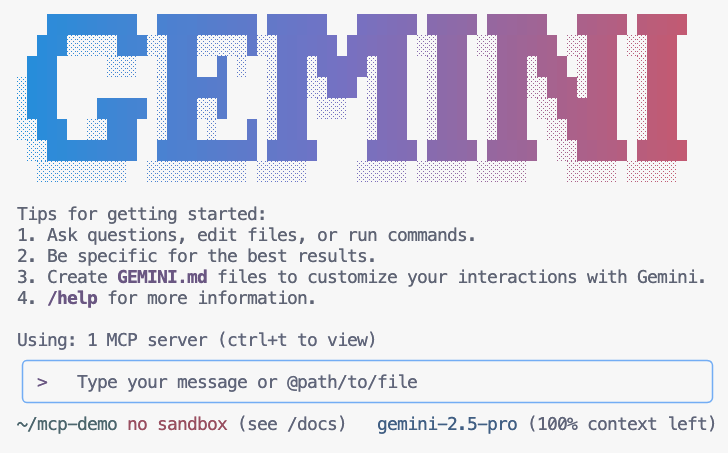
In the terminal, run the command to launch the Gemini CLI.
You may need to press ENTER to accept some default settings.
Use the relevant slash command to have Gemini list the MCP tools available to it within its context.
Ask Gemini to find something in the zoo:
The Gemini CLI should know to use the zoo-remote MCP server and should ask if you allow execution of the MCP tool.
Choose to always allow all tools from the zoo-remote MCP server.
Expected output: The output should show the correct answer and a display box showing that the MCP server was used.
Prompt the Gemini CLI as follows to use the new custom command that you created:
Expected output: You should see that Gemini CLI calls the fetch_animals_by_species tool and formats the response as instructed by the MCP prompt.
In the terminal, enter the following to verify the server logs:
Expected output: You should see an output log that confirms a tool call was made. 🛠️
Click Check my progress to verify the objective.
For the final task, you must move the entire system from your local testing environment to a scalable, production-ready serverless environment.
You need to containerize the complete ADK application, including the MCP server and the Zoo Tour Guide agent that has Google Search integrated, and deploy the resulting container image(s) to Google Cloud Run. You must ensure the service is configured for public invocation and confirm the agent is responsive at its public URL.
Open ~/zoo_guide_agent/agent.py, review the TODO comments, and update the code accordingly to complete the agent setup.
Run the following commands to install the package zoo_guide_agent:
Run the following to deploy the ADK agent locally:
In Cloud Shell, CTRL+click the http://localhost:8000 or http://127.0.0.1:8000 link to open the ADK dev UI in a new browser tab.
In the ADK dev UI, select the zoo_guide_agent, and ask it the following query:
Expected output: You should see events for all function calls, and a resolution to your query that combines information from all sources. The agent should also provide an approximate count of the number of species available globally.
Click Check my progress to verify the objective.
In the terminal, terminate the local ADK web instance by hitting Ctrl+C twice, and run the following commands to deploy your agent:
Click Check my progress to verify the objective.
With your agent now live on Cloud Run, perform a test to confirm a successful deployment and to verify that the agent is working as expected. Use the public Service URL to access the ADK's web interface and interact with the agent.
It should resemble the following format.
Service URL output:
Because you used the --with_ui flag while deploying to Cloud Run, you should see the ADK developer UI.
Toggle Token Streaming to On in the upper right.
Interact with the zoo agent. Enter the query that follows to start a new conversation:
Expected output: You should see events for all function calls with a resolution to your query that combines information from all sources. The agent should also provide an approximate count of the number of species available globally.
Click Check my progress to verify the objective.
In this lab, you demonstrated your ability to use Gemini CLI with Google Cloud Run and Cloud Build to configure, test, and deploy an enhanced and functional "zoo tour guide" ADK Agent. By ensuring the Agent can interact with a dedicated MCP Server and built-in tools, this significantly improves and streamlines the handling of zoo visitor queries and animal lookups as part of Cloud Creek Zoo's digital transformation efforts.
Check out the following resources to learn more about Gen AI and the Gemini Enterprise Agent Platform:
...helps you make the most of Google Cloud technologies. Our classes include technical skills and best practices to help you get up to speed quickly and continue your learning journey. We offer fundamental to advanced level training, with on-demand, live, and virtual options to suit your busy schedule. Certifications help you validate and prove your skill and expertise in Google Cloud technologies.
Manual Last Updated May 18, 2026
Lab Last Tested January 28, 2026
Copyright 2026 Google LLC. All rights reserved. Google and the Google logo are trademarks of Google LLC. All other company and product names may be trademarks of the respective companies with which they are associated.



This content is not currently available
We will notify you via email when it becomes available

Great!
We will contact you via email if it becomes available


One lab at a time
Confirm to end all existing labs and start this one
Complete this quick step to start your lab.