
始める前に
- ラボでは、Google Cloud プロジェクトとリソースを一定の時間利用します
- ラボには時間制限があり、一時停止機能はありません。ラボを終了した場合は、最初からやり直す必要があります。
- 画面左上の [ラボを開始] をクリックして開始します

In this lab, you'll learn how to Clean your data in Python. Data cleaning in Python refers to the process of preparing and pre-processing raw data to make it suitable for analysis or machine learning tasks. It involves identifying and handling issues such as missing values, outliers, duplicates, and formatting inconsistencies.
You'll need to start the lab before you can access the materials. To do this, click the green “Start Lab” button at the top of the screen.
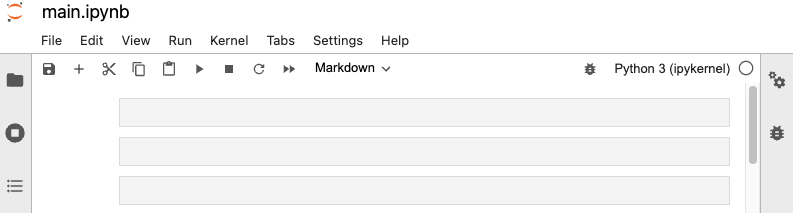
After you click the “Start Lab” button, you will see a Jupyter Notebook, where you will be performing further steps in the lab. You should have a jupyter notebook that looks like this:
You'll perform the following objectives in this lab:
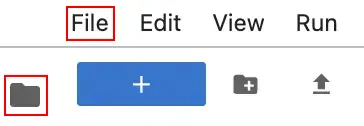
To complete this lab, you will open a Jupyter Notebook and follow instructions to enter code and written responses where prompted. The Jupyter notebook will autosave as you work, or you can manually save it by clicking the Save and Checkpoint button or by selecting Save and Checkpoint from the File menu.
As you complete the lab, note the following features:
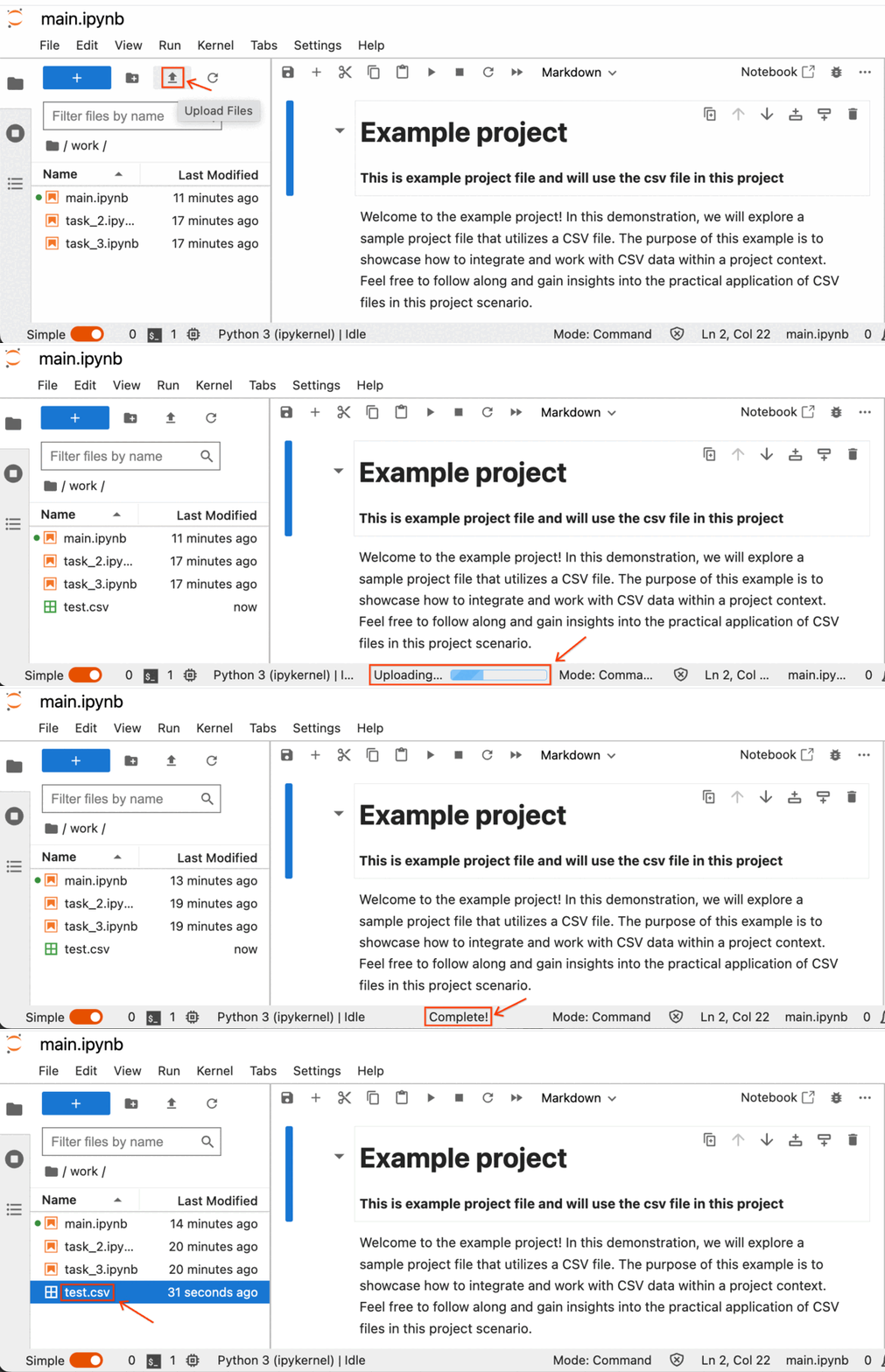
In this lab, you will perform operations on CSV data corresponding to the tasks outlined in the instructions. Retrieve the CSV file attached to the task instructions and proceed to upload it into the Jupyter Notebook using the following steps:
Click on the CSV file name specified in the task instructions, and the CSV file will be downloaded to your designated download directory.
Next, within your lab's Jupyter Notebook, simply select the Upload File button, choose the desired CSV files, and then click on Upload.
The process of uploading the CSV file has commenced, and you can locate the progress indicators at the bottom of the Jupyter Notebook.
The follow-along guide is an annotated Jupyter notebook organized to match the content from each module. It contains the same code shown in the videos for that module. In addition to content that is identical to what is covered in the videos, you’ll often find additional information throughout the guide to explain the purpose of each concept covered, why the code is written in a certain way, and tips for running the code.
Use the following CSV data for this task:
eda_input_validation_joining_dataset1.csveda_input_validation_joining_dataset2.csveda_label_encoding_dataset.csveda_missing_data_dataset1.csveda_missing_data_dataset2.csveda_outliers_dataset2.csveda_outliers_dataset3.csv.main.ipynb file, by clicking on the file name.In this task, you will explore common data science scenario: missing data. You will be presented with a business scenario and a dataset that has missing values you need to remove in order to navigate the scenario. You will practice finding missing values in your data, removing them or determining an alternative path.
This task uses a dataset called Unicorn_Companies.csv. It represents a list of private companies with a value of over $1 billion as of March 2022. The data includes the name of the country where the company was founded, its current valuation, funding, industry, top investors, year it was founded, and the year it reached a $1 billion valuation.
Use the following CSV data for this task:
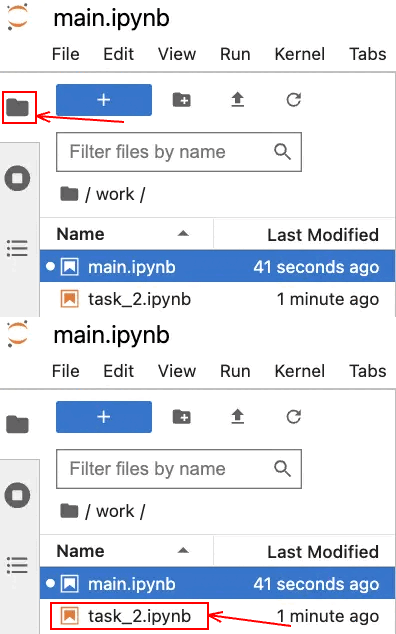
task_2.ipynb file, by clicking on the file name.### YOUR CODE HERE ### indicates where you should write code. Be sure to replace this with your own code before running the code cell.Before you end the lab, make sure you’re satisfied that you’ve completed all the tasks, and follow these steps:



このコンテンツは現在ご利用いただけません
利用可能になりましたら、メールでお知らせいたします

ありがとうございます。
利用可能になりましたら、メールでご連絡いたします


1 回に 1 つのラボ
既存のラボをすべて終了して、このラボを開始することを確認してください
ラボを開始するには、この簡単な手順を完了してください。