
Before you begin
- Labs create a Google Cloud project and resources for a fixed time
- Labs have a time limit and no pause feature. If you end the lab, you'll have to restart from the beginning.
- On the top left of your screen, click Start lab to begin

Create a data store and search app
/ 15
Debug your agent
/ 25
Set and utilize session state
/ 25
Deploy your agent to Agent Engine
/ 25
Configure a frontend to query your agent
/ 10
Create a data store and search app
/ 15
Debug your agent
/ 25
Set and utilize session state
/ 25
Deploy your agent to Agent Engine
/ 25
Configure a frontend to query your agent
/ 10
In this lab, you will demonstrate your ability to author agents using Agent Development Kit (ADK), deploy those agents to Agent Runtime, and use them from a web app.
In this lab you:
If you are looking for resources that will help you develop the skills required to complete this lab successfully, consider reviewing relevant sections from the following:
Read these instructions. Labs are timed and you cannot pause them. The timer, which starts when you click Start Lab, shows how long Google Cloud resources are made available to you.
This hands-on lab lets you do the lab activities in a real cloud environment, not in a simulation or demo environment. It does so by giving you new, temporary credentials you use to sign in and access Google Cloud for the duration of the lab.
To complete this lab, you need:
Click the Start Lab button. If you need to pay for the lab, a dialog opens for you to select your payment method. On the right is the Lab setup pane with the following:
In the Lab Setup section, right-click Open Google Cloud console and select Open link in new window (or alternatively right-click and select Open Link in Incognito Window if you are running the Chrome browser).
The lab spins up resources, and then opens another tab that shows the Sign in page.
Tip: Arrange the tabs in separate windows, side-by-side.
If necessary, copy the Username below and paste it into the Sign in dialog.
You can also find the Username in the Lab Setup pane.
Click Next.
Copy the Password below and paste it into the Welcome dialog.
You can also find the Password in the Lab Setup pane.
Click Next.
Click through the subsequent pages:
After a few moments, the Google Cloud console opens in this tab.


Cymbal Shops is an American retail chain headquartered in Minneapolis that sells housewares, electronics, and clothing.
Cymbal Shops has expanded into Europe and launched a new Paint Department. It plans to use its new online presence to streamline the way people shop for paint for DIY home renovation projects.
A coworker of yours began to develop an agent, Paint Agent, to help the user:
Your coworker, however, got stuck on a bug and left the organization.
You are a new ML Engineer with Cymbal Shops. You've been tasked with completing the deployment of Paint Agent. The agent is structured like this:
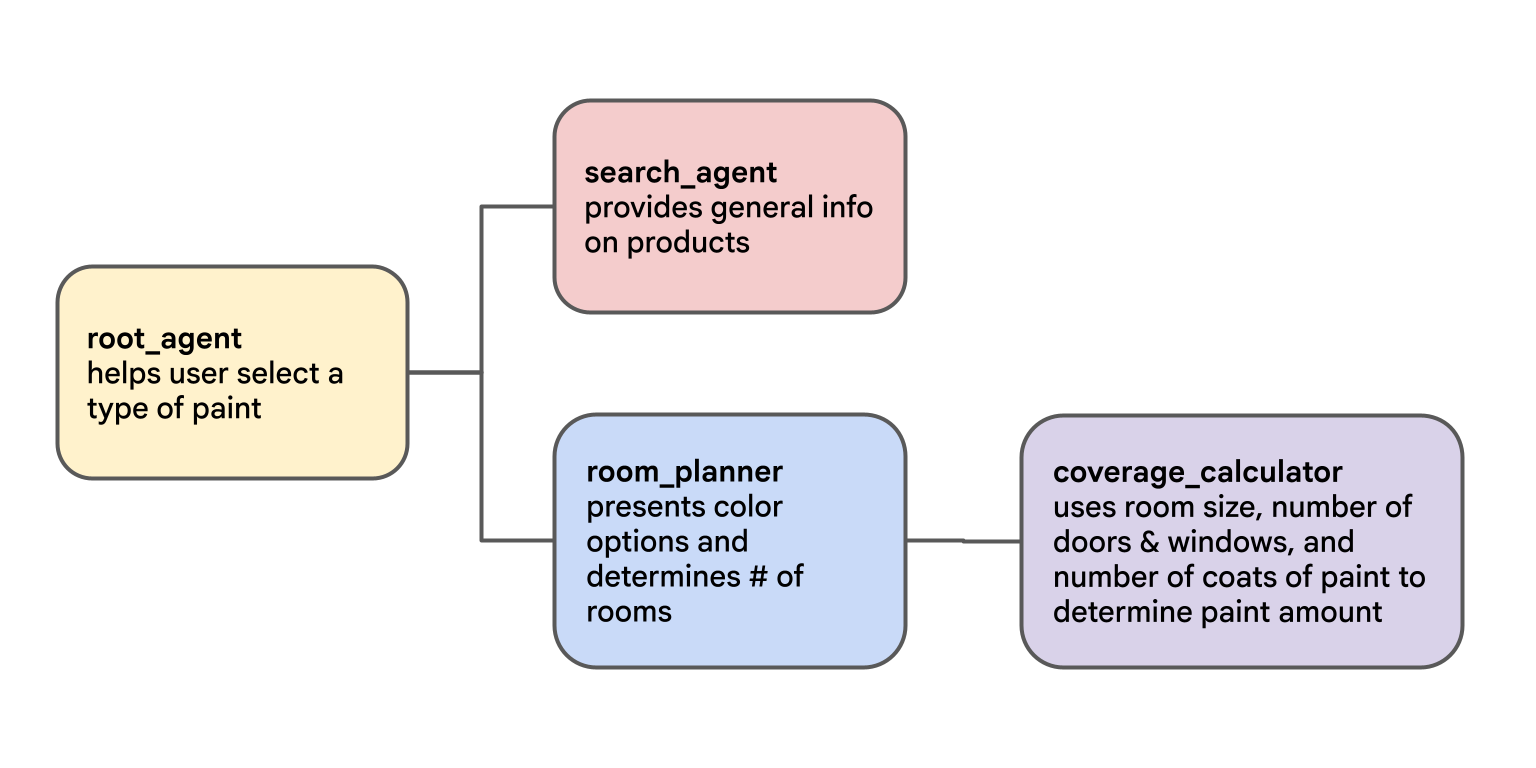
In this task, you will deploy an Agent Search data store. This data store will import a datasheet describing Cymbal Shops' paint (which you can preview in a tab in your Incognito window at https://storage.cloud.google.com/
A data store and search app allow your agent to quickly find your organization's content. It can then use that information to provide an appropriate response to the user based on your data.
In the Google Cloud Console, navigate to Agent Platform > Agents > Search.
Create an Agent search app with the following configuration:
| Field | Value |
|---|---|
| App type | Custom search (general) |
| App name | Paint Search |
| Company name | Cymbal Shops |
| Location | global |
Create an Agent Search data store with the following configuration:
| Field | Value |
|---|---|
| Data source | Cloud Storage |
| Data type | Documents |
| Folder or File | File |
| File to import |
|
| Location | global |
| Data store name | Cymbal Paint |
| Document parser | Layout Parser |
| Enable table annotation | Enabled |
| Include ancestor headings in chunks | Enabled |
Select the Pricing Model as General for both the App and Data store.
Click Check my progress to verify the objective.
In this lab environment, the Agent Platform API has been enabled for you. If you were to follow these steps in your own project, you would enable it by navigating to Agent Platform and following the prompt to enable it.
Click Activate Cloud Shell (
Click Continue.
When prompted to authorize Cloud Shell, click Authorize.
In the upper right corner of the Cloud Shell Terminal panel, click the Open in new window button 
Click the Open Editor pencil icon (
At the top of the left-hand navigation menu, click the Explorer icon (
Click the Open Folder button.
In the Open Folder dialog that opens, click OK to select your Qwiklab student account's home folder.
Close any additional tutorial or Gemini panels that appear on the right side of the screen to save more of your window for your code editor.
Throughout the rest of this lab, you can work in this window as your IDE with the Cloud Shell Editor and Cloud Shell Terminal.
Paste the following command into the Cloud Shell Terminal to copy files from a Cloud Storage bucket, creating a project directory with code for this lab:
Update your PATH environment variable and install ADK and other lab requirements by running the following commands in the Cloud Shell Terminal.
Copy the following commands to a text file. Update the value of SEARCH_ENGINE_ID from YOUR_ID to the ID of the search engine you just created (it will look like paint-search_1756... and can be found in the list of Apps in Agent Platform > Agents > Search):
Run your edited commands in the Cloud Shell Terminal to create a .env file with model authentication and configuration variables. [Note: To view a hidden file (indicated by a file beginning with a period), you can use the Cloud Shell Editor menus to enable View > Toggle Hidden Files]
Copy the .env file to the agent directory to provide your agent with the necessary authentication configurations once it is deployed:
A coworker of yours had begun work on the Paint Agent, but got stuck. You'll need to pick up where they left off -- including fixing a bug they left behind -- to complete and deploy the agent.
In the Cloud Shell Terminal, run the current version of the agent with:
When the [user]: prompt appears, enter:
If the agent follows up asking if you'd like to learn more about Cymbal Shops' paints, reply:
Expected output ends with:
In the following steps, you will resolve this error.
Open the file adk_challenge_lab/paint_agent/agent.py and inspect the lists of sub-agents and tools that the root_agent utilizes. Notice that it includes sub-agents. Transferring to sub-agents invokes an implicit transfer_to_agent tool.
The root_agent's tool is not a search tool, so at least one of the sub-agents must invoke a search tool. Explore the sub-agents found in the sub_agents directory to find the search tool being used (in this case a VertexAiSearchTool):
Knowledge check: (the answer will be revealed as you progress):
While a search tool cannot be combined with other non-search tools in an agent (even by using it in a sub-agent as seen here), ADK does provide a tool named AgentTool that can wrap an isolated agent that uses a search tool. Then that agent-as-tool can be used with other tools.
Back in the root_agent's file adk_challenge_lab/paint_agent/agent.py, add an AgentTool() to the root_agent's list of tools. Provide the AgentTool() the following arguments:
agent should be set to search_agent (the sub-agent that uses the search tool you uncovered above).skip_summarization should be set to False because you would like the agent to report on what the search tool has returned.Remove that sub-agent from the sub_agents list.
Save the file.
Note: Continue only after your data store has been created and your document indexed. You can monitor this status in the Agent Platform > Agents > Search > Data Stores > Cymbal Paint data store on the Documents tab.
In practice, you will get more reliable output if you give it a few additional minutes after the status shows "Ready" before querying your agent.
In the Cloud Shell Terminal, run the agent again with:
You should now be able to chat with the agent and get information on Cymbal Shops paint.
Get the agent to tell you the prices of EcoGreens and Forever Paint.
Click Check my progress to verify the objective.
When you are finished chatting with the agent via the command-line interface, type exit to end the conversation.
Your root_agent imports and uses a set_session_value tool from adk_challenge_lab/paint_agent/tools.py. The intention is to collect information like SELECTED_PAINT and COVERAGE_RATE from the user, store it in the session, and use it in the multi-turn chat. However, it is not fully implemented.
Update the set_session_value function in the file adk_challenge_lab/paint_agent/tools.py to store key-value pairs in the ToolContext's state dictionary.
Update the function's response to return a status message of f"stored '{value}' in '{key}'".
Open the agent.py file associated with the coverage_calculator_agent (sub-agent of the room_planner, which is a sub-agent of your root_agent).
Notice that its instructions are not correctly loading values from the state dictionary. Update the instruction to replace terms in ALL CAPS to instead use ADK's key templating to load state values into instructions. Use the optional syntax (e.g., {SELECTED_PAINT?}) to ensure the agent doesn't crash if it is invoked before a state key is populated.
Test your agent with:
Select paint_agent.
You should now be able to have the following conversation with your agent:
| You | Agent Response |
|---|---|
hello |
[Offers to share information about Cymbal Shops' paints] |
yes |
[Shares information about paint products, i.e. Project Paint, EcoGreens, SureCoverage, Forever Paint.] |
I'd like to use EcoGreens |
[The State tab should show updated state values. Asks how many rooms and their names.] |
Just one room, my office |
[Asks you to select a color for your office.] |
Deep Ocean |
[Asks you for the room dimensions.] |
3m by 4m. 3m high. 1 door, 2 windows. |
[Confirms how many coats.] |
Two coats. |
[Calculates you will need coverage of 74 sq meters.] |
When you are finished chatting with your agent, you can close the Dev UI browser tab.
Click Check my progress to verify the objective.
Select the Cloud Shell Terminal panel and press CTRL+C to shut down the server.
In Cloud Shell Terminal, make sure you are in the adk_challenge_lab directory:
Deploy your agent to Agent Runtime using the adk deploy agent_engine command. You must include the agent directory as the final positional argument (e.g., . if you are currently in the directory). Use the following arguments:
| Parameter | Argument |
|---|---|
--display_name |
"Paint Agent" |
--staging_bucket |
gs:// |
As the agent deploys, grant the Agent Platform User and Discovery Engine User IAM roles to the
Note that when deployment is complete, the deployed agent's resource name is printed to the console.
Click Check my progress to verify the objective.
In the file adk_challenge_lab/chainlit_ui/app.py, find and update the following line with your deployed agent's resource name to load your remote agent:
Run the UI with the following:
Expected output:
Click the link for http://localhost:8000 to open it in a new browser tab.
Have the following conversation with your deployed agent:
| You | Agent Response |
|---|---|
hello |
[Offers to share information about Cymbal Shops’ paints] |
yes |
[Shares information about paint products, i.e. Project Paint, EcoGreens, SureCoverage, Forever Paint ] |
I'd like to use Forever Paint |
[Asks how many rooms and their names] |
Two rooms. The living room and a baby's room. |
[Asks you to select a color for your living room and baby's room.] |
"Sunlight through a canvas tent" for the baby's room and "Coffee Cream" for the living room. |
[Asks you for the room dimensions] |
The living room is 5m by 4m. 2.5m high. 1 door, 3 windows. |
[Asks number of coats.] |
Two coats. |
[Requests dimensions for baby's room.] |
The baby's room is 3m by 3m. 2.5m high. 1 door, 1 window. |
[Provides a one-coat estimate and confirms the number of coats.] |
Always two coats. |
[Calculates you will need coverage of 77 sq meters for the living room and 53 sq meters for the baby's room.] |
If you'd like to start a new conversation with your agent, you can click the icon in the upper left to Create a New Chat.
Click Check my progress to verify the objective.
In this lab, you have:
...helps you make the most of Google Cloud technologies. Our classes include technical skills and best practices to help you get up to speed quickly and continue your learning journey. We offer fundamental to advanced level training, with on-demand, live, and virtual options to suit your busy schedule. Certifications help you validate and prove your skill and expertise in Google Cloud technologies.
Manual Last Updated June 08, 2026
Lab Last Tested June 08, 2026
Copyright 2026 Google LLC. All rights reserved. Google and the Google logo are trademarks of Google LLC. All other company and product names may be trademarks of the respective companies with which they are associated.



This content is not currently available
We will notify you via email when it becomes available

Great!
We will contact you via email if it becomes available


One lab at a time
Confirm to end all existing labs and start this one
Complete this quick step to start your lab.