Practice Lab: Introduction to Python
Lab
14 minuti
universal_currency_alt
Nessun costo
show_chart
Introduttivi
info
Questo lab potrebbe incorporare strumenti di AI a supporto del tuo apprendimento.

Questi contenuti non sono ancora ottimizzati per i dispositivi mobili.
Per un'esperienza ottimale, visualizza il sito su un computer utilizzando un link inviato via email.
Introduction
Python is a high-level, general-purpose programming language. Its design philosophy emphasizes code readability with the use of significant indentation. Python is dynamically typed and garbage-collected. It supports multiple programming paradigms, including structured, object-oriented and functional programming.
You will learn about the Python print() function in this lab. The print() function prints the specified message to the screen, or other standard output device. The message can be a string, or any other object, the object will be converted into a string before written to the screen.
Disclaimer: For optimal performance and compatibility, it is recommended to use either Google Chrome or Mozilla Firefox browsers while accessing the labs.
Setup and requirements
Before you click the Start Lab button
Please go through these directions. The Labs have a time limit and cannot be paused. The timer begins when you click the Start Lab button, shows how long Google Cloud resources will be made available to you.
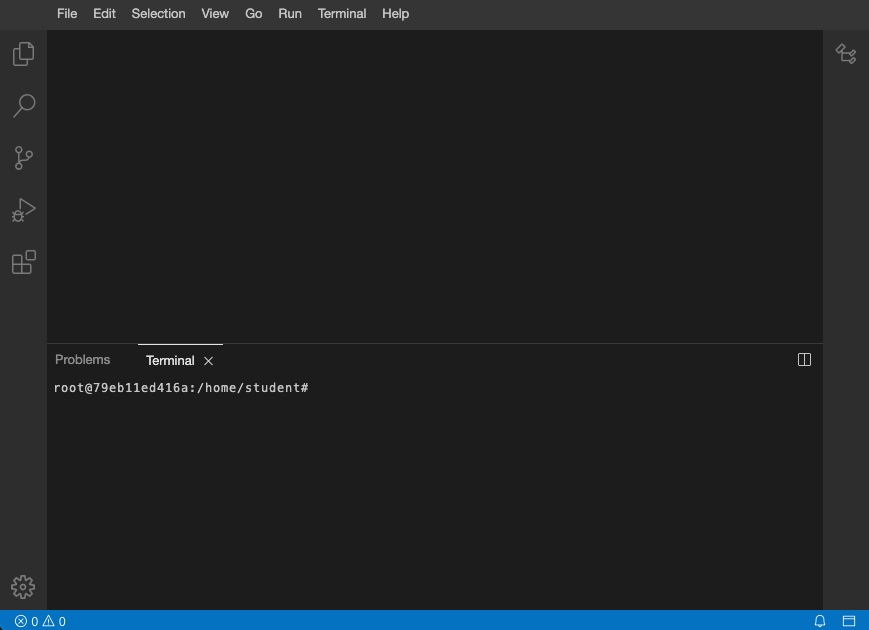
After you click the Start Lab button, you will see an editor and terminal, where you will be performing further steps in the lab. It should looks like this:
Overview
You are going to finish a series of tasks related to Python programming.
Access pre-created files
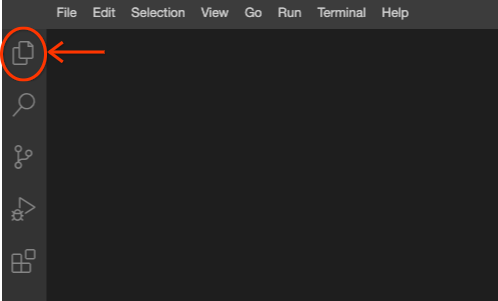
- Click the files icon as shown below to access the pre-created files.
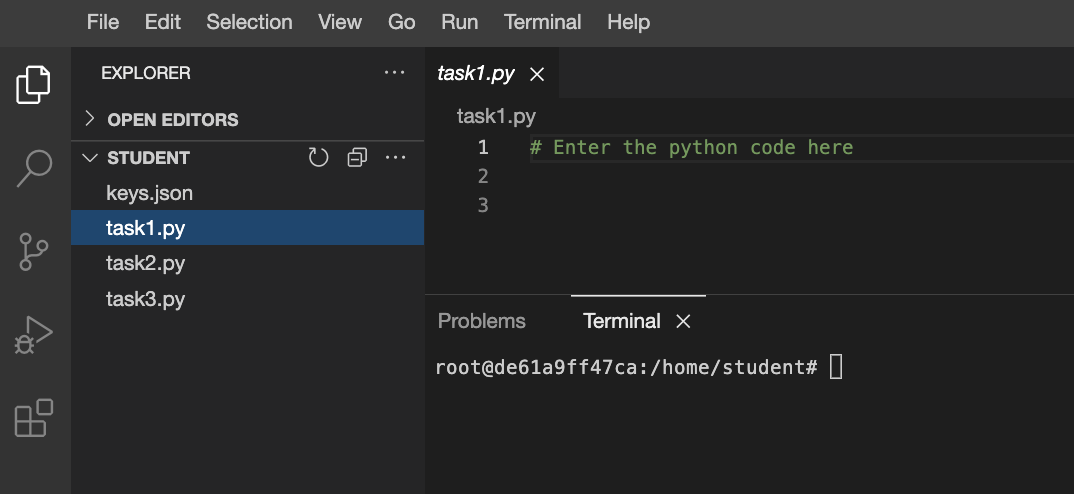
- Each pre-created file has the prefix
task as shown below. You will need to use these files to complete the tasks in the lab.
What you need
To complete this lab, you need:
- Access to a standard internet browser (Chrome browser recommended).
- Knowledge about Python Programming
- Time to complete the lab.
Task 1
You need to use Python programming to produce the text as an output.
-
Click the files icon to access the pre-created file.
-
Open the pre-created task1.py file, by clicking on the file name.
-
Write the Python command to put My first Python program on the terminal screen.
Note: The three dots (...) indicate where to add the code.
. . . ("My first Python program")
- Execute the file by entering the following command in the terminal.
python task1.py
Task 2
Convert the following Bash command into its equivalent Python code.
echo Have a nice day
-
Click the files icon to access the pre-created file.
-
Open the pre-created task2.py file, by clicking on the file name.
-
Write the Python code to put the output on the terminal screen.
-
Execute the file by entering the following command in the terminal.
python task2.py
Task 3
You need to use Python programming to produce the text as an output into the multiple times.
-
Click the files icon to access the pre-created file.
-
Open the pre-created task3.py file, by clicking on the file name.
-
Write the Python code to put This is fun! on the terminal screen 5 times.
Note: The three dots (...) indicate where to add the code.
for i in range(5):
. . . ("This is fun!")
- Execute the file by entering the following command in the terminal.
python task3.py
Congratulations!
You have successfully completed the tasks related to Python Programming.







