
Before you begin
- Labs create a Google Cloud project and resources for a fixed time
- Labs have a time limit and no pause feature. If you end the lab, you'll have to restart from the beginning.
- On the top left of your screen, click Start lab to begin

Create the BigQuery resources
/ 25
Create the Pub/Sub Topic and Subscription
/ 25
Grant Pub/Sub IAM Permissions
/ 25
Verify the results in BigQuery
/ 25
Create the BigQuery resources
/ 25
Create the Pub/Sub Topic and Subscription
/ 25
Grant Pub/Sub IAM Permissions
/ 25
Verify the results in BigQuery
/ 25

Imagine you are a data engineer for Cymbal Gaming. You and the development team are building a new e-sports game, "Galactic Grand Prix." The game produces real-time data based upon heads-up games between two players from different teams. For example, two players will compete in one event. A winner is determined, and then points are awarded to the winning player and team. You have been tasked with building a solution to handle this streamed data using Pub/Sub and then store the results in tables in BigQuery. From these tables, you have been tasked with creating the leaderboard views in BigQuery which serve as the backend data structure for the dashboards.
You have read that BigQuery can directly connect to a Pub/Sub subscription and could be used for this type of use case. You have also learned that Gemini can help you along the way, for example, if you get stuck with writing a new query you could use it for help. It could even help you with suggestions to resolve issues. Using these features will help you to be more independent in your work and, perhaps, even more efficient. However, you are not sure how to get started.
When you start the lab, the environment won't have any resources pre-built for you.
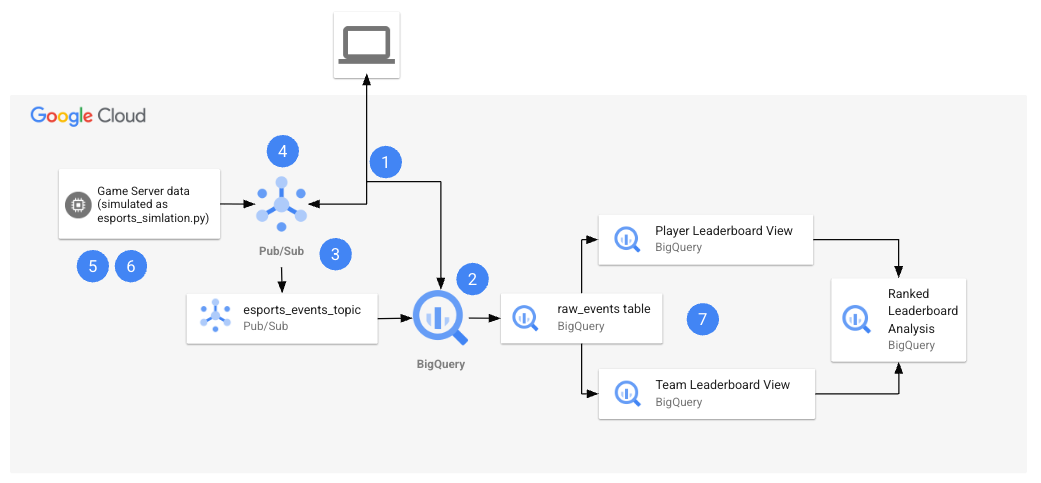
By the end of the lab, you will have used the architecture to perform several tasks.
The following table provides a detailed explanation of each task in relation to the lab architecture.
| Numbered Task | Detail |
|---|---|
| 1. | Configure environment variables in Cloud Shell. |
| 2. |
Create the BigQuery resources: You will use Cloud Shell commands to create the BigQuery dataset and table. |
| 3. |
Create the Pub/Sub Topic and Subscription: You will use the Pub/Sub console to create the topic and subscription, and the modify the subscription so that it can write to your BigQuery dataset and table. |
| 4. |
Grant Pub/Sub IAM permissions: You will use the IAM console to grant permissions to the compute service account. |
| 5. |
Retrieve the Python files from the repo: In this task, you retrieve the Python file from the repo, and configure it for your project. |
| 6. |
Generate synthetic data With the Python file configured for your project, you will then run the esports-simulation.py file, which uses Python to generate continuous Pub/Sub messages for game events. |
| 7. |
Verify the results in BigQuery: Now that you have sent the data to your Pub/Sub topic, your data is being captured and stored in your BigQuery table. You will run queries on the table and use view analyze the results of the games. |
In this lab, you learn how to:
Finally, you will have time to reflect on what you have learned in this lab and consider how you could address your own use cases with streaming data by answering questions in your Lab Journal.
Read these instructions. Labs are timed and you cannot pause them. The timer, which starts when you click Start Lab, shows how long Google Cloud resources are made available to you.
This hands-on lab lets you do the lab activities in a real cloud environment, not in a simulation or demo environment. It does so by giving you new, temporary credentials you use to sign in and access Google Cloud for the duration of the lab.
To complete this lab, you need:
Click the Start Lab button. If you need to pay for the lab, a dialog opens for you to select your payment method. On the left is the Lab Details pane with the following:
Click Open Google Cloud console (or right-click and select Open Link in Incognito Window if you are running the Chrome browser).
The lab spins up resources, and then opens another tab that shows the Sign in page.
Tip: Arrange the tabs in separate windows, side-by-side.
If necessary, copy the Username below and paste it into the Sign in dialog.
You can also find the Username in the Lab Details pane.
Click Next.
Copy the Password below and paste it into the Welcome dialog.
You can also find the Password in the Lab Details pane.
Click Next.
Click through the subsequent pages:
After a few moments, the Google Cloud console opens in this tab.

In this task, you configure environment variables in Cloud Shell.
Open Cloud Shell, by clicking Activate Cloud Shell.
You need to Authorize use, as this is the first time you use Cloud Shell in this lab. To do this, click Continue and then Authorize in the pop-up windows.
Run the following commands.
Run the commands below to confirm the variables are stored.
You will use these variables later in the lab.
In this task, you will create the Dataset and BigQuery table that will receive the raw streaming events from Pub/Sub.
In this task, you will create the BigQuery dataset that will act as a container for your tables and views.
At the top of the Google Cloud console, use the search bar to find and navigate to BigQuery. The "Welcome..." pop-up window appears.
Click Done.
In the Explorer pane on the left, find and click on your project ID, which is
Click the three vertical dots (⋮) to the right of your project ID to open the options menu, and then select Create dataset.
On the Create dataset panel, configure the following settings:
Dataset ID: esports_analytics
Data location: Select a location from the dropdown menu. For this lab, US (multiple regions in United States) is a suitable choice.
Leave the other settings as their default values and click CREATE DATASET. You see the new esports_analytics dataset appear under your project ID in the Explorer pane. This confirms you have successfully created the dataset.
Within the Explorer pane, expand your project and select the esports_analytics dataset.
Click the three vertical dots (⋮) next to the dataset name and select Create table.
Configure the table with the following settings:
raw_events
Click Create table.
The result is the raw_events table is created in your the esports_analytics dataset.
Click Check my progress to verify the objective.
In this task, you create the Pub/Sub topic and subscription to receive the streaming game data, add IAM permissions and modify the subscription to allow applications to receive messages from that topic and direct these to the raw_events table in BigQuery.
esports_events_topic.Add a default subscription, keep this enabled.The result is the topic and the subscription are created.
In the list of subscriptions, click on esports_events_topic-sub.
Click EDIT. You see the subscription options on the Edit supscription page.
For Delivery type choose Write to BigQuery. You see more options appear.
Choose esports_analytics for the dataset option.
Enter raw_events for the table. Notice that an error is displayed like the one below:
This means that you need to grant the proper permissions to the Pub/Sub service account to write to the raw events table. You will do that now.
Copy the service account email address from the error message.
Navigate to BigQuery: Open the BigQuery page from the console in a new browser tab.
Share the Dataset: In the Explorer panel, find your esports_analytics dataset, click the three vertical dots (⋮) next to it, and select Share and then Manage Permissions.
Add the Principal: In the Dataset permissions panel that appears, click Add principal.
Paste the full Pub/Sub service account email (from step 1) into the New principals field and use the tab key to complete it.
For the Role, select BigQuery Data Editor.
Click Save.
Your BigQuery subscription is now authorized to write incoming messages directly into the raw_events table.
Return the browser tab with Pub/Sub.
For Schema Configuration, choose Use table schema.
Keep the remaining options using their defaults.
Click UPDATE.
The subscription configuration is now saved and the with the subscription now properly configured, Pub/Sub will direct all messages (the streaming e-sports data) to your raw_events table in BigQuery.
Click Check my progress to verify the objective.
To ensure your solution runs smoothly, you also need to grant Permission for the compute service account to publish messages to the Pub/Sub topic.
This allows your Python script or application to send messages to the Pub/Sub topic.
In the Google Cloud Console, navigate to IAM & Admin > IAM. You see the list of principals currently configured with permissions.
Find the principal with the email address
Edit the roles for this principal: Click the Edit Principal. You see the Edit access panel open for the principal and the editor role is included.
Click + Add another role
In the Select a role field, search for and select the Pub/Sub Publisher role.
Click Save.
The role is now assigned to the compute principal.
Click Check my progress to verify the objective.
In this task you use wget in Cloud Shell to retrieve the Python file from a public Cloud Storage bucket. Once retrieved you will open the file in Cloud Shell Editor and use the Code Assist feature of Gemini to explain how the file works. Finally, you will use the Cloud Shell Editor to configure the file with details for your project.
Return to Cloud Shell.
Run the following command to return to the home directory.
Create the esports directory and navigate to it.
Retrive the Python file using the wget commands below.
You see confirmation in the terminal that the files are downloaded.
Click on the Open Editor button in Cloud Shell. You see the Cloud Shell Editor open. You also see the Gemini Code Assist pane.
Close the Walkthrough tab.
In the Explorer pane, expand the esports folder. You see the Python files displayed.
Open the esports-simulation.py file.
Within the Gemini Code Assist pane, at the bottom you see a place to enter a prompt, where it says "Ask Gemini." Enter the following prompt:
You see that Code Assist explains what the code does in detail. At a high level the code will simulate an e-sports match of events and publishes these to a Google Cloud Pub/Sub topic.
You may see that Code Assist has made some suggestions for improvement. Do not accept the suggestions.
Around line 10, set the PROJECT_ID variable to your Project_ID, as with the other file simply replace the line with the code below.
Save the file.
In this task you will run the Python files to generate the synthetic data and run the pipeline.
Return to Cloud Shell terminal.
Confirm you are in the home directory.
Navigate to the esports directory.
Use pip to install the dependencies, specifically the Python library for Pub/Sub.
Run the simulator. This script will run continuously, sending events to your Pub/Sub topic.
You will see output indicating that events are being published within the terminal.
In this task you will confirm the raw_events table is updated with new messages from the Pub/Sub subscription. First, you will query the raw_events table. Then you will create two views, and then query the views to display the player and team leaderboards. You will also take time to reflect on how Looker could be used to enhance the leaderboard visualizations.
Return to BigQuery.
In the explorer panel, find and select the raw_events table.
Click Query. A template query is provided to you.
Modify this query by selecting all records in the raw_events table, by using the query below:
Run the query. If you see records displayed, this means that Pub/Sub is updating the table with the latest messages (e-sports game data) from the simulation.
In the explorer, expand your project and select the esports_analytics dataset.
Click the plus to create a new query.
In the query tab provided, enter the following query.
This query creates two views one for the player leaderboard and the other for the team leaderboard. It will find the most recent scores for the player and the team, and rank them accordingly.
Click the plus to create a new query.
In the query tab provided, enter the following query.
The result is the player leader board is displayed with the players ranked, in order from first to twelth place based upon total wins.
Click the plus to create a new query.
In the query tab provided, enter the following query.
The result is the teams are ranked in order from first to fourth place based upon total wins.
Consider the results you found in BigQuery. This lab only used leaderboards based upon SQL queries in BigQuery. Think about how you could build a dashboard for these leaderboards in Looker and answer the following questions using your lab journal:
Click Check my progress to verify the objective.
You used a Python script to simulate game data. You also used Cloud Assist to help you explain the code in these scripts. Finally, you have generated Google Cloud resources to support your esports streaming data, including a Pub/Sub topic and subscription, a BigQuery Dataset, tables and views, to stream this data and generate reports on which players and teams are in the lead. You are becoming more confident with Google Cloud each day and can use Gemini to supplement your knowledge and skills with Data Engineering workflows.
...helps you make the most of Google Cloud technologies. Our classes include technical skills and best practices to help you get up to speed quickly and continue your learning journey. We offer fundamental to advanced level training, with on-demand, live, and virtual options to suit your busy schedule. Certifications help you validate and prove your skill and expertise in Google Cloud technologies.
Manual last updated on August 6, 2025
Lab last tested on August 6, 2025
Copyright 2026 Google LLC. All rights reserved. Google and the Google logo are trademarks of Google LLC. All other company and product names may be trademarks of the respective companies with which they are associated.



This content is not currently available
We will notify you via email when it becomes available

Great!
We will contact you via email if it becomes available


One lab at a time
Confirm to end all existing labs and start this one
Complete this quick step to start your lab.