


始める前に
- ラボでは、Google Cloud プロジェクトとリソースを一定の時間利用します
- ラボには時間制限があり、一時停止機能はありません。ラボを終了した場合は、最初からやり直す必要があります。
- 画面左上の [ラボを開始] をクリックして開始します

Create a storage pool
/ 40
Create a volume
/ 40
Mount the volume
/ 20

This lab was developed with our partner, NetApp. Your personal information may be shared with NetApp, the lab sponsor, if you have opted-in to receive product updates, announcements, and offers in your Account Profile.
Google Cloud NetApp Volumes is a fully managed data storage service that lets you move file-based applications to Google Cloud. It has support for Network File System (NFSv3 and NFSv4.1) and Server Message Block (SMB) protocols built-in, so you don't need to re-architect your applications and can continue to get persistent storage for your applications.
In this lab you will learn how to create and mount an NFSv3 volume.
In this lab you will learn how to:
A basic understanding of private service access.
Read these instructions. Labs are timed and you cannot pause them. The timer, which starts when you click Start Lab, shows how long Google Cloud resources will be made available to you.
This Qwiklabs hands-on lab lets you do the lab activities yourself in a real cloud environment, not in a simulation or demo environment. It does so by giving you new, temporary credentials that you use to sign in and access Google Cloud for the duration of the lab.
To complete this lab, you need:
Note: If you already have your own personal Google Cloud account or project, do not use it for this lab.
Note: If you are using a Pixelbook, open an Incognito window to run this lab.
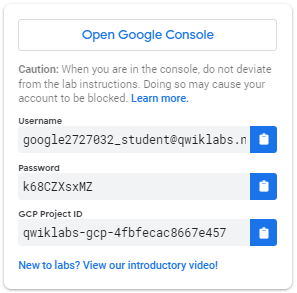
Click the Start Lab button. If you need to pay for the lab, a pop-up opens for you to select your payment method. On the left is a panel populated with the temporary credentials that you must use for this lab.
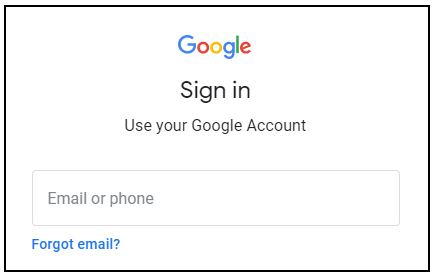
Copy the username, and then click Open Google Console. The lab spins up resources, and then opens another tab that shows the Sign in page.
Tip: Open the tabs in separate windows, side-by-side.
In the Sign in page, paste the username that you copied from the Connection Details panel. Then copy and paste the password.
Important: You must use the credentials from the Connection Details panel. Do not use your Qwiklabs credentials. If you have your own Google Cloud account, do not use it for this lab (avoids incurring charges).
Click through the subsequent pages:
After a few moments, the Cloud Console opens in this tab.
Cloud Shell is a virtual machine that is loaded with development tools. It offers a persistent 5GB home directory and runs on the Google Cloud. Cloud Shell provides command-line access to your Google Cloud resources.
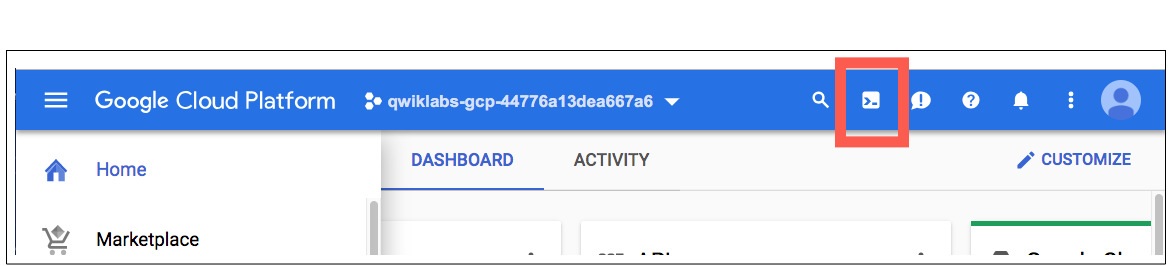
In the Cloud Console, in the top right toolbar, click the Activate Cloud Shell button.
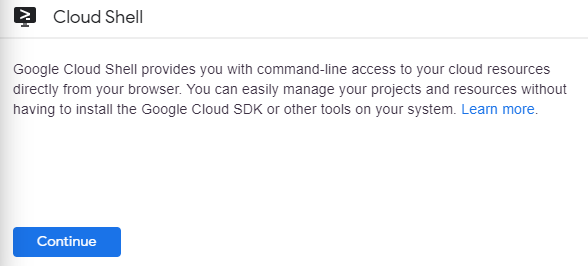
Click Continue.
It takes a few moments to provision and connect to the environment. When you are connected, you are already authenticated, and the project is set to your PROJECT_ID. For example:
gcloud is the command-line tool for Google Cloud. It comes pre-installed on Cloud Shell and supports tab-completion.
You can list the active account name with this command:
(Output)
(Example output)
You can list the project ID with this command:
(Output)
(Example output)
Storage pools act as containers for volumes. All volumes in a storage pool share the following information:
In the Google Cloud console search bar (
Click the Enable button for the NetApp API.
In the navigation pane, click Storage pools.
Click Create.
Create the storage pool using the following information:
pool1
Premium
2048
default
NetApp Volumes uses Private Service Access to communicate with your project resources. To enable this, you must first establish a connection.
Under Private services access connection required, click Set up connection.
For Allocate an IP range, select Use an automatically allocated IP range, then click Continue.
Click Create connection.
Once the connection is established, continue with the storage pool configuration.
Click Check my progress to verify that you've performed the above task.
A volume is a file system container in a storage pool that stores applications, databases, and user data.
In the navigation pane, click Volumes, then click Create.
Create the volume using the following information:
volume1
pool1
share1 and the Capacity to 100
NFSv3
Expand the Export rules section, then click Add Rule.
Create a rule using the following information:
10.128.0.0/9
Read & Write
On
Click Done.
Skip the remaining options and click Create.
Click Check my progress to verify that you've performed the above task.
In the navigation pane, click Volumes.
Open Compute Engine → VM Instances in a new browser tab and click the SSH button for vm1.
Return to the NetApp Volumes page. In the row for the volume (volume1), click the overflow menu (
Run the following commands from the Mount instructions into the SSH terminal in the following order:
sudo mount command from the Mount instructions and running it in the SSH terminal. The command includes the unique IP address of the volume. It will look like the command below:Click Check my progress to verify that you've performed the above task.
You have learned how to successfully create a volume within a storage pool and mount a NFS volume from a Linux virtual machine.
Be sure to check out the official NetApp Volumes documentation:
...helps you make the most of Google Cloud technologies. Our classes include technical skills and best practices to help you get up to speed quickly and continue your learning journey. We offer fundamental to advanced level training, with on-demand, live, and virtual options to suit your busy schedule. Certifications help you validate and prove your skill and expertise in Google Cloud technologies.
Manual last updated January 5, 2026
Manual Last tested January 5, 2026
Copyright 2024 Google LLC All rights reserved. Google and the Google logo are trademarks of Google LLC. All other company and product names may be trademarks of the respective companies with which they are associated.



このコンテンツは現在ご利用いただけません
利用可能になりましたら、メールでお知らせいたします

ありがとうございます。
利用可能になりましたら、メールでご連絡いたします


1 回に 1 つのラボ
既存のラボをすべて終了して、このラボを開始することを確認してください