Vertex AI is now Gemini Enterprise Agent Platform! We are currently updating our content to reflect this change. Please bear with us if you encounter naming inconsistencies during this transition.
Applica le tue competenze nella console Google Cloud
Checkpoint
Mount the volume
Controlla i miei progressi
/ 20
Grow the volume capacity
Controlla i miei progressi
/ 40
Shrink the volume capacity
Controlla i miei progressi
/ 40
Istruzioni e requisiti di configurazione del lab
Proteggi il tuo account e i tuoi progressi. Per eseguire questo lab, utilizza sempre una finestra del browser privata e le credenziali del lab.
Resizing a Google Cloud NetApp Volumes volume
Lab
40 minuti
universal_currency_alt
1 credito
show_chart
Introduttivi
info
Questo lab potrebbe incorporare strumenti di AI a supporto del tuo apprendimento.
Questi contenuti non sono ancora ottimizzati per i dispositivi mobili.
Per un'esperienza ottimale, visualizza il sito su un computer utilizzando un link inviato via email.
This lab was developed with our partner, NetApp. Your personal information may be shared with NetApp, the lab sponsor, if you have opted-in to receive product updates, announcements, and offers in your Account Profile.
GSP1310
Overview
Google Cloud NetApp Volumes is a fully managed data storage service that lets you move file-based applications to Google Cloud. It has support for Network File System (NFSv3 and NFSv4.1) and Server Message Block (SMB) protocols built-in, so you don't need to re-architect your applications and can continue to get persistent storage for your applications.
In this lab you will learn how to resize the Google Cloud NetApp Volumes capacity.
Objectives
In this lab you will learn how to:
Grow the Google Cloud NetApp Volumes volume capacity.
Shrink the Google Cloud NetApp Volumes volume capacity.
Understand the performance impact of the volume resize.
Read these instructions. Labs are timed and you cannot pause them. The timer, which starts when you click Start Lab, shows how long Google Cloud resources will be made available to you.
This Qwiklabs hands-on lab lets you do the lab activities yourself in a real cloud environment, not in a simulation or demo environment. It does so by giving you new, temporary credentials that you use to sign in and access Google Cloud for the duration of the lab.
What you need
To complete this lab, you need:
Access to a standard internet browser (Chrome browser recommended).
Time to complete the lab.
Note: If you already have your own personal Google Cloud account or project, do not use it for this lab.
Note: If you are using a Pixelbook, open an Incognito window to run this lab.
How to start your lab and sign in to the Google Cloud Console
Click the Start Lab button. If you need to pay for the lab, a pop-up opens for you to select your payment method.
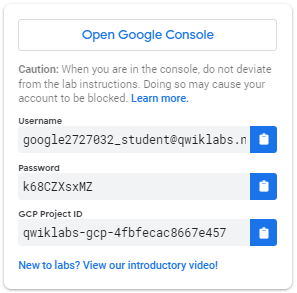
On the left is a panel populated with the temporary credentials that you must use for this lab.
Copy the username, and then click Open Google Console.
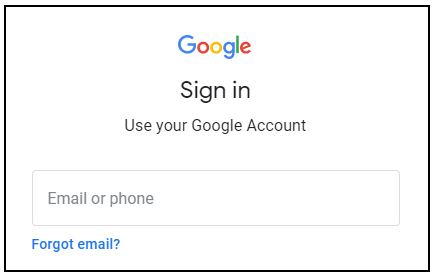
The lab spins up resources, and then opens another tab that shows the Sign in page.
Tip: Open the tabs in separate windows, side-by-side.
In the Sign in page, paste the username that you copied from the Connection Details panel. Then copy and paste the password.
Important: You must use the credentials from the Connection Details panel. Do not use your Qwiklabs credentials. If you have your own Google Cloud account, do not use it for this lab (avoids incurring charges).
Click through the subsequent pages:
Accept the terms and conditions.
Do not add recovery options or two-factor authentication (because this is a temporary account).
Do not sign up for free trials.
After a few moments, the Cloud Console opens in this tab.
Activate Cloud Shell
Cloud Shell is a virtual machine that is loaded with development tools. It offers a persistent 5GB home directory and runs on the Google Cloud. Cloud Shell provides command-line access to your Google Cloud resources.
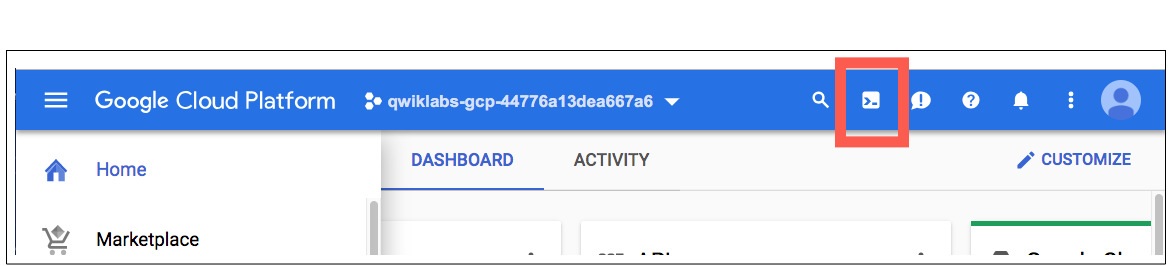
In the Cloud Console, in the top right toolbar, click the Activate Cloud Shell button.
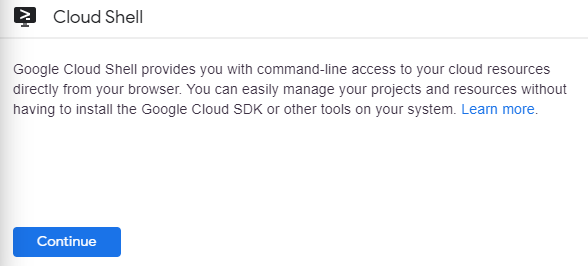
Click Continue.
It takes a few moments to provision and connect to the environment. When you are connected, you are already authenticated, and the project is set to your PROJECT_ID. For example:
gcloud is the command-line tool for Google Cloud. It comes pre-installed on Cloud Shell and supports tab-completion.
You can list the active account name with this command:
In the Google Cloud console search bar (), type NetApp Volumes and select the result to open the service.
In the navigation pane, click Volumes. A volume (volume1) has already been created for this lab.
Open Compute Engine → VM Instances in a new browser tab and click the SSH button for vm1.
Return to the NetApp Volumes page. In the row for the volume (volume1), click the overflow menu (), then select Mount Instructions.
Run the following commands from the Mount instructions into the SSH window in the following order:
Install the nfs utilities on the Linux VM:
sudo apt-get install nfs-common -y
Create a directory in the VM:
sudo mkdir /share1
Mount the volume by copying the sudo mount command from the Mount instructions and running it in the SSH terminal. The command includes the unique IP address of the volume. It will look like the command below:
sudo mount -t nfs -o rw,hard,rsize=65536,wsize=65536,vers=3,tcp <IP_ADDRESS>:/share1 /share1
Note: Please run the mount command exactly as it appears in your specific Mount instructions panel, as the IP address in this command is unique to your volume.
Verify that the volume has been mounted to your VM successfully:
df -h | grep share1
Click Check my progress to verify that you've performed the above task.
Mount the volume
Task 2. Test the performance
The NetApp Volumes Premium and Extreme service levels provide performance based on the provisioned volume capacity. The volume capacity defines the throughput limit, independent of the storage pool capacity.
Adding or removing volume capacity to or from an existing volume increases or decreases the maximum throughput limit of the volume.
To test the maximum performance of the existing 1 TiB Premium volume, run the following command in the SSH terminal:
The last line of the output shows that the maximum performance the volume can achieve is around 64 MiBps ([w=64.0MiB/s]). This is because the Premium service level provides up to 64 KiBps per GiB of provisioned volume capacity and the volume capacity is 1024 GiB.
The performance is calculated as follows:
Performance = Volume capacity x Service Level performance
Performance = 1024 GiB x 64 KiBps/GiB = 64 MiBps
To stop the performance test, press CTRL+C.
Task 3. Grow the Google Cloud NetApp Volumes capacity
Go to the NetApp Volumes page in the Google Cloud console.
In the navigation pane, click Volumes.
Click volume1, then click Edit.
Under Volume details, set the volume capacity to 2048, then click Save.
To verify that the virtual machine sees the new 2 TiB capacity without any modification or downtime, run the following command in the SSH terminal:
df -h | grep share1
To test the maximum performance of the current 2 TiB Premium volume, run the following command:
The last line of the output shows that the maximum performance the volume can achieve is around 128 MiBps ([w=128.0MiB/s]). This is because the Premium service level provides up to 64 KiBps per GiB of provisioned volume capacity and the volume capacity is 2048 GiB.
The performance is calculated as follows:
Performance = Volume capacity x Service Level performance
Performance = 2048 GiB x 64 KiBps/GiB = 128 MiBps
To stop the performance test, press CTRL+C.
Click Check my progress to verify that you've performed the above task.
Grow the volume capacity
Task 4. Shrink the Google Cloud NetApp Volumes capacity
Go to the NetApp Volumes page in the Google Cloud console.
In the navigation pane, click Volumes.
Click volume1, then click Edit.
Under Volume details, set the volume capacity to 512, then click Save.
To verify that the virtual machine sees the new 512 GiB capacity without any modification or downtime, run the following command in the SSH terminal:
df -h | grep share1
To test the maximum performance of the current 512 GiB Premium volume, run the following command:
The last line of the output shows that the maximum performance the volume can achieve is around 32 MiBps ([w=32.0MiB/s]). This is because the Premium service level provides up to 64 KiBps per GiB of provisioned volume capacity and the volume capacity is 512 GiB.
The performance is calculated as follows:
Performance = Volume capacity x Service Level performance
Performance = 512 GiB x 64 KiBps/GiB = 32 MiBps
To stop the performance test, press CTRL+C.
Click Check my progress to verify that you've performed the above task.
Shrink the volume capacity
Congratulations!
You have learned how to grow and shrink a volume without any modification or downtime, and the performance implication based in the volume capacity.
Next steps / Learn more
Be sure to check out the official NetApp Volumes documentation:
...helps you make the most of Google Cloud technologies. Our classes include technical skills and best practices to help you get up to speed quickly and continue your learning journey. We offer fundamental to advanced level training, with on-demand, live, and virtual options to suit your busy schedule. Certifications help you validate and prove your skill and expertise in Google Cloud technologies.
Manual last updated January 6, 2026
Manual Last tested January 6, 2026
Copyright 2024 Google LLC All rights reserved. Google and the Google logo are trademarks of Google LLC. All other company and product names may be trademarks of the respective companies with which they are associated.
I lab creano un progetto e risorse Google Cloud per un periodo di tempo prestabilito
I lab hanno un limite di tempo e non possono essere messi in pausa. Se termini il lab, dovrai ricominciare dall'inizio.
In alto a sinistra dello schermo, fai clic su Inizia il lab per iniziare
Utilizza la navigazione privata
Copia il nome utente e la password forniti per il lab
Fai clic su Apri console in modalità privata
Accedi alla console
Accedi utilizzando le tue credenziali del lab. L'utilizzo di altre credenziali potrebbe causare errori oppure l'addebito di costi.
Accetta i termini e salta la pagina di ripristino delle risorse
Non fare clic su Termina lab a meno che tu non abbia terminato il lab o non voglia riavviarlo, perché il tuo lavoro verrà eliminato e il progetto verrà rimosso
Questi contenuti non sono al momento disponibili
Ti invieremo una notifica via email quando sarà disponibile
Bene.
Ti contatteremo via email non appena sarà disponibile
Un lab alla volta
Conferma per terminare tutti i lab esistenti e iniziare questo
Utilizza la navigazione privata per eseguire il lab
Il modo migliore per eseguire questo lab è utilizzare una finestra del browser in incognito o privata. Ciò evita eventuali conflitti tra il tuo account personale e l'account studente, che potrebbero causare addebiti aggiuntivi sul tuo account personale.
Learn how to increase and decrease the Google Cloud NetApp Volumes volume capacity
Durata:
Configurazione in 10 m
·
Accesso da 40 m
·
Completamento in 40 m




 ), type NetApp Volumes and select the result to open the service.
 ), then select Mount Instructions.





