始める前に
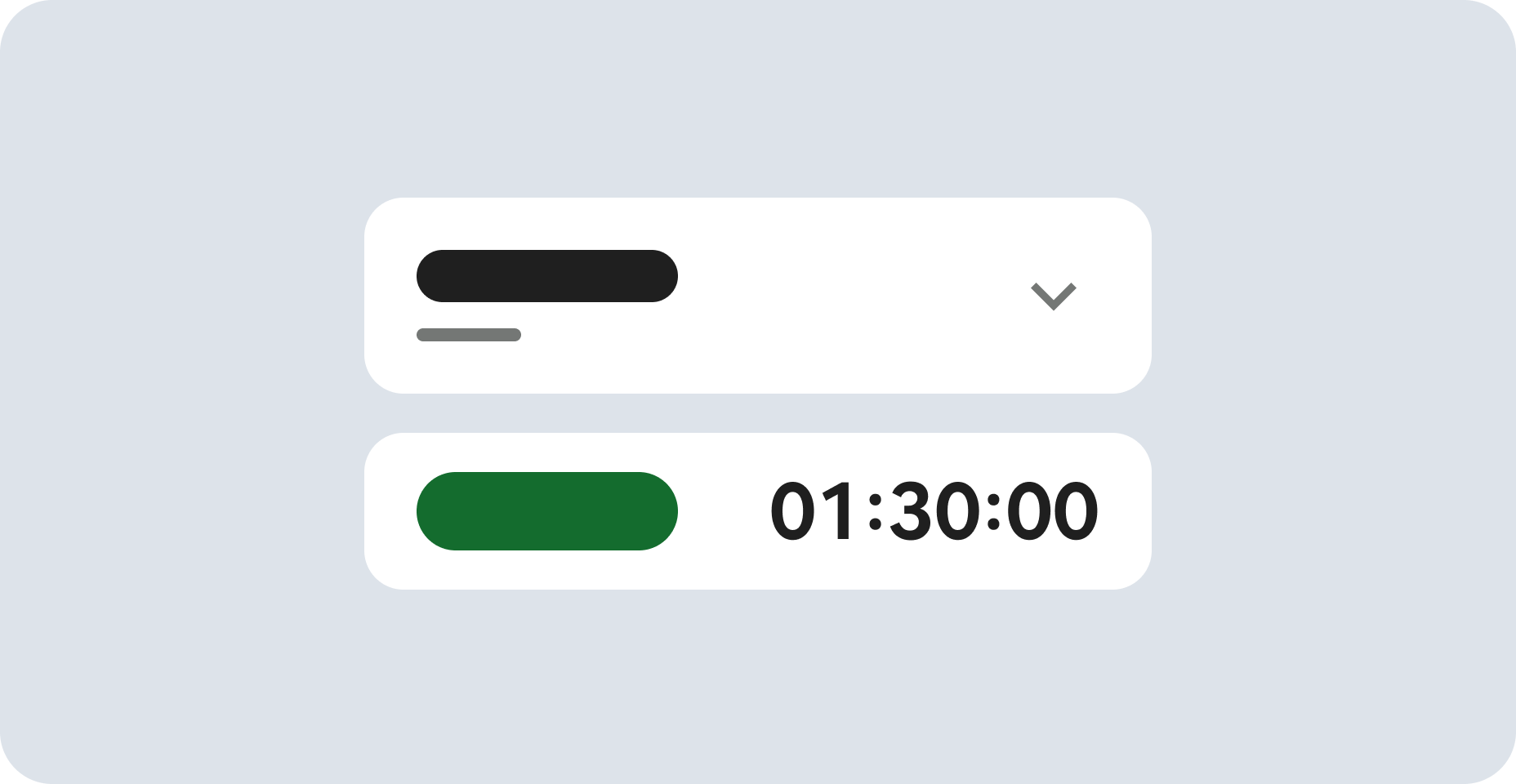
- ラボでは、Google Cloud プロジェクトとリソースを一定の時間利用します
- ラボには時間制限があり、一時停止機能はありません。ラボを終了した場合は、最初からやり直す必要があります。
- 画面左上の [ラボを開始] をクリックして開始します

Create a bucket
/ 25
Upload objects to your bucket
/ 25
Sync changes with bucket
/ 25
Copy with different storage class
/ 25
Create a bucket
/ 25
Upload objects to your bucket
/ 25
Sync changes with bucket
/ 25
Copy with different storage class
/ 25


In this lab, you use gcloud storage to create a bucket and perform operations on objects. gcloud storage is part of the Google Cloud CLI that lets you access Cloud Storage from the command line, providing unified syntax and high-performance parallel transfers. The gcloud storage tool has subcommands such as buckets create and cp to perform operations. Each command has a set of options that you can use to customize settings further.
In this lab, you learn how to perform the following tasks:
The gcloud storage buckets create command is used to create a new Google Cloud Storage bucket. The --default-storage-class flag allows you to specify the storage class for the bucket, and the multi_regional storage class is designed for data that needs to be available in multiple regions (ideal for high availability and low-latency access).
Click Check my progress to verify the objective.
endpointslambda object to your bucket:The gcloud storage cp -r command is used to copy files or directories to a Google Cloud Storage bucket.
In gcloud storage, multi-threaded and multi-processing parallel transfers are enabled automatically for high performance. The -r option allows recursion through directories.
Click Check my progress to verify the objective.
This command lists all objects (files and directories) inside a specific bucket in Google Cloud Storage, including any nested objects.
In this command, the --delete-unmatched-destination-objects flag deletes files from the target if they're missing in the source (in this case, it deletes app.yaml from the bucket). The -r option runs the command recursively across subdirectories.
Click Check my progress to verify the objective.
endpointslambda folder in your bucket, execute the following command:The above command is used to grant public read permissions to Cloud Storage buckets and objects using IAM policy bindings. This makes all objects in the bucket publicly readable.
The --member=allUsers flag grants access to any user on the internet, while --role=roles/storage.objectViewer grants read permissions for objects in the bucket.
<your-bucket-name> with the full name of your bucket, not the environment variable:This URL uses the Cloud Storage API link to view the object without authentication. Learn more about accessing public data from the Accessing public data documentation.
The gcloud storage cp command is used to copy files from one location to another, either within Cloud Storage or from a local file system to Cloud Storage and --storage-class flag specifies the storage class for the file being uploaded.
Click Check my progress to verify the objective.
The output shows that the ghcn_on_bq.ipynb object has NEARLINE storage class while the other objects have MULTI_REGIONAL storage class.
Output:
You have now learned how to perform operations on Cloud Storage buckets and objects!
For complete information about gcloud storage command-line options, see:
...helps you make the most of Google Cloud technologies. Our classes include technical skills and best practices to help you get up to speed quickly and continue your learning journey. We offer fundamental to advanced level training, with on-demand, live, and virtual options to suit your busy schedule. Certifications help you validate and prove your skill and expertise in Google Cloud technologies.
Manual Last Updated on October 16, 2026
Lab Last Tested October 16, 2026
Copyright 2026 Google LLC. All rights reserved. Google and the Google logo are trademarks of Google LLC. All other company and product names may be trademarks of the respective companies with which they are associated.


このコンテンツは現在ご利用いただけません
利用可能になりましたら、メールでお知らせいたします
ありがとうございます。
利用可能になりましたら、メールでご連絡いたします

1 回に 1 つのラボ
既存のラボをすべて終了して、このラボを開始することを確認してください