Send a text prompt to Gen AI and receive a image response
Vérifier ma progression
/ 100
Cet atelier peut intégrer des outils d'IA pour vous accompagner dans votre apprentissage.
bb-ide-genai-002

Overview
- Labs are timed and cannot be paused. The timer starts when you click Start.
- The included IDE is preconfigured with the gcloud SDK.
- Use the terminal to execute commands and then click Check my progress to verify your work.
Objective
Generative AI on Agent Platform (also known as genAI or gen AI) gives you access to Google's large generative AI models so you can test, tune, and deploy them for use in your AI-powered applications. In this lab, you will:
-
Connect to Agent Platform (Google Cloud AI platform): Learn how to establish a connection to Google's AI services using the Agent Platform SDK.
-
Use the AI Model: Discover how to use a powerful AI model without building one from scratch.
-
Send text to the AI model: Understand how to provide input for the AI to process.
-
Extract image-based answers from the AI: Learn to handle and interpret the image responses generated by the AI model.
-
Understand the basics of building AI applications: Gain insights into the core concepts of integrating AI into software projects.
Working with Generative AI
After starting the lab, you will get a split pane view consisting of the Code Editor. Follow these steps to interact with the Generative AI APIs using Agent Platform Python SDK.
-
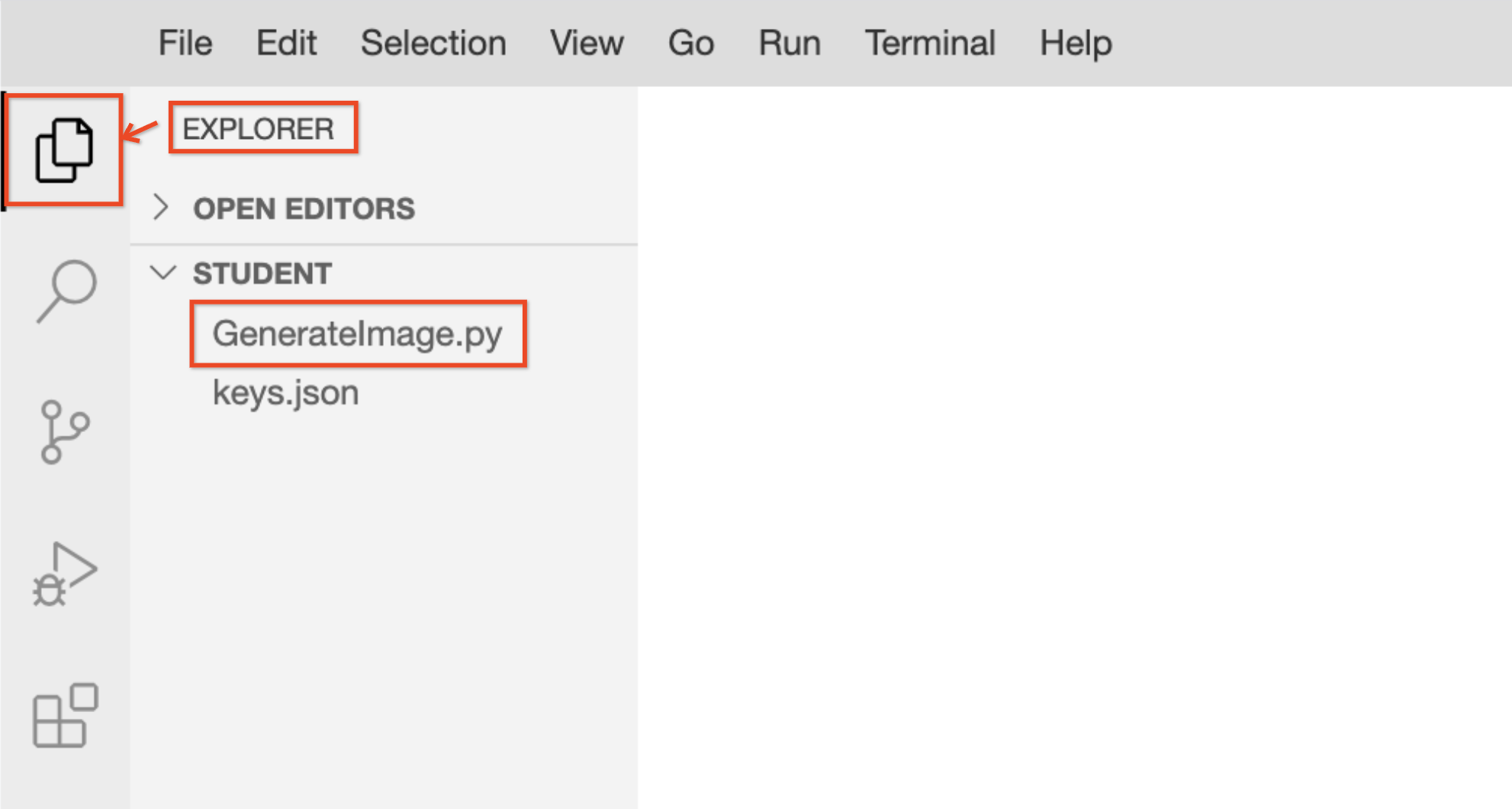
Click Explorer to access the pre-created workspace file.
-
Select GenerateImage.py to open the file in the Code Editor.
-
To initialize the Generative AI client and send a text prompt to the model to generate an image, copy and paste the following code into your file:
import time
from google import genai
from google.genai import types
from PIL import Image
from google.genai.types import HttpOptions, ModelContent, Part, UserContent
from google.cloud import logging as gcp_logging
from google.genai.errors import ClientError
# ------ Below cloud logging code is for Qwiklab's internal use, do not edit/remove it. --------
# Initialize Google Cloud logging
gcp_logging_client = gcp_logging.Client()
gcp_logging_client.setup_logging()
client = genai.Client(
enterprise=True,
project='{{{ project_0.project_id | "project-id" }}}',
location='{{{ project_0.default_region | "REGION" }}}',
http_options=HttpOptions(api_version="v1")
)
prompt = (
"Create an image of a cricket ground in the heart of Los Angeles",
)
# Configuration for retry logic
MAX_RETRIES = 3
INITIAL_DELAY = 2
for attempt in range(MAX_RETRIES + 1):
try:
response = client.models.generate_content(
model="{{{project_0.startup_script.gemini_flash_image_model_id | flash-image-model-id}}}",
contents=[prompt],
)
# Original processing logic
for part in response.parts:
if part.text is not None:
print(part.text)
elif part.inline_data is not None:
image = part.as_image()
image.save("image.png")
print("Status: Image saved as image.png")
# --- Success Block ---
print("Success: Content generation and processing completed successfully.")
break
except ClientError as e:
if "429" in str(e) or "RESOURCE_EXHAUSTED" in str(e):
if attempt < MAX_RETRIES:
delay = INITIAL_DELAY * (2 ** attempt)
print(f"Warning: Resource exhausted (429). Retrying in {delay} seconds... (Attempt {attempt + 1}/{MAX_RETRIES})")
time.sleep(delay)
else:
print("I am currently experiencing high demand due to quota exhaustion. Please wait for a while and try again.")
finally:
# Verify if the process concluded without a response object being created
if 'response' not in locals() and attempt == MAX_RETRIES:
print("Final Status: Process terminated unsuccessfully.")
-
Click File > Save to store your script.
-
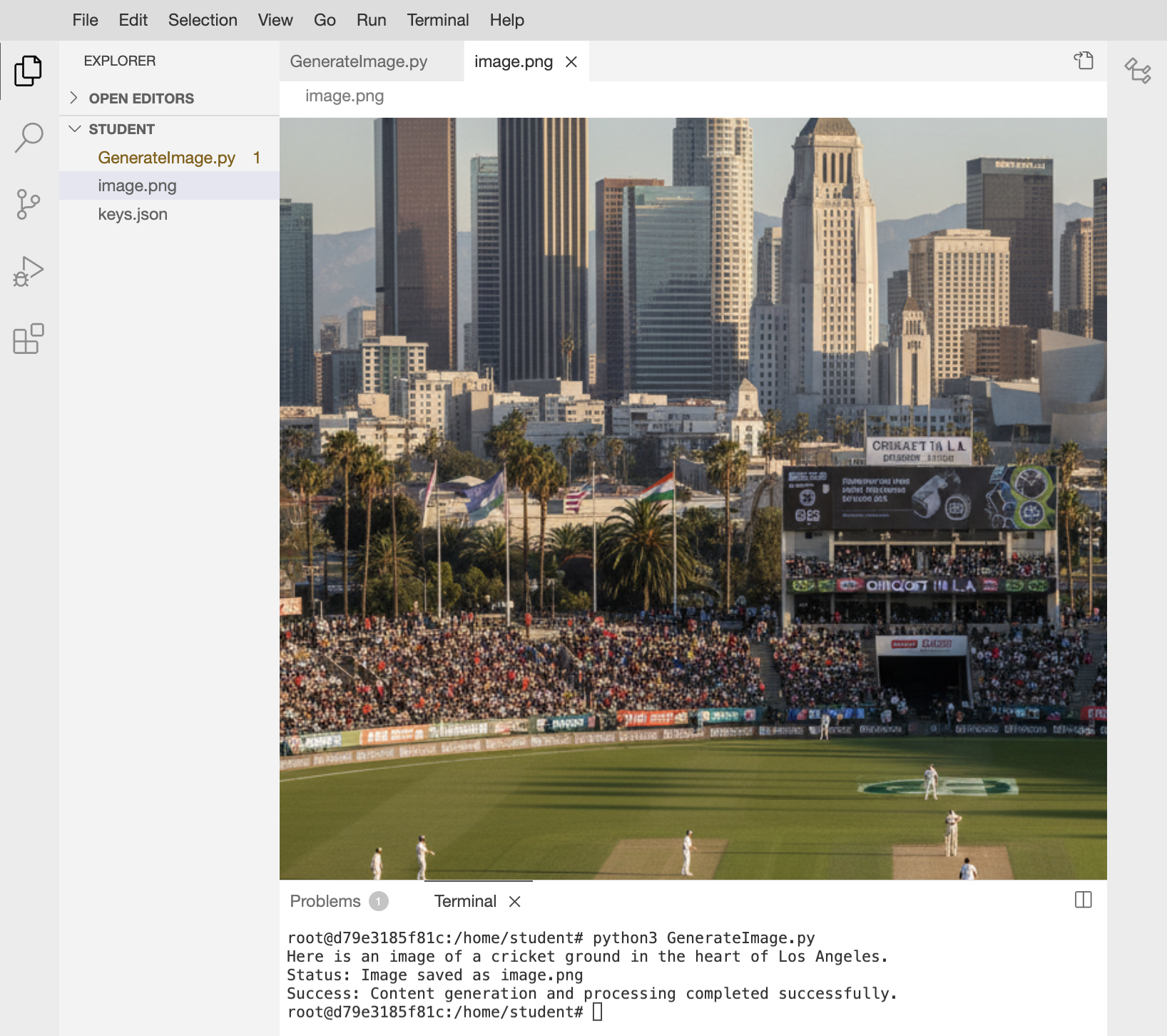
To send the prompt to the model and generate an image file named image.png, click the triangle icon or run the following command in the terminal:
python3 GenerateImage.py
Expected output:

-
In the Explorer, click image.png to view the generated image output.
Code Explanation
- The code snippet is loading an AI model () on Agent Platform.
- The code calls the
generate_content method of the loaded Gemini model.
- The input to the method is a text prompt.
- The code uses Gemini's ability to understand the text prompt and use it to build an AI Image.
Note: By default, a SynthID watermark is added to images, but you can disable it by specifying the optional parameter add_watermark=False. You can't use a seed value and watermark at the same time. Learn more about SynthID watermark
Try it yourself! Experiment with different prompts to explore Gemini's capabilities.
Click Check my progress to verify the objective.
Send a text prompt to Gen AI and receive an image response
Congratulations!
You have completed the lab! Congratulations!!
Manual Last Updated May 18, 2026
Lab Last Tested May 12, 2026
Copyright 2026 Google LLC. All rights reserved. Google and the Google logo are trademarks of Google LLC. All other company and product names may be trademarks of the respective companies with which they are associated.







