Konten ini belum dioptimalkan untuk perangkat seluler.
Untuk pengalaman terbaik, kunjungi kami dengan komputer desktop menggunakan link yang dikirim melalui email.
GSP1242
Overview
Cloud Service Mesh is based on the open source Istio technology. A distributed service is a Kubernetes Service that acts as a single logical service. These services are more resilient than Kubernetes services because they operate on multiple Kubernetes clusters in the same namespace. A distributed service remains operational even if one or more GKE clusters are down, as long as the healthy clusters serve the expected load.
GKE private clusters allow you to configure the nodes and API server as private resources available only on the Virtual Private Cloud (VPC) network. Running distributed services in GKE private clusters gives enterprises secure and reliable services.
This lab teaches you how to run distributed services on multiple Google Kubernetes Engine (GKE) clusters in Google Cloud. In addition, you learn how to expose a distributed service using Multi Cluster Ingress and Cloud Service Mesh.
Objectives
In this lab, you learn how to perform the following tasks:
Create three GKE clusters.
Configure two of the GKE clusters as private clusters.
Configure one GKE cluster (gke-ingress) as the central configuration cluster.
Configure networking (NAT Gateways, Cloud Router, and firewall rules) to allow inter-cluster and egress traffic from the two private GKE clusters.
Configure authorized networks to allow API service access from Cloud Shell to the two private GKE clusters.
Deploy and configure multi-cluster Cloud Service Mesh to the two private clusters in multi-primary mode.
Deploy the Cymbal Bank application on the two private clusters.
Scenario
In this lab, you explore how to deploy the Cymbal Bank sample application on two GKE private clusters. Cymbal Bank is a sample microservices application that consists of multiple microservices and SQL databases that simulate an online banking app. The application consists of a web frontend that clients can access, and several backend services such as balance, ledger, and account services that simulate a bank.
The application includes two PostgreSQL databases that are installed in Kubernetes as StatefulSets. One database is used for transactions, while the other database is used for user accounts. All services except the two databases run as distributed services. This means that Pods for all services run in both application clusters (in the same namespace), and Cloud Service Mesh is configured so that each service appears as a single logical service.
Setup and requirements
Before you click the Start Lab button
Read these instructions. Labs are timed and you cannot pause them. The timer, which starts when you click Start Lab, shows how long Google Cloud resources are made available to you.
This hands-on lab lets you do the lab activities in a real cloud environment, not in a simulation or demo environment. It does so by giving you new, temporary credentials you use to sign in and access Google Cloud for the duration of the lab.
To complete this lab, you need:
Access to a standard internet browser (Chrome browser recommended).
Note: Use an Incognito (recommended) or private browser window to run this lab. This prevents conflicts between your personal account and the student account, which may cause extra charges incurred to your personal account.
Time to complete the lab—remember, once you start, you cannot pause a lab.
Note: Use only the student account for this lab. If you use a different Google Cloud account, you may incur charges to that account.
How to start your lab and sign in to the Google Cloud Console
Click the Start Lab button. If you need to pay for the lab, a pop-up opens for you to select your payment method.
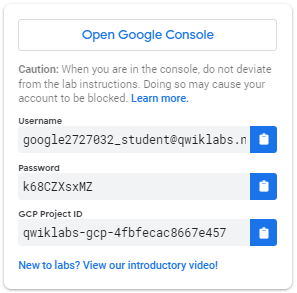
On the left is a panel populated with the temporary credentials that you must use for this lab.
Copy the username, and then click Open Google Console.
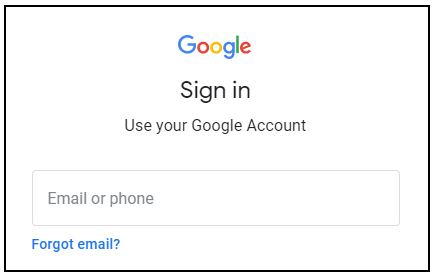
The lab spins up resources, and then opens another tab that shows the Sign in page.
Tip: Open the tabs in separate windows, side-by-side.
In the Sign in page, paste the username that you copied from the Connection Details panel. Then copy and paste the password.
Important: You must use the credentials from the Connection Details panel. Do not use your Qwiklabs credentials. If you have your own Google Cloud account, do not use it for this lab (avoids incurring charges).
Click through the subsequent pages:
Accept the terms and conditions.
Do not add recovery options or two-factor authentication (because this is a temporary account).
Do not sign up for free trials.
After a few moments, the Cloud Console opens in this tab.
Activate Cloud Shell
Cloud Shell is a virtual machine that is loaded with development tools. It offers a persistent 5GB home directory and runs on the Google Cloud. Cloud Shell provides command-line access to your Google Cloud resources.
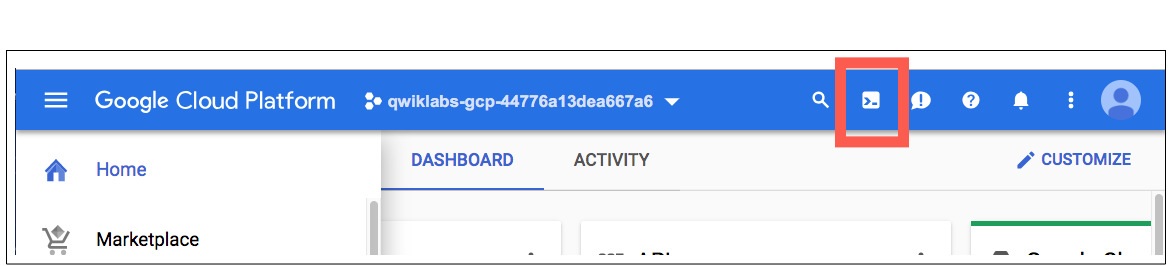
In the Cloud Console, in the top right toolbar, click the Activate Cloud Shell button.
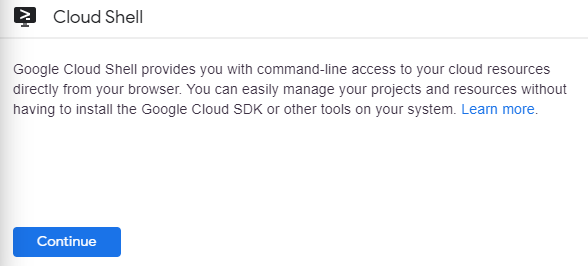
Click Continue.
It takes a few moments to provision and connect to the environment. When you are connected, you are already authenticated, and the project is set to your PROJECT_ID. For example:
gcloud is the command-line tool for Google Cloud. It comes pre-installed on Cloud Shell and supports tab-completion.
You can list the active account name with this command:
Pod-to-Pod communication allows the distributed services to communicate with each other across GKE clusters. Pod-to-API server communication lets the Cloud Service Mesh control plane query GKE clusters for service discovery.
Retrieve the updated Cloud Shell and lab-setup VM public IP address using the following command:
In this section, you create two private clusters that have authorized networks. Configure the clusters to allow access from the Pod IP CIDR range (for the Cloud Service Mesh control plane) from Cloud Shell, so that you can access the clusters from your terminal.
Create the first GKE cluster (with the --async flag to avoid waiting for the first cluster to provision) with authorized networks using the following command:
Note: The Cloud Shell IP address is also part of the authorized networks, which allows you to access and manage clusters from your Cloud Shell terminal.
Cloud Shell public-facing IP addresses are dynamic, so each time you start Cloud Shell, you might get a different public IP address. When you get a new IP address, you lose access to the clusters, as the new IP address isn't part of the authorized networks for the two clusters.
You need to perform the following steps every time you start a new Cloud Shell session during this lab.
If you lose access to the clusters, update the clusters' authorized networks to include the new Cloud Shell IP address:
Set the environment variables using the following commands:
This command automatically exits and returns to the command prompt once REVISION_READY is detected in the output.
Note: It can take up to 10 minutes to install Cloud Service Mesh on both clusters.
Verify the status by running the following command:
gcloud container fleet mesh describe
Install Cloud Service Mesh ingress gateways for both clusters using the following commands:
kubectl --context=cluster1 create namespace asm-ingress
kubectl --context=cluster1 label namespace asm-ingress istio-injection=enabled --overwrite
kubectl --context=cluster2 create namespace asm-ingress
kubectl --context=cluster2 label namespace asm-ingress istio-injection=enabled --overwrite
cat <<'EOF' > asm-ingress.yaml
apiVersion: v1
kind: Service
metadata:
name: asm-ingressgateway
namespace: asm-ingress
spec:
type: LoadBalancer
selector:
asm: ingressgateway
ports:
- port: 80
name: http
- port: 443
name: https
---
apiVersion: apps/v1
kind: Deployment
metadata:
name: asm-ingressgateway
namespace: asm-ingress
spec:
selector:
matchLabels:
asm: ingressgateway
template:
metadata:
annotations:
# This is required to tell GKE Service Mesh to inject the gateway with the
# required configuration.
inject.istio.io/templates: gateway
labels:
asm: ingressgateway
spec:
containers:
- name: istio-proxy
image: auto # The image will automatically update each time the pod starts.
---
apiVersion: rbac.authorization.k8s.io/v1
kind: Role
metadata:
name: asm-ingressgateway-sds
namespace: asm-ingress
rules:
- apiGroups: [""]
resources: ["secrets"]
verbs: ["get", "watch", "list"]
---
apiVersion: rbac.authorization.k8s.io/v1
kind: RoleBinding
metadata:
name: asm-ingressgateway-sds
namespace: asm-ingress
roleRef:
apiGroup: rbac.authorization.k8s.io
kind: Role
name: asm-ingressgateway-sds
subjects:
- kind: ServiceAccount
name: default
EOF
kubectl --context=cluster1 apply -f asm-ingress.yaml
kubectl --context=cluster2 apply -f asm-ingress.yaml
Verify that the Cloud Service Mesh ingress gateways are deployed using the following commands:
kubectl --context=cluster1 get pod,service -n asm-ingress
kubectl --context=cluster2 get pod,service -n asm-ingress
The output for both clusters should look as follows.
Output:
NAME READY STATUS RESTARTS AGE
pod/asm-ingressgateway-5894744dbd-zxlgc 1/1 Running 0 84s
NAME TYPE CLUSTER-IP EXTERNAL-IP PORT(S) AGE
service/asm-ingressgateway LoadBalancer 10.16.2.131 34.102.100.138 80:30432/TCP,443:30537/TCP 92s
Note: The ingress gateway pods may not immediately display a READY status of 1/1. It can take around 15–20 minutes for full initialization. Please wait and proceed only once all pods in both clusters show READY 1/1.
Install Cloud Service Mesh
After the Cloud Service Mesh control plane and ingress gateways are installed for both clusters, cross-cluster service discovery is enabled with the fleet API. Cross-cluster service discovery allows the two clusters to discover service endpoints from the remote cluster. Distributed services run on multiple clusters in the same namespace.
The clusters and Cloud Service Mesh are now configured.
Task 4. Deploy the Cymbal Bank application
Now, it's time to deploy the application and access Cymbal Bank.
Clone the Cymbal Bank GitHub repository (called "Bank of Anthos" in the repository) using the following command:
Create and label a bank-of-anthos namespace in both clusters using the following commands. The label allows automatic injection of the sidecar Envoy proxies in every pod within the labeled namespace:
The Kubernetes services need to be in both clusters for service discovery. When a service in one of the clusters tries to make a request, it first performs a DNS lookup for the hostname to get the IP address. In GKE, the kube-dns server running in the cluster handles this lookup, so a configured service definition is required.
Delete the StatefulSets from one cluster so that the two PostgreSQL databases exist in only one of the clusters using the following commands:
This command creates a Gateway in the asm-ingress namespace and VirtualService in the bank-of-anthos namespaces for the frontend service, which allows you to ingress traffic to the frontend service.
Gateways are generally owned by the platform admins or the network admins team. Therefore, this Gateway resource is created in the Ingress Gateway namespace owned by the platform admin and could be used in other namespaces via their own VirtualService entries. This is known as a Shared Gateway model.
Access Cymbal Bank
To access the Cymbal Bank application, use the asm-ingressgateway service public IP address from either cluster.
Retrieve the asm-ingressgateway IP addresses from both clusters using the following commands:
Open a new web browser tab and go to either IP address from the previous output. The Cymbal Bank frontend should be displayed.
If you were to log in, deposit funds to your account, or transfer funds to other accounts, this would be the page where you'd action it.
The application should now be fully functional.
Click Check my progress to verify the objective.
Deploy the Cymbal Bank application
Task 5. Visualize distributed services
Now, discover how you can visualize the requests from the clusters within both regions.
To view your services, from the console, go to Kubernetes Engine, and select Service Mesh.
You can view services in List view or in a Topology view.
The List view shows all of your distributed services running in a tabular format.
The Topology view allows you to explore a service topology graph visualization showing your mesh's services and their relationships.
In the List view, click the frontend distributed service. When you click an individual service, a detailed view of the service along with connected services is displayed. In the service details view, you can create SLOs and view a historical timeline of the service by clicking Show Timeline.
To view golden signals, go to Metrics in the left-hand navigation menu.
In the Traffic chart, click Breakdown By, and then select Cluster.
The results display the requests per second from both clusters in the two regions. The distributed service is healthy and both endpoints are serving traffic.
To view the topology of your Cloud Service Mesh, go to Kubernetes Engine in the left-hand navigation menu, and select Service Mesh.
To view additional data, hover your mouse pointer over the frontend service in Topology View. This displays information like requests per second to and from the frontend to other services.
To view more details, click Expand on the frontend service. A Service and a Workload are displayed. You can further expand workload into two Deployments:
Expand the deployments into ReplicaSets.
Expand the ReplicaSets into Pods.
When you expand all elements of the frontend service in Topology View, the distributed frontend service is listed, which is essentially a Service and two Pods—as indicated by the Legend.
Congratulations!
You have successfully run distributed services on multiple GKE clusters in Google Cloud and observed the services using Cloud Service Mesh.
Copyright 2026 Google LLC All rights reserved. Google and the Google logo are trademarks of Google LLC. All other company and product names may be trademarks of the respective companies with which they are associated.
Lab membuat project dan resource Google Cloud untuk jangka waktu tertentu
Lab memiliki batas waktu dan tidak memiliki fitur jeda. Jika lab diakhiri, Anda harus memulainya lagi dari awal.
Di kiri atas layar, klik Start lab untuk memulai
Gunakan penjelajahan rahasia
Salin Nama Pengguna dan Sandi yang diberikan untuk lab tersebut
Klik Open console dalam mode pribadi
Login ke Konsol
Login menggunakan kredensial lab Anda. Menggunakan kredensial lain mungkin menyebabkan error atau dikenai biaya.
Setujui persyaratan, dan lewati halaman resource pemulihan
Jangan klik End lab kecuali jika Anda sudah menyelesaikan lab atau ingin mengulanginya, karena tindakan ini akan menghapus pekerjaan Anda dan menghapus project
Konten ini tidak tersedia untuk saat ini
Kami akan memberi tahu Anda melalui email saat konten tersedia
Bagus!
Kami akan menghubungi Anda melalui email saat konten tersedia
Satu lab dalam satu waktu
Konfirmasi untuk mengakhiri semua lab yang ada dan memulai lab ini
Gunakan penjelajahan rahasia untuk menjalankan lab
Menggunakan jendela Samaran atau browser pribadi adalah cara terbaik untuk menjalankan lab ini. Langkah ini akan mencegah konflik antara akun pribadi Anda dan akun Siswa, yang dapat menyebabkan tagihan ekstra pada akun pribadi Anda.
Learn how to run distributed services on multiple Google Kubernetes Engine (GKE) clusters in Google Cloud using Multi Cluster Ingress and Cloud Service Mesh.