Overview
In this lab you will create a compute engine VM and configure Ops Agent. You will generate traffic and view metrics on the predefined Apache dashboard.
Objectives
In this lab, you learn how to perform the following tasks:
- Create a Compute Engine VM instance.
- Install an Apache Web Server.
- Configure the Ops Agent for the Apache Web Server.
- Generate traffic and view metrics on the predefined Apache dashboard.
Setup and requirements
For each lab, you get a new Google Cloud project and set of resources for a fixed time at no cost.
-
Click the Start Lab button. If you need to pay for the lab, a pop-up opens for you to select your payment method.
On the left is the Lab Details panel with the following:
- The Open Google Cloud console button
- Time remaining
- The temporary credentials that you must use for this lab
- Other information, if needed, to step through this lab
-
Click Open Google Cloud console (or right-click and select Open Link in Incognito Window if you are running the Chrome browser).
The lab spins up resources, and then opens another tab that shows the Sign in page.
Tip: Arrange the tabs in separate windows, side-by-side.
Note: If you see the Choose an account dialog, click Use Another Account.
-
If necessary, copy the Username below and paste it into the Sign in dialog.
{{{user_0.username | "Username"}}}
You can also find the Username in the Lab Details panel.
-
Click Next.
-
Copy the Password below and paste it into the Welcome dialog.
{{{user_0.password | "Password"}}}
You can also find the Password in the Lab Details panel.
-
Click Next.
Important: You must use the credentials the lab provides you. Do not use your Google Cloud account credentials.
Note: Using your own Google Cloud account for this lab may incur extra charges.
-
Click through the subsequent pages:
- Accept the terms and conditions.
- Do not add recovery options or two-factor authentication (because this is a temporary account).
- Do not sign up for free trials.
After a few moments, the Google Cloud console opens in this tab.
Note: To view a menu with a list of Google Cloud products and services, click the Navigation menu at the top-left, or type the service or product name in the Search field.

Task 1. Create a Compute Engine VM instance
In this task, you create a Compute Engine VM instance, and then configure its machine type, boot disk, and firewall rules to allow HTTP and HTTPS traffic,
-
In the Google Cloud console, in the Navigation menu ( ) click Compute Engine > VM instances.
-
To create a VM instance, click Create instance.
Fill in the fields for your instance as follows:
-
Click Machine configuration, and then specify the following values:
| Field |
Value |
| Name |
quickstart-vm |
| Region |
|
| Zone |
|
| Series |
E2 |
| Machine Type |
e2-small |
-
Click OS and storage
-
Boot disk image: Debian GNU/Linux 12 (bookworm)
-
Click Networking
- In the Firewall field, select both Allow HTTP traffic and Allow HTTPS traffic.
-
Click Observability
-
Ops Agent (Recommended): Verify that Ops Agent install is selected.
Leave the rest of the fields at their default values.
- Click Create. When your VM is ready, it appears in the list of instances in the Instances tab.
Click Check my progress to verify the objective.
Create a Compute Engine VM instance
Task 2. Install an Apache Web Server
In this task, you deploy an Apache Web Server on your Compute Engine VM instance.
-
To open a terminal to your instance, in the Connect column, click SSH. If prompted, click Authorize.
-
To update the package lists on your instance, run the following command:
sudo apt-get update
- To install an Apache2 HTTP Server, run the following command:
sudo apt-get install apache2 php7.0
Note: If the previous command fails, then use sudo apt-get install apache2 php. If asked to continue the installation, enter Y.
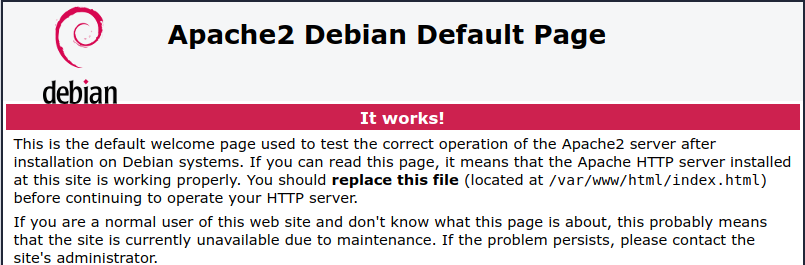
- Open your browser and connect to your Apache2 HTTP server by using the URL
http://EXTERNAL_IP, where EXTERNAL_IP is the external IP address of your VM. You can find this address in the External IP column of your VM instance.
Note: If prompted, click Continue to site.
Click Check my progress to verify the objective.
Install an Apache Web Server
Task 3. Configure the Ops Agent
In this task, you configure the Ops Agent on your VM instance to collect logs and metrics from the Apache Web Server.
-
To open a terminal to your VM instance, in the Connect column, click SSH.
-
To configure the Ops Agent, copy the following command, then paste it into the terminal:
# Configures Ops Agent to collect telemetry from the app and restart Ops Agent.
set -e
# Create a back up of the existing file so existing configurations are not lost.
sudo cp /etc/google-cloud-ops-agent/config.yaml /etc/google-cloud-ops-agent/config.yaml.bak
# Configure the Ops Agent.
sudo tee /etc/google-cloud-ops-agent/config.yaml > /dev/null << EOF
metrics:
receivers:
apache:
type: apache
service:
pipelines:
apache:
receivers:
- apache
logging:
receivers:
apache_access:
type: apache_access
apache_error:
type: apache_error
service:
pipelines:
apache:
receivers:
- apache_access
- apache_error
EOF
sudo service google-cloud-ops-agent restart
sleep 60
The previous command creates the configuration to collect and ingest logs and metrics from the Apache Web Server. For more information about ingesting logs from the Apache Web Server, see Configure the Ops Agent for Apache Web Server.
Click Check my progress to verify the objective.
Configure the Ops Agent
Task 4. Generate traffic and view metrics
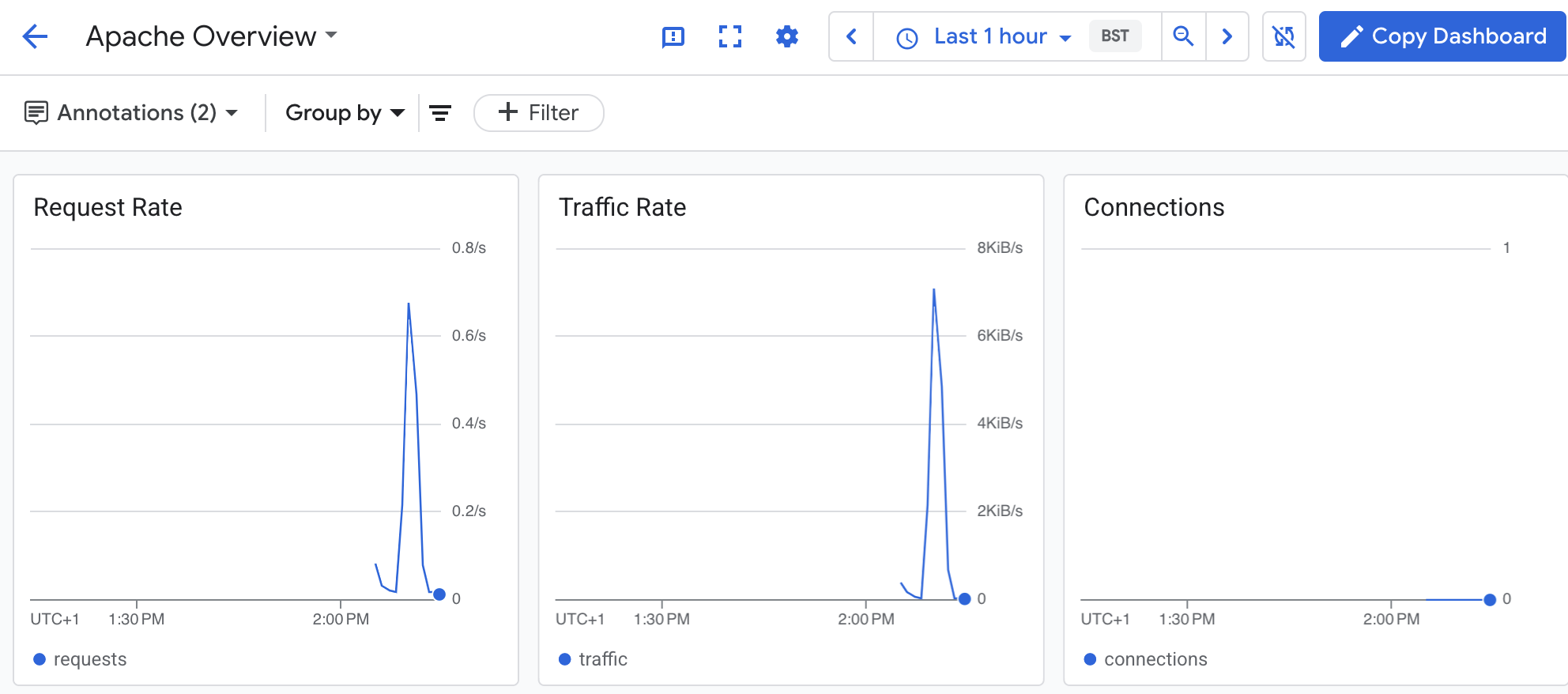
In this task, you generate metrics on your Apache Web Server and view metric data on the automatically created Apache Overview dashboard.
To generate metrics on your Apache Web Server, do the following:
-
In the Google Cloud console, in the Navigation menu () click Compute Engine > VM instances.
-
In the Connect column, click SSH to open a terminal to your VM instance. If prompted, click Authorize.
-
To generate traffic on your Apache Web Server, run the following command:
timeout 120 bash -c -- 'while true; do curl localhost; sleep $((RANDOM % 4)) ; done'
The previous command generates traffic by making a request to the Apache Web Server every four seconds.
To view the Apache Overview dashboard, do the following:
-
In the Google Cloud console, in the Navigation menu () click Monitoring > Dashboards.
-
In All Dashboards, select the Apache Overview dashboard. The dashboard opens.
In the dashboard, there are several charts that contain information about your Apache and Compute Engine integration:
Click Check my progress to verify the objective.
Generate traffic and view metrics
Task 5. Review
In this lab, you learned how to configure Ops Agent on a VM and viewed metrics on the predefined Apache dashboard.
End your lab
When you have completed your lab, click End Lab. Google Skills removes the resources you’ve used and cleans the account for you.
You will be given an opportunity to rate the lab experience. Select the applicable number of stars, type a comment, and then click Submit.
The number of stars indicates the following:
- 1 star = Very dissatisfied
- 2 stars = Dissatisfied
- 3 stars = Neutral
- 4 stars = Satisfied
- 5 stars = Very satisfied
You can close the dialog box if you don't want to provide feedback.
For feedback, suggestions, or corrections, please use the Support tab.
Copyright 2025 Google LLC All rights reserved. Google and the Google logo are trademarks of Google LLC. All other company and product names may be trademarks of the respective companies with which they are associated.








