ARC112

Overview
In a challenge lab you’re given a scenario and a set of tasks. Instead of following step-by-step instructions, you will use the skills learned from the labs in the course to figure out how to complete the tasks on your own! An automated scoring system (shown on this page) will provide feedback on whether you have completed your tasks correctly.
When you take a challenge lab, you will not be taught new Google Cloud concepts. You are expected to extend your learned skills, like changing default values and reading and researching error messages to fix your own mistakes.
To score 100% you must successfully complete all tasks within the time period!
Setup and requirements
Before you click the Start Lab button
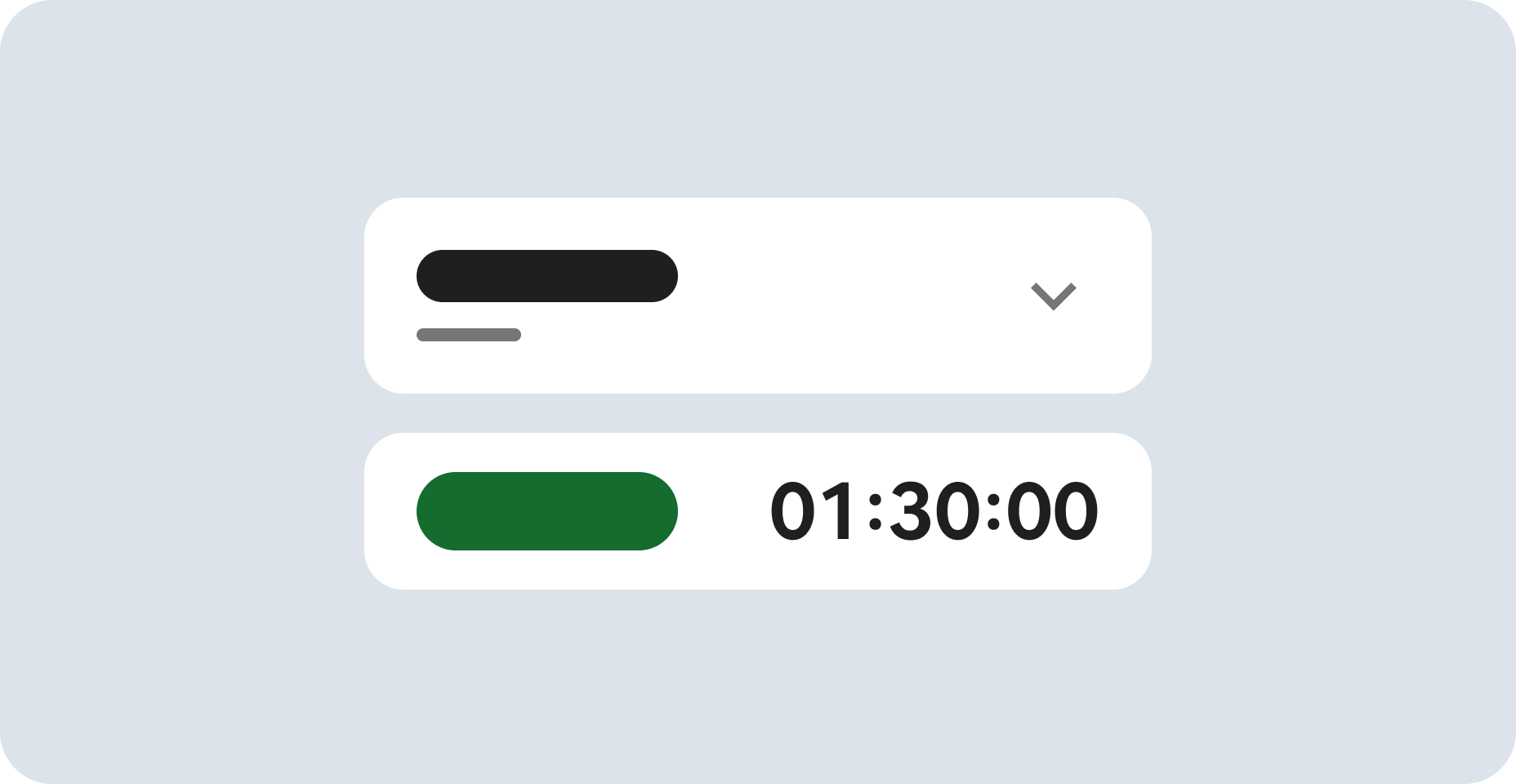
Read these instructions. Labs are timed and you cannot pause them. The timer, which starts when you click Start Lab, shows how long Google Cloud resources are made available to you.
This hands-on lab lets you do the lab activities in a real cloud environment, not in a simulation or demo environment. It does so by giving you new, temporary credentials you use to sign in and access Google Cloud for the duration of the lab.
To complete this lab, you need:
- Access to a standard internet browser (Chrome browser recommended).
Note: Use an Incognito (recommended) or private browser window to run this lab. This prevents conflicts between your personal account and the student account, which may cause extra charges incurred to your personal account.
- Time to complete the lab—remember, once you start, you cannot pause a lab.
Note: Use only the student account for this lab. If you use a different Google Cloud account, you may incur charges to that account.
Challenge scenario
You're a junior cloud engineer who is just starting out in your career. So far you have been helping teams create and manage Google Cloud resources.
You are expected to have the skills and knowledge for these tasks.
Your challenge
For this challenge, you are asked to use Google App Engine to deploy a basic web application in your choice of language (either Python, PHP, or Golang/Go).
You need to:
- Initialize Google App Engine in the specified region
- Download a sample application in Cloud Shell
- Deploy the application
- Update the code and redeploy the application
Each task is described in detail below, good luck!
Task 1. Initialize App Engine and download the Hello World app
- In the Google Cloud Console, click Activate Cloud Shell (
 ) at the top of the Google Cloud console.
Note: Run all subsequent commands in this lab inside Cloud Shell.
- Initialize your App Engine application in the region:
gcloud app create --region={{{primary_project.startup_script.app_gcp_region | Region}}}
-
Download a simple Hello World app by running git clone <Repository_URL> according to your choice of language in Cloud Shell at your $HOME directory (~/):
-
Navigate to the directory containing the helloworld sample code.
Click Check my progress to verify the objective.
Initialize App Engine and download the Hello World app
Task 2. Deploy your application
For this task, you need to deploy the helloworld app to Google App Engine in the region.
- Navigate from the root directory to where your application's
app.yaml file is located.
Note:
- Deploy the application to App Engine:
gcloud app deploy --quiet
View your application
- To launch and view the application in your browser, enter the following command:
gcloud app browse
- Click on the link that is provided. Your application is deployed and you can read the default message in your browser.
Click Check my progress to verify the objective.
Deploy the application
Task 3. Deploy updates to your application
-
Update your application code (main.py, index.php, or helloworld.go) to change the default greeting message to .
-
Redeploy your application to Google App Engine:
gcloud app deploy --quiet
Click Check my progress to verify the objective.
Deploy updates to your application
Congratulations!
You have successfully deployed a basic Hello World web application to Google App Engine.
Google Cloud training and certification
...helps you make the most of Google Cloud technologies. Our classes include technical skills and best practices to help you get up to speed quickly and continue your learning journey. We offer fundamental to advanced level training, with on-demand, live, and virtual options to suit your busy schedule. Certifications help you validate and prove your skill and expertise in Google Cloud technologies.
Manual Last Updated September 29, 2026
Lab Last Tested September 29, 2026
Copyright 2026 Google LLC. All rights reserved. Google and the Google logo are trademarks of Google LLC. All other company and product names may be trademarks of the respective companies with which they are associated.